
Introduction
This manual provides detailed instructions for the setup, operation, and maintenance of your XTREME Universal Replacement Remote Control for Samsung Smart TVs. This remote is designed to be compatible with various Samsung Smart TV models, including 4K, QLED, OLED, and Crystal UHD series. Please read this manual thoroughly to ensure proper use and to maximize your remote control's functionality.
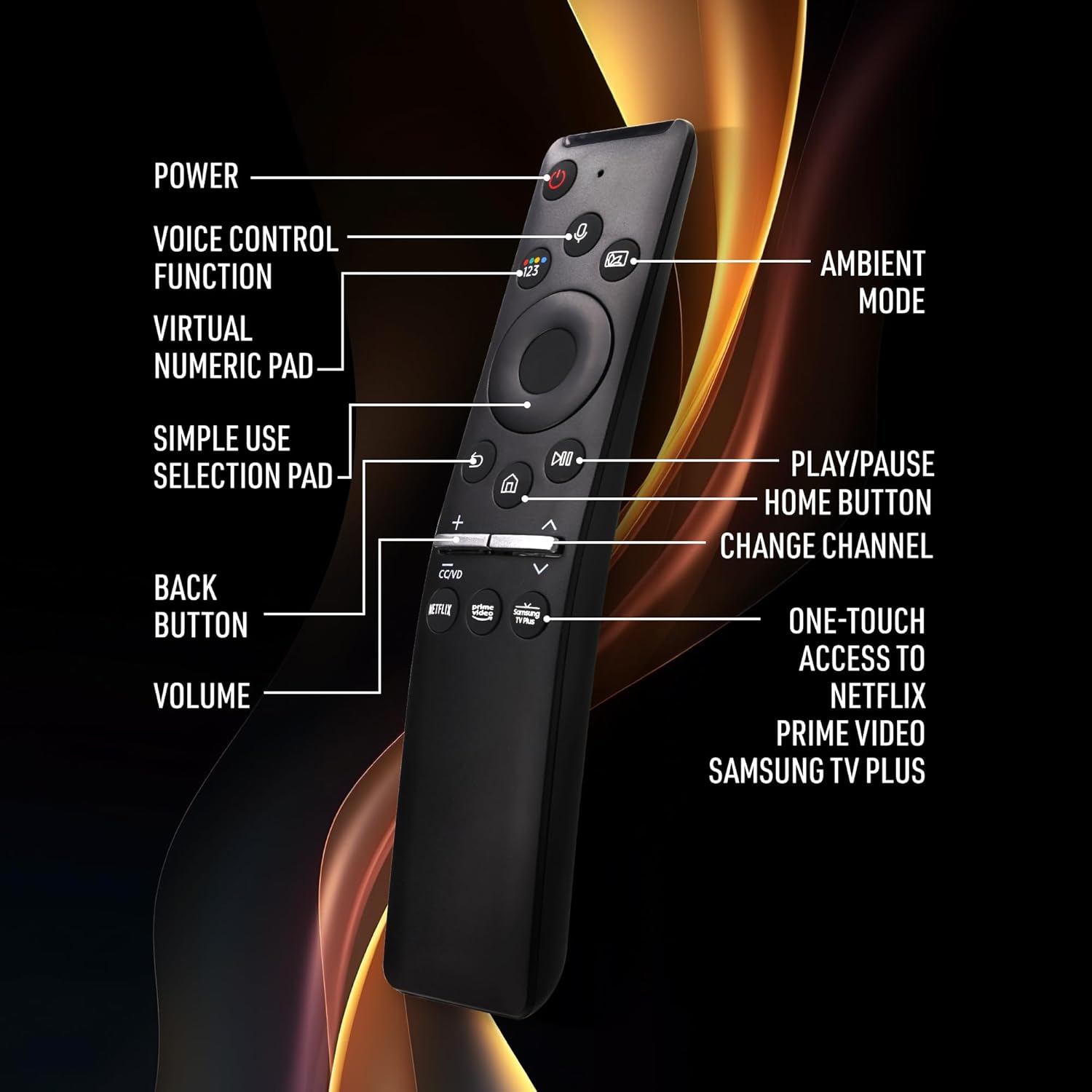
Image: The XTREME Universal Replacement Remote Control, a sleek black remote with various buttons.
Product Features
- Wide Compatibility: Effortlessly controls 4K, QLED, OLED, and Crystal UHD Samsung TVs. No programming required; simply insert batteries.
- Voice Control: Built-in voice search supports Bixby, Alexa, and Google Assistant for hands-free navigation, volume adjustment, and app launching.
- Quick Access Buttons: Dedicated buttons for instant launch of Netflix, Prime Video, and Samsung TV Plus.
- Enhanced Navigation: Features a selection pad for easy control and supports Samsung Ambient Mode to transform your TV into a digital art display, weather station, or clock.
- Reliable Connectivity: Designed with IR and Bluetooth connectivity for a stable, lag-free connection and power-efficient design for extended battery life.
Setup
1. Battery Installation
The remote control requires two (2) AA batteries (not included). To install the batteries:
- Locate the battery compartment cover on the back of the remote control.
- Firmly slide the cover downwards or apply gentle pressure and slide to open. Note: The cover may be snug to ensure a secure fit.
- Insert two AA batteries, ensuring the positive (+) and negative (-) terminals align correctly with the indicators inside the compartment.
- Slide the battery compartment cover back into place until it clicks securely.
2. Pairing Instructions
Your XTREME Universal Replacement Remote Control is designed for easy setup with most Samsung Smart TVs. No complex programming is typically required. Follow these steps to pair your remote:
- Ensure your Samsung Smart TV is powered on.
- Point the remote control towards your TV.
- Press and hold the Return Button (usually an arrow pointing left) and the Play/Pause Button simultaneously for approximately 3 seconds.
- A message will appear on your TV screen confirming that the remote control has been successfully paired.
- If pairing is unsuccessful, ensure batteries are correctly installed and try again.

Image: A detailed diagram of the remote control highlighting the Power, Voice Control, Virtual Numeric Pad, Ambient Mode, Simple Use Selection Pad, Play/Pause, Home Button, Change Channel, Back Button, Volume, and One-Touch Access buttons for Netflix, Prime Video, and Samsung TV Plus.
Operating Instructions
1. Button Functions
Refer to the diagram above for button locations. The primary functions are:
- Power Button: Turns the TV on or off.
- Voice Control Function Button: Activates voice commands for Bixby, Alexa, or Google Assistant.
- Virtual Numeric Pad Button: Displays a virtual numeric keypad on screen for channel input.
- Ambient Mode Button: Activates Samsung's Ambient Mode.
- Simple Use Selection Pad (Directional Pad): Navigates menus and selects items.
- Play/Pause Button: Controls media playback.
- Home Button: Returns to the TV's home screen.
- Change Channel Buttons (Up/Down): Changes TV channels.
- Back Button: Returns to the previous screen or menu.
- Volume Buttons (Up/Down): Adjusts the TV volume.
- One-Touch Access Buttons: Dedicated buttons for Netflix, Prime Video, and Samsung TV Plus.
2. Voice Control
To use voice control, press the Voice Control Function button and speak clearly into the remote. You can command your TV to change channels, adjust volume, search for content, or launch applications using Bixby, Alexa, or Google Assistant.

Image: A man comfortably seated on a couch, holding the XTREME remote control and utilizing its voice control feature, indicated by a voice control icon.
3. Quick Access to Streaming Apps
The remote features dedicated buttons for popular streaming services. Simply press the Netflix, Prime Video, or Samsung TV Plus button to instantly launch the respective application on your Samsung Smart TV.
4. Ambient Mode
Press the Ambient Mode Button to activate Samsung's Ambient Mode. This feature allows your TV to blend into your home decor by displaying decorative content, useful information, or your own photos when not in use.

Image: The XTREME remote control highlighting the selection pad and ambient mode button, emphasizing its strong signal and lag-free operation.
Maintenance
1. Cleaning
To clean your remote control, use a soft, dry cloth. Do not use liquid cleaners or abrasive materials, as they may damage the remote's surface or internal components.
2. Battery Replacement
Replace batteries when the remote's responsiveness decreases or it stops functioning. Always replace both batteries at the same time with new AA batteries. Do not mix old and new batteries or different types of batteries.
Troubleshooting
- Remote not responding:
- Check if the batteries are correctly installed and have sufficient charge. Replace if necessary.
- Ensure there are no obstructions between the remote and the TV's IR receiver.
- Re-pair the remote with your TV by holding the Return and Play/Pause buttons for 3 seconds.
- Voice control not working:
- Ensure the remote is properly paired via Bluetooth.
- Speak clearly and directly into the remote's microphone.
- Check your TV's settings to ensure voice control is enabled and configured correctly.
- Intermittent connection or lag:
- This remote uses both IR and Bluetooth. Ensure no strong interference sources are nearby.
- Try re-pairing the remote.
Specifications
| Brand | XTREME |
| Compatible Devices | Samsung Smart Televisions (4K, QLED, OLED, Crystal UHD) |
| Connectivity Technology | Infrared (IR) and Bluetooth |
| Special Features | All-in-One Control, Instant Ambient Mode, Simple Selection PAD, Sleek & Ergonomic Design, Voice Search |
| Color | Black |
| Power Source | 2 AA Batteries (required) |
| Item Weight | 2.39 ounces |
| Package Dimensions | 7.4 x 2.52 x 1.1 inches |

Image: The XTREME remote control positioned in front of multiple Samsung TVs, illustrating its compatibility with LED, LCD, HDTV, 3D, and Series TVs.
Warranty and Support
For warranty information or technical support, please refer to the product packaging or contact the manufacturer directly. Keep your purchase receipt as proof of purchase for any warranty claims.