
eoqo Night Vision 8150
4K Infrared Night Vision Binoculars User Manual
Brand: eoqo | Model: Night Vision 8150
1. Product Overview
The eoqo 4K Infrared Night Vision Binoculars are designed for enhanced visibility in low-light and total darkness conditions. Featuring 4K resolution, 8X digital zoom, and adjustable infrared illumination, this device is suitable for various outdoor activities including hunting, camping, and surveillance.
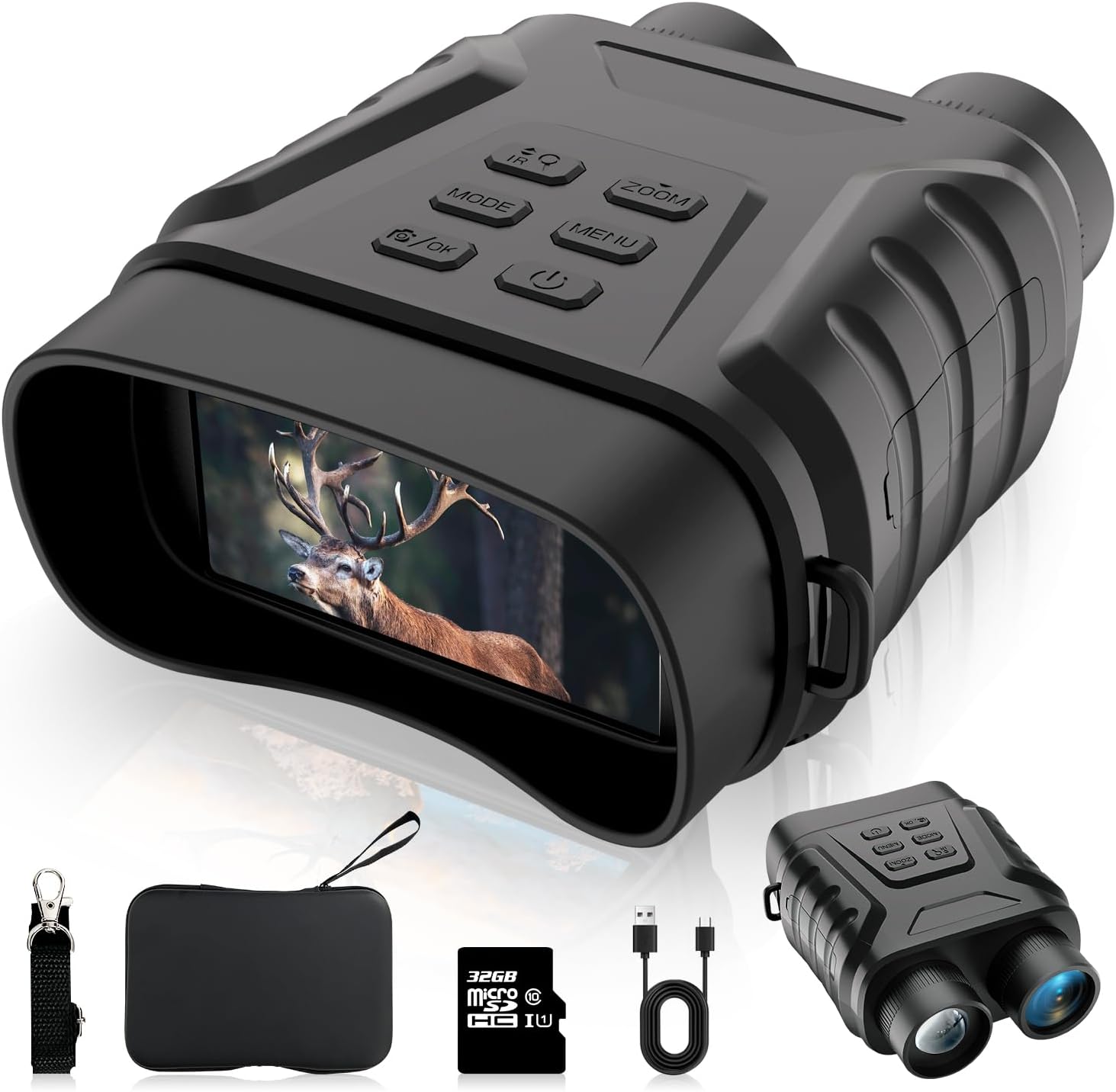
Figure 1: eoqo 4K Infrared Night Vision Binoculars and accessories, including a lanyard, Type-C cable, and storage bag.
Key Features:
- Ultra HD Night Vision: 4K resolution for clear images.
- Long-Range Viewing: Up to 650 feet in total darkness.
- 8X Digital Zoom: Magnify distant objects.
- 3-Inch HD Screen: For real-time viewing and playback.
- Adjustable IR Light: Customize brightness and focus.
- Extended Battery Life: 4400mAh lithium battery for 6-12 hours of use.
- Multi-Performance Modes: Colorful and monochrome display, motion detection, time-lapse, voice recording.
- Simultaneous Capture: Record video and capture photos concurrently.
2. Setup Guide
2.1 Unboxing and Initial Inspection
Carefully remove all components from the packaging. Verify that all items listed in the 'Included Components' section of the specifications are present and undamaged.
2.2 Charging the Device
Before first use, fully charge the binoculars. Connect the provided Type-C cable to the charging port on the device and to a compatible USB power source. The charging indicator will show the charging status and turn off when fully charged.
2.3 Memory Card Installation
Locate the memory card slot, typically protected by a rubber flap. Insert the included 32GB MicroSD card into the slot with the gold contacts facing down, until it clicks into place. Ensure the card is properly seated to enable recording and storage functions.
2.4 Powering On/Off
Press and hold the Power button (usually marked with a power symbol) for a few seconds to turn the device on. The 3-inch HD screen will illuminate. To power off, press and hold the Power button again until the screen shuts down.
3. Operating Instructions
3.1 Basic Controls
The binoculars feature several control buttons for easy operation:
- Power Button: Turns the device on/off.
- MODE Button: Switches between photo, video, and playback modes.
- IR Button: Activates and adjusts the infrared light levels.
- ZOOM Button: Controls the digital zoom level.
- MENU Button: Accesses the device settings.
- OK Button: Confirms selections or starts/stops recording/capturing.
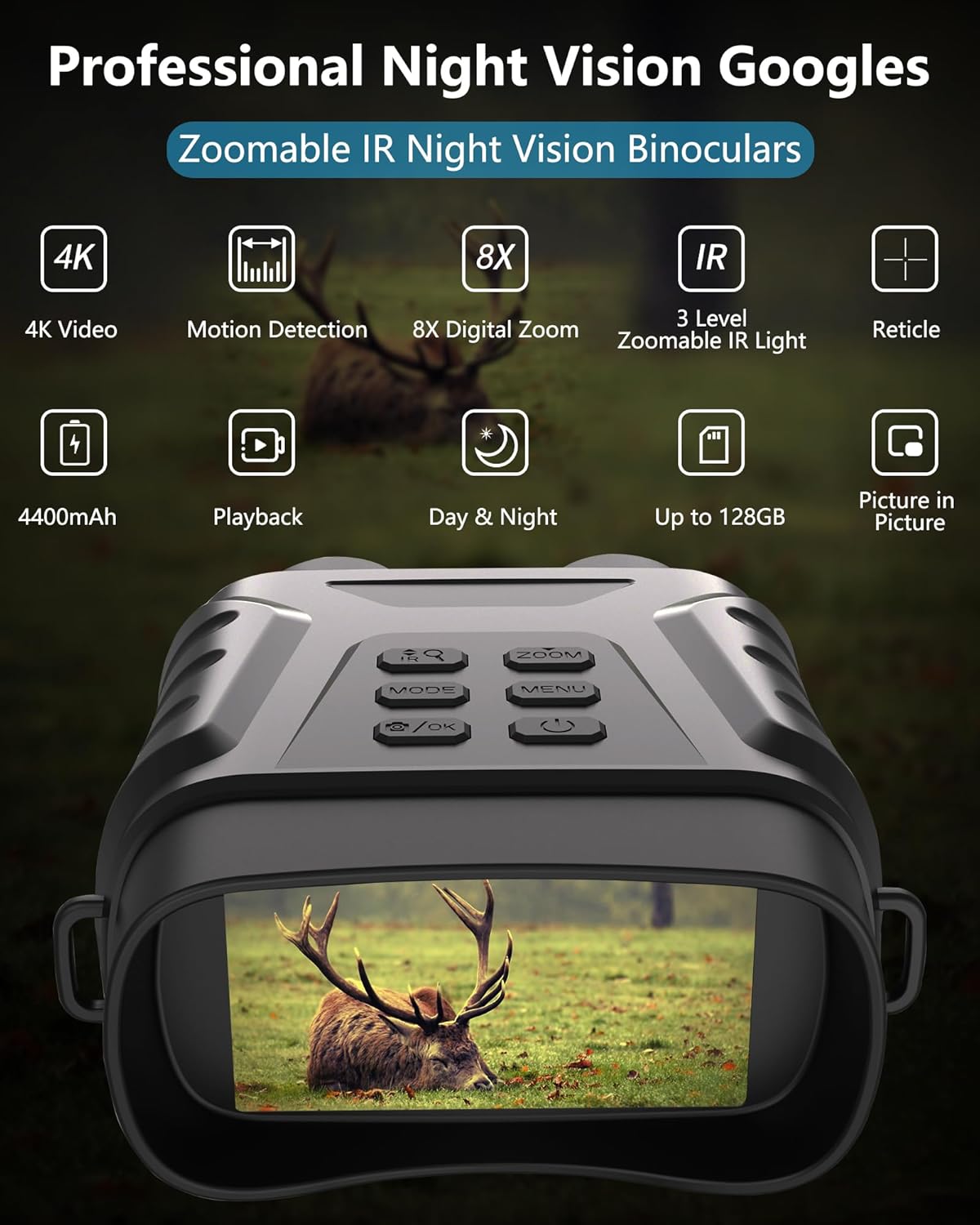
Figure 2: Overview of key features and controls on the night vision binoculars.
3.2 Viewing Modes and Screen Display
The device supports both colorful and monochrome display modes. The 3-inch HD screen provides a clear view of your surroundings. You can switch between these modes via the settings menu.

Figure 3: The 3-inch large LCD screen provides a stable, clear, and intuitive picture, enhancing visibility in various conditions.

Figure 4: The device offers excellent viewing effects in different environments, including day and night modes with varying IR run times and color filters.
3.3 Digital Zoom
Use the ZOOM button to adjust the magnification up to 8X. This allows for closer observation of distant objects without physical movement.
3.4 Adjustable Infrared (IR) Light
The IR light can be adjusted to enhance visibility in total darkness. Press the IR button to cycle through different IR levels. For precise long-distance viewing, simply move the IR lens cover to adjust the exposure range, making specific areas stand out.

Figure 5: Adjusting the IR light range by moving the IR lens cover allows for precise exposure and enhanced clarity of distant objects in darkness.
3.5 Photo and Video Recording
To capture images or videos, select the desired mode using the MODE button. Press the OK button to start recording video or take a photo. The device supports simultaneous video and photo capture, allowing you to capture crucial moments while recording.

Figure 6: The simultaneous capture mode allows for both video recording and photo taking, ensuring no critical moments are missed.
3.6 Motion Detection Recording
Activate motion detection in the settings menu. When enabled, the device will automatically begin video recording when movement is detected within a range of 10-50 meters, conserving memory and capturing relevant events.
3.7 Playback
In playback mode (accessed via the MODE button), you can review captured images and videos directly on the 3-inch HD screen. Use the navigation buttons to browse through your media files.
3.8 Official Product Video Demonstration
Video 1: Demonstration of the NV8150 Night Vision Goggles in action, showcasing both day and night recording capabilities. This video illustrates how the device captures scenes, including daytime images of a golf course and nighttime images with a street light, demonstrating its versatility.
4. Maintenance and Care
4.1 Cleaning
To clean the lenses, use a soft, lint-free cloth specifically designed for optical surfaces. For the body of the binoculars, wipe with a dry or slightly damp soft cloth. Avoid using abrasive cleaners or solvents.
4.2 Storage
When not in use, store the binoculars in a cool, dry place, away from direct sunlight and extreme temperatures. Use the provided storage bag to protect the device from dust and scratches.
4.3 Battery Care
To prolong battery life, avoid fully discharging the battery frequently. Recharge the device regularly, even if not in active use, to maintain battery health. If storing for an extended period, charge the battery to approximately 50%.
5. Troubleshooting
If you encounter issues with your eoqo 4K Infrared Night Vision Binoculars, please refer to the following common problems and solutions:
| Problem | Possible Cause | Solution |
|---|---|---|
| Device does not power on. | Low or depleted battery. | Charge the device fully using the provided Type-C cable. |
| Image is blurry or unclear. | Lens is dirty; focus not adjusted; IR light not optimized. | Clean the lenses. Adjust the focus. Adjust the IR light levels and exposure range. |
| Cannot record photos/videos. | Memory card full or not inserted correctly; incorrect mode selected. | Check memory card insertion and ensure it has free space. Format the card if necessary. Switch to photo or video mode. |
| IR light not working effectively. | IR level too low; IR lens cover not adjusted. | Increase IR light level. Adjust the IR lens cover for optimal range. |
If the problem persists after attempting these solutions, please contact customer support.
6. Specifications
| Feature | Detail |
|---|---|
| Brand Name | eoqo |
| Model Name | 4K Infrared Night Vision Binoculars (Style: Night Vision 8150) |
| ASIN | B0C9HTTNT2 |
| Color | Black |
| Material | Plastic |
| Item Dimensions (LxWxH) | 2.95 x 6.81 x 3.74 inches |
| Package Weight | 0.51 Kilograms |
| Objective Lens Diameter | 25 Millimeters |
| Magnification Maximum | 8 x (Digital Zoom) |
| Battery Capacity | 4400mAh Lithium Battery |
| Viewing Range (Night) | Up to 650 feet (670 feet in feature bullets) |
| Viewing Range (Day) | Up to 3 kilometers |
| Included Components | 1 * User Manual, 1 * 4K Infrared Night Vision Binoculars, 1 * Lanyard, 1 * Type-c Cable, 1 * Bag |
| Date First Available | June 27, 2023 |
7. Warranty Information
This eoqo product comes with a 12-month warranty from the date of purchase. This warranty covers manufacturing defects and issues arising from normal use. It does not cover damage caused by misuse, accidents, unauthorized modifications, or improper maintenance.
Please retain your proof of purchase for warranty claims.
8. Customer Support
For technical assistance, troubleshooting not covered in this manual, or warranty inquiries, please contact eoqo customer support through the retailer's platform or the official brand website.
Please have your product model and purchase date ready when contacting support.
Ask a question about this manual
Ask about setup, troubleshooting, compatibility, parts, safety, or missing instructions. Manuals+ will review the question and use this page’s manual context to help answer it.