
Introduction
This manual provides essential information for the proper setup, operation, and maintenance of your OYAYO FP88CB Folding 88-Key Semi-Weighted Digital Piano. Please read this manual thoroughly before using the product to ensure optimal performance and longevity.
1. Setup
1.1 Unboxing and Initial Inspection
Carefully remove all components from the packaging. Verify that all items listed in the package contents are present and undamaged. Retain original packaging for future storage or transport.
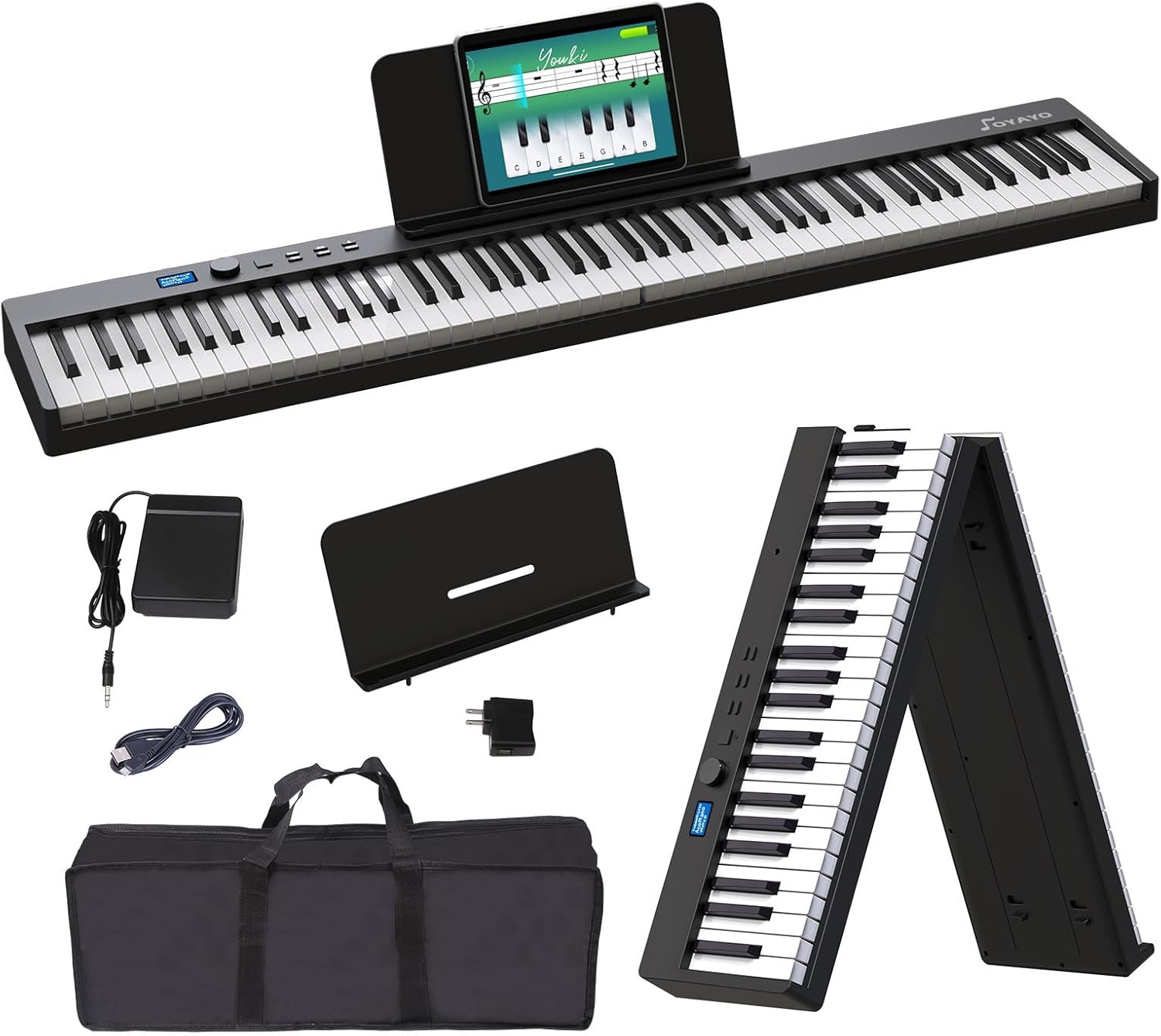
Image 1.1: OYAYO FP88CB Folding Piano Keyboard and included accessories.
1.2 Folding and Unfolding the Keyboard
The OYAYO FP88CB features a unique folding design for portability. To unfold, gently separate the two halves until they lock into place, forming a full 88-key keyboard. To fold, locate the release mechanism (typically a button or latch on the underside) and press it while bringing the two halves together. Ensure the keyboard is securely locked in both the folded and unfolded positions.

Image 1.2: The folding mechanism allows for compact storage and transport.
1.3 Powering the Keyboard
The keyboard can be powered via the included USB Type C cable and power adapter, or by its internal rechargeable battery. Connect the USB Type C cable to the keyboard's USB port and the adapter to a power outlet for charging or continuous use. The internal battery provides up to 10 hours of playtime on a full charge.

Image 1.3: Powering the keyboard via USB-C and demonstrating battery life.
1.4 Attaching the Music Stand and Sustain Pedal
Insert the included music stand into the designated slots on the keyboard. Connect the sustain pedal to the 'SUS' port on the rear panel of the keyboard.

Image 1.4: All accessories, including the music stand and sustain pedal, are provided.
Video 1.1: An unboxing and setup demonstration of the OYAYO FP88CB digital piano.
2. Operating Instructions
2.1 Power On/Off and Volume Control
Press and hold the power button to turn the keyboard on or off. Adjust the master volume using the dedicated volume knob or buttons on the control panel.
2.2 Tone and Rhythm Selection
Your keyboard offers 128 tones, 128 rhythms, and 20 demo songs. Use the 'Tone' and 'Rhythm' buttons, along with the rotary dial, to browse and select different instrument sounds and rhythmic accompaniments. The LCD display will show your current selection.

Image 2.1: The control panel allows selection of various tones, rhythms, and demo songs.
2.3 Semi-Weighted Keys
The 88 semi-weighted keys provide a realistic piano feel, with touch response that varies the volume based on how hard you press the keys. This feature is crucial for developing proper finger technique and expressive playing.

Image 2.2: Detail of the semi-weighted keys, offering a responsive playing experience.
2.4 Bluetooth and MIDI Connectivity
Connect your keyboard to learning apps (e.g., GarageBand, Perfect Piano) or music production software via built-in Bluetooth or the USB/MIDI port. This allows for interactive learning, playing along with digital songs, and advanced music composition.

Image 2.3: The keyboard supports Bluetooth and MIDI for connection to various learning and production applications.
Video 2.1: Demonstration of the OYAYO Folding Piano's rechargeable battery and Bluetooth MIDI function.
2.5 Additional Functions
The keyboard includes a built-in metronome for timing practice, chord mode for easy accompaniment, and a sleep mode to conserve battery life. Refer to the quick start guide for detailed instructions on activating these features.
3. Maintenance
3.1 Cleaning and Care
Wipe the keyboard surface with a soft, dry cloth. Avoid using abrasive cleaners or solvents, as these can damage the finish. Keep the keyboard free from dust and moisture.
3.2 Storage
When not in use, fold the keyboard and store it in the provided carrying bag to protect it from dust and physical damage. Store in a cool, dry place away from direct sunlight and extreme temperatures.

Image 3.1: The keyboard folds compactly and fits into the included carrying bag for easy storage and transport.
4. Troubleshooting
4.1 No Sound
- Ensure the keyboard is powered on and the volume is turned up.
- Check if headphones are plugged in; unplug them if you wish to use the built-in speakers.
- Verify that the correct tone is selected and not a silent setting.
4.2 Connectivity Issues (Bluetooth/MIDI)
- Ensure Bluetooth is enabled on both the keyboard and your device.
- For MIDI connections, ensure the USB cable is securely connected and the correct drivers (if necessary) are installed on your computer.
- Restart both the keyboard and the connected device.
4.3 Keys Not Responding
- Check for any physical obstructions under the keys.
- Ensure the keyboard is fully unfolded and locked into position.
If you encounter persistent issues, please refer to the support section for contact information.
5. Specifications
| Feature | Detail |
|---|---|
| Brand | OYAYO |
| Model Number | FP88CB |
| Number of Keys | 88 |
| Key Type | Semi-Weighted |
| Connectivity | Bluetooth, USB Type C, USB |
| Tones | 128 |
| Rhythms | 128 |
| Demo Songs | 20 |
| Speakers | 2 Built-in Speakers |
| Headphones Jack | 3.5mm Jack |
| Power Source | Battery Powered |
| Battery Life | Up to 10 hours |
| Item Weight | 8.93 lbs (approx. 4.05 kg) |
| Folded Dimensions | 24.5 inches (length) |
| Unfolded Dimensions | 50 inches (length) |
| Supported Software | POP Piano, Simple Piano, Flowkey, Perfect Piano, etc. |
| Operating System Compatibility | Windows, macOS, iOS, Android |
6. Warranty and Support
Your OYAYO FP88CB Digital Piano is covered by a manufacturer's warranty. For specific warranty details, please refer to the documentation included with your product or contact customer support. For technical assistance, troubleshooting, or warranty claims, please contact OYAYO customer support through their official website or the retailer where the product was purchased.