
Generico Drone 998 PRO
Generico Drone 998 PRO User Manual
Model: Drone 998 PRO
1. Introduction
Thank you for purchasing the Generico Drone 998 PRO. This drone is designed for ease of use and provides an immersive flying experience with its 720P HD camera and various intelligent flight modes. Please read this manual thoroughly before operating the drone to ensure safe and optimal performance.

Image 1.1: Generico Drone 998 PRO packaging and drone.
2. Package Contents
Ensure all the following items are included in your package:
- Drone 998 PRO Quadcopter
- Remote Control
- Rechargeable Battery (1 unit)
- USB Charging Cable
- Spare Propellers
- Propeller Guards
- Screwdriver (for assembly/maintenance)
- User Manual (this document)
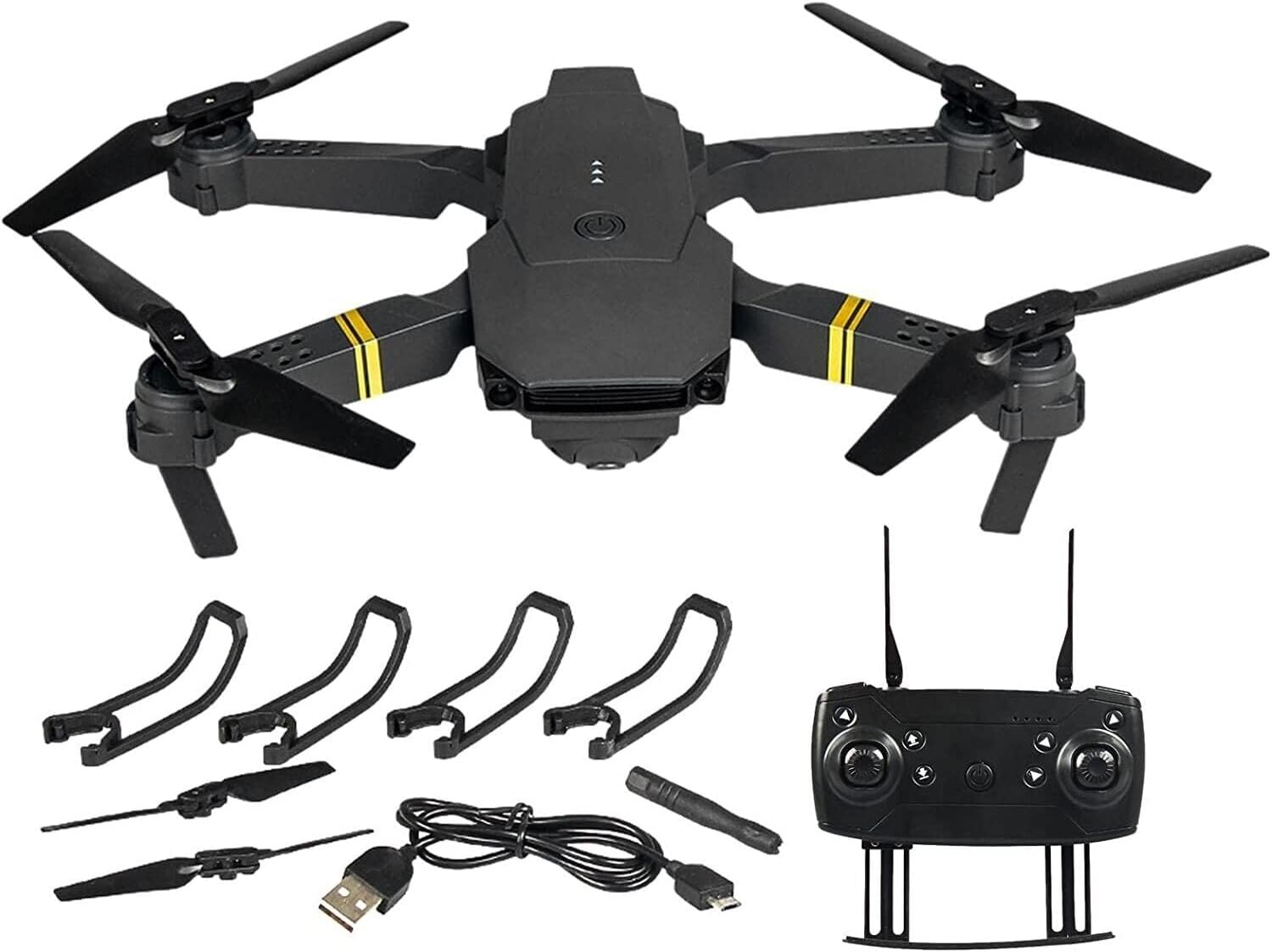
Image 2.1: All components included in the Generico Drone 998 PRO package.
3. Product Features
- 720P HD WIFI Camera: Equipped with a camera that can rotate 360 degrees for optimal viewing and live FPV feed to your smartphone.
- FPV Real-Time Transmission: View live footage directly on your phone with a video transmission distance of up to 60m.
- One-Button Takeoff/Landing: Simplifies operation for beginners.
- Altitude Hold Mode: Maintains a consistent altitude for stable hovering.
- Headless Mode: Eliminates the need to adjust the position of the aircraft before flying, making it easier to control.
- 3D Flip Function: Perform exciting aerial stunts with a single button.
- Adjustable Speeds: Three adjustable speed modes (low, medium, high) to suit different skill levels and environments.
- Gesture Control: Supports palm or fist gestures for taking photos and videos.
- Gravity Sensor Control: Control flight direction by moving your phone.
- Propeller Guards: Four protective propeller guards ensure safer flight.

Image 3.1: Real-time FPV experience.

Image 3.2: 120-degree wide-angle lens for broader vision.

Image 3.3: Altitude Hold Mode for stable flight.

Image 3.4: Key features and flight stability.
4. Setup
4.1 Charging the Battery
- Connect the drone battery to the USB charging cable.
- Plug the USB cable into a USB power adapter (e.g., computer USB port, phone charger).
- The indicator light on the USB cable will show charging status (refer to cable instructions for specific light behavior).
- Charging typically takes 60-90 minutes. A full charge provides approximately 19 minutes of flight time.
4.2 Installing the Battery
- Ensure the drone is powered off.
- Locate the battery compartment on the drone.
- Insert the fully charged battery into the compartment, ensuring it clicks into place securely.
- Close the battery compartment cover.
4.3 Installing Propeller Guards
- Identify the four propeller guards.
- Attach each guard to the corresponding motor arm of the drone. Ensure they are firmly secured to prevent detachment during flight.
4.4 Remote Control Setup
- Open the battery compartment on the back of the remote control.
- Insert 3 x AA batteries (not included), observing correct polarity (+/-).
- Close the battery compartment.
4.5 Pairing the Drone and Remote Control
- Place the drone on a flat, level surface.
- Power on the drone. The drone's indicator lights will flash.
- Power on the remote control.
- Push the left joystick (throttle) all the way up, then pull it all the way down. The drone's lights will stop flashing and remain solid, indicating successful pairing.
4.6 App Installation and WIFI Connection (FPV)
- Scan the QR code provided in the quick start guide (or search for the app name, usually 'WIFI_CAM' or similar, in your device's app store) to download and install the companion app on your smartphone.
- Turn on the drone.
- On your smartphone, go to WIFI settings and connect to the drone's WIFI network (e.g., 'WIFI_DRONE_XXXXXX').
- Open the installed app. You should see the live video feed from the drone's camera.
5. Operating Instructions
5.1 Pre-Flight Checklist
- Ensure drone and remote control batteries are fully charged.
- Check that propellers are securely attached and undamaged.
- Ensure propeller guards are installed.
- Choose an open, clear area free from obstacles, people, and animals.
- Verify successful pairing between drone and remote control.
5.2 Takeoff and Landing
- One-Button Takeoff: After pairing, press the One-Button Takeoff/Landing button on the remote control. The drone will automatically ascend to a stable hovering height.
- Manual Takeoff: Push both joysticks simultaneously outwards and downwards to start the motors. Then, slowly push the left joystick (throttle) upwards to ascend.
- One-Button Landing: Press the One-Button Takeoff/Landing button again. The drone will slowly descend and land automatically.
- Manual Landing: Slowly pull the left joystick (throttle) downwards until the drone lands. Once landed, push both joysticks simultaneously outwards and downwards to stop the motors.
5.3 Flight Controls
- Left Joystick (Throttle): Up/Down for altitude control (ascend/descend). Left/Right for yaw (rotate left/right).
- Right Joystick (Direction): Up/Down for forward/backward movement. Left/Right for left/right sideward movement.
- Speed Switch Button: Press to cycle through low, medium, and high-speed modes.
5.4 Special Flight Modes
- Headless Mode: To activate, press and hold the Headless Mode button for 2 seconds. In this mode, the drone's front direction is irrelevant; it will move relative to the pilot's position. Press again to exit.
- 3D Flip: Fly the drone to a height of at least 2 meters. Press the 3D Flip button, then push the right joystick in the desired flip direction (forward, backward, left, or right).
- Gravity Sensor Control: With the app connected, enable gravity sensor mode. Tilt your smartphone to control the drone's flight direction.
5.5 Camera Operation
- Taking Photos: In the app interface, tap the camera icon to take a photo. Alternatively, use the designated button on the remote control (refer to remote diagram).
- Recording Video: In the app interface, tap the video icon to start/stop recording. Alternatively, use the designated button on the remote control.
- Gesture Control: While in the app, make a palm gesture to take a photo or a fist gesture to start/stop video recording. Ensure your hand is within the camera's view.

Image 5.1: The 720P HD aerial camera can be rotated.
6. Maintenance
- Cleaning: Use a soft, dry cloth to clean the drone body and camera lens. Do not use liquid cleaners.
- Propeller Replacement: If propellers are damaged or bent, replace them immediately using the spare propellers provided. Ensure the correct propeller (A or B) is installed on the corresponding motor.
- Battery Care: Store batteries in a cool, dry place. Do not overcharge or over-discharge. If storing for extended periods, charge to about 50% capacity.
- Storage: When not in use, store the drone and remote control in a dry, cool environment, away from direct sunlight and extreme temperatures.
7. Troubleshooting
| Problem | Possible Cause | Solution |
|---|---|---|
| Drone does not power on | Battery not charged or incorrectly installed | Charge battery fully; ensure it is correctly inserted. |
| Drone does not respond to remote | Not paired; remote batteries low | Re-pair drone and remote; replace remote batteries. |
| Drone drifts during flight | Calibration needed; uneven surface at takeoff | Perform gyroscope calibration (refer to remote instructions); ensure drone is on a flat surface for takeoff. |
| Poor camera feed or no FPV | WIFI not connected; app issue; interference | Reconnect to drone's WIFI; restart app/phone; move to an area with less interference. |
| Short flight time | Battery not fully charged; old battery | Ensure battery is fully charged; consider replacing old batteries. |
8. Specifications
| Feature | Detail |
|---|---|
| Model Name | Drone 998 PRO |
| Brand | Generico |
| Dimensions | 15 x 15 x 10 cm (unfolded) |
| Camera Resolution | 720p (Video Capture), 7.2E+2 Pixels (Still Image) |
| Connectivity Technology | Wifi |
| Control Method | Remote Control |
| Flight Time | Approx. 19 minutes (per battery) |
| Special Features | 4K 1080P Camera, FPV, One-Button Takeoff/Landing, 360-degree Roll, 3 Speed Levels |
| Skill Level | Beginner |

Image 8.1: Drone dimensions (unfolded and folded).
9. Safety Guidelines
To ensure safe operation and prevent damage or injury, please adhere to the following guidelines:
- Always operate the drone in open areas, away from people, animals, buildings, and trees.
- Do not fly in strong winds, rain, or other adverse weather conditions.
- Maintain a safe distance from the drone during flight.
- Never attempt to catch the drone while it is flying.
- Keep fingers and loose clothing away from rotating propellers.
- Do not fly near airports or restricted airspace.
- Supervise children when they are operating the drone.
- Follow all local laws and regulations regarding drone operation.
- Do not modify the drone or its components.
- Use only original or approved replacement parts.
10. Warranty and Support
This product comes with a standard manufacturer's warranty. Please refer to the warranty card included in your package for specific terms and conditions. For technical support, troubleshooting assistance, or inquiries about replacement parts, please contact the retailer or manufacturer directly through their official support channels.
Ask a question about this manual
Ask about setup, troubleshooting, compatibility, parts, safety, or missing instructions. Manuals+ will review the question and use this page’s manual context to help answer it.