
RK ROYAL KLUDGE R87
RK ROYAL KLUDGE R87 Mechanical Keyboard User Manual
Model: R87
Introduction
Thank you for choosing the RK ROYAL KLUDGE R87 Mechanical Keyboard. This 75% layout, 87-key wired gaming keyboard features hot-swappable switches, dynamic RGB backlighting, and macro software support, designed for compatibility with Windows and Mac operating systems. This manual provides detailed instructions for setup, operation, maintenance, and troubleshooting to ensure optimal performance and longevity of your keyboard.
Package Contents
- RK ROYAL KLUDGE R87 Mechanical Keyboard
- Keycap Puller
- USB Cable (Type-C to Type-A)
- User Manual
Setup Guide
1. Connecting the Keyboard
The RK R87 keyboard utilizes a detachable USB-C cable for wired connectivity. Locate the USB-C port on the back of the keyboard and connect the provided USB-C cable. Connect the other end of the cable (USB-A) to an available USB port on your computer.

Image: The RK ROYAL KLUDGE R87 Mechanical Keyboard with its detachable USB-C cable connected, showing the wired setup.
2. Initial Recognition
Upon connecting, your operating system (Windows or macOS) should automatically recognize the keyboard. No additional drivers are typically required for basic functionality.
3. Software Installation (Optional)
For advanced customization of RGB lighting, macro settings, and key functions, download the official RK software. The software link is typically provided by the manufacturer. Please refer to the official RK ROYAL KLUDGE website or the link provided in the product description: bit.ly/RKRGBSOFT.

Image: A computer screen displaying the RK software interface, demonstrating options for light effects, brightness, animation speed, and color mixing for keyboard customization.
Operating Instructions
Basic Key Functions and Multimedia Controls
The RK R87 keyboard features a 75% layout with 87 keys, including a function (Fn) key to access multimedia and special functions. Pressing the Fn key in combination with the F1-F12 keys activates various multimedia controls and system functions.
| Combination | Function |
|---|---|
| Fn + F1 | My Computer |
| Fn + F2 | Search |
| Fn + F3 | Calculator |
| Fn + F4 | Media Player |
| Fn + F5 | Previous Track |
| Fn + F6 | Next Track |
| Fn + F7 | Play/Pause |
| Fn + F8 | Stop |
| Fn + F9 | Mute |
| Fn + F10 | Volume Down |
| Fn + F11 | Volume Up |
| Fn + F12 | Lock Keyboard |
| Fn + Ins | Change Side Lighting Modes |

Image: Close-up of the keyboard highlighting the Fn and Ins keys, indicating their use for changing side lighting modes.
RGB Backlighting and Side Lights
The RK R87 features vibrant RGB backlighting with 20 built-in modes and 8 colors, along with side lights to enhance the visual experience. You can customize these effects using the dedicated software.
- Changing RGB Modes: Use the software to cycle through various lighting effects.
- Adjusting Brightness/Speed: The software allows fine-tuning of light brightness and animation speed.
- Side Light Control: Press Fn + Ins to change the side lighting modes.
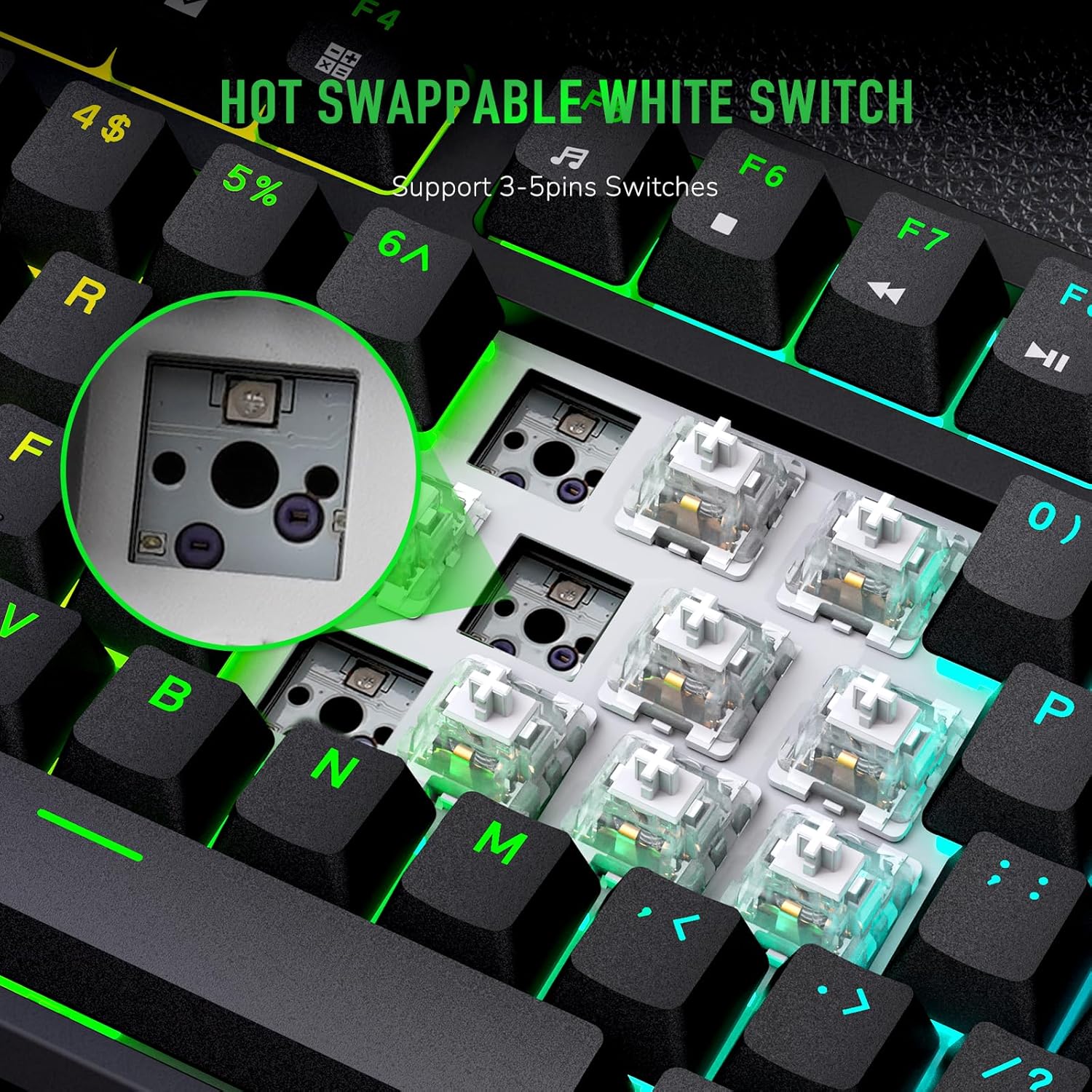
Image: The RK ROYAL KLUDGE R87 keyboard showcasing its full RGB backlighting and illuminated side strips, creating a colorful atmosphere.
Hot-Swappable Switches
The RK R87 is equipped with hot-swappable white switches, allowing you to easily change switches without soldering. The PCB board supports both 3-pin and 5-pin switches, offering flexibility for customization.
- Switch Removal: Use the provided keycap puller to remove the keycap, then use the switch puller (not included, but often integrated with keycap puller) to gently pull out the switch.
- Switch Installation: Align the new switch's pins with the holes on the PCB and press down firmly until it clicks into place. Ensure pins are straight to avoid bending.
- White Switches: The pre-lubed white switches offer a linear feel with a smaller operating force, making them comfortable for long typing or gaming sessions and reducing fatigue.
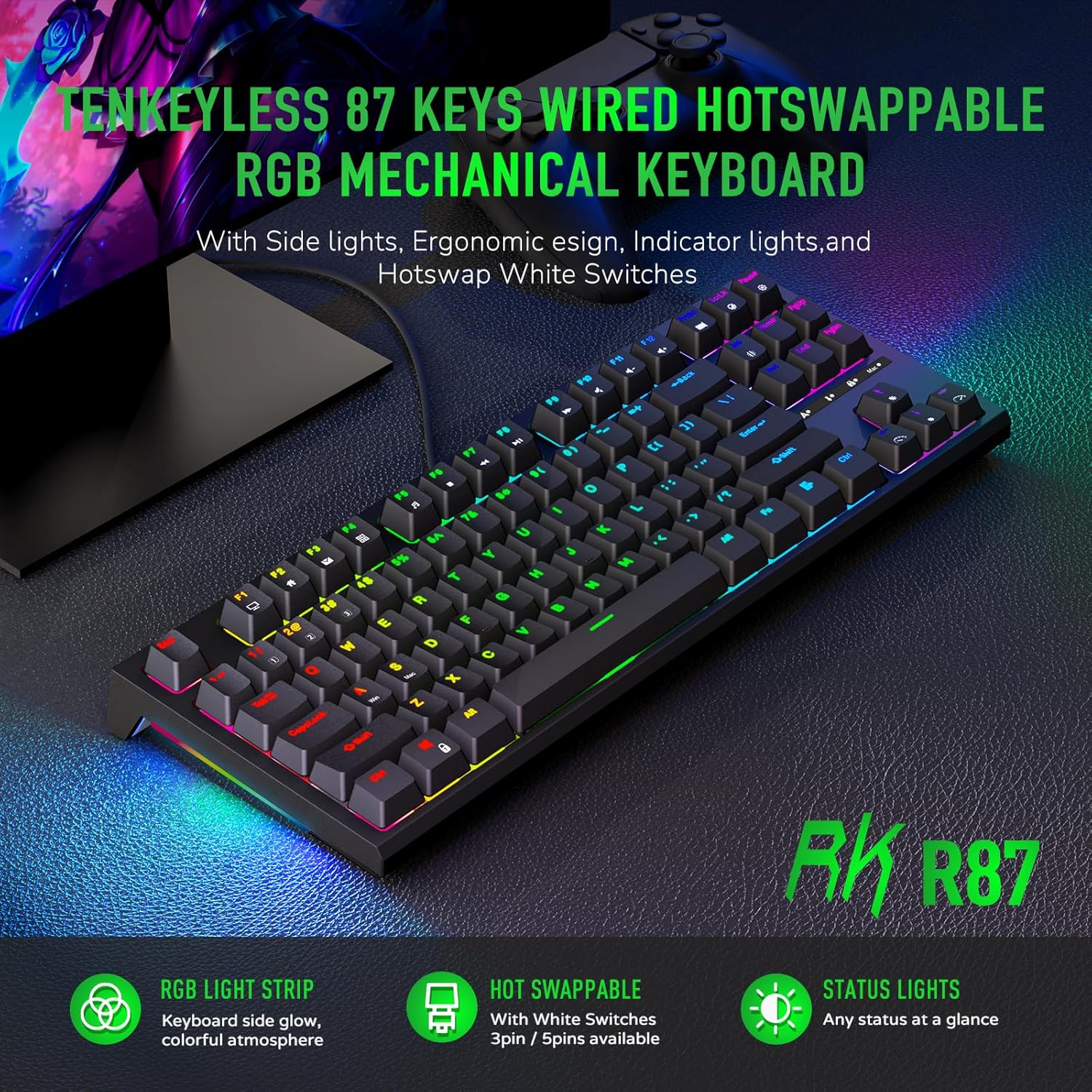
Image: A detailed view of the hot-swappable white switches on the RK R87 keyboard, showing how switches can be removed and replaced.
Ergonomic Design and Indicator Lights
The keyboard features an ergonomic design with two adjustable foot rests, allowing you to set the typing angle for maximum comfort. Four built-in status indicator lights provide immediate feedback on the keyboard's current state.
- Adjustable Feet: Flip out the feet on the underside of the keyboard to switch between low and high angles.
- Indicator Lights: These lights indicate the status of Caps Lock, Scroll Lock, Mac mode, and Win Lock.

Image: The underside of the RK R87 keyboard, illustrating the two adjustable feet that allow for different ergonomic typing angles (low and high).

Image: A close-up of the RK R87 keyboard's indicator lights, showing symbols for Caps Lock, Scroll Lock, Mac mode, and Win Lock, providing a clear status at a glance.
Maintenance
Proper maintenance ensures the longevity and performance of your RK R87 keyboard.
- Cleaning: Regularly clean the keyboard with a soft, dry cloth. For deeper cleaning, remove keycaps using the provided keycap puller and use compressed air to clear dust and debris from between the switches.
- Switch Care: When hot-swapping switches, ensure the switch pins are straight before insertion to prevent bending or damage to the PCB sockets.
- Cable Management: Avoid sharp bends or excessive pulling on the USB cable to prevent internal wire damage.
- Storage: Store the keyboard in a cool, dry place away from direct sunlight and extreme temperatures.
Troubleshooting
If you encounter issues with your RK R87 keyboard, please refer to the following common solutions:
- Keyboard Not Responding:
- Ensure the USB cable is securely connected to both the keyboard and the computer.
- Try connecting the keyboard to a different USB port on your computer.
- Test the keyboard on another computer to rule out system-specific issues.
- Check if the keyboard is locked (Fn + F12).
- RGB Lighting Not Working/Incorrect:
- Ensure the RK software is installed and updated to the latest version.
- Verify lighting settings within the RK software.
- Try resetting the keyboard's lighting settings through the software or a factory reset if available (refer to software documentation).
- Specific Keys Not Working:
- For hot-swappable switches, gently remove the keycap and then the switch. Reinsert the switch firmly, ensuring the pins are not bent.
- Clean any debris around or under the affected key.
- Software Not Recognizing Keyboard:
- Reinstall the RK software.
- Ensure your operating system is up to date.
- Temporarily disable any antivirus or firewall software that might be interfering.
Product Specifications
| Feature | Detail |
|---|---|
| Model | R87 |
| Layout | 75% (87 Keys) |
| Switch Type | Hot-Swappable Linear White Switches (3-pin/5-pin compatible) |
| Connectivity | Wired (USB-C to USB-A detachable cable) |
| Backlighting | RGB (20 modes, 8 colors) with Side Lights |
| Anti-Ghosting | All Keys Conflict-Free |
| Compatible OS | Windows, macOS |
| Product Dimensions | 14.4 x 5.5 x 1.6 inches |
| Item Weight | 2.68 pounds |
| Manufacturer | RK ROYAL KLUDGE |
| Country of Origin | China |
Warranty and Support
RK ROYAL KLUDGE is committed to providing high-quality products and customer service. For any questions, technical support, or warranty inquiries, please contact our professional service team.
- Contact via Amazon: Find the "RK ROYAL KLUDGE" store name on Amazon and click "Ask a question" to contact us directly.
- Email Support: You can also reach us via email at support_RK_ROYAL@163.com.
We strive to provide the best service within 24 hours.