
1. Introduction
This manual provides essential information for the safe and efficient operation of your DUODUOGO S2 10-inch Android WiFi Tablet. Please read it thoroughly before using the device and keep it for future reference.
2. Safety Information
- Do not expose the tablet to extreme temperatures, direct sunlight, or high humidity.
- Avoid dropping or subjecting the tablet to strong impacts.
- Use only the original charger and accessories provided with the device.
- Do not attempt to disassemble or repair the tablet yourself. Contact customer support for assistance.
- Keep the tablet away from water and other liquids.
- Dispose of the battery and device according to local regulations.
3. Package Contents
Verify that all items are present in the package:
- DUODUOGO S2 Tablet
- USB Type-C Cable
- Power Adapter
- User Manual (this document)
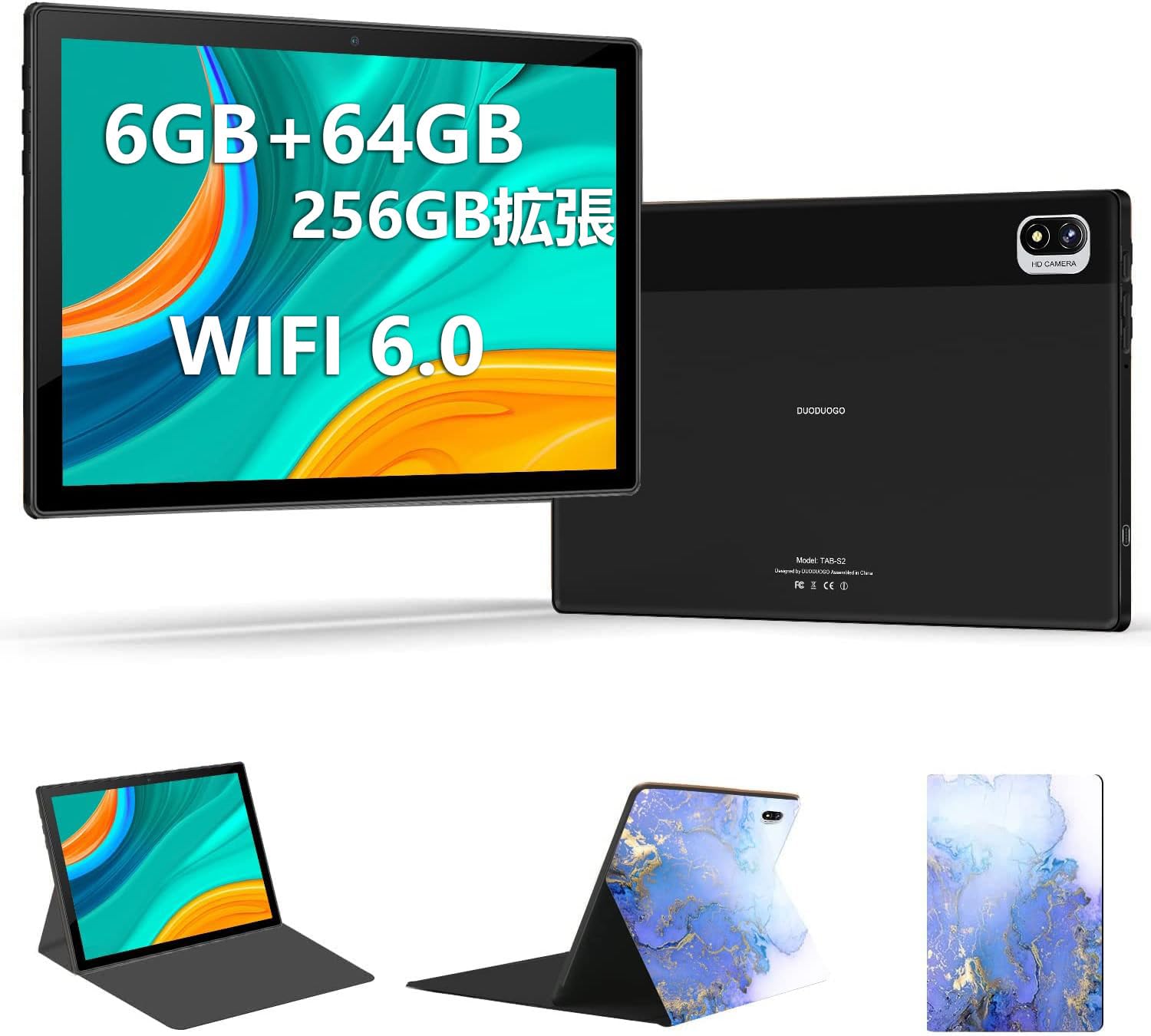
Image: DUODUOGO S2 Tablet and included accessories.
4. Device Layout
Familiarize yourself with the physical features and ports of your DUODUOGO S2 tablet.

Image: Diagram showing the tablet's side view with labels for the power button, volume buttons (Vol+, Vol-), Type-C port, headphone jack, and TF card slot. The front and rear cameras are also indicated.
- Power Button: Press and hold to power on/off or restart. Press briefly to turn the screen on/off.
- Volume Buttons (Vol+, Vol-): Adjust the audio volume.
- Type-C Port: For charging and data transfer.
- Headphone Jack: Connect 3.5mm headphones.
- TF Card Slot: Insert a microSD card for expandable storage (up to 256GB).
- Front Camera: 5MP camera for video calls and selfies.
- Rear Camera: 8MP camera for photos and videos.
- Dual Speakers: Located on the sides for enhanced audio output.
5. Setup
5.1 Initial Charge
Before first use, fully charge the tablet using the provided USB Type-C cable and power adapter. The battery indicator on the screen will show charging progress.
5.2 Power On/Off
- To Power On: Press and hold the Power Button until the DUODUOGO logo appears.
- To Power Off: Press and hold the Power Button, then select "Power Off" from the options on the screen.
- To Restart: Press and hold the Power Button, then select "Restart" from the options.
5.3 Initial Setup Wizard
Upon first power-on, the tablet will guide you through an initial setup process. This includes:
- Language selection
- Wi-Fi network connection
- Google account setup (optional, but recommended for app downloads)
- Date and time settings
5.4 Connecting to Wi-Fi
To connect to a Wi-Fi network:
- Go to Settings > Network & internet > Wi-Fi.
- Turn on Wi-Fi.
- Select your desired network from the list.
- Enter the password if prompted and tap Connect.

Image: The tablet screen showing a video playback, highlighting its dual-band 2.4G/5G WiFi capability for stable internet connection.
6. Operating Instructions
6.1 Navigating the Android Interface
The DUODUOGO S2 runs on Android 11. Common gestures include:
- Tap: Select an item or open an app.
- Swipe: Scroll through screens or lists.
- Pinch: Zoom in or out on images and web pages.
- Long Press: Access contextual menus or move icons.

Image: The tablet displaying the Android 11 home screen with various application icons, demonstrating the user interface.
6.2 Installing Applications
You can download and install applications from the Google Play Store. Ensure you are logged in with a Google account.
- Open the Play Store app.
- Search for the desired app.
- Tap Install.
6.3 Camera Operation
The tablet features a 5MP front camera and an 8MP rear camera.
- Open the Camera app.
- Tap the shutter button to take a photo.
- Switch between front and rear cameras using the camera switch icon.

Image: The tablet displaying a high-resolution image, illustrating the 10.1-inch IPS HD screen and indicating the 5MP front and 8MP rear camera capabilities.
6.4 Storage Management
The tablet comes with 64GB of internal storage. You can expand this by inserting a TF (microSD) card up to 256GB.
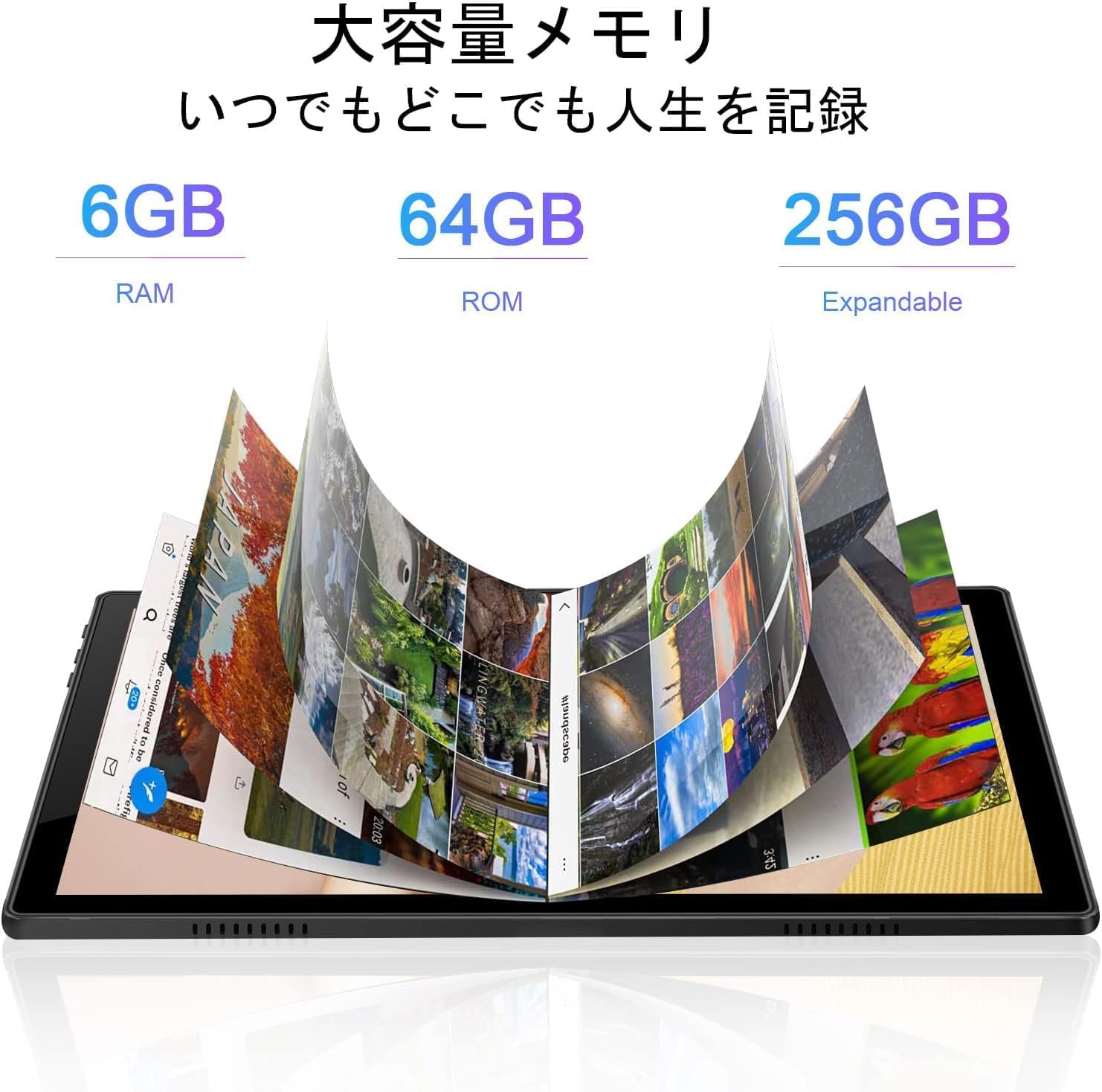
Image: A visual representation of the tablet's memory, showing 6GB RAM, 64GB internal storage (ROM), and the option to expand storage up to 256GB with a TF card.
7. Maintenance
- Cleaning: Use a soft, lint-free cloth to clean the screen and body of the tablet. Do not use abrasive cleaners or solvents.
- Software Updates: Regularly check for and install system updates to ensure optimal performance and security. Go to Settings > System > System update.
- Battery Care: To prolong battery life, avoid fully discharging the battery frequently. Charge the tablet when the battery level is low.
- Storage Optimization: Periodically clear unnecessary files and uninstall unused apps to free up storage space and improve performance.
8. Troubleshooting
| Problem | Possible Solution |
|---|---|
| Tablet does not turn on. | Ensure the battery is charged. Connect the charger and wait a few minutes before attempting to power on again. If it still doesn't turn on, perform a forced restart by holding the power button for 10-15 seconds. |
| Screen is unresponsive. | Restart the tablet. If the issue persists, ensure the screen is clean and free of debris. |
| Cannot connect to Wi-Fi. | Check if Wi-Fi is enabled in settings. Ensure the Wi-Fi password is correct. Restart your router and the tablet. Try connecting to a different Wi-Fi network to isolate the issue. |
| Apps are crashing or running slowly. | Close background applications. Clear app cache (Settings > Apps > select app > Storage & cache > Clear cache). Ensure sufficient storage space is available. Restart the tablet. |
| Battery drains quickly. | Reduce screen brightness. Close unused apps. Turn off Wi-Fi or Bluetooth when not in use. Check battery usage in Settings > Battery to identify power-hungry apps. |
9. Specifications
| Feature | Detail |
|---|---|
| Brand | DUODUOGO |
| Model | S2 |
| Operating System | Android 11 |
| Processor | 8-core, 2.0 GHz |
| RAM | 6 GB |
| Internal Storage | 64 GB |
| Expandable Storage | Up to 256 GB via TF (microSD) card |
| Screen Size | 10.1 inches |
| Display Type | IPS HD |
| Resolution | 1280 x 800 pixels |
| Rear Camera | 8 MP |
| Front Camera | 5 MP |
| Connectivity | Wi-Fi (2.4G/5G, 802.11a/b/g/n), Bluetooth 4.3 |
| Battery Capacity | 6000 mAh Lithium Polymer |
| Ports | USB Type-C, 3.5mm Headphone Jack, TF Card Slot |

Image: An overview of the DUODUOGO S2 tablet, visually summarizing its main features and specifications.
10. Warranty and Support
DUODUOGO is committed to providing quality products and user experience. If you encounter any issues or have questions regarding your DUODUOGO S2 tablet, please contact our customer support.
- Customer Support: Refer to the contact information provided with your purchase or on the official DUODUOGO website.
- Warranty: This product comes with a standard manufacturer's warranty. Please retain your proof of purchase for warranty claims.
Our support team aims to respond within 24 hours to assist you with any concerns.
