
1. Introduction
This manual provides comprehensive instructions for the installation, operation, and maintenance of your Greenpacket 4G LTE Cat.6 Router. Please read this manual thoroughly before using the device to ensure proper functionality and safety. This router is designed to provide high-speed internet access using 4G LTE networks, featuring Cat.6 capabilities, Carrier Aggregation, and MIMO 4x4 technology for enhanced performance. It is SIM-unlocked and not cell-locked, offering flexibility with service providers.
2. Safety Information
- Use only the power adapter supplied with the device.
- Do not expose the device to water, moisture, or extreme temperatures.
- Avoid placing the device near heat sources or in direct sunlight.
- Do not attempt to open or repair the device yourself. Refer all servicing to qualified personnel.
- Ensure proper ventilation around the device to prevent overheating.
3. Package Contents
Verify that all items are present in your package:
- Greenpacket 4G LTE Cat.6 Router (Model: 810087890001)
- Power Adapter
- Ethernet Cable
- Quick Start Guide (if included)
4. Product Overview
4.1 Front Panel Indicators
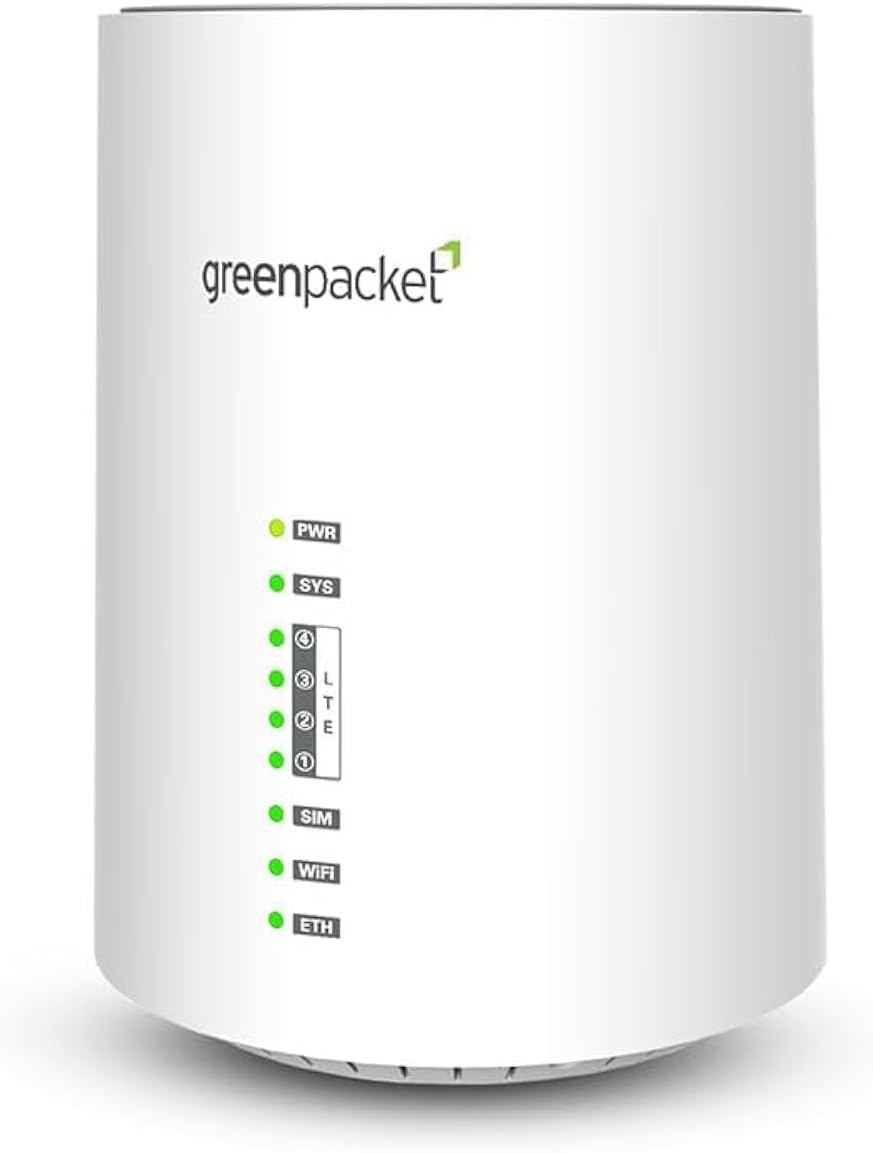
Figure 1: Front view of the Greenpacket 4G LTE Cat.6 Router, showing the LED indicators for Power, System, LTE signal strength, SIM status, Wi-Fi, and Ethernet.
- PWR (Power): Indicates the power status of the device.
- SYS (System): Indicates the system status.
- LTE (Signal Strength): Multiple LEDs indicate the strength of the 4G LTE signal.
- SIM: Indicates the status of the SIM card.
- WIFI: Indicates the status of the Wi-Fi network.
- ETH (Ethernet): Indicates the status of the Ethernet connection.
4.2 Rear Panel Ports and Buttons
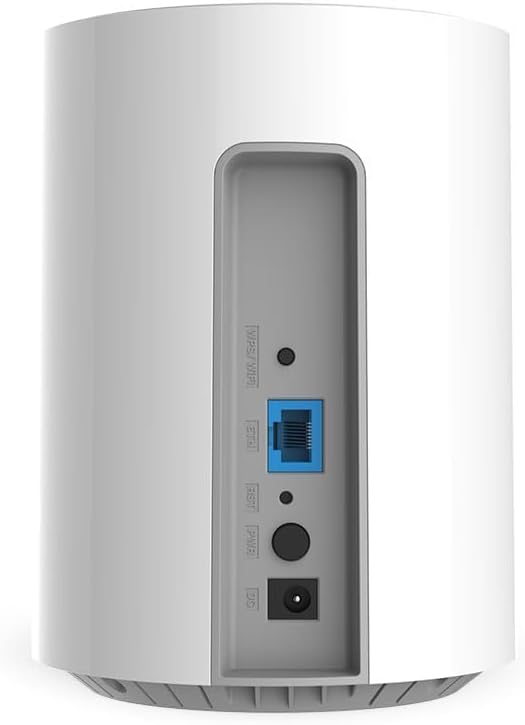
Figure 2: Rear view of the Greenpacket 4G LTE Cat.6 Router, showing the WPS/Wi-Fi button, Ethernet port, Reset button, Power button, and DC power input.
- WPS/WIFI Button: Press to activate WPS for easy Wi-Fi connection or press and hold to toggle Wi-Fi on/off.
- ETH Port: Connects to a computer or other network device via an Ethernet cable.
- RESET Button: Press and hold for several seconds to restore factory default settings.
- PWR Button: Power On/Off button.
- DC IN: Power input port for the supplied power adapter.
4.3 Bottom Panel
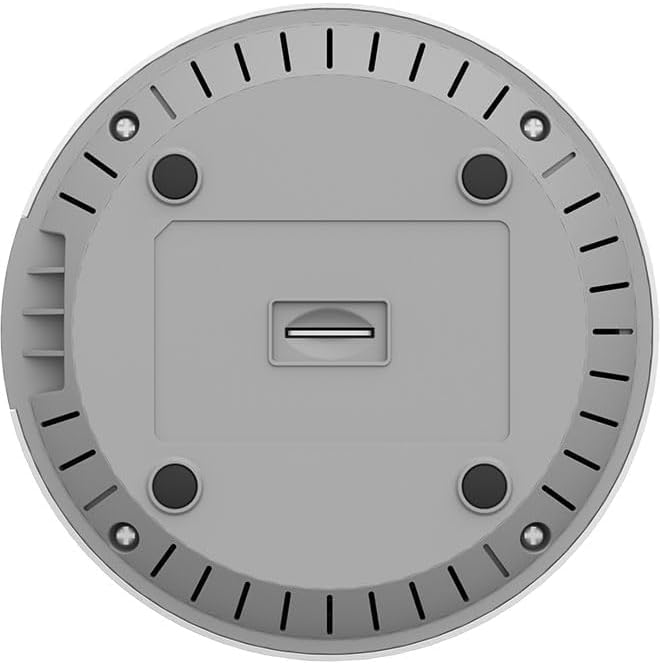
Figure 3: Bottom view of the Greenpacket 4G LTE Cat.6 Router, highlighting the SIM card slot.
- SIM Card Slot: Insert your 4G LTE SIM card here.
5. Setup
- Insert SIM Card: Locate the SIM card slot on the bottom of the router. Carefully insert your standard-sized 4G LTE SIM card into the slot until it clicks into place. Ensure the SIM card is oriented correctly as indicated by the diagram near the slot.
- Connect Power: Connect the supplied power adapter to the DC IN port on the rear of the router, then plug the adapter into a power outlet. Press the PWR button to turn on the router.
- Power On and Initialization: The PWR and SYS LEDs on the front panel will illuminate. Wait for the SYS LED to stabilize (usually solid green) and the LTE signal strength LEDs to light up, indicating a successful connection to the 4G network. This process may take a few minutes.
- Optional: Connect via Ethernet: For a wired connection, connect one end of the Ethernet cable to the ETH port on the router and the other end to your computer's Ethernet port.
6. Operating the Router
6.1 Connecting Devices via Wi-Fi
To connect your devices (laptops, smartphones, tablets, smart TVs) to the router's Wi-Fi network:
- On your device, enable Wi-Fi and search for available networks.
- Locate the Wi-Fi network name (SSID) printed on the label at the bottom of your router.
- Select the SSID and enter the Wi-Fi password (also found on the router's label).
- Your device should now be connected to the internet.
6.2 Using WPS (Wi-Fi Protected Setup)
WPS allows for a quick and secure connection to your Wi-Fi network without entering the password manually:
- Press the WPS/WIFI button on the rear of the router. The Wi-Fi LED will start blinking.
- Within two minutes, activate WPS on your client device (e.g., by pressing the WPS button on a Wi-Fi adapter or selecting the WPS option in your device's Wi-Fi settings).
- The devices will automatically connect.
6.3 Accessing the Web Management Interface
To configure advanced settings, you can access the router's web management interface:
- Ensure your device is connected to the router (via Wi-Fi or Ethernet).
- Open a web browser and enter the default IP address (e.g.,
192.168.1.1or as specified on the router's label) into the address bar. - Enter the default username and password (usually
admin/adminor as specified on the router's label). - You can now configure settings such as Wi-Fi name, password, network modes, and more.
7. Maintenance
- Cleaning: Use a soft, dry cloth to clean the router. Do not use liquid or aerosol cleaners.
- Firmware Updates: Periodically check the Greenpacket official website for firmware updates to ensure optimal performance and security. Follow the instructions provided with the firmware update carefully.
- Placement: Place the router in an open area, away from obstructions, to maximize Wi-Fi signal coverage and prevent overheating.
8. Troubleshooting
| Problem | Possible Cause | Solution |
|---|---|---|
| No Power LED | Power adapter not connected or faulty. | Ensure the power adapter is securely connected to the router and a working power outlet. Try a different outlet. |
| No Internet Connection (LTE LEDs off/red) | SIM card not inserted correctly, no signal, or no active data plan. | Reinsert the SIM card. Move the router to a location with better signal. Contact your service provider to verify your data plan. |
| Cannot connect to Wi-Fi | Incorrect Wi-Fi password, Wi-Fi disabled, or device too far. | Verify the Wi-Fi password. Ensure the Wi-Fi LED is on. Move closer to the router. Restart the router and your device. |
| Slow Internet Speed | Poor LTE signal, network congestion, or too many connected devices. | Check LTE signal strength LEDs. Try repositioning the router. Reduce the number of active devices or bandwidth-intensive activities. |
| Forgot Admin Password | Lost web management interface credentials. | Perform a factory reset by pressing and holding the RESET button for 10 seconds. Note: This will erase all custom settings. |
9. Specifications
| Feature | Detail |
|---|---|
| Brand | Greenpacket |
| Model Name | Greenpacket 4G LTE Cat.6 Router |
| Item Model Number | 810087890001 |
| Connectivity Technology | Wi-Fi, 4G LTE Cat.6 |
| Wireless Communication Standard | 802.11ax |
| Frequency Band Class | Dual-Band |
| Special Features | WPS, Wireless |
| Compatible Devices | Laptop, Personal Computer, Smart Television, Tablet |
| Recommended Uses | Business, Home |
| Included Components | Router |
| Package Dimensions | 23 x 15 x 14 cm |
| Item Weight | 610 g |
10. Warranty and Support
Greenpacket products are designed for reliability and performance. For warranty information, please refer to the warranty card included in your product packaging or visit the official Greenpacket website. For technical support, troubleshooting assistance, or to inquire about service, please contact Greenpacket customer support through their official channels.
Please note: Specific warranty terms and support contact details may vary by region and purchase location.