1. Overview
The Tibuta Android 13 Tablet E220 is a high-performance device designed for versatile use, from entertainment to productivity. It features an Octa-Core processor, a vibrant 10.1-inch IPS FHD touchscreen, and a long-lasting 7000mAh battery. This manual provides essential information for setting up, operating, maintaining, and troubleshooting your tablet.
1.1. What's in the Box
Upon unboxing your Tibuta E220 tablet, please ensure all the following items are present:
- Tibuta Android 13 Tablet E220
- Charger
- USB Cable
- User's Manual
- Warranty Card

Figure 1.1: Contents of the Tibuta Tablet E220 retail package.
1.2. Product Features
- Android 13 Operating System: Equipped with the latest Android 13 for a smooth and intuitive user experience.
- Octa-Core Processor: Powered by an Allwinner A523 octa-core processor for efficient multitasking and performance.
- Memory & Storage: 8GB RAM (4GB physical + 4GB virtual) and 64GB internal storage, expandable up to 1TB via TF card.
- Display: 10.1-inch IPS FHD touchscreen with 1280x800 resolution for clear and vibrant visuals.
- Battery: Long-lasting 7000mAh lithium polymer battery providing up to 8 hours of usage.
- Cameras: 5MP front camera and 8MP rear camera for photos and video calls.
- Connectivity: Supports 2.4G/5G dual-band WiFi 6 and Bluetooth 5.2.
- Widevine L1 Support: Enables high-definition streaming from supported platforms.
- Metal Body: Durable and elegant smoky grey-blue metal design.

Figure 1.2: Front and back view of the Tibuta Android 13 Tablet E220.
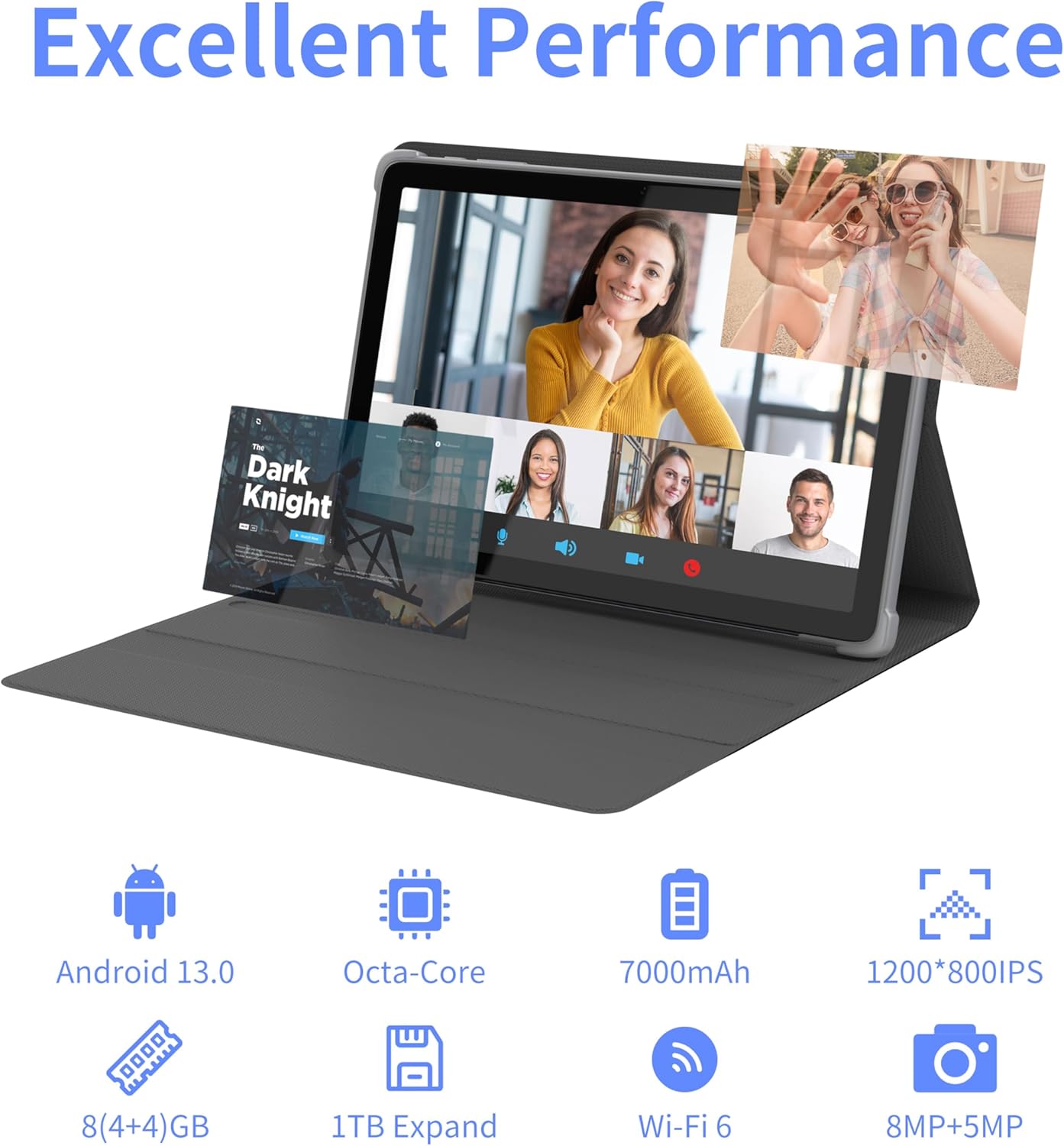
Figure 1.3: Visual representation of the tablet's key performance features.

Figure 1.4: Storage and memory features of the tablet.

Figure 1.5: Information on the tablet's battery capacity.

Figure 1.6: Details of the tablet's high-definition display.

Figure 1.7: Camera specifications and capabilities.

Figure 1.8: Physical layout and port identification of the tablet.
1.3. Product Videos
Video 1.1: An overview of the 10-inch Android 13 tablet, including its protective case.
Video 1.2: A detailed look at the Tibuta E200 Android Tablet's features and functionality.
2. Setup
2.1. Initial Charge
Before first use, fully charge your Tibuta E220 tablet. Connect the provided USB cable to the tablet's Type-C port and the other end to the charger. Plug the charger into a power outlet. The battery indicator on the screen will show charging progress. A full charge typically takes 3-4 hours.
2.2. Power On/Off
- To Power On: Press and hold the Power button (refer to Figure 1.8 for location) for a few seconds until the Tibuta logo appears on the screen.
- To Power Off: Press and hold the Power button until a power options menu appears. Select "Power off" from the options.
- To Restart: From the power options menu, select "Restart".
2.3. First-time Setup Wizard
The first time you power on your tablet, a setup wizard will guide you through initial configurations:
- Language Selection: Choose your preferred language.
- Wi-Fi Connection: Connect to a Wi-Fi network to enable internet access and download necessary updates.
- Google Account: Sign in with your Google account or create a new one. This is essential for accessing Google Play Store and other Google services.
- Date & Time: Set the correct date and time, or allow the tablet to set it automatically via network.
- Security: Set up a screen lock (PIN, pattern, password, or swipe).
- Google Services: Review and accept Google services terms and conditions.
3. Operating Instructions
3.1. Basic Navigation
- Touch: Tap an icon or option to select it.
- Touch & Hold: Press and hold an item to access more options or move it.
- Swipe: Slide your finger across the screen to scroll through pages or content.
- Pinch-to-Zoom: Use two fingers to pinch in or out on the screen to zoom.
3.2. Connecting to Wi-Fi
- Go to Settings > Network & internet > Internet.
- Turn on Wi-Fi.
- Select your desired Wi-Fi network from the list.
- Enter the network password if prompted, then tap Connect.
3.3. Bluetooth Pairing
- Go to Settings > Connected devices > Connection preferences > Bluetooth.
- Turn on Bluetooth.
- Ensure the device you want to pair with is in pairing mode.
- Select the device from the "Available devices" list and follow the on-screen prompts to complete pairing.
3.4. Camera Usage
To use the tablet's cameras:
- Open the Camera application.
- Tap the camera switch icon to toggle between the front (5MP) and rear (8MP) cameras.
- Tap the shutter button to take a photo or start/stop video recording.
- Access settings within the camera app to adjust modes, filters, and other options.
3.5. Storage Management
Your tablet comes with 64GB of internal storage, expandable up to 1TB using a microSD card. To manage storage:
- Insert MicroSD Card: Locate the Micro SD card slot (refer to Figure 1.8) and gently insert the card until it clicks into place.
- Check Storage: Go to Settings > Storage to view internal and external storage usage.
- Free Up Space: Delete unnecessary files, uninstall unused apps, or move large files to the microSD card.
4. Maintenance
4.1. Cleaning the Device
- Use a soft, lint-free cloth to wipe the screen and body of the tablet.
- For stubborn smudges, slightly dampen the cloth with water or a screen cleaner.
- Avoid using harsh chemicals, abrasive materials, or excessive moisture.
4.2. Battery Care
- Avoid extreme temperatures, as they can degrade battery life.
- Do not let the battery completely drain frequently. Charge it before it reaches very low levels.
- Use only the provided charger and USB cable to prevent damage.
4.3. Software Updates
Regularly check for and install software updates to ensure optimal performance, security, and access to new features.
- Go to Settings > System > System update.
- Follow the on-screen instructions to check for and install any available updates.
4.4. Data Backup
It is recommended to regularly back up your important data to prevent loss. You can use Google Drive, a computer, or an external storage device.
5. Troubleshooting
5.1. Common Issues and Solutions
| Problem | Solution |
|---|---|
| Tablet won't turn on | Ensure the battery is charged. Connect the charger and wait a few minutes before attempting to power on. If unresponsive, press and hold the power button for 10-15 seconds to force a restart. |
| Screen is unresponsive | Restart the tablet. If the issue persists, perform a factory reset (Note: This will erase all data). |
| Wi-Fi connection issues | Check if Wi-Fi is enabled. Restart your router and the tablet. Ensure you are within range of the Wi-Fi signal. |
| Apps crashing or freezing | Close and reopen the app. Clear the app's cache and data (Settings > Apps > [App Name] > Storage). Ensure the app is updated. Restart the tablet. |
| Slow performance | Close unused apps. Clear cache. Free up storage space. Restart the tablet regularly. |
| Battery drains quickly | Reduce screen brightness. Turn off Wi-Fi/Bluetooth when not in use. Close background apps. Limit location services. |
If you encounter issues not listed here or if the suggested solutions do not resolve the problem, please contact Tibuta customer support.
6. Specifications
| Feature | Detail |
|---|---|
| Brand | Tibuta |
| Model Number | E220 |
| Operating System | Android 13 |
| Processor | Allwinner A523 Octa-Core, 1.3 GHz |
| RAM | 8GB (4GB physical + 4GB virtual) |
| Internal Storage | 64GB |
| Expandable Storage | Up to 1TB via Micro SD card |
| Screen Size | 10.1 Inches |
| Screen Resolution | 1280 x 800 Pixels IPS FHD |
| Rear Camera | 8 MP |
| Front Camera | 5 MP |
| Battery Capacity | 7000mAh Lithium Polymer |
| Connectivity | Wi-Fi 6 (802.11n, 802.11b, 802.11ac, 802.11g), Bluetooth 5.2 |
| Charging Port | Type-C |
| Product Dimensions | 24.1 x 16.1 x 0.83 cm |
| Item Weight | 5 g (Note: This weight seems incorrect, likely a data entry error. Actual tablet weight is typically much higher.) |
7. Warranty and Support
Your Tibuta Android 13 Tablet E220 comes with a standard manufacturer's warranty. Please refer to the included Warranty Card for specific terms and conditions, including warranty duration and coverage details.
For technical support, troubleshooting assistance, or warranty claims, please contact Tibuta customer service through the following channels:
- Amazon Email: Contact the seller directly via Amazon's messaging system.
- Manufacturer Website: Visit the official Tibuta website for support resources and contact information (if available).
Please have your product model number (E220) and purchase details ready when contacting support.


