
Introduction
Thank you for purchasing the RG Nano Retro Handheld Game Console. This compact and versatile device allows you to enjoy a wide range of classic games, listen to music, and even use it as a portable clock. This manual provides detailed instructions on how to set up, operate, maintain, and troubleshoot your new device to ensure optimal performance and enjoyment.

The RG Nano Retro Handheld Game Console, featuring a vibrant red aluminum alloy casing, a 1.54-inch IPS screen, and classic gaming controls including a D-pad and action buttons.
What's in the Box
Please check the contents of your package to ensure all items are present:
- RG Nano Game Console
- Keychain
- 64GB Game Card (pre-installed or separate)
- USB Charging Cable
- User Manual (this document)
Product Overview
Familiarize yourself with the various components and features of your RG Nano console.
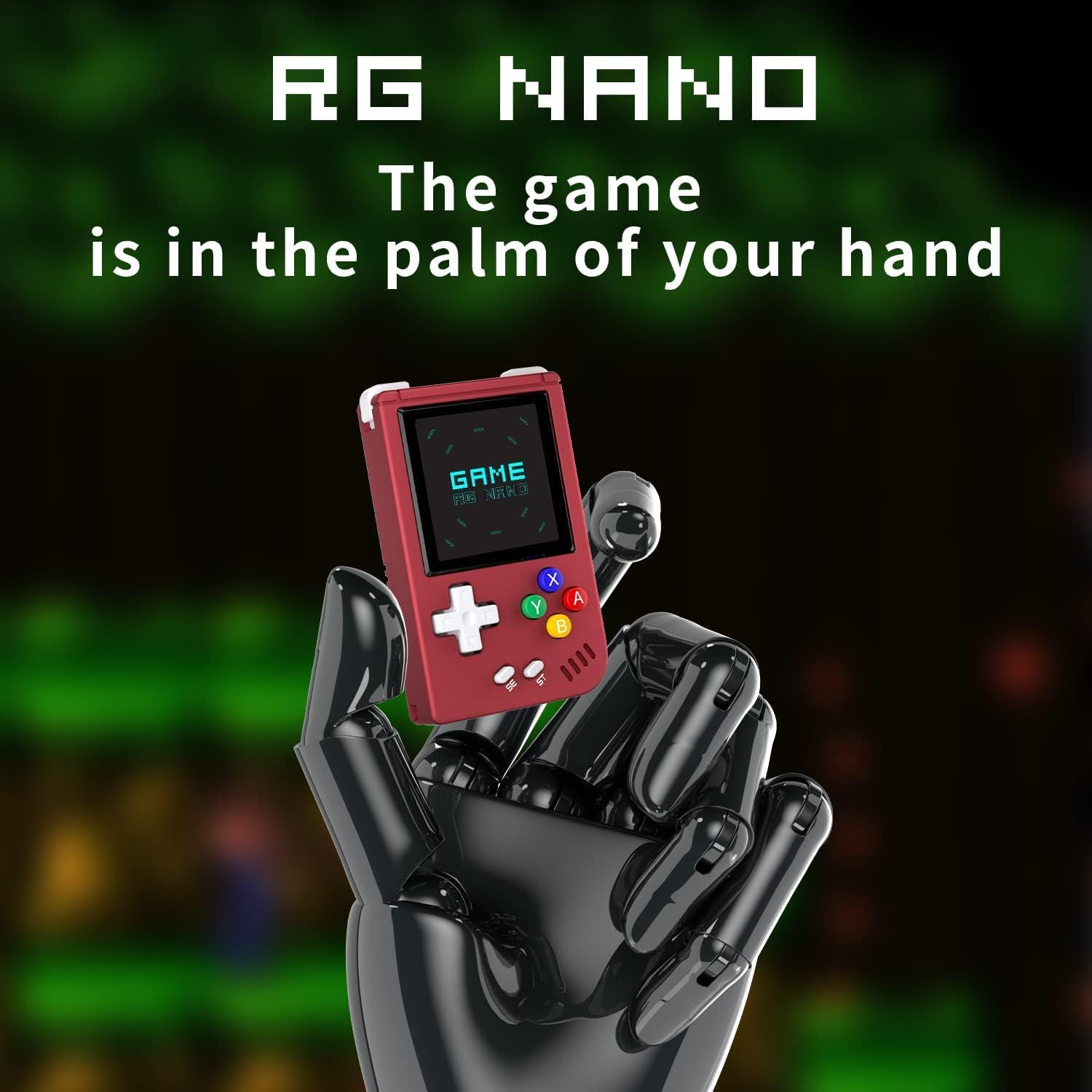
The RG Nano console is designed to be extremely compact, fitting comfortably in the palm of your hand for ultimate portability.
Key Features:
- 1.54-inch IPS Screen: Clear and vibrant display for gaming and media.
- Aluminum Alloy CNC Body: Durable and premium feel.
- Linux System: Optimized for retro gaming emulation.
- Multi-format Game Support: Compatible with over ten game formats including PS1, Arcade, GBA, NES, and more.
- Music Player Function: Supports FLAC, MP3, and Ogg audio formats.
- Clock Function: Displays time even when offline.
- Expandable Memory: Supports TF card expansion up to 512GB.

Enjoy high-fidelity audio with the built-in music player function, supporting various audio formats.
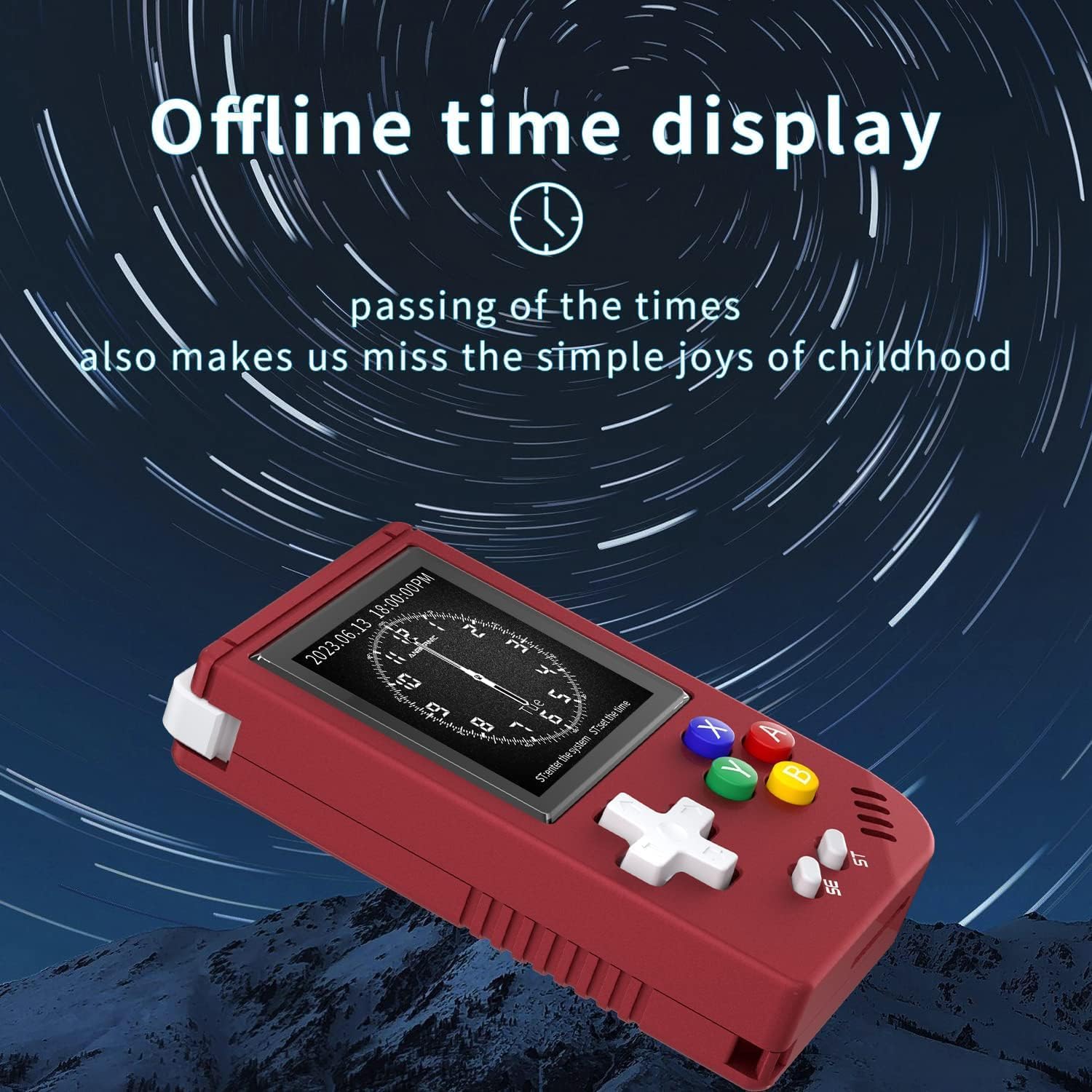
The console features an offline time display function, allowing it to serve as a portable clock.

The RG Nano supports a wide array of classic game formats, enabling extensive retro gaming.
Setup
Initial Charging
Before first use, fully charge your RG Nano console. Connect the included USB charging cable to the console's USB-C port and to a compatible USB power adapter (not included) or a computer's USB port. The charging indicator will typically show charging status and turn off or change color when fully charged. A full charge provides approximately 2.5 hours of continuous use.
Inserting the TF Card
The console comes with a 64GB TF card pre-installed or included separately, containing the operating system and pre-loaded games. Locate the TF card slot on the device and gently insert the card until it clicks into place. The console supports TF cards up to 512GB for additional storage.
Operating Instructions
Power On/Off
- To Power On: Press and hold the Power button (usually located on the top or side) for a few seconds until the screen lights up.
- To Power Off: Navigate to the system menu and select the shutdown option, or press and hold the Power button until the device powers down. The console also features a wise auto-shutdown function to conserve battery.
Navigation and Controls
The RG Nano features a D-pad for directional movement and standard A/B/X/Y action buttons. The 'SE' (Select) and 'ST' (Start) buttons are used for in-game actions and menu navigation.
- D-Pad: Navigate through menus and control character movement in games.
- A/B/X/Y Buttons: Perform actions in games (e.g., jump, attack, confirm selections).
- SE (Select) Button: Often used for secondary actions in games or menu options.
- ST (Start) Button: Typically used to start games, pause, or access in-game menus.
Game Play
From the main menu, navigate to the 'Games' section. Select your desired game system/emulator, then browse the list of available games. Select a game to launch it. Refer to the specific emulator's controls for optimal gameplay.
Music Player Function
The RG Nano can function as a music player. Navigate to the 'Music' or 'Media' section from the main menu. You can load music files (FLAC, MP3, Ogg) onto the TF card by connecting the console to a computer. Select a song to play. Audio output is via the built-in Hi-fi speaker or through headphones connected via the USB-C port (adapter may be required).
Clock Function
The console supports a clock function, displaying the current time. This feature is accessible from the main menu or as a screensaver. Time settings can usually be adjusted within the system settings.
Connecting to a Computer
To add more games or music files, connect the RG Nano to your computer using the USB cable. The console should appear as a removable storage device. You can then drag and drop files into the appropriate folders on the TF card. Ensure the console is safely ejected from your computer before disconnecting the cable.
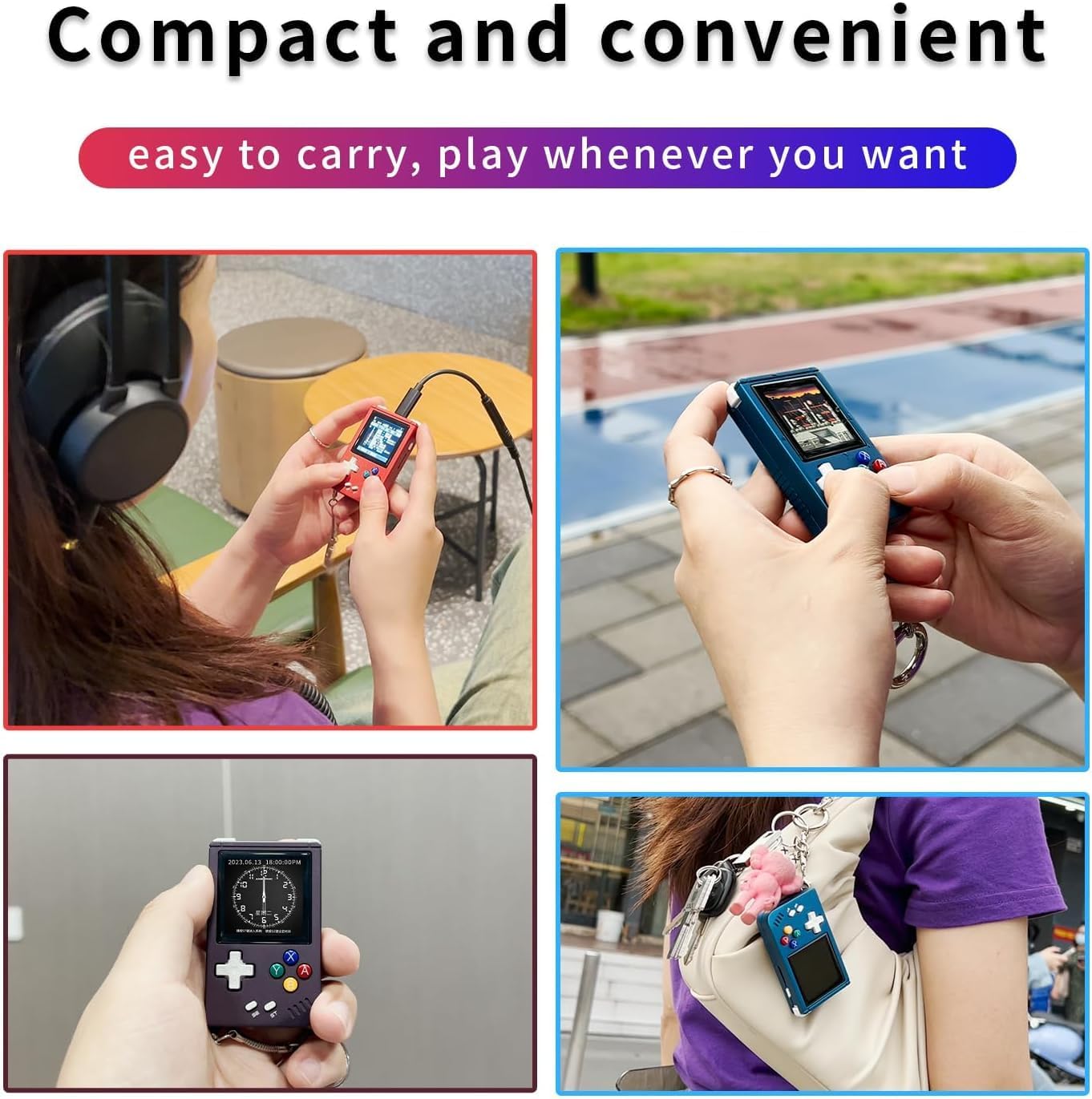
The RG Nano's compact design makes it easy to carry and enjoy entertainment wherever you go.
Maintenance
- Cleaning: Use a soft, dry cloth to clean the console's exterior. Do not use liquid cleaners or abrasive materials.
- Storage: Store the console in a cool, dry place away from direct sunlight and extreme temperatures.
- Battery Care: To prolong battery life, avoid fully discharging the battery frequently. Charge it regularly, even if not in use for extended periods.
- TF Card: Handle the TF card with care. Avoid frequent removal and insertion to prevent wear. Back up important data periodically.
Troubleshooting
Console Does Not Turn On / Black Screen
- Ensure the console is fully charged. Connect it to a power source and wait for at least 15-30 minutes before attempting to power on again.
- Check if the TF card is properly inserted. A loose or corrupted TF card can prevent the system from booting.
- Try performing a hard reset by holding the power button for an extended period (e.g., 10-15 seconds) until it completely shuts down, then attempt to power on normally.
Games Not Loading / Crashing
- Verify that the game files are correctly placed in the appropriate folders on the TF card.
- Ensure the game file format is supported by the console's emulators.
- The TF card may be corrupted or faulty. Consider backing up any important data and replacing the TF card, then flashing a new system image if necessary.
No Sound
- Check the system's volume settings.
- If using headphones, ensure they are properly connected and functional.
Console Heats Up During Use
- It is normal for electronic devices to generate some heat during operation, especially during intensive gaming.
- If the device becomes excessively hot, power it off and allow it to cool down before resuming use. Ensure proper ventilation.
Specifications
| Feature | Specification |
|---|---|
| System | Linux |
| Screen | 1.54-inch IPS full-fit screen, 240*240 resolution |
| CPU | ARM Cortex-A7 @ 1.2Ghz |
| RAM | 64 MB DDR2 |
| Internal Memory | 64G TF Card (included) |
| TF Card Expansion | Up to 512GB |
| Battery | 1050 mAh Polymer lithium-ion battery |
| Battery Life | Approx. 2.5 hours |
| Speaker | Hi-fi speaker |
| Material | Aluminum Alloy |
| Dimensions | 1.97 x 0.79 x 3.94 inches (7.1cm x 4.3cm x 1.7cm) |
| Weight | 5.3 ounces (0.075kg) |
| Supported Game Formats | PS1, Arcade, GBA, SFC, NES, PCE, GB, GBC, GG, MD, SMS, WSC, NGP, LYNX, Pokemon Mini, and more. |
| Other Functions | Clock function, Music player, Connect to computer, Wise auto shutdown. |
Warranty and Support
Specific warranty details for the RG Nano Retro Handheld Game Console are not provided in this manual. Please refer to the product packaging or the retailer's website for information regarding warranty coverage and terms.
For technical support or further assistance, please contact the seller or manufacturer directly through the platform where the product was purchased. Keep your purchase receipt or order number handy for faster service.