
Hiseeu 3K DVR 8CH
Hiseeu 3K 8 Channel DVR Security Digital Video Recorder User Manual
Model: 3K DVR 8CH | Brand: Hiseeu
Introduction
This manual provides comprehensive instructions for the installation, operation, and maintenance of your Hiseeu 3K 8 Channel DVR Security Digital Video Recorder. This advanced 5MP DVR system is designed for robust surveillance, featuring person and vehicle detection, H.265+ video compression, and remote access capabilities. Please read this manual thoroughly before using the device to ensure proper setup and optimal performance.
Setup
1. Physical Connections
Before powering on the DVR, ensure all necessary physical connections are made. This includes connecting your cameras, monitor, network cable, and USB mouse.

Figure 1: Front and Rear View of the Hiseeu 3K 8 Channel DVR. The rear panel shows BNC video inputs, audio input/output, VGA, HDMI, LAN, USB ports, and power input.

Figure 2: Detailed connection diagram for the 5MP Lite 8-port DVR, illustrating connections for AHD cameras, audio input, VGA output, HDMI output, LAN network interface, USB devices, and 12V 2A power adapter.
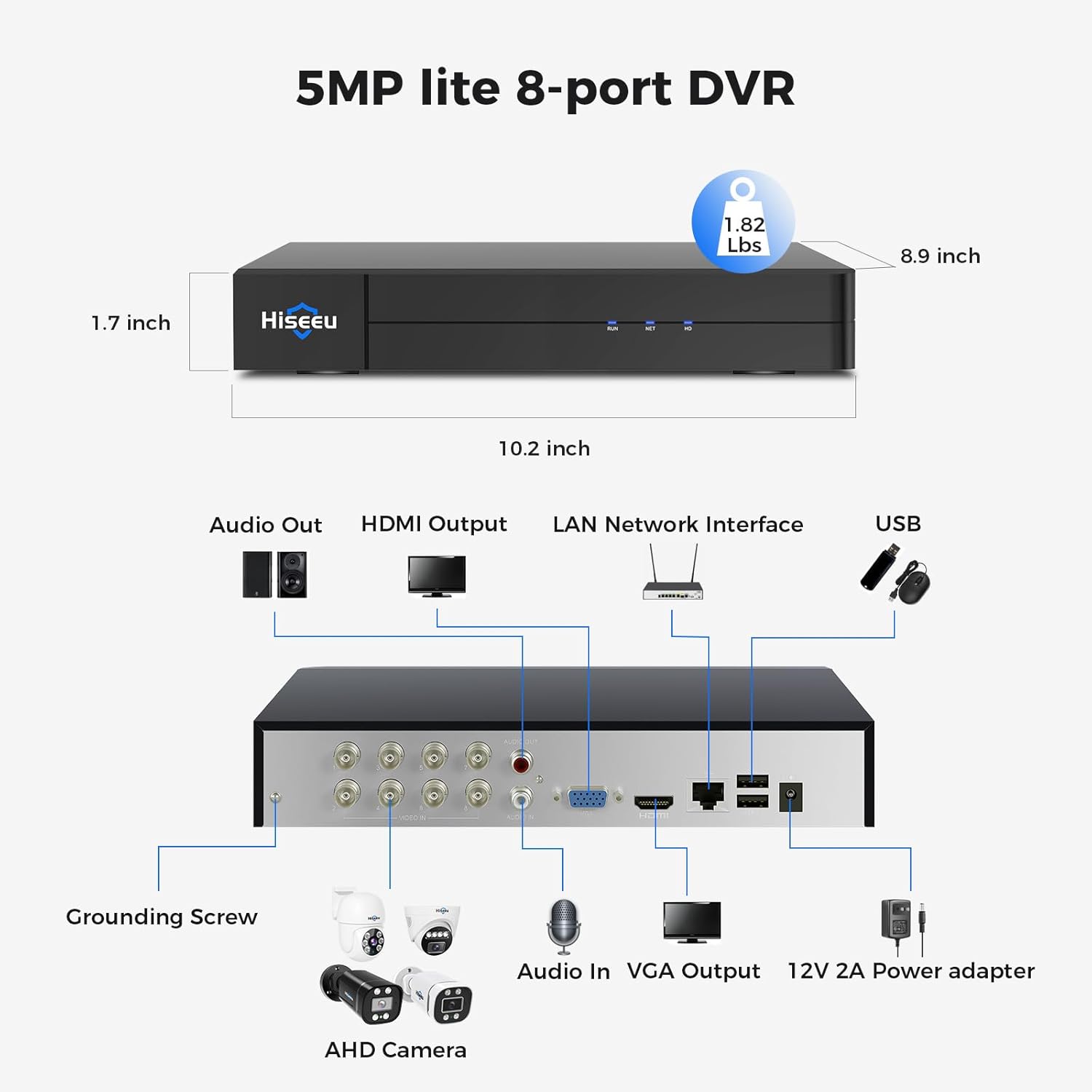
Figure 3: Contents of the Hiseeu DVR package, including the 5MP Lite 8CH DVR, 3FT Ethernet Cable, 12V Power Supply, USB Mouse, HDMI Cable, and User Manual.
Connecting Cameras to DVR
Connect your security cameras to the DVR using BNC cables. Ensure a secure connection for each camera. Power the cameras using their respective power supplies.
Video 1: This video demonstrates the process of connecting security cameras to the Hiseeu DVR using BNC cables, and then connecting the DVR to a monitor, network, and power supply. It provides a visual guide for the initial physical setup.
2. System Configuration
After all physical connections are made and the DVR is powered on, you will need to configure the system settings, including setting a new password and connecting to the mobile application for remote access.
Video 2: This video guides you through the initial setup of the DVR system, including language selection, setting a strong password, configuring network settings, and adding the device to the mobile application for remote viewing.
- Initial Login and Password Setup: Upon first boot, the system will prompt you to select a language and set a new password. The default password is '123456'. It is crucial to change this to a strong, unique password for security.
- Network Configuration: Configure the network settings (DHCP or static IP) to ensure the DVR can connect to your local network and the internet for remote access.
- Mobile App Connection: Download the "Guard Viewer" or "Guard Live" app from your device's app store. Register an account and log in. Use the app's "Add" function to scan the QR code displayed on the DVR monitor (found under Menu > Network > P2P) to add your device.
Operating the DVR System
Remote Access and Live View
The Hiseeu DVR allows you to view live camera feeds and manage your system remotely via a mobile application or web browser.

Figure 4: Illustration of remote access capabilities, showing the availability of the mobile application on Google Play and the App Store, allowing users to view surveillance footage on smartphones and desktop computers.

Figure 5: Step-by-step guide for setting up remote live view: 1. Connect camera system, 2. Download Guard Live App, 3. Enjoy Live View on your mobile device.
Once the DVR is connected to the internet and added to your mobile app, you can access live feeds from anywhere with an internet connection. The app provides an intuitive interface for viewing multiple cameras simultaneously.
Smart AI Motion Detection & Smart Playback
The DVR features advanced AI motion detection for person and vehicle recognition, reducing false alarms. You can define specific surveillance areas and receive alerts via the mobile app when motion is detected.

Figure 6: The DVR's AI Person/Vehicle Detection feature highlights detected objects (person or vehicle) within the surveillance area, helping to reduce false alarms and focus on relevant events.
Smart Playback allows you to easily review recorded footage, with events categorized by detected motion (person or vehicle). This streamlines the process of finding specific incidents.

Figure 7: Smart Playback interface showing a timeline with detected events, allowing users to quickly navigate and review footage based on specific occurrences like person or vehicle detection.

Figure 8: Overview of Smart Recording & Playback, combining 24/7 recording with AI deterrence recording, distinguishing between human/vehicle events and normal recordings for efficient review.
Advanced Video Compression (H.265+)
The Hiseeu DVR utilizes H.265+ video coding technology, which significantly reduces storage space requirements by up to 80% compared to H.264, while delivering sharper and smoother video streaming.

Figure 9: Comparison illustrating the benefits of H.265+ video compression over H.264, showing improved fluency and significant reduction in storage space required for video footage.
Privacy Masking
To protect privacy in sensitive areas, the DVR allows you to set up privacy masks. You can add up to 4 adjustable black blocks to obscure specific regions within the camera's view that you do not wish to record or monitor.

Figure 10: Example of privacy masking, where specific areas within the camera's field of view can be blacked out to ensure privacy and prevent recording of sensitive locations.
Maintenance
Hard Drive Management
The Hiseeu 3K 8 Channel DVR does not include a pre-installed Hard Disk Drive (HDD). An HDD is essential for recording and playing back videos. The DVR supports HDDs up to 8TB. Ensure you install a compatible surveillance-grade HDD for reliable performance.
- Installation: Refer to the DVR's internal layout for HDD installation. Typically, this involves connecting SATA data and power cables and securing the drive with screws.
- Formatting: After installation, the HDD must be formatted through the DVR's system settings before it can be used for recording.
- Storage Capacity: Consider your recording needs when selecting an HDD size. H.265+ compression helps maximize storage efficiency.
Troubleshooting
This section addresses common issues you might encounter with your Hiseeu DVR system.
- No Video Output on Monitor:
- Ensure the HDMI or VGA cable is securely connected to both the DVR and the monitor.
- Verify the monitor is powered on and set to the correct input source (HDMI/VGA).
- Check the DVR's power supply and ensure it is receiving power.
- If the resolution was changed, try restarting the DVR or connecting to a different monitor to see if the display recovers.
- Cannot Access DVR via Mobile App:
- Confirm the DVR is connected to the internet (check LAN cable connection and network status in DVR settings).
- Ensure the P2P (Peer-to-Peer) function is enabled in the DVR's network settings.
- Verify that the QR code was scanned correctly and the device was added successfully to the app.
- Check your mobile device's internet connection.
- Forgot Password / Login Issues:
- If you have forgotten your password, use the "Forgot Password" option on the login screen. This typically involves answering security questions or using a registered email for recovery.
- Ensure you are entering the correct username (default is 'admin') and password.
- No Recording / Playback Issues:
- Verify that a Hard Disk Drive (HDD) is installed in the DVR.
- Check if the HDD is properly formatted and recognized by the DVR system.
- Ensure recording schedules are configured correctly in the DVR settings.
- Check the status of individual cameras; if a camera is offline, it will not record.
Specifications
| Feature | Detail |
|---|---|
| Model Number | 3K |
| Product Dimensions | 9.9 x 8.26 x 1.5 inches |
| Item Weight | 3.01 pounds |
| Connectivity Technology | Wired |
| Compatible Devices | Camera |
| Memory Storage Capacity | 8 TB (Max Supported) |
| Number of Channels | 8 |
| Video Compression | H.265+ |
| Hybrid Compatibility | AHD/TVI/CVI/CVBS/IPC (5-in-1) |
| AI Detection | Person/Vehicle Detection |
Warranty and Support
Hiseeu is committed to providing excellent customer service and support for your DVR system.
- Product Warranty: This Hiseeu DVR comes with a 12-month warranty from the date of purchase. Please retain your proof of purchase for warranty claims.
- Lifetime Technical Support: Hiseeu offers lifetime technical support for its products. If you encounter any issues or have questions regarding the setup, operation, or troubleshooting of your DVR, please do not hesitate to contact Hiseeu customer support.
- Returns: A 30-day free return policy is typically available for products purchased through authorized channels. Refer to your purchase platform's return policy for details.
For further assistance, please visit the official Hiseeu website or contact their customer service team directly.
Ask a question about this manual
Ask about setup, troubleshooting, compatibility, parts, safety, or missing instructions. Manuals+ will review the question and use this page’s manual context to help answer it.