
NetumScan 810
NetumScan Book & Document Camera Model 810 User Manual
1. Introduction
The NetumScan Book & Document Camera Model 810 is a versatile imaging device designed for capturing documents, books, and objects. It features an 8MP CMOS sensor, multi-language Optical Character Recognition (OCR), real-time projection, and video recording capabilities. This manual provides essential information for setting up, operating, and maintaining your device. Please note that this device is designed for use with Windows operating systems only.
2. Setup Guide
2.1. Hardware Setup
- Unpack the Device: Carefully remove the NetumScan Book & Document Camera and all accessories from its packaging.
- Position the Camera: Place the camera on a stable, flat surface. Extend the camera arm to its upright position.
- Place the Scanning Mat: Position the included black scanning mat directly beneath the camera lens. Ensure the document to be scanned will fit within the mat's boundaries.
- Connect to Computer: Connect the camera to your Windows computer using the provided USB cable. The camera will draw power and transmit data via this connection.

2.2. Software Installation (Windows Only)
The NetumScan Book & Document Camera requires proprietary software to function correctly. This software is compatible only with Windows operating systems (Windows 7 and above).
- Obtain Software: Download the latest software from the official NetumScan website. Alternatively, use the software provided on the included USB drive, if applicable.
- Install Software: Run the installer. Follow the on-screen prompts to complete the installation. You may encounter security warnings from your operating system; proceed with installation if you have downloaded the software from the official source.
- Launch Application: Once installed, launch the NetumScan application. The camera feed should appear in the software interface.

3. Operating Instructions
3.1. Document Scanning
- Place Document: Position the document or book you wish to scan on the black scanning mat, ensuring it is flat and within the camera's view.
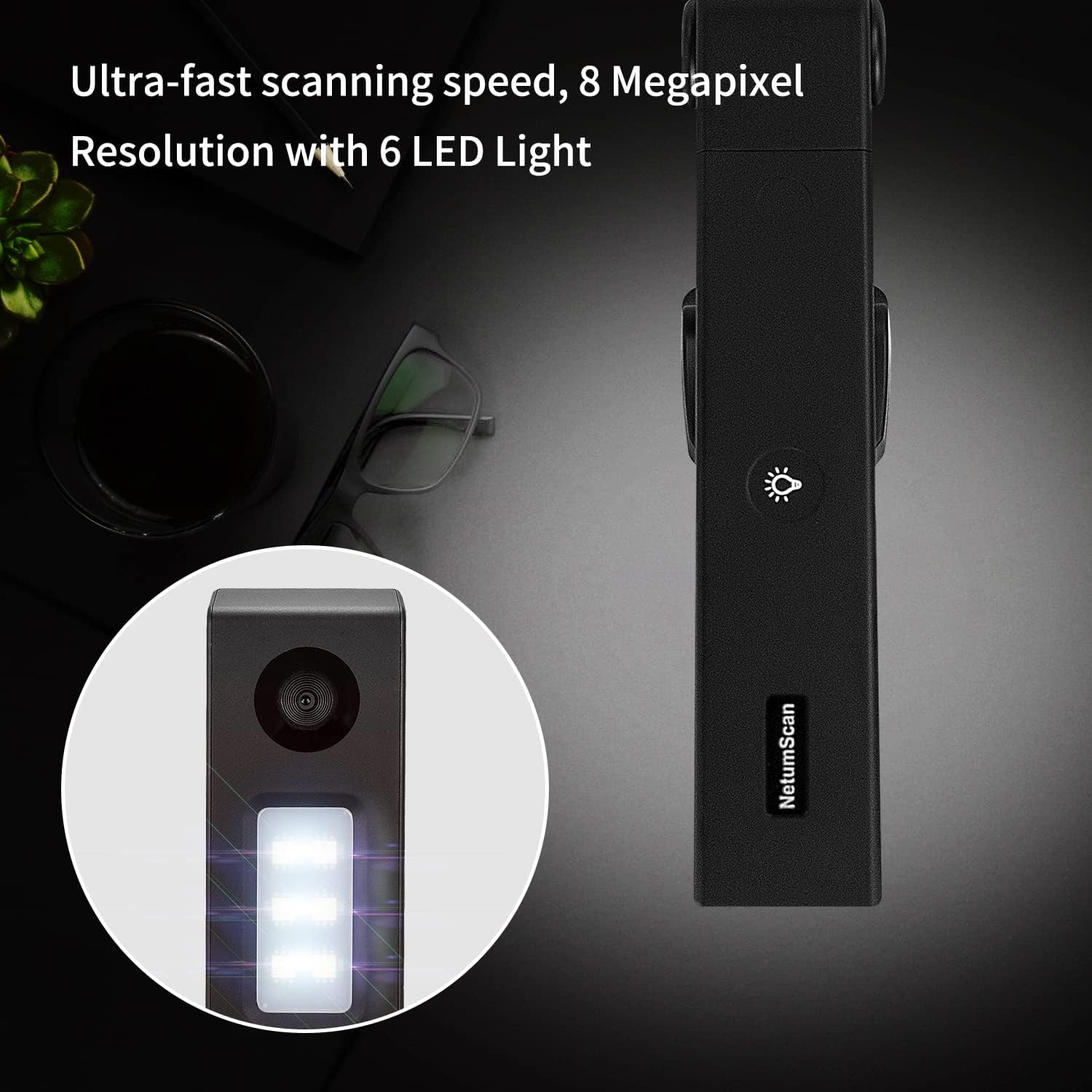
- Adjust Lighting: If necessary, activate the built-in LED light on the camera head to ensure adequate illumination. The camera features a three-level dimming function.
- Automatic Correction: The software includes an intelligent automatic correction feature. Even if the document is slightly skewed, the software will attempt to straighten and crop the image automatically.
- Batch Scanning: For multiple pages, simply turn the page and the camera can perform continuous high-speed scanning, automatically capturing each page.
- Save Output: Scanned images can be saved in various formats, including JPG, Word, PDF, and TXT.

3.2. OCR (Optical Character Recognition) Functionality
The NetumScan software integrates powerful OCR technology to convert captured document images into editable text.
- Scan Document: Capture the document containing the text you wish to recognize.
- Activate OCR: Within the software, select the OCR function. The software will process the image to extract text.
- Review and Export: The recognized text will be displayed, allowing for review and editing. You can then export the text to editable file formats such as Word or TXT. The OCR supports multi-language, symbol, and number recognition.


3.3. Real-time Projection & Video Recording
The camera can function as a visual presenter, displaying live images or recording video.
- Real-time Projection: Connect your computer to a projector or external display. The camera's live feed can be projected in real-time, suitable for presentations, teaching, or meetings.
- Video Recording: Use the software to record video of documents, objects, or demonstrations. This feature is useful for creating educational content or archiving presentations.


4. Maintenance
Proper maintenance ensures the longevity and optimal performance of your NetumScan Book & Document Camera.
- Cleaning the Lens: Use a soft, lint-free cloth specifically designed for optical lenses to gently clean the camera lens. Avoid abrasive materials or harsh chemicals.
- Cleaning the Body: Wipe the device body with a dry or slightly damp soft cloth. Do not use excessive moisture.
- Storage: When not in use, fold the camera for compact storage. Store it in a dry, dust-free environment away from direct sunlight and extreme temperatures.

5. Troubleshooting
If you encounter issues with your NetumScan Book & Document Camera, refer to the following common solutions:
- Software Not Launching/Recognizing Camera:
- Ensure the USB cable is securely connected to both the camera and the computer.
- Verify that the software is installed correctly and that your Windows operating system meets the minimum requirements.
- Try restarting your computer and the software.
- Check for updated drivers or software on the NetumScan official website.
- Poor Image Quality (Grainy, Dark, Blurry):
- Ensure adequate lighting in the room. Use the camera's built-in LED light if necessary.
- Clean the camera lens with a suitable optical cleaning cloth.
- Ensure the document is flat and positioned correctly on the scanning mat.
- Adjust focus settings within the software if available.
- OCR Not Working Accurately:
- Ensure the scanned document is clear and well-lit.
- Verify that the language setting in the OCR software matches the language of the document.
- Avoid scanning crumpled or heavily textured documents.
- Device Not Compatible with macOS/Linux:
- This model is designed exclusively for Windows operating systems. Full functionality is not guaranteed on other platforms.
For further assistance, please contact NetumScan customer support.
6. Specifications
| Feature | Detail |
|---|---|
| Model Number | 810 |
| Sensor | 8MP CMOS |
| Connectivity | USB |
| Supported Sheet Size | Up to A4 |
| OCR Support | Multi-language, Symbol, Number recognition |
| Output Formats | Word, PDF, TXT, JPG |
| Illumination | Built-in LED light with three-level dimming |
| Minimum System Requirements | Windows 7 |
| Product Dimensions | 7.87 x 1.97 x 1.18 inches |
| Item Weight | 2.2 pounds |
7. Warranty and Support
For warranty information, technical support, or service inquiries, please refer to the documentation included with your product or visit the official NetumScan website. Keep your purchase receipt as proof of purchase for any warranty claims.
Ask a question about this manual
Ask about setup, troubleshooting, compatibility, parts, safety, or missing instructions. Manuals+ will review the question and use this page’s manual context to help answer it.