
KOQICALL Q13+O3-N+K-TP1 1+3+1
KOQICALL Electronic Queue Calling System User Manual
Model: Q13+O3-N+K-TP1 1+3+1
Introduction
This manual provides detailed instructions for the setup, operation, maintenance, and troubleshooting of your KOQICALL Electronic Queue Calling System. This system is designed to streamline customer flow in various environments such as restaurants, coffee shops, service centers, clinics, and banks, ensuring fair and efficient service.
The system includes a "Now Serving" number display, "Next Call" buttons, a ticket dispenser printer, and a remote control.
Setup
1. System Overview and Basic Operation
The KOQICALL Wireless Calling System operates without internet access, providing a simple and efficient way to manage queues.
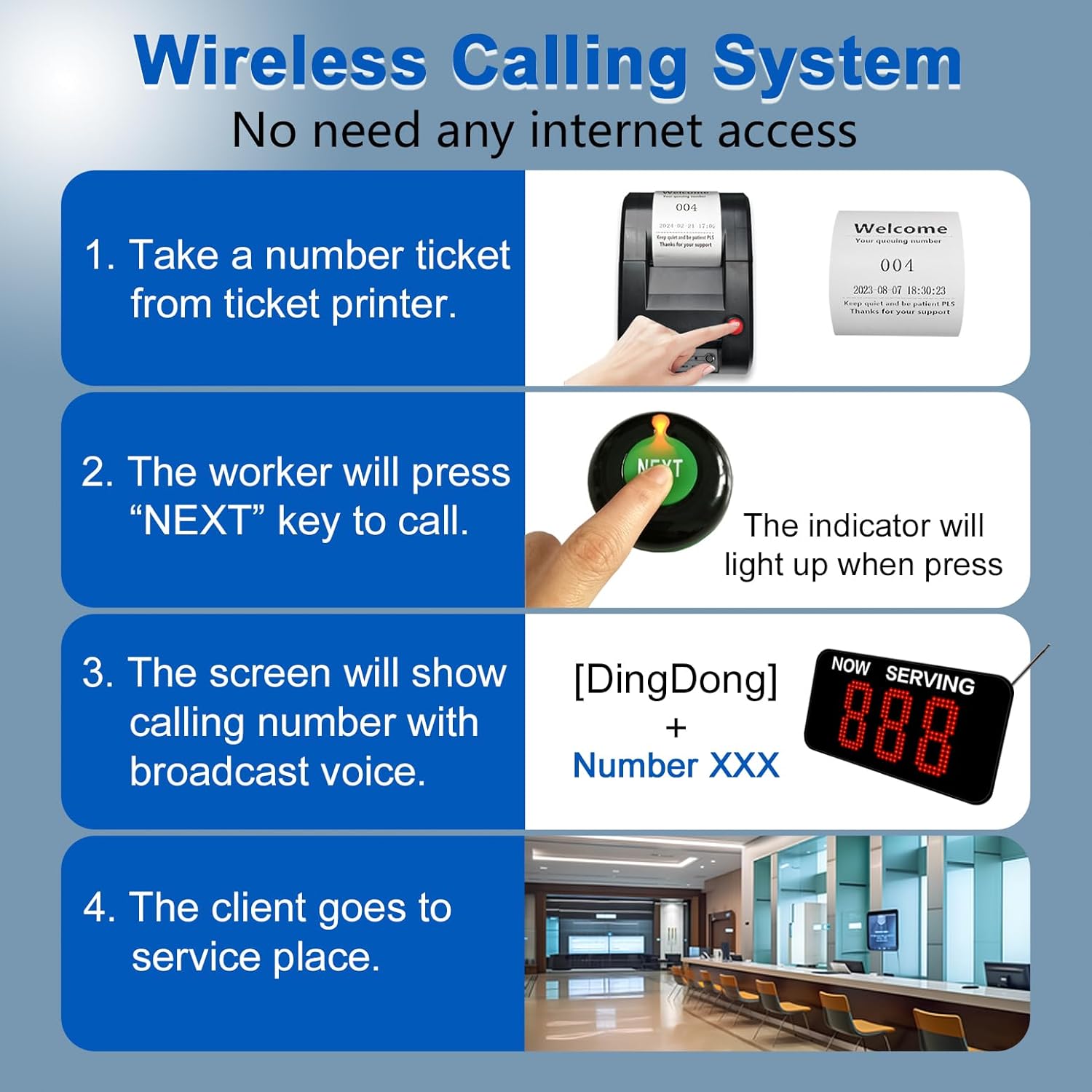
Figure 1: Overview of the Wireless Calling System's operational flow. Customers take a ticket, staff call the next number, the display shows the number with voice announcement, and the customer proceeds to service.
2. Ticket Dispenser Printer Setup
Proper loading of the thermal receipt roll is crucial for the ticket dispenser to function correctly. Ensure the paper is inserted in the correct orientation.
Video 1: This official seller video demonstrates the correct paper loading direction for the queue ticket printer. Incorrect paper placement will result in blank tickets.
Video 2: This official seller video shows how to take a number from the red ticket dispenser when mounted on a stand.
The ticket printer features a power socket and a computer USB port. For editing print content or changing settings, specialized software is required. Please contact the seller for assistance with obtaining this software.

Figure 2: Rear view of the ticket printer highlighting the power socket and USB port for connectivity and configuration.
Operating Instructions
1. Calling Numbers
The system allows for sequential calling of numbers using the "NEXT" button. The display will show the current number being served, accompanied by a voice announcement.
Video 3: This official seller video demonstrates how to register and use the "NEXT" call system to sequentially call queue numbers.
2. Voice Modes and Volume Adjustment
The display offers various voice modes and adjustable volume settings. You can choose between a simple "Ding-Dong" sound or English voice prompts. Volume can be adjusted using the "UP" or "DOWN" keys on the display or the remote control.

Figure 3: Available voice modes and volume adjustment options for the "Now Serving" display.
3. Remote Control Functions
The remote control provides convenient access to various functions, including calling the last or next number, recalling a missed number, and adjusting volume. It also allows for temporary number calls in standby mode.
Video 4: This official seller video demonstrates the various functions of the remote control, including calling next/last numbers and recalling numbers.
4. Setting Start and End Numbers
The system allows you to customize the starting and ending numbers for the queue. By default, the range is 000-999. This can be adjusted to suit specific operational needs, for example, setting the range from 100-300.
Video 5: This official seller video explains how to change the content displayed on the standby page, which may include setting the start number.
5. Changing the Zone
The system supports changing the operational zone between the keypad and the receiver. This feature is useful in environments with multiple queue systems or distinct service areas.
Video 6: This official seller video demonstrates how to change the zone setting on the system.
Maintenance
1. Next Call Button Battery Replacement
The "Next Call" buttons are powered by 12V 23A Alkaline batteries. These batteries typically last 6-8 months. Replace them promptly when the indicator light becomes weak to ensure consistent performance.

Figure 4: Details of the "Next Call" button, including battery life and replacement reminder.
Troubleshooting
1. Printer Issues: Blank Tickets
If the ticket dispenser prints blank tickets, it is likely due to incorrect paper loading direction. Refer to the "Ticket Dispenser Printer Setup" section and Video 1 for correct paper placement.
2. Display Issues: Shaking Numbers
A slight shaking of the digital tube display is normal and not indicative of a product problem. This can be influenced by lighting or shooting angle.
3. Resetting the Queue Number to Zero
To reset the queue number to zero, press the "UP" and "DOWN" keys on the LED Number Display simultaneously until "RESET" appears on the screen. Alternatively, the system can be configured to automatically return to the starting number "1" at 0:00 AM each night. Contact the seller if you wish to enable this automatic reset function.
Video 7: This official seller video demonstrates how to manually return the queue number to zero on the display.
Specifications
| Feature | Detail |
|---|---|
| Model Number | Q13+O3-N+K-TP1 1+3+1 |
| Brand | KOQICALL |
| Item Weight | 3.96 pounds |
| Package Dimensions | 16.54 x 8.66 x 3.54 inches |
| Batteries | 3 x 12V 23A batteries (included) |
| Pre-printed Tickets | Numbers |
| Transmission Distance | Up to 100-150 meters (open space), 30-50 meters (indoors with obstacles) |
| Power-off Memory | Retains last called number; next call starts from last number +1. |
Warranty and Support
For any questions regarding product operation, troubleshooting, or to obtain editing software for the ticket printer, please contact KOQICALL customer support via Amazon. We are committed to providing assistance and ensuring your satisfaction with the product.
The product is covered by standard return and replacement policies. Please refer to your purchase details for specific warranty information.
Ask a question about this manual
Ask about setup, troubleshooting, compatibility, parts, safety, or missing instructions. Manuals+ will review the question and use this page’s manual context to help answer it.