
1. Introduction
Thank you for choosing the Bnnwa Wireless Vertical Mouse. This ergonomic mouse is designed to provide a natural and comfortable hand position, reducing wrist strain during prolonged use. It offers versatile connectivity options, allowing you to switch between multiple devices seamlessly.

Figure 1.1: Ergonomic design promoting a natural hand and wrist position.

Figure 1.2: Comparison illustrating the ergonomic benefits of the vertical mouse.
2. Package Contents
Please verify that all items are present in your package:
- 1 x Bnnwa Wireless Vertical Ergonomic Optical Mouse
- 1 x Energizer AA Battery
- 1 x 2.4G USB Receiver (stored in the bottom of the mouse)
- 1 x Instruction Manual (this document)
3. Product Overview
3.1 Mouse Buttons and Indicators
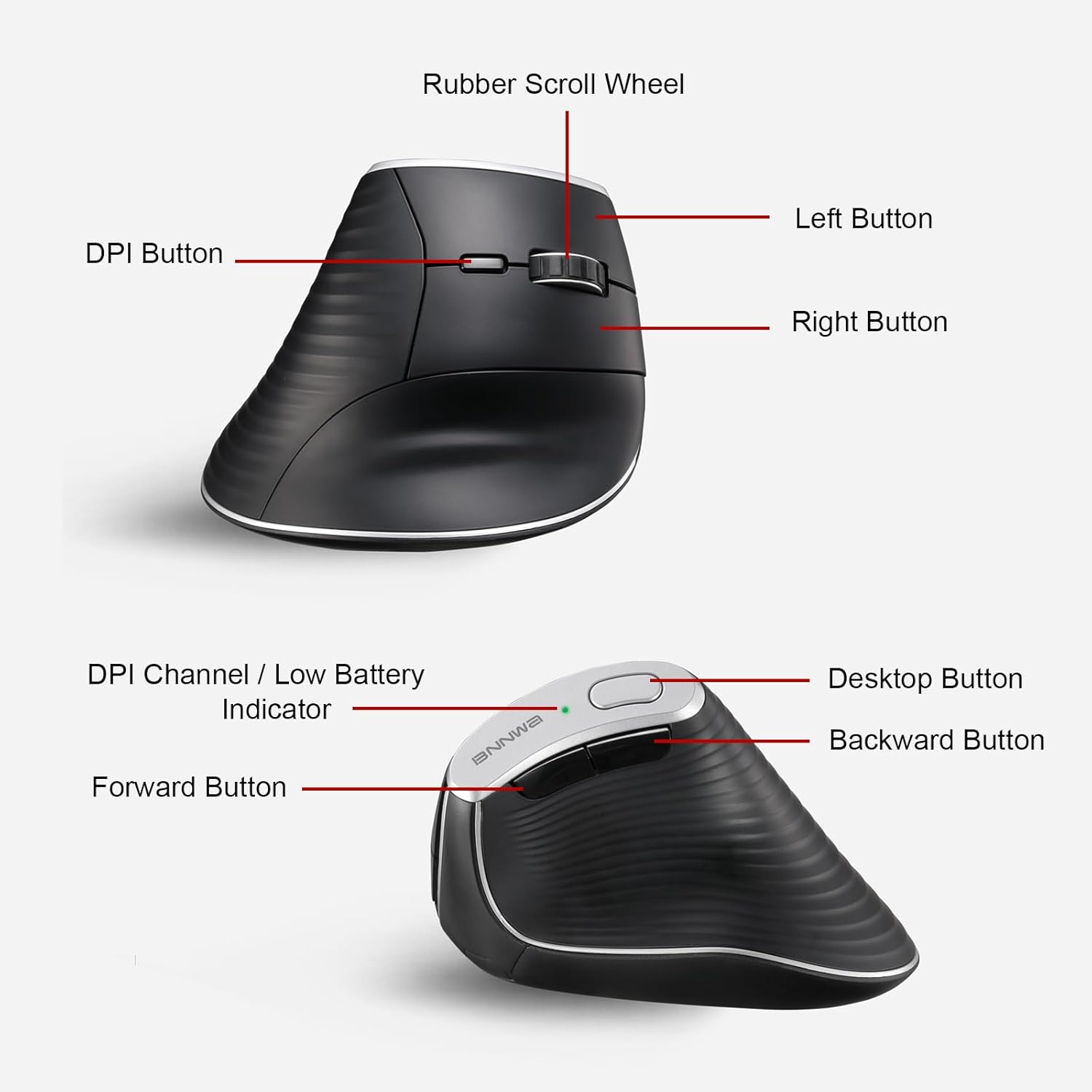
Figure 3.1: Top and side view of the mouse with button labels.
- Left Button: Standard left-click function.
- Right Button: Standard right-click function.
- Rubber Scroll Wheel: For scrolling and middle-click.
- DPI Button: Adjusts cursor sensitivity (DPI).
- DPI Channel / Low Battery Indicator: Displays current DPI setting and indicates low battery.
- Forward Button: Navigates forward in web browsers or file explorers. (Note: Not compatible with Mac OS)
- Backward Button: Navigates backward in web browsers or file explorers. (Note: Not compatible with Mac OS)
- Desktop Button: Quickly displays or hides the desktop. (Note: Not compatible with Mac OS)
3.2 Bottom Layout

Figure 3.2: Bottom view of the mouse with functional labels.
- On/Off Switch: Powers the mouse on or off.
- Mode Switch Button / BT Pairing Button: Switches between 2.4G and Bluetooth channels. Long press for Bluetooth pairing.
- 2.4G Indicator: Lights up when connected via 2.4G USB receiver.
- Bluetooth 1 Indicator: Lights up when connected via Bluetooth channel 1.
- Bluetooth 2 Indicator: Lights up when connected via Bluetooth channel 2.
- Battery Slot: Holds one AA battery.
- Receiver Slot: Stores the 2.4G USB receiver.
4. Setup Instructions
4.1 Battery Installation
- Locate the battery slot on the bottom of the mouse (refer to Figure 3.2).
- Open the battery compartment cover.
- Insert the provided Energizer AA battery, ensuring correct polarity (+/-).
- Close the battery compartment cover.
4.2 Connecting via 2.4G USB Receiver
- Remove the 2.4G USB receiver from its storage slot on the bottom of the mouse.
- Plug the USB receiver into an available USB port on your computer.
- Turn on the mouse using the On/Off switch on the bottom.
- Press the Mode Switch Button on the bottom of the mouse until the 2.4G Indicator lights up (white light).
- Your computer should automatically detect and install the mouse.
4.3 Connecting via Bluetooth (BT1 / BT2)
The mouse supports two Bluetooth connections (BT1 and BT2).
- Turn on the mouse using the On/Off switch.
- Press the Mode Switch Button on the bottom of the mouse to select either Bluetooth 1 (blue light) or Bluetooth 2 (green light).
- Long-press the Mode Switch Button for 3-5 seconds until the selected Bluetooth indicator (blue or green) starts flashing rapidly. This indicates pairing mode.
- On your computer or device, open Bluetooth settings.
- Search for new devices and select "Bnnwa Vertical Mouse" from the list.
- Once connected, the Bluetooth indicator will stop flashing and remain solid.

Figure 4.1: Multi-device connectivity example.
Video 4.1: Demonstrating the multi-device switching capability of the Bnnwa Vertical Mouse.
5. Operating Instructions
5.1 DPI Adjustment
The mouse features three adjustable DPI settings: 1000, 1600, and 2400. To change the DPI, press the DPI Button located on the top of the mouse (refer to Figure 3.1). Each press will cycle through the settings, and the DPI Channel Indicator will briefly light up to show the current setting.
- 1000 DPI: Slower cursor movement, suitable for precise tasks.
- 1600 DPI: Medium cursor movement, suitable for general use.
- 2400 DPI: Faster cursor movement, suitable for quick navigation.
5.2 Special Buttons
The Forward, Backward, and Desktop buttons provide quick access to common functions. Please note that these buttons are not compatible with Mac OS.
- Forward/Backward Buttons: Use for navigation in web browsers or file explorers.
- Desktop Button: Press to instantly show or hide your desktop.
5.3 Power Saving Mode
To conserve battery life, the mouse will automatically enter power-saving mode after 8 minutes of inactivity. To wake the mouse, simply press the left or right button.
6. Maintenance
6.1 Cleaning
To maintain optimal performance, regularly clean your mouse. Use a soft, dry cloth to wipe the surface. For stubborn dirt, a slightly damp cloth can be used, but ensure no moisture enters the internal components. Avoid using harsh chemicals or abrasive materials.
6.2 Battery Replacement
The mouse requires one AA battery. When the DPI Channel / Low Battery Indicator flashes, it's time to replace the battery. Follow the battery installation steps in Section 4.1.
7. Troubleshooting
- Mouse not responding:
- Ensure the mouse is powered on.
- Check battery level and replace if necessary.
- For 2.4G connection, ensure the USB receiver is securely plugged in and the 2.4G indicator is lit. Try a different USB port.
- For Bluetooth connection, ensure the correct Bluetooth channel (BT1 or BT2) is selected and the device is paired. Try re-pairing the mouse.
- Restart your computer or device.
- Cursor movement is erratic or slow:
- Clean the optical sensor on the bottom of the mouse.
- Ensure you are using the mouse on a suitable surface (non-reflective, opaque).
- Adjust the DPI setting to a higher value if movement is too slow.
- Forward/Backward/Desktop buttons not working on Mac OS:
- This is expected behavior. These buttons are not compatible with Mac OS.
- Cannot switch between devices:
- Ensure you are pressing the Mode Switch Button on the bottom of the mouse to cycle through the 2.4G, BT1, and BT2 channels.
- Verify that each channel is correctly paired or connected to its respective device.
8. Specifications
| Feature | Detail |
|---|---|
| Model | D1027E8 |
| Connectivity | 2.4GHz USB, Bluetooth (BT1, BT2) |
| DPI Settings | 1000 / 1600 / 2400 |
| Buttons | 7 (Left, Right, Scroll Wheel, DPI, Forward, Backward, Desktop) |
| Power Source | 1 x AA Battery |
| Battery Life | Up to 12 months |
| Power Saving | Automatic sleep after 8 minutes idle |
| Product Dimensions | 4.4 x 3.1 x 3.1 inches (approximate) |
| Item Weight | 3.9 ounces |
| Movement Detection | Optical |
9. Warranty and Support
For warranty information or technical support, please refer to the contact details provided with your purchase or visit the official Bnnwa website. Please retain your proof of purchase for warranty claims.
Contact: support@bnnwa.com