
1. Introduction
Welcome to the user manual for your MINISFORUM UM560XT Mini PC. This document provides essential information for setting up, operating, maintaining, and troubleshooting your device. The MINISFORUM UM560XT is a high-performance mini desktop computer powered by an AMD Ryzen 5 5600H processor and pre-installed with Windows 11 Pro, designed for everyday use and demanding tasks.
Please read this manual thoroughly before using your new Mini PC to ensure proper operation and to maximize its lifespan.
2. Safety Information
- Power Supply: Use only the original AC adapter provided with the device. Using an incompatible power adapter may damage the Mini PC and void your warranty.
- Ventilation: Ensure adequate ventilation around the Mini PC. Do not block ventilation openings. Avoid placing the device in enclosed spaces or on soft surfaces that may obstruct airflow.
- Liquid Exposure: Keep the Mini PC away from water, moisture, and other liquids. Do not operate the device with wet hands.
- Temperature: Operate the device within a temperature range of 0°C to 35°C (32°F to 95°F). Avoid extreme hot or cold environments.
- Cleaning: Disconnect the power before cleaning. Use a soft, dry cloth. Do not use liquid or aerosol cleaners.
- Disassembly: Do not attempt to disassemble or repair the Mini PC yourself. Unauthorized disassembly may cause damage and void the warranty. Contact customer support for assistance.
3. Package Contents
Please check the package for the following items:
- MINISFORUM UM560XT Mini PC
- AC Adapter
- AC Cable
- User Manual (this document)
4. Product Overview
The MINISFORUM UM560XT Mini PC features a compact design with various ports for connectivity. Familiarize yourself with the port layout before setup.

Figure 4.1: Front and Side View of MINISFORUM UM560XT Mini PC with Stand
Front Panel:
- USB Ports: For connecting peripherals like keyboards, mice, or USB drives.
- Audio Jack: For headphones or speakers.
- Power Button: To turn the device on or off.
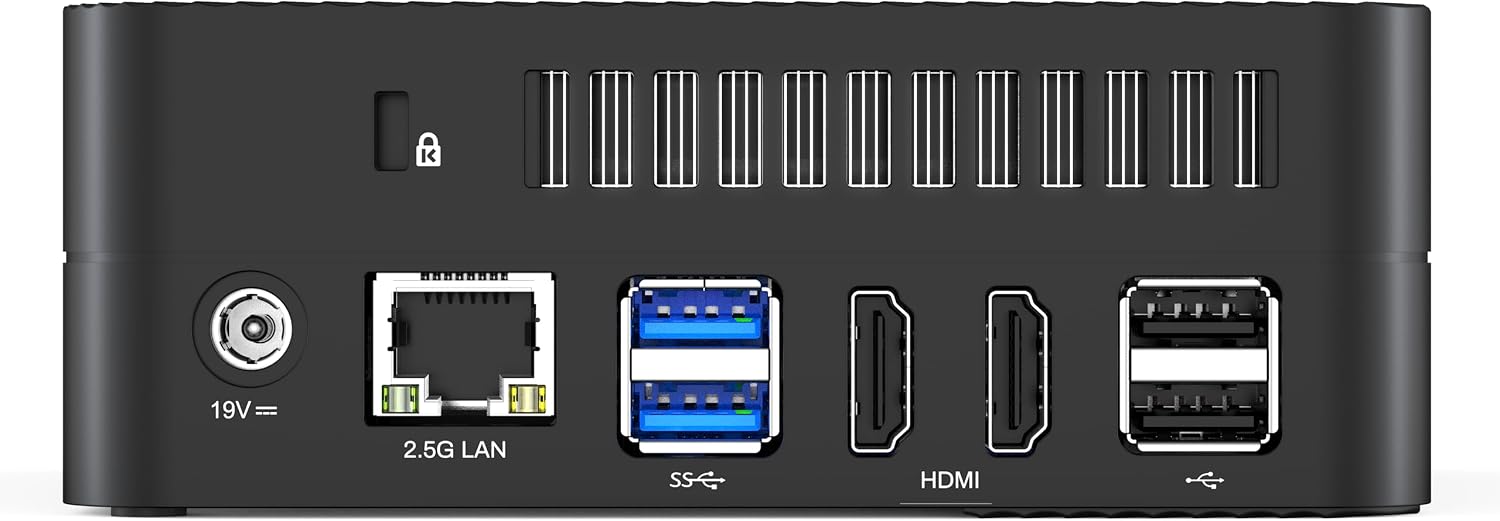
Figure 4.2: Rear View of MINISFORUM UM560XT Mini PC
Rear Panel:
- 19V DC-in: Power input port.
- 2.5G LAN: Ethernet port for wired network connection.
- USB Ports (SuperSpeed): High-speed USB ports for data transfer and peripherals.
- HDMI Ports: For connecting external displays, supporting up to 4K/60Hz resolution.
- USB Type-C Port: Supports video output (up to 4K/60Hz) and data transfer.
5. Setup
Follow these steps to set up your MINISFORUM UM560XT Mini PC:
- Connect Peripherals: Connect your monitor(s) to the HDMI or USB Type-C ports. Connect your keyboard and mouse to the available USB ports.
- Network Connection: For a wired connection, connect an Ethernet cable from your router or modem to the 2.5G LAN port on the Mini PC.
- Power Connection: Connect the AC adapter to the 19V DC-in port on the Mini PC, then plug the AC cable into a power outlet.
- Power On: Press the power button located on the front panel of the Mini PC. The power indicator light will illuminate.
- Initial Windows Setup: Upon the first boot, you will be guided through the Windows 11 Pro setup process. Follow the on-screen instructions to configure your language, region, network, and user account.
6. Operating Instructions
Once setup is complete, you can begin using your Mini PC.
- Turning On/Off: Press the power button to turn on the Mini PC. To turn off, click the Start button in Windows, then select Power > Shut down. You can also press and hold the power button for a few seconds to force a shutdown (not recommended for regular use).
- Connecting to Displays: The Mini PC supports multiple displays via its HDMI and USB Type-C ports. Ensure your monitors are connected and powered on. Windows will automatically detect and configure the displays. You can adjust display settings in Windows Settings > System > Display.
- Network Connectivity: If you connected an Ethernet cable, your Mini PC should automatically connect to the internet. For wireless connectivity, navigate to Windows Settings > Network & internet > Wi-Fi and connect to your desired network.
- USB Devices: Connect USB devices such as external hard drives, printers, or webcams to the available USB ports. Windows will typically install the necessary drivers automatically.
7. Maintenance
Regular maintenance helps ensure the longevity and optimal performance of your Mini PC.
- Cleaning: Periodically clean the exterior of the Mini PC with a soft, dry, lint-free cloth. Use a can of compressed air to gently clear dust from the ventilation openings. Do not use harsh chemicals or abrasive materials.
- Software Updates: Keep your Windows operating system and drivers updated. Go to Windows Settings > Windows Update to check for and install updates. This improves security and performance.
- Data Backup: Regularly back up important data to an external drive or cloud storage to prevent data loss.
- Storage Management: Monitor your storage space. Delete unnecessary files and applications to maintain system performance.
8. Troubleshooting
If you encounter issues with your Mini PC, refer to the following common problems and solutions:
| Problem | Possible Solution |
|---|---|
| Mini PC does not power on. | Ensure the AC adapter is securely connected to both the Mini PC and a working power outlet. Try a different power outlet. |
| No display on monitor. | Check that the monitor is powered on and the video cable (HDMI/USB-C) is securely connected to both the Mini PC and the monitor. Try a different video cable or monitor if possible. Ensure the correct input source is selected on your monitor. |
| No internet connection. | For wired connection, check the Ethernet cable and ensure your router/modem is working. For Wi-Fi, verify that Wi-Fi is enabled in Windows settings and you are connected to the correct network with the correct password. Restart your router/modem. |
| Peripherals (keyboard/mouse) not working. | Try connecting the peripheral to a different USB port. Ensure the peripheral is properly connected and powered on (if applicable). Restart the Mini PC. |
| System is slow or unresponsive. | Close unnecessary applications. Check for background processes consuming high resources (Task Manager). Ensure sufficient free storage space. Run Windows Update. |
If the problem persists after trying these solutions, please contact MINISFORUM customer support.
9. Specifications
Detailed specifications for the MINISFORUM UM560XT Mini PC:
| Feature | Specification |
|---|---|
| Brand | MINISFORUM |
| Model | UM560XT |
| Operating System | Windows 11 Pro |
| CPU | AMD Ryzen 5 5600H |
| CPU Speed | 3300 MHz |
| Graphics | Integrated Radeon Graphics |
| RAM | 16 GB SO-DIMM (System RAM Type: SODIMM) |
| Storage | SSD (Hard Disk Interface: Solid State) |
| Video Output | HDMI, USB Type-C (Supports up to 3840x2160 resolution) |
| LAN | 2.5G LAN |
| Dimensions | 12.8 x 12.7 x 4.6 cm |
| Product Use | Everyday Use |
10. Warranty and Support
Your MINISFORUM UM560XT Mini PC comes with a 1-year warranty from the date of purchase. This warranty covers manufacturing defects and hardware malfunctions under normal use conditions.
For technical support, warranty claims, or any questions not covered in this manual, please visit the official MINISFORUM website or contact their customer service directly. Please have your product model (UM560XT) and purchase information ready when contacting support.
MINISFORUM Official Website: MINISFORUM Store on Amazon.co.jp