
1. Introduction
Thank you for choosing the Generic Replacement Remote Control. This remote is designed to be a direct replacement for your original Formuler (Z10 SE, Z+ Neo, Z Plus) 4K UHD IPTV Android HDTV Box remote. It operates using infrared (IR) technology and requires no complex setup or programming.
Important: Please ensure your original remote control matches the appearance of this replacement remote to guarantee compatibility. This remote is specifically designed for the models listed.
2. Setup
2.1 Battery Installation
The remote control requires two (2) AAA batteries (not included) for operation. Follow these steps to install the batteries:
- Locate the battery compartment on the back of the remote control.
- Press down on the latch and slide the battery cover downwards to open it.
- Insert two AAA batteries, ensuring the positive (+) and negative (-) terminals align correctly with the markings inside the compartment.
- Slide the battery cover back into place until it clicks securely.

Figure 1: Battery compartment with cover removed.
2.2 Initial Use
This replacement remote control is an infrared (IR) device and does not require any pairing, programming, or code setup. Once batteries are correctly installed, it is ready for immediate use with compatible Formuler devices.
3. Operating Instructions
Point the remote control directly towards your Formuler 4K UHD IPTV Android HDTV Box. Ensure there are no obstructions between the remote and the device. The maximum effective range is approximately 10 meters (33 feet).

Figure 2: Front view of the remote control.
3.1 Button Functions
The remote control features standard buttons for navigating and controlling your Formuler device. Refer to your Formuler device's user manual for specific functions of each button, as their behavior may vary slightly depending on the device model and software version.
- Power (TV/STB): Turns the TV or Set-Top Box on/off.
- Number Pad (0-9): For direct channel input or numerical selections.
- Navigation (Up, Down, Left, Right, OK): For menu navigation and selection.
- Volume (+/-): Adjusts the volume level.
- Channel (CH +/-): Changes channels.
- Menu/Info/Back/Exit: Accesses menus, displays information, goes back, or exits current screen.
- Media Playback Controls (Play, Pause, Stop, Rewind, Fast Forward): Controls media playback.
- Colored Buttons (Red, Green, Yellow, Blue): Often used for specific functions within applications or menus.
4. Maintenance
4.1 Cleaning
To clean the remote control, wipe it gently with a soft, dry cloth. Do not use liquid cleaners, abrasive pads, or chemical solvents, as these can damage the remote's surface or internal components.
4.2 Battery Replacement
Replace batteries when the remote control's response becomes sluggish or stops working. Always replace both batteries at the same time with new AAA batteries. Do not mix old and new batteries, or different types of batteries.
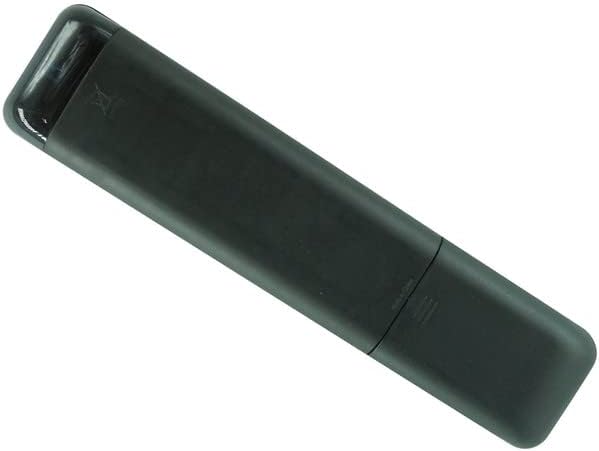
Figure 3: Back view of the remote control.
5. Troubleshooting
- Remote is not responding:
- Ensure the batteries are inserted correctly with the correct polarity (+/-).
- Replace old batteries with new AAA batteries.
- Check for any obstructions between the remote control and your Formuler device.
- Make sure you are within the effective operating range (up to 10 meters).
- Some buttons do not work:
- Verify that the remote control is indeed compatible with your specific Formuler model (Z10 SE, Z+ Neo, Z Plus). If your model is not listed, this remote may not be fully compatible.
- Some functions may be specific to the original remote or require specific software versions on your device.
- Remote works intermittently:
- This often indicates low battery power. Replace the batteries.
- Ensure a clear line of sight to the device.
If issues persist after following these steps, please refer to the support section.
6. Specifications
| Brand | Generic |
| Model Number | Easytry20118 |
| Connectivity Technology | Infrared (IR) |
| Compatible Devices | Formuler Z10 SE, Z+ Neo, Z Plus 4K UHD IPTV Android HDTV Box |
| Max Number of Supported Devices | 1 |
| Controller Type | Button Control |
| Maximum Range | 10 Meters (approx. 33 feet) |
| Batteries Required | 2 x AAA batteries |
7. Warranty and Support
7.1 Warranty Information
This product comes with a 90-day warranty from the date of purchase. This warranty covers manufacturing defects. It does not cover damage caused by misuse, accidents, unauthorized modifications, or normal wear and tear.
7.2 Customer Support
For any questions, concerns, or troubleshooting assistance not covered in this manual, please contact the seller directly through the platform where the product was purchased. Please have your order number and product details ready for faster service.