
AHYWTAN A2757/A2777/A2696, A3354/A3355/A3356
AHYWTAN Detachable Bluetooth Keyboard Case for iPad 10th/11th Generation
User Manual
Product Overview
The AHYWTAN Detachable Bluetooth Keyboard Case transforms your iPad into a versatile laptop, offering enhanced productivity and protection. This case features a detachable wireless Bluetooth keyboard, a built-in Apple Pencil holder, and a multi-angle stand, designed for both entertainment and office use.

Image: AHYWTAN iPad Keyboard Case with iPad inserted, showcasing the detachable keyboard and pencil holder.
Compatibility
This keyboard case is specifically designed for the following iPad models:
- iPad 11th Generation 11-inch 2025: Models A3354, A3355, A3356
- iPad 10th Generation 10.9-inch 2022: Models A2757, A2777, A2696
Please verify your iPad model before use. This case is NOT suitable for iPad Air 5th/4th Generation 10.9-inch 2022/2020.

Image: Visual guide for compatible iPad models and their corresponding model numbers.
Package Contents
Upon opening your package, please ensure all the following items are present:
- 1 x Detachable Bluetooth Keyboard
- 1 x iPad Case with inner honeycomb grid pattern and Apple Pencil holder
- 1 x Micro-USB Charging Cable
- 1 x User Manual (this document)
Setup Guide
1. Charging the Keyboard
Before initial use, fully charge the Bluetooth keyboard. Connect the provided Micro-USB cable to the keyboard's charging port and the other end to a USB power adapter (not included). The charging indicator light will illuminate during charging and turn off when fully charged.
- Charging Time: Approximately 2-3 hours for a full charge.
- Battery Life: Up to 80 hours of continuous use, over 30 days standby time.

Image: Keyboard charging port with Micro-USB cable connected.
2. Pairing the Bluetooth Keyboard with your iPad
- Ensure the keyboard is charged.
- Turn on the keyboard by sliding the power switch to the "ON" position. The indicator light will flash.
- Press the "Connect" button on the keyboard. The Bluetooth indicator light will start blinking, indicating it's in pairing mode.
- On your iPad, go to Settings > Bluetooth.
- Turn on Bluetooth. Your iPad will search for available devices.
- Locate "Bluetooth Keyboard" (or similar name) in the "Other Devices" list and tap on it to connect.
- Once connected, the Bluetooth indicator light on the keyboard will stop blinking. The keyboard will automatically reconnect to your iPad in subsequent uses.
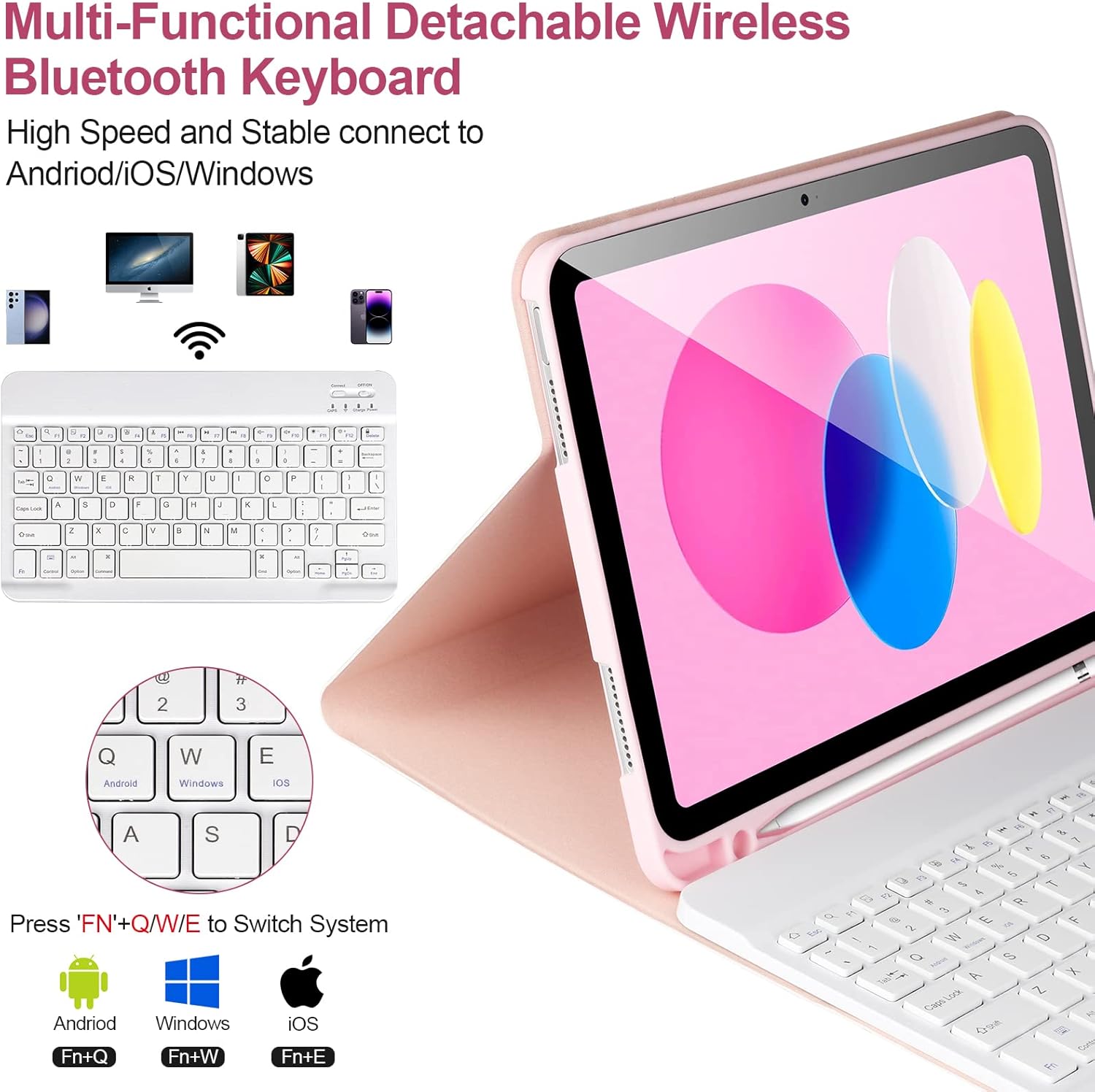
Image: Detachable Bluetooth keyboard layout with system switch instructions.
3. Inserting the iPad into the Case
Carefully align your iPad with the case's cutouts and gently press it into place. Ensure all edges are securely seated within the case for optimal protection.
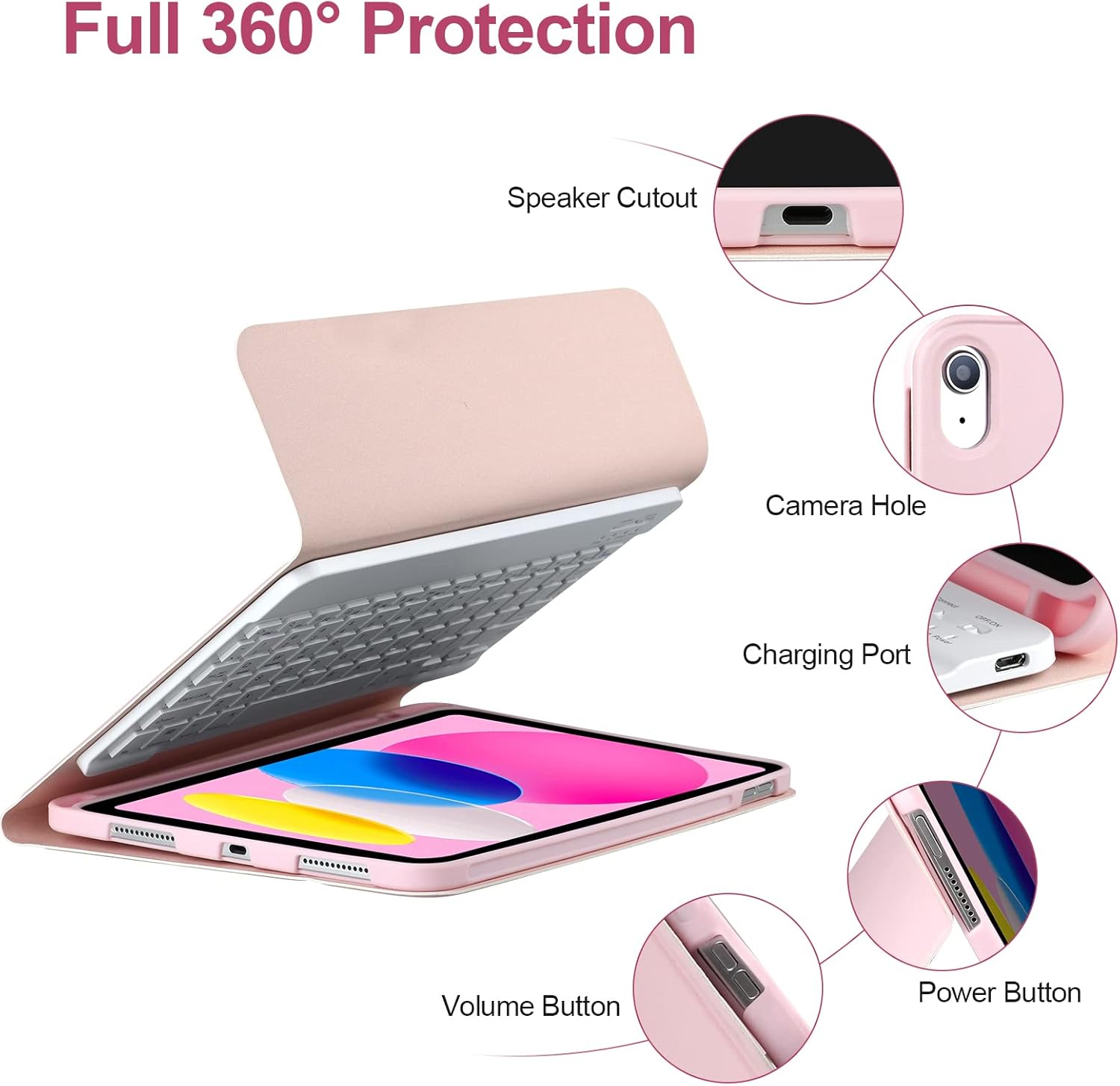
Image: Detailed view of iPad securely fitted in the case, showing precise cutouts for ports and buttons.
Operating Instructions
Using the Detachable Keyboard
The keyboard connects wirelessly via Bluetooth and can be used attached to the case or separately. It features scissor-style mechanical keys for a quiet and smooth typing experience.
- System Switching: The keyboard supports iOS, Android, and Windows operating systems. To switch between systems, press the Fn key simultaneously with the corresponding system key:
- Fn + Q for Android
- Fn + W for Windows
- Fn + E for iOS (iPad)
- Special Function Keys: The top row of keys provides quick access to various iPad functions (e.g., volume control, media playback, home screen).

Image: Detailed view of the detachable Bluetooth keyboard, showing layout and system switching keys.
Adjusting the Multi-Angle Stand
The case features a clamshell magnet detachment design, allowing for multiple viewing angles. Adjust the iPad's position to achieve the most comfortable angle for typing, reading, or gaming.

Image: iPad case configured as a multi-angle stand for comfortable viewing.

Image: Examples of the case in use for typing, working, and as a stand.

Image: Multiple viewing angles demonstrated for the iPad and keyboard case.
Using the Built-in Apple Pencil Holder
The case includes a dedicated slot for your Apple Pencil, ensuring it is securely stored and easily accessible when needed. This holder also accommodates the pencil cap and adapter.
Maintenance
To ensure the longevity and optimal performance of your keyboard case, follow these maintenance guidelines:
- Cleaning the Case: Wipe the exterior of the case with a soft, damp cloth. Avoid using harsh chemicals or abrasive cleaners.
- Cleaning the Keyboard: Use a soft, dry cloth to clean the keyboard. For stubborn dirt, a slightly damp cloth can be used, ensuring no moisture enters the keys or ports.
- Heat Dissipation: The inner layer of the case features a honeycomb grid pattern designed to release heat. Ensure the iPad is properly seated to allow for effective heat dissipation.
- Storage: When not in use for extended periods, store the keyboard case in a cool, dry place.

Image: Features of the case material, including honeycomb heat dissipation and shock absorption.
Troubleshooting
If you encounter issues with your AHYWTAN keyboard case, please refer to the following common solutions:
| Problem | Possible Cause / Solution |
|---|---|
| Keyboard not connecting via Bluetooth. |
|
| Keys are not responding. |
|
| Keyboard frequently disconnects. |
|
| iPad does not fit correctly in the case. |
|
Specifications
| Feature | Detail |
|---|---|
| Brand | AHYWTAN |
| Compatible Devices | iPad 10th Generation 10.9'' 2022 (Models: A2757/A2777/A2696), iPad 11th Generation 11'' 2025 (Models: A3354/A3355/A3356) |
| Connectivity Technology | Bluetooth |
| Keyboard Description | Multi Functional, Detachable |
| Number of Keys | 78 |
| Battery Type | 1 Lithium Ion battery (included) |
| Battery Life | Approx. 80 hours working, 30+ days standby |
| Charging Time | 2-3 hours |
| Operating Distance | Up to 10 meters (33 feet) |
| Product Dimensions | 10.04 x 7.87 x 0.79 inches (25.5 x 20 x 2 cm) |
| Item Weight | 1.39 pounds (0.63 kg) |
| Special Features | Lightweight, Anti-Fingerprint, Adjustable Stand, Built-in Pencil Holder, Full 360° Protection, Heat Release Honeycomb Pattern |
Warranty and Support
For warranty information or technical support, please contact AHYWTAN customer service through the retailer's platform where you purchased the product. Please have your order number and product model readily available for faster assistance.
For the latest updates and additional resources, please refer to the official AHYWTAN product page or contact information provided with your purchase.
Ask a question about this manual
Ask about setup, troubleshooting, compatibility, parts, safety, or missing instructions. Manuals+ will review the question and use this page’s manual context to help answer it.