
CAMECHO A3084SRA4MI2-34-1-C182
CAMECHO Android 13 Wireless Carplay & Android Auto Radio User Manual
Model: A3084SRA4MI2-34-1-C182
1. Introduction
Thank you for choosing the CAMECHO Android 13 Wireless Carplay & Android Auto Radio. This 7-inch touchscreen head unit is designed to enhance your driving experience with advanced features such as wireless CarPlay, Android Auto, GPS navigation, HiFi audio, Bluetooth connectivity, and FM radio. This manual provides detailed instructions for installation, operation, and troubleshooting to ensure optimal performance and safety.
2. Safety Information
Please read all safety warnings and instructions carefully before installing and operating the device. Keep this manual for future reference.
- Professional Installation Recommended: Due to the complexity of car electrical systems, professional installation is highly recommended to prevent damage to the unit or your vehicle.
- Power Supply: Ensure the unit is connected to a 12V DC power supply with a negative ground.
- Wiring: Incorrect wiring can cause damage or fire. Double-check all connections before powering on the unit.
- Driving Safety: Do not operate the unit in a way that distracts you from driving. Always prioritize road safety.
- Temperature: Avoid exposing the unit to extreme temperatures or direct sunlight for prolonged periods.
- Moisture: Keep the unit away from water and excessive moisture.
3. Package Contents
Verify that all items listed below are included in your package:
- 1 x Android Head Unit
- 1 x AHD Rear Camera
- 1 x RCA Cable
- 2 x USB Cables
- 1 x Rear Camera Output Cable
- 1 x External Microphone
- 1 x CANBUS Box
- 1 x User Manual (this document)
- 1 x GPS Antenna
- 1 x Power Cable
- Mounting Accessories (metal brackets)

Figure 3.1: Included accessories and components in the package.

Figure 3.2: Front view of the CAMECHO product packaging.
4. Product Overview
The CAMECHO Android 13 Car Radio features a 7-inch HD touchscreen display, physical buttons for essential functions (MENU, NAVI, BT, EQ, BAND, BACK), and rotary knobs for volume and tuning. Its sleek design integrates seamlessly into compatible vehicle dashboards.

Figure 4.1: Front view of the CAMECHO Android 13 Car Radio.
5. Compatible Vehicle Models
This head unit is designed to fit the following Opel vehicle models:
- Opel Astra (2004-2009)
- Opel Antara (2006-2011)
- Opel Vectra (2003-2008)
- Opel Corsa (2006-2011)
- Opel Zafira (2005-2011)
- Opel Meriva (2006-2011)
- Opel Vivaro (2006-2010)
- Opel Combo (2004-2011)
- Opel Signum (2003-2011)
- Opel Tigra Twin Top (2004-2011)
6. Installation Guide
This section provides general guidelines for installing the CAMECHO car radio. Specific vehicle wiring may vary. It is highly recommended to consult a professional installer if you are unsure about any steps.
6.1. Pre-Installation Checks
- Disconnect the vehicle's negative battery terminal before starting any electrical work.
- Ensure the unit is compatible with your vehicle model and year.
- Familiarize yourself with your vehicle's dashboard disassembly process.
6.2. Wiring Connections
Connect the provided power cable, RCA cables, USB cables, GPS antenna, and external microphone to the corresponding ports on the head unit. The CANBUS box should be connected as per your vehicle's specific wiring diagram to enable steering wheel controls and other vehicle data integration.
- Power Cable: Connect to vehicle's power harness (ACC, B+, GND).
- RCA Cables: For audio output (speakers, subwoofer) and video input/output.
- USB Cables: For connecting USB devices, wired CarPlay/Android Auto, and software updates.
- GPS Antenna: Mount in a location with clear sky view for optimal signal reception.
- External Microphone: For clearer hands-free calls.
- Rear Camera: Connect the AHD rear camera for reverse parking assistance.
- CANBUS Box: Integrates with the vehicle's CAN-bus system for steering wheel controls and other vehicle data. Ensure it is correctly configured.
6.3. Physical Installation
- Carefully remove your vehicle's original radio or dashboard trim.
- Connect all necessary wiring harnesses to the CAMECHO head unit.
- Test the unit's basic functions (power on, audio, display) before fully securing it.
- Mount the head unit into the dashboard opening using the provided mounting accessories.
- Reassemble the dashboard trim.
- Reconnect the vehicle's negative battery terminal.
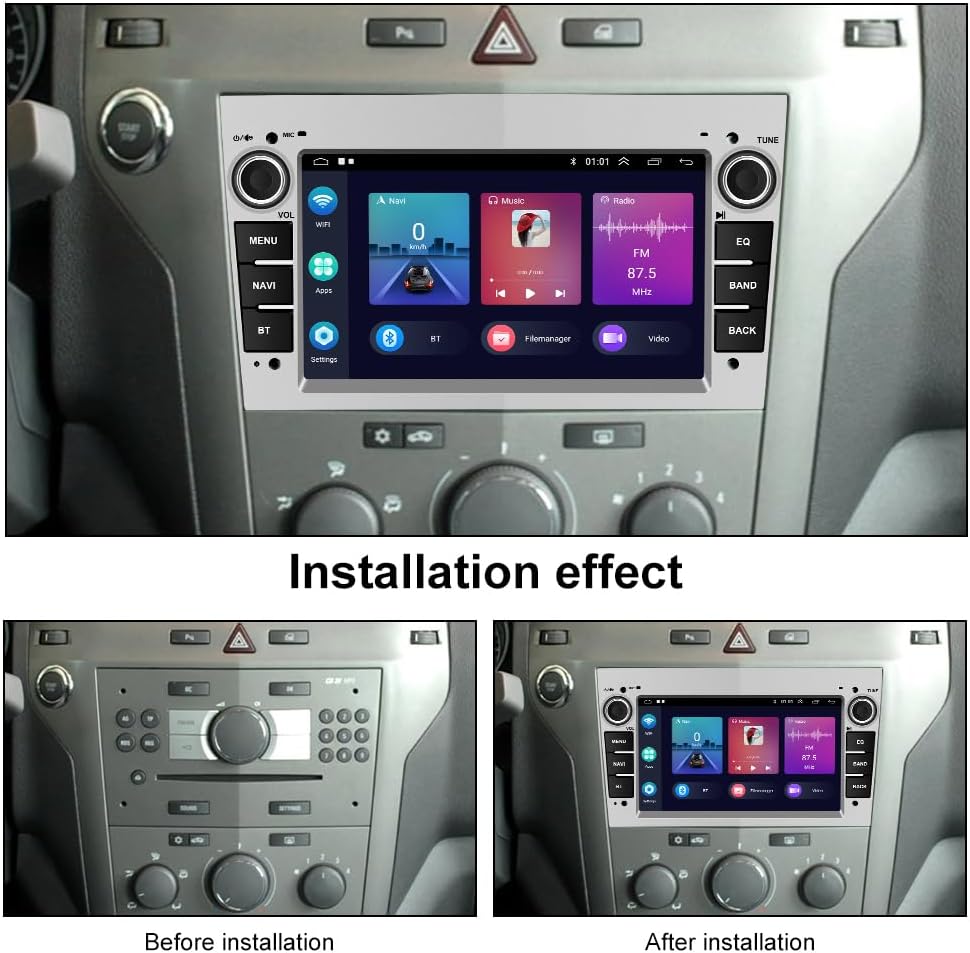
Figure 6.1: Visual comparison of the dashboard before and after the radio installation.
7. Operating Instructions
This section details the main functions and how to operate them.
7.1. Wireless CarPlay & Android Auto
The unit supports both wireless Apple CarPlay and wireless Android Auto, allowing seamless integration with your smartphone for navigation, music, calls, and messages. You can also use wired connections via USB.
- Wireless Connection: Use the pre-installed ZLink application on the head unit to connect wirelessly via Bluetooth and Wi-Fi.
- Wired Connection: Connect your smartphone via a USB data cable to activate CarPlay or Android Auto.
- Once connected, you can use voice commands (Siri or Google Assistant) for hands-free operation.

Figure 7.1: Wireless Apple CarPlay and Android Auto functionality.
7.2. Hi-Fi Audio Quality
Experience high-fidelity sound reproduction with the built-in HiFi function. The unit aims to deliver the original sound quality of the source, providing an immersive audio experience.
- Access the EQ settings to customize sound profiles (e.g., Custom, Classical, Jazz, Pop, Rock).
- Adjust frequency bands to fine-tune the audio output to your preference.

Figure 7.2: Hi-Fi audio equalizer interface.
7.3. Built-in WiFi Module
The integrated WiFi module allows you to connect the head unit to the internet by using your mobile device as a hotspot. This enables online navigation, app downloads, and streaming services.
- Go to 'Settings' > 'Network & Internet' > 'Wi-Fi' to connect to an available network.
- Ensure your mobile hotspot is active and visible.

Figure 7.3: Built-in WiFi module functionality.
7.4. GPS Navigation
With WiFi connected, you can use Google Maps or other navigation applications downloaded from the Play Store for real-time navigation. Offline navigation is also supported by purchasing maps directly from the Play Store.
- Ensure the GPS antenna is properly installed and has a clear view of the sky.
- Open your preferred navigation app and enter your destination.

Figure 7.4: GPS Navigation interface.
7.5. Bluetooth Connectivity
The unit features Bluetooth 4.0 for hands-free calling, phonebook download, and Bluetooth music playback, ensuring safer driving.
- Pair your phone with the head unit via Bluetooth settings.
- Make and receive calls directly from the unit's screen.
- Stream audio from your phone to the car speakers.

Figure 7.5: Bluetooth call and music features.
7.6. FM/RDS Radio
Enjoy high-quality digital stereo FM radio with 18 preset stations. The RDS (Radio Data System) function provides additional information like station name and traffic announcements where available.
- Scan for available stations and save your favorites.
- Tune manually or use the auto-scan feature.

Figure 7.6: FM/RDS Radio interface.
7.7. Rear View Camera
The included AHD rear camera provides a clear view of the area behind your vehicle when reversing, enhancing safety and making parking easier. The display automatically switches to the camera view when the vehicle is put into reverse gear.
7.8. Steering Wheel Control (CANBUS)
The included CANBUS box allows the head unit to integrate with your vehicle's steering wheel controls, enabling you to manage audio, calls, and other functions without taking your hands off the wheel. If you encounter issues with steering wheel control functionality, please ensure the CANBUS decoder box is correctly configured. Refer to the troubleshooting section or contact customer support for assistance.
8. Maintenance
Proper maintenance ensures the longevity and optimal performance of your CAMECHO car radio.
- Cleaning the Screen: Use a soft, lint-free cloth to gently wipe the touchscreen. For stubborn smudges, slightly dampen the cloth with water or a screen cleaner designed for electronics. Avoid harsh chemicals or abrasive materials.
- General Cleaning: Keep the unit free from dust and debris. Use a soft brush or compressed air to clean vents and button crevices.
- Software Updates: Periodically check for software updates to ensure the unit has the latest features and bug fixes. Updates can usually be found on the manufacturer's website or through the unit's system settings if an OTA (Over-The-Air) update feature is available.
- Avoid Extreme Conditions: Do not expose the unit to extreme temperatures, direct sunlight for extended periods, or high humidity.
9. Troubleshooting
If you encounter any issues with your CAMECHO car radio, refer to the table below for common problems and their solutions.
| Problem | Possible Cause | Solution |
|---|---|---|
| Unit does not power on. | No power connection; Blown fuse; Incorrect wiring. | Check power cable connections; Inspect vehicle's fuse box and unit's fuse; Verify wiring according to diagram. |
| No sound from speakers. | Speaker wires disconnected; Volume too low; Mute activated; Incorrect audio settings. | Check speaker wire connections; Increase volume; Deactivate mute; Adjust audio output settings. |
| Bluetooth not connecting. | Bluetooth not enabled on phone/unit; Incorrect pairing process; Interference. | Ensure Bluetooth is on for both devices; Follow pairing instructions; Move away from other electronic devices. |
| GPS signal weak or lost. | GPS antenna improperly installed; Obstruction; Outdated maps. | Ensure GPS antenna has clear sky view; Update navigation maps if necessary. |
| Steering wheel controls not working. | CANBUS box not configured correctly; Wiring issue. | Verify CANBUS box connection and configuration in settings. If issues persist, contact customer support. |
| Touchscreen unresponsive. | Software glitch; Screen damage. | Restart the unit; If persistent, contact customer support. |
10. Specifications
| Feature | Detail |
|---|---|
| Brand | CAMECHO |
| Model Number | A3084SRA4MI2-34-1-C182 |
| Operating System | Android 13 |
| RAM | 2 GB |
| ROM | 64 GB |
| Processor | 4 Cores, 1.3 GHz |
| Display | 7-inch 2.5D HD Touchscreen (1080P) |
| Connectivity | Wireless CarPlay, Wireless Android Auto, Wi-Fi, Bluetooth 4.0, USB |
| Audio Output Mode | Stereo |
| Speaker Surround Sound Configuration | 5.1 |
| Output Wattage | 50 Watts |
| Special Features | HiFi Sound Quality, GPS Navigation, Split Screen Mode, EQ Sound Effect Selection, HD Rear Camera (included), Steering Wheel Control (CANBUS included) |
| Dimensions | 1 x 1 x 1 cm; 1.46 kg (Product) |
| Total USB Ports | 2 |
11. Warranty and Support
CAMECHO products are designed for reliability and performance. For any technical assistance, troubleshooting not covered in this manual, or warranty inquiries, please contact CAMECHO customer support. Refer to your purchase documentation for specific warranty terms and contact information.
For common issues related to steering wheel control setup, please reach out to our support team for detailed guidance.
Ask a question about this manual
Ask about setup, troubleshooting, compatibility, parts, safety, or missing instructions. Manuals+ will review the question and use this page’s manual context to help answer it.