
Eyoyo EY-034Y with stand
Eyoyo 1D 2D QR Wired Barcode Scanner User Manual
Model: EY-034Y with stand
1. Introduction
Thank you for choosing the Eyoyo 1D 2D QR Wired Barcode Scanner. This manual provides detailed instructions on how to set up, operate, and maintain your scanner. Please read this manual thoroughly before using the device to ensure optimal performance and longevity.
The Eyoyo EY-034Y barcode scanner is designed for efficient and accurate scanning of 1D, 2D, and QR codes. Its durable construction ensures reliability in various working environments.
2. Key Features
- 1D 2D QR Scanning Capability: Scans a wide range of barcode types including 1D, 2D, and QR codes.
- USB Wired Connection: Easy plug-and-play connectivity via USB cable, requiring no additional drivers or software.
- Wide Compatibility: Compatible with common operating systems such as Windows XP/7/8/10, Mac OS, and Linux. Connects seamlessly to laptops and desktop computers.
- Durable Design: Built to withstand drops from up to 2 meters, ensuring long-term reliability.
- Adjustable Stand: Includes a robust and durable stand that allows for flexible switching between hands-free and handheld scanning modes.
3. Package Contents
Please check the package contents upon unboxing to ensure all items are present:

Image: Contents of the Eyoyo barcode scanner package, including the scanner, USB cable, stand, and user manual.
- Eyoyo Barcode Scanner (1 unit)
- USB Cable (1 unit)
- Adjustable Stand (1 unit)
- Screw for stand assembly (1 unit)
- User Manual (1 copy)
4. Setup Guide
4.1 Assembling the Stand
The adjustable stand allows for flexible positioning of the scanner. Follow these steps to assemble it:
- Take the base of the stand and the scanner holder arm.
- Align the holder arm with the slot on the base.
- Secure the arm to the base using the provided screw. Ensure it is tightened firmly but do not overtighten.
- Place the scanner into the holder. The scanner can be adjusted to various angles for optimal scanning.

Image: The Eyoyo barcode scanner mounted on its adjustable stand, illustrating the flexibility to change scanning angles.
4.2 Connecting to Your Computer
The Eyoyo barcode scanner uses a simple USB wired connection for quick setup.
- Locate the USB cable provided with your scanner.
- Plug the smaller end of the USB cable into the port on the barcode scanner.
- Plug the standard USB-A end of the cable into an available USB port on your computer (PC, Mac, or Linux).
- The scanner will be automatically recognized by your operating system. No additional driver installation is typically required.
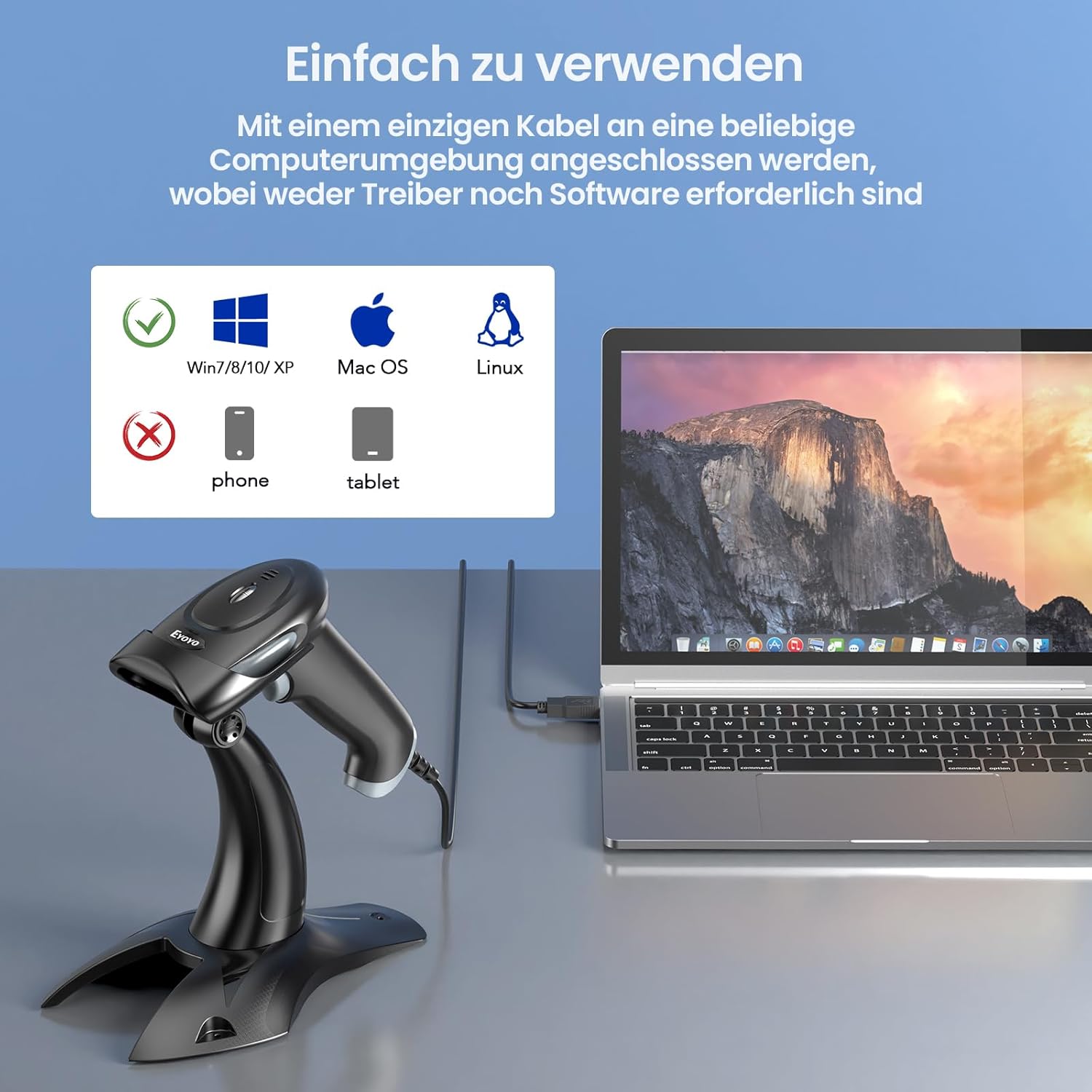
Image: The Eyoyo barcode scanner connected to a laptop, demonstrating its plug-and-play USB connectivity with various operating systems.
5. Operating Instructions
5.1 Scanning Modes
The scanner supports two primary scanning modes:
- Manual Scan Mode: Press the trigger button on the scanner to activate the scan beam and read a barcode. This mode is ideal for targeted scanning of individual items.
- Automatic Scan Mode: When placed on its stand, the scanner can be configured to automatically detect and scan barcodes presented within its field of view without needing to press the trigger. This is suitable for high-volume scanning environments.

Image: Illustration of the two scanning modes: Manual Scan Mode, where the user holds the scanner to scan items, and Automatic Scan Mode, where the scanner is placed on its stand for hands-free operation at a checkout counter.
5.2 Scanning Barcodes
To scan a barcode:
- Ensure the scanner is connected to your computer and recognized.
- Open an application where you want the scanned data to appear (e.g., Notepad, Word, Excel, POS software).
- Point the scanner's beam at the barcode you wish to scan. Ensure the entire barcode is within the red scanning line.
- For manual mode, press the trigger. For automatic mode, simply present the barcode to the scanner.
- A successful scan will typically be indicated by a beep and/or a green light. The barcode data will then appear in your active application.

Image: The Eyoyo barcode scanner actively scanning different types of barcodes, including 1D (EAN-13) and 2D (QR, Aztec, PDF 417) codes, demonstrating its excellent decoding capability.
The scanner is capable of reading multiple codes quickly, even those that are damaged or have low contrast. For optimal performance, ensure the barcode is flat and well-lit.

Image: Examples of various challenging QR codes, such as those with low concentration, missing corners, or dirt, illustrating the scanner's ability to read imperfect barcodes.
5.3 Custom Configuration (Prefix/Suffix)
The scanner can be configured to add prefixes or suffixes to scanned data. This is useful for integrating with specific software or data entry requirements.
Refer to the detailed user manual (provided in the package or available online) for specific QR codes to scan for configuration options such as adding prefixes (e.g., "ABC") or suffixes (e.g., "ABC") to your scanned data.

Image: A barcode scanner in a retail environment, demonstrating the capability for individual configuration, such as adding prefixes or suffixes to scanned barcode data.
6. Maintenance
To ensure the longevity and optimal performance of your Eyoyo barcode scanner, follow these maintenance guidelines:
- Cleaning: Regularly wipe the scanner's window and body with a soft, clean, lint-free cloth. For stubborn dirt, slightly dampen the cloth with water or a mild, non-abrasive cleaning solution. Do not use harsh chemicals or abrasive materials.
- Storage: When not in use, store the scanner in a cool, dry place away from direct sunlight and extreme temperatures.
- Cable Care: Avoid bending or twisting the USB cable excessively. Do not pull the cable to disconnect the scanner; always grasp the plug.
- Drop Protection: While the scanner is designed to be durable (withstanding drops from up to 2 meters), avoid unnecessary drops or impacts to prevent damage.
7. Troubleshooting
If you encounter issues with your Eyoyo barcode scanner, refer to the following common problems and solutions:
| Problem | Possible Cause | Solution |
|---|---|---|
| Scanner not recognized by computer. | Loose USB connection; faulty USB port; operating system issue. | Ensure the USB cable is securely plugged into both the scanner and the computer. Try a different USB port. Restart your computer. |
| Scanner does not read barcodes. | Barcode damaged or poor quality; scanner window dirty; incorrect scanning mode; scanner not powered. | Ensure the barcode is clear and undamaged. Clean the scanner window. Check if the scanner is in the correct mode (manual/automatic). Verify USB connection. |
| Scanned data appears incorrectly. | Keyboard language mismatch; incorrect configuration (prefix/suffix). | Ensure your computer's keyboard language setting matches the scanner's default. Refer to the full manual for configuration settings to reset or adjust prefix/suffix. |
| No beep or light indication after scan. | Scan failed; sound/light settings disabled. | Reposition the barcode and try again. Check the scanner's configuration settings (via scanning specific setup codes in the full manual) to ensure sound and light indicators are enabled. |
For more detailed troubleshooting or advanced configurations, please refer to the complete user manual provided with your product or contact Eyoyo customer support.
8. Product Specifications
| Feature | Detail |
|---|---|
| Brand | Eyoyo |
| Model Number | EY-034Y with stand |
| Color | Grey |
| Connectivity Technology | USB (Wired) |
| Compatible Devices | Desktop, Laptop, POS systems, Tablet, iPad |
| Operating Systems | Windows XP/7/8/10, Mac OS, Linux |
| Barcode Types Supported | 1D, 2D, QR codes |
| Drop Resistance | Up to 2 meters |
| Power Source | Corded Electric |
| Operating Voltage | 5 Volts |
| Product Dimensions | 9.5D x 7W x 15.5H centimeters |
| Certifications | CE, FCC, RoHS |
9. Warranty Information
The Eyoyo barcode scanner comes with a 2-year manufacturer's warranty. This warranty covers defects in materials and workmanship under normal use. Please retain your purchase receipt as proof of purchase for warranty claims.
For warranty service, please contact Eyoyo customer support with your product model and details of the issue.
10. Customer Support
If you have any questions, require technical assistance, or need further support regarding your Eyoyo barcode scanner, please contact our customer service team.
We recommend reading the full user manual for comprehensive information and frequently asked questions before contacting support.
Ask a question about this manual
Ask about setup, troubleshooting, compatibility, parts, safety, or missing instructions. Manuals+ will review the question and use this page’s manual context to help answer it.