
1. Introduction
Thank you for choosing the ciciglow Portable Mechanical Gaming Keyboard. This manual provides detailed instructions on how to set up, operate, and maintain your new keyboard. Designed for seamless device switching and a superior typing experience, this keyboard is compatible with Android, Windows, and iOS devices.
2. Product Overview
Familiarize yourself with the key features and components of your ciciglow keyboard.


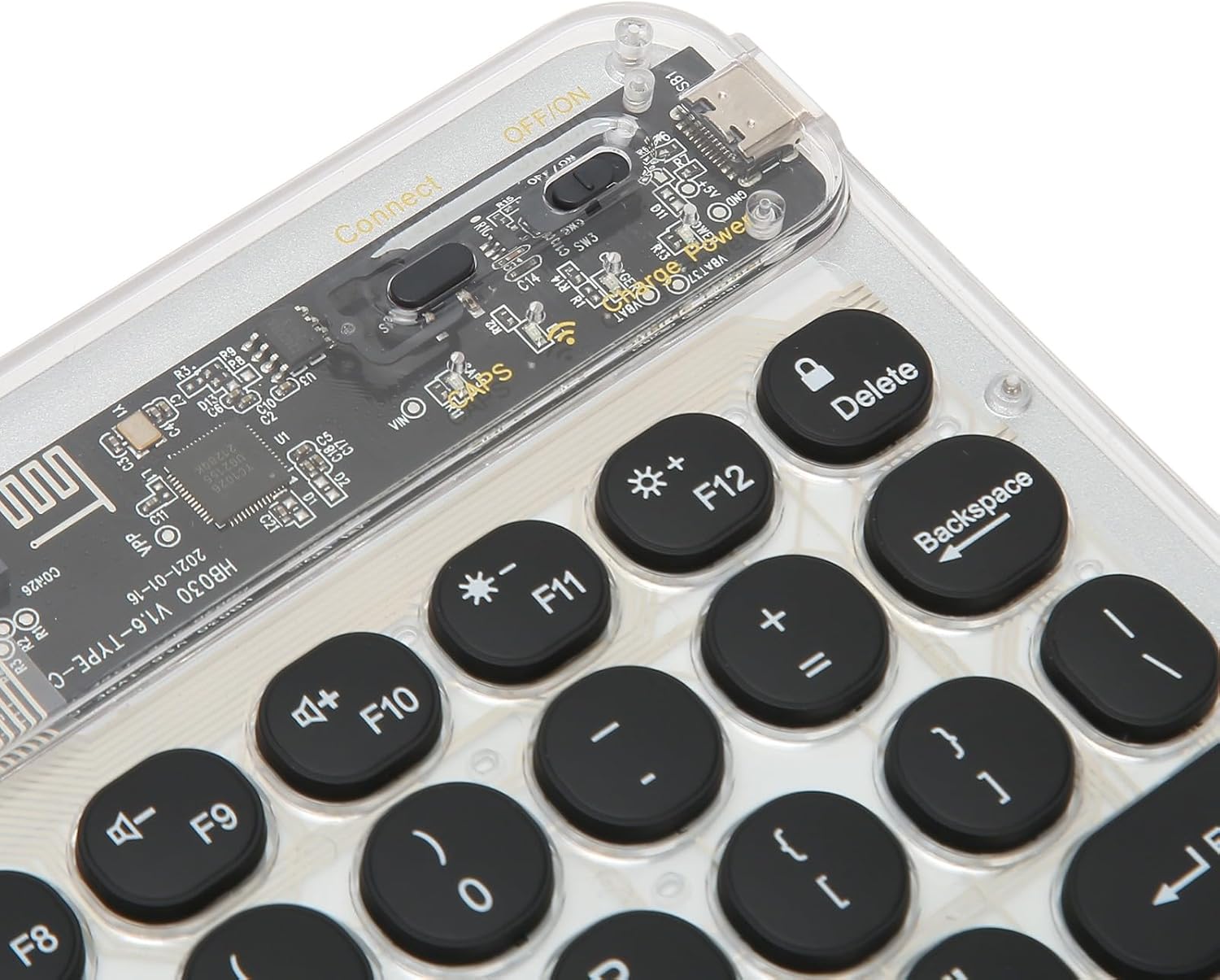

3. Specifications
| Feature | Specification |
|---|---|
| Item Type | Keyboard |
| Material | ABS + Iron plate + Acrylic |
| Bluetooth Version | Bluetooth 3.0 (Standard MICR Interface) |
| Effective Range | Within 10 Meters |
| Modulation Mode | GFSK |
| Working Voltage | 1.8-3.6V |
| Working Current | <2.0mA |
| Standby Current | 0.3-0.5mA |
| Sleep Current | <40UA |
| Charging Current | ≥ 200mA |
| Standby Time | > 30 Days |
| Charging Time | <2 Hours |
| Battery Type | Built-In Polymer Lithium Battery |
| Battery Capacity | 400mAh |
| Sustainable Working Hours | 44 Hours |
| Key Force | 80 ± 10g |
| Key Life | 5 Million Clicks |
| Working Temperature | -10-55 °C |
| Compatibility | For Android, For Windows, For iOS |
| Package Dimensions | 10.24 x 7.48 x 0.39 inches |
| Item Weight | 9.6 ounces |
4. Setup Guide
Follow these steps to connect your keyboard to your device:
- Power On: Locate the power switch on the keyboard (refer to Figure 2.8) and slide it to the 'ON' position.
- Enable Bluetooth Pairing: Short press the dedicated Bluetooth connection key on the keyboard to activate pairing mode. The indicator light will flash, indicating it is ready to connect.
- Activate Device Bluetooth: On your mobile phone, tablet, or computer, go to the Bluetooth settings and turn on Bluetooth.
- Pair with Keyboard: In your device's Bluetooth list, search for available devices. Select the 'ciciglow Keyboard' or similar name when it appears.
- Confirm Connection: Once selected, your device may prompt you to enter a pairing code displayed on the screen. Enter the code using the ciciglow keyboard and press Enter. The indicator light on the keyboard will become solid, confirming a successful connection.
5. Operating Instructions
Your ciciglow keyboard offers several features to enhance your productivity and gaming experience.
- Seamless Device Switching: This keyboard can connect to and switch between three devices simultaneously. Use the dedicated device switching keys (e.g., Fn + 1, Fn + 2, Fn + 3) to effortlessly switch between your paired smartphone, tablet, or laptop.
- Quiet and Responsive Typing: The mechanical design ensures quick, quiet, and responsive typing. The transparent keycaps and internal structure contribute to a unique aesthetic while maintaining functionality.
- Backlighting Control: The keyboard features RGB backlighting. Use the dedicated backlight control keys (e.g., the light bulb icon key) to cycle through different lighting modes and colors (refer to Figures 2.5 and 2.6).
- Extended 10-inch Layout: With a larger size and more keys compared to standard compact keyboards, it provides an optimal and comfortable typing experience.
- Power Saving Mode: To conserve battery life, the keyboard will enter a sleep mode after a period of inactivity. Press any key to wake it up.
6. Maintenance
To ensure the longevity and optimal performance of your keyboard, follow these maintenance guidelines:
- Cleaning: Use a soft, dry cloth to wipe down the keyboard surface. For dust and debris between keys, use compressed air. Avoid using harsh chemicals or abrasive materials.
- Storage: When not in use for extended periods, store the keyboard in a cool, dry place away from direct sunlight and extreme temperatures.
- Charging: Charge the keyboard using the provided USB cable (refer to Figure 2.9) when the battery indicator is low. Avoid overcharging.
- Liquid Exposure: While the keyboard has some water and dust resistance, avoid direct exposure to liquids to prevent damage. If liquid spills occur, power off the keyboard immediately and allow it to dry completely before use.
7. Troubleshooting
If you encounter any issues with your keyboard, refer to the following common solutions:
- Keyboard Not Connecting:
- Ensure the keyboard is powered on and fully charged.
- Make sure Bluetooth is enabled on your device.
- Try unpairing and re-pairing the keyboard with your device.
- Ensure the keyboard is within the effective range (10 meters) of your device.
- Keys Not Responding:
- Check if the keyboard is connected to the correct device.
- Recharge the keyboard battery.
- Restart both the keyboard (power off/on) and your connected device.
- Backlight Not Working:
- Ensure the keyboard is powered on.
- Press the backlight control key to cycle through modes or turn it on.
- The backlight may automatically turn off to save power; press any key to reactivate.
- Intermittent Connection:
- Reduce interference by moving away from other wireless devices.
- Ensure there are no physical obstructions between the keyboard and your device.
If the issue persists after trying these steps, please contact customer support.
8. Package Contents
The following items are included in your product package:
- 1 x ciciglow Portable Mechanical Gaming Keyboard
- 1 x USB Charging Cable
9. Warranty and Support
Your ciciglow Portable Mechanical Gaming Keyboard comes with a standard manufacturer's warranty. Please refer to the warranty card included in your package for specific terms and conditions. For technical support, troubleshooting assistance, or warranty claims, please contact ciciglow customer service through the retailer where you purchased the product or visit the official ciciglow website.
Please retain your purchase receipt as proof of purchase for warranty purposes.


