
1. Introduction
This manual provides detailed instructions for the setup, operation, and maintenance of your VooFun NS-9887 Racing Wheel. This racing wheel is designed to enhance your gaming experience across multiple platforms, offering realistic driving simulation with its 270-degree steering rotation, vibration feedback, and programmable buttons. Please read this manual thoroughly before use to ensure proper functionality and longevity of the product.
2. Package Contents
Verify that all items listed below are included in your package:
- VooFun NS-9887 Racing Wheel
- Pedal Unit
- USB Connection Cable
- User Manual (this document)
3. Product Overview
The VooFun NS-9887 Racing Wheel is engineered for an immersive racing experience. It features a 270-degree steering rotation, dual vibration motors for realistic feedback, and a responsive pedal unit.

Image 1: VooFun NS-9887 Racing Wheel and Pedal Unit.
Key Features:
- 270-Degree Steering Rotation: Provides precise control for racing games.
- Vibration Feedback: Dual motors simulate real car vibrations, adjusting intensity based on driving scenarios.
- Programmable Buttons: Customize pedal and gear lever functions to any button (A/B/X/Y/LB/RB).
- Adjustable Sensitivity: Three levels of steering sensitivity (low, middle, high) for personalized control.
- Linear Pedals: Responsive accelerator and brake pedals for realistic driving.
- Buckle Fixation: Securely mounts to desks or tables for stability during intense gameplay.

Image 2: Visual representation of the racing wheel's key features.
4. Setup and Connection
4.1 Multi-Platform Compatibility
The VooFun NS-9887 Racing Wheel is compatible with PC, PS4, Switch, PS3, Xbox One, and Xbox 360.
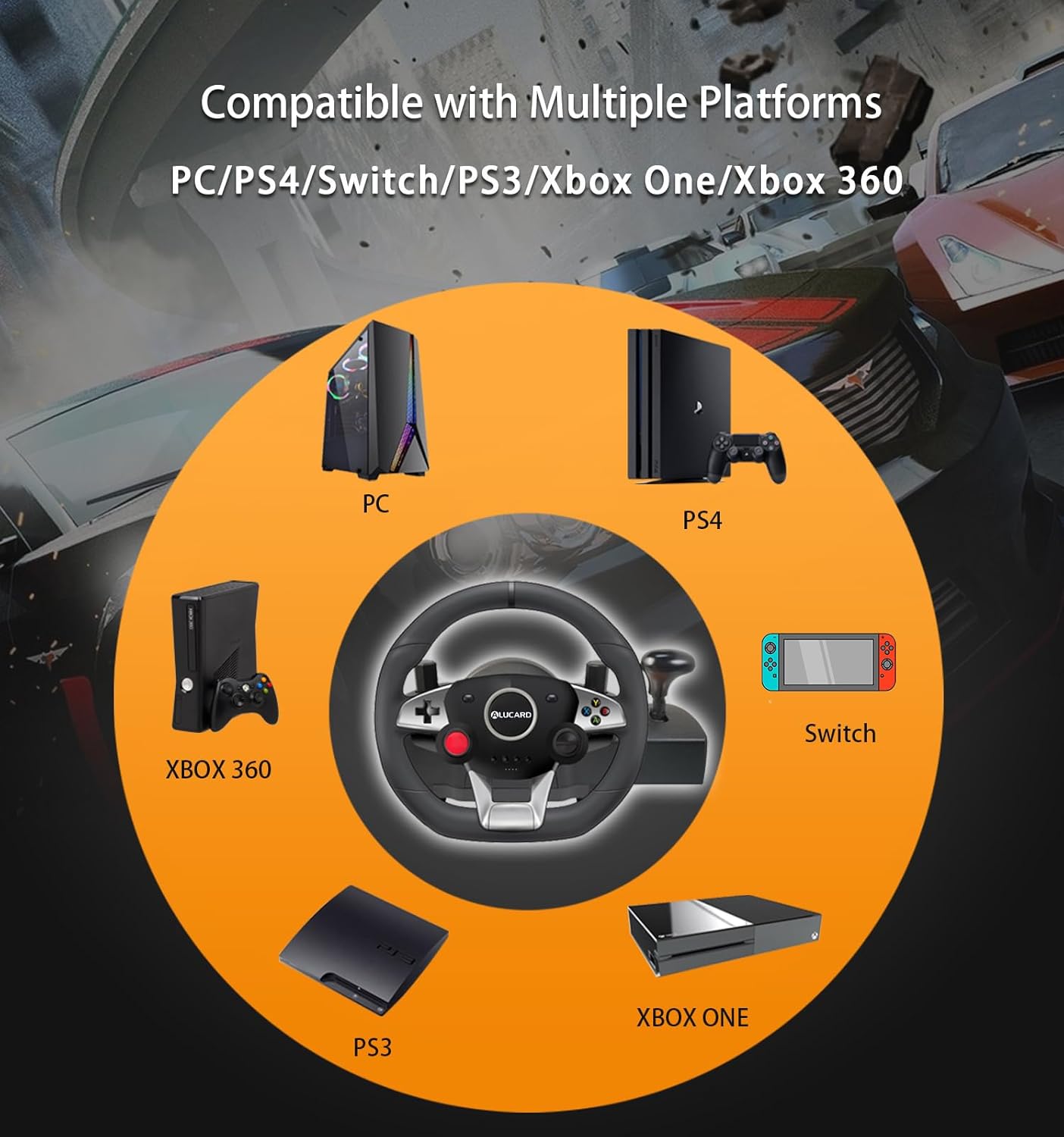
Image 3: Diagram illustrating multi-platform compatibility.
4.2 Connecting to PC/PS4/Switch/PS3
- Connect the pedal unit cable to the designated port on the racing wheel.
- Connect the racing wheel's USB cable to an available USB port on your PC, PS4, Switch dock, or PS3 console.
- The device should be recognized automatically (plug and play).
4.3 Connecting to Xbox One/Xbox 360
Important Notes for Xbox Connection:
- When connecting to an Xbox One console, you must use a data transfer cable to connect an original Xbox One controller to the racing wheel. Using a simple charging cable will prevent connection.
- When connecting to an Xbox 360 console, an original wired Xbox 360 controller is required. A wireless controller will not establish a connection.
- Connect the pedal unit cable to the designated port on the racing wheel.
- Connect the required original Xbox One or Xbox 360 controller to the racing wheel using the appropriate cable.
- Connect the racing wheel's USB cable to an available USB port on your Xbox console.
- The racing wheel should now be ready for use.
Video 1: Demonstrates connecting the VooFun Racing Wheel to a Nintendo Switch and an Xbox 360, including the use of an original Xbox 360 controller for connection.
5. Operation
5.1 Steering Sensitivity Adjustment
The racing wheel offers three levels of steering sensitivity: low, middle, and high. The default setting is low sensitivity.
- To change sensitivity, press and hold the SEN button (Sensitivity button).
- While holding SEN, press the ↑ (Up) button on the D-pad to increase sensitivity. The indicator light will flash once for middle gear, twice for high gear.
- To decrease sensitivity, press the ↓ (Down) button on the D-pad while holding SEN. The indicator light will flash to indicate the current gear (e.g., once for middle, solid for low).
5.2 Programmable Button Setting
The pedal and gear lever can be programmed to any button among A, B, X, Y, LB, or RB.
- Press and hold the PR (Program) button until all four indicator lights illuminate steadily.
- Press the pedal or gear lever you wish to program. The indicator lights will start flashing.
- Press the desired target button (A, B, X, Y, LB, or RB) on the racing wheel. The indicator lights will stop flashing, confirming the programming is complete.
- Repeat the process for other buttons as needed.
5.3 Clearing Programming
To clear all custom programming:
- Press and hold the Start and Back buttons simultaneously.
- Wait for the indicator light to flash, signifying that the programming has been cleared.
5.4 Mounting the Racing Wheel
The racing wheel is equipped with a buckle fixation system for stable mounting on various surfaces, offering more stability than traditional suction cups.
- Place the racing wheel on a flat surface, such as a desk or table.
- Adjust the buckle clamps located on the underside of the wheel base to fit the thickness of your surface.
- Tighten the clamps securely to ensure the wheel is firmly attached and does not move during gameplay.
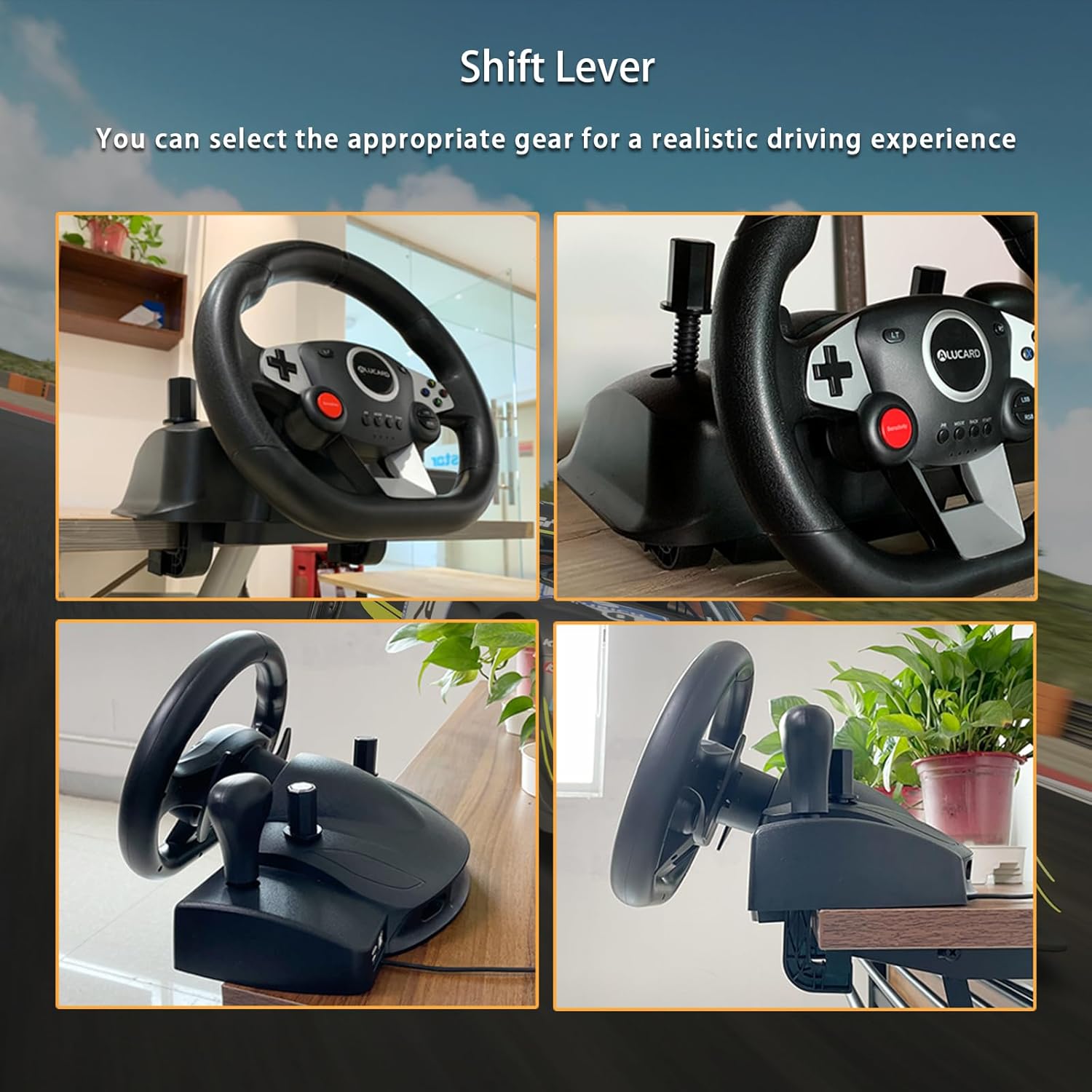
Image 4: The shift lever and examples of the buckle fixation system for stable mounting.
Video 2: Demonstrates steering sensitivity adjustment, programmable button setting, clearing programming, and the buckle fixation method.
6. Specifications
Below are the technical specifications for the VooFun NS-9887 Racing Wheel:

Image 5: Product dimensions and details of the linear pedal unit.
| Feature | Specification |
|---|---|
| Brand | VooFun |
| Model Number | NS-9887 |
| Color | Black |
| Connectivity Technology | USB (Wired) |
| Controller Type | Steering Wheel with Pedals |
| Steering Rotation | 270 Degrees |
| Special Features | Vibration Feedback, Linear Pedal, Programmable Buttons, Adjustable Sensitivity |
| Compatible Devices | PC, PlayStation 4, Nintendo Switch, PlayStation 3, Xbox One, Xbox 360 |
| Item Weight | 2.71 Kilograms |
| Power Source | Corded Electric |
7. Troubleshooting
If you encounter issues with your VooFun NS-9887 Racing Wheel, please refer to the following common solutions:
- No Connection/Recognition:
- Ensure all cables are securely connected.
- For Xbox One, confirm you are using an original Xbox One controller with a data transfer cable.
- For Xbox 360, confirm you are using an original wired Xbox 360 controller.
- Try connecting to a different USB port on your console/PC.
- Restart your console/PC.
- Buttons/Pedals Not Responding:
- Check if any custom programming is interfering (refer to Section 5.3 to clear programming).
- Ensure the game you are playing supports racing wheel input.
- Verify game settings for controller configuration.
- No Vibration Feedback:
- Ensure the game supports vibration feedback.
- Check in-game settings to ensure vibration is enabled.
- Steering Not Calibrated/Off-Center:
- Disconnect and reconnect the racing wheel.
- Some games may require manual calibration in their settings.
8. Maintenance
Proper care and maintenance will ensure the longevity of your racing wheel:
- Cleaning: Use a soft, dry cloth to wipe down the racing wheel and pedals. Avoid using abrasive cleaners or solvents.
- Storage: Store the device in a cool, dry place away from direct sunlight and extreme temperatures when not in use.
- Cable Care: Avoid bending or twisting cables excessively to prevent damage.
9. Warranty and Support
For warranty information or technical support, please refer to the contact details provided with your purchase or visit the official VooFun website. Keep your proof of purchase for warranty claims.