
Pyle PKBRD6139BT
PYLE 61 Key Electric Keyboard Piano User Manual
Model: PKBRD6139BT - Melody Master
Introduction
This manual provides detailed instructions for the setup, operation, and maintenance of your Pyle 61 Key Electric Keyboard Piano, Model PKBRD6139BT. Please read this manual thoroughly before using the product to ensure proper function and longevity.

Image: The Pyle 61 Key Electric Keyboard Piano, shown with its included adjustable stand, padded stool, and headphones, ready for use.
What's in the Box
Verify that all components are present before beginning assembly or operation.
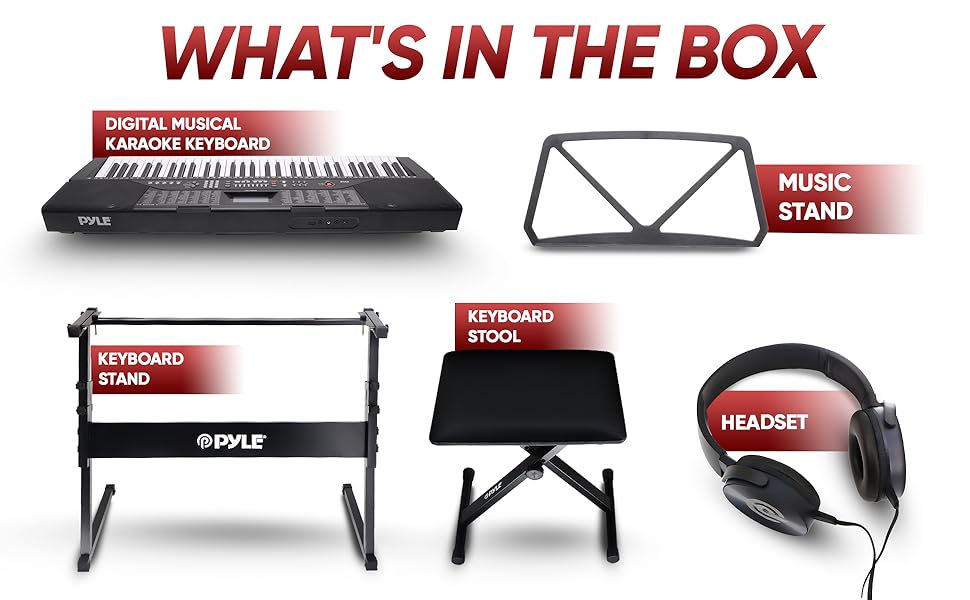
Image: An illustration detailing the contents of the product package, including the keyboard, music stand, keyboard stand, keyboard stool, and headset.
- Pyle 61 Key Electric Keyboard Piano
- Adjustable Keyboard Stand
- Padded Keyboard Stool
- Music Book Rack
- Headphones
- Power Adapter
- USB Cable
Setup
1. Assembling the Keyboard Stand
The adjustable keyboard stand provides stable support for your instrument. Follow these steps for assembly:
- Unfold the main frame of the stand.
- Attach the crossbars securely.
- Adjust the height using the adjustable height knob to a comfortable playing position. Ensure the rubber feet are firmly on the ground for secure grip.

Image: A detailed view of the adjustable keyboard stand, highlighting its key features and dimensions for proper assembly and stability.
2. Assembling the Keyboard Stool
The padded stool offers comfort during extended playing sessions. Assembly is straightforward:
- Unfold the stool legs until they lock into place.
- Adjust the stool height using the knob on the side for optimal comfort relative to the keyboard.
- Ensure the rubber feet are stable on the floor.

Image: A close-up of the adjustable keyboard stool, showing its padded seat, height adjustment mechanism, and non-slip rubber feet.
3. Connecting Power and Accessories
Once the stand and stool are set up, place the keyboard on the stand and connect the necessary cables.
- Power: Connect the power adapter to the DC IN port on the back of the keyboard and then to a wall outlet.
- Headphones: For private practice, plug the included headphones into the 3.5mm headphone jack.
- Microphone: If using the karaoke function, connect a microphone to the dedicated mic input jack.
- USB: For connecting to a computer or other devices, use the USB port.
- Music Stand: Insert the music book rack into the designated slots on the top of the keyboard.

Image: A detailed view of the keyboard's rear panel, illustrating the various input and output ports for connecting headphones, microphones, and USB devices.
Operating Instructions
Basic Functions
- Power On/Off: Press the POWER button to turn the keyboard on or off.
- Volume Control: Use the VOLUME knob or buttons to adjust the overall sound level.
- LCD Display: The integrated LCD display shows current settings, selected styles, sounds, and other operational information.

Image: An overview of the keyboard's control panel, illustrating the various buttons and features for sound selection, rhythm control, and special functions.
Sound and Style Selection
- Sounds (Tones): The keyboard features 255 different sounds. Use the TONE selection buttons to browse and select desired instrument sounds.
- Styles (Rhythms): Choose from 255 preset rhythm styles using the STYLE selection buttons. These provide backing tracks for your playing.
- Demo Songs: Access 50 built-in demo songs to listen or play along with.
Special Functions
- Karaoke Function: Connect a microphone to the mic input and use the built-in karaoke features to sing along with your playing or streamed music.
- Bluetooth Connectivity: Pair your mobile device via Bluetooth to stream music through the keyboard's built-in speakers. This allows you to play along with your favorite songs.
- Record & Playback: Use the record function to capture your performances and the playback function to review them. This is useful for practice and self-assessment.
- Teaching Functions: The keyboard includes various teaching modes designed to assist beginners in learning to play. Refer to the on-screen prompts and specific teaching mode instructions for details.
- Split Keyboard: This function allows the keyboard to be divided into two sections, each with its own tone, enabling two players or different instrument sounds on each half.
- Sustain Function: Adds a decaying effect to notes, similar to a piano's sustain pedal.
- Vibrato Function: Adds a slight, rapid fluctuation in pitch to notes, creating a wavering effect.
- Auto Chord Function: Simplifies playing chords by automatically generating full chords from single key presses.
- Metronome: Provides a steady beat to help with rhythm and timing during practice.
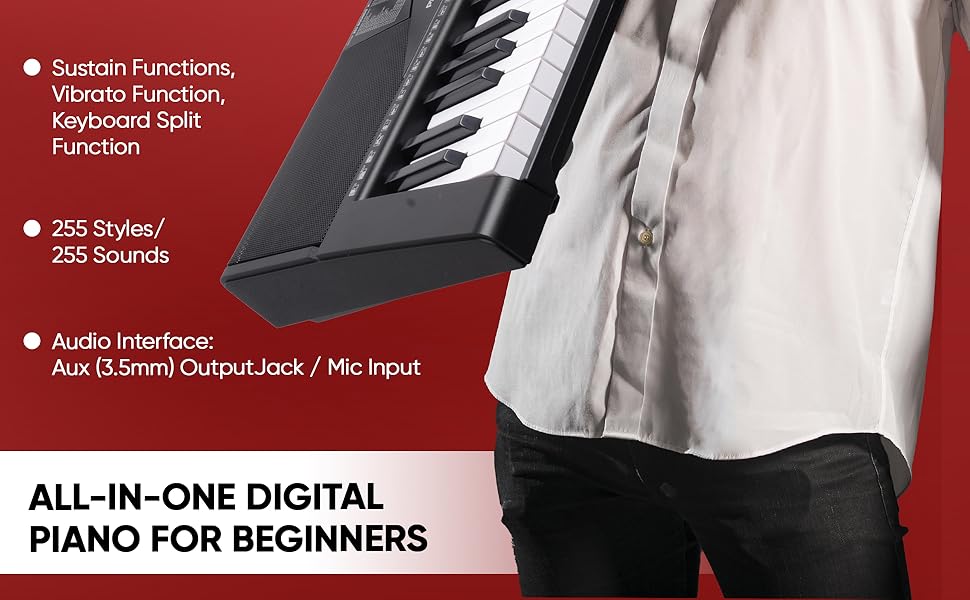
Image: A visual representation of the keyboard's advanced features, including sustain, vibrato, split keyboard, and the extensive library of sounds and styles.
Audio Output
- Built-in Speakers: The keyboard features 4-inch 20W stereo surround sound speakers for clear audio output.
- External Speakers: For louder sound or larger performances, the keyboard can be connected to external speakers via the Aux 3.5mm output.

Image: A close-up of one of the keyboard's built-in speakers, emphasizing its stereo surround sound capability.
Maintenance
- Cleaning: Use a soft, dry cloth to clean the surface of the keyboard. Avoid using abrasive cleaners or solvents.
- Storage: When not in use, store the keyboard in a cool, dry place away from direct sunlight and extreme temperatures.
- Handling: Handle the keyboard with care to prevent damage to keys, buttons, and internal components. Avoid dropping or subjecting it to strong impacts.
- Power Disconnection: Always disconnect the power adapter from the wall outlet when the keyboard is not in use for extended periods or during electrical storms.
Troubleshooting
| Problem | Possible Cause | Solution |
|---|---|---|
| No sound from keyboard. | Volume too low; headphones connected; power issue. | Increase volume; unplug headphones; ensure power adapter is securely connected and outlet is functional. |
| Bluetooth not connecting. | Keyboard not in pairing mode; device too far; interference. | Ensure keyboard's Bluetooth is active and in pairing mode; move device closer; restart both devices. |
| Keys not responding. | Keyboard may be in a specific mode (e.g., demo mode); power issue. | Restart the keyboard; check if any specific function is active that disables normal key play. |
Technical Specifications
| Feature | Specification |
|---|---|
| Model Name | electric piano |
| Item Model Number | PKBRD6139BT |
| Number of Keys | 61 |
| Styles | 255 |
| Sounds | 255 |
| Demo Songs | 50 |
| Audio Output | Aux 3.5mm |
| Microphone Input | Yes |
| Max Sound Level | 110 dB |
| Connectivity Technology | Bluetooth, USB |
| Power Source | Corded Electric |
| Product Dimensions (D x W x H) | 36.6" x 11.97" x 3.7" |
| Item Weight | 24.2 pounds (11 Kilograms) |
| Body Material | Acrylonitrile Butadiene Styrene |
| Color | Black |
| UPC | 842893151632 |
Warranty and Support
Pyle products are designed for reliability and performance. For warranty information and technical support, please refer to the official Pyle website or contact their customer service directly. Keep your purchase receipt as proof of purchase for any warranty claims.
For further assistance, you may visit the Pyle Store on Amazon.
Official Product Videos
No official product videos from the seller were found to be relevant for inclusion in this instruction manual.
Related documentsPKBRD6139BT


Ask a question about this manual
Ask about setup, troubleshooting, compatibility, parts, safety, or missing instructions. Manuals+ will review the question and use this page’s manual context to help answer it.