
Introduction
This manual provides essential instructions for setting up, operating, maintaining, and troubleshooting your Motorola Razr 40 5G smartphone. Please read this guide thoroughly to ensure proper use and to maximize the device's capabilities.

Image: Motorola Razr 40 smartphone, shown both unfolded and folded, displaying the main screen and the external display.
Setup
1. Unboxing and Initial Inspection
Upon receiving your Motorola Razr 40, carefully unbox the device and verify that all components are present. The standard package includes the Motorola Razr 40 smartphone and a USB cable.
What's in the Box:
- Motorola Razr 40 5G Smartphone
- USB Cable
2. Charging the Device
Before initial use, fully charge your Motorola Razr 40. Connect the provided USB cable to the phone's charging port and to a compatible power adapter (sold separately) or a computer's USB port. The battery indicator on the screen will show charging progress.
Battery Specifications:
- Type: Li-Po 4200 mAh, non-removable
3. Inserting SIM Cards
The Motorola Razr 40 supports Dual-SIM functionality. Locate the SIM card tray on the side of the device. Use the SIM ejector tool (if provided, otherwise a small paperclip) to open the tray. Place your Nano-SIM cards into the designated slots, ensuring proper orientation. Close the tray securely.
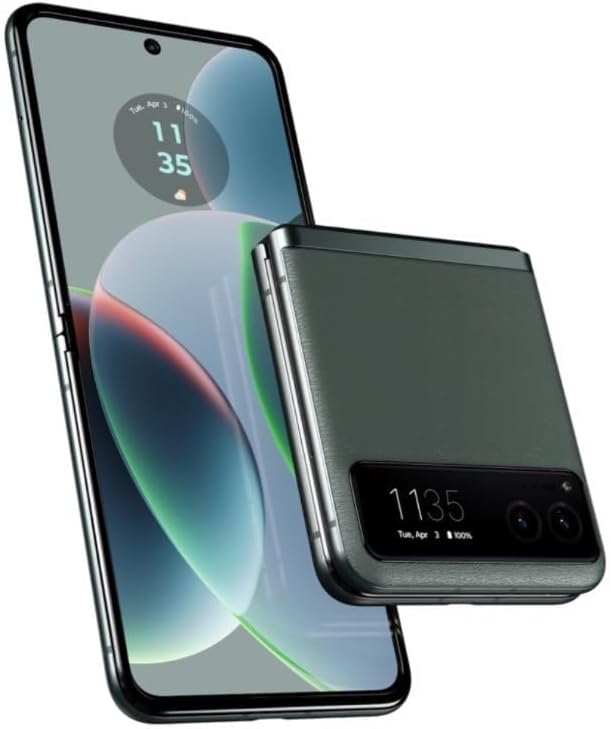
Image: Motorola Razr 40 smartphone unfolded, showing the side profile with buttons and SIM tray location.
Important Network Compatibility Note:
This smartphone is designed for GSM networks. It is not compatible with CDMA networks, including Verizon, Sprint, and US Cellular in the USA. Please verify network compatibility with your service provider before use.
Supported Network Frequencies (Dual-SIM):
- 2G GSM: 850 / 900 / 1800 / 1900
- 3G HSDPA: 850 / 900 / 1700(AWS) / 1900 / 2100
- 4G FDD LTE: 600(B71)/ 700(B12)/ 700(B13)/ 700(B17)/ 700(B28)/ 800(B20)/ 850(B5)/ 850(B18)/ 850(B26)/ 900(B8)/ 1700(B4)/ 1700(B66)/ 1800(B3)/ 1900(B2)/ 1900(B25)/ 1900(B39)/ 2100(B1)/ 2300(B30)/ 2300(B40)/ 2500(B41)/ 2600(B7)/ 2600(B38)/ 3500(B48)/ 5200(B46)
- 5G: N1/ N2/ N3/ N5/ N7/ N8/ N20/ N26/ N28/ N38/ N40/ N41/ N66/ N77/ N78 SA/NSA/Sub6
4. Powering On and Initial Configuration
Press and hold the power button until the Motorola logo appears. Follow the on-screen prompts to complete the initial setup, including language selection, Wi-Fi connection, Google account login, and security settings.
Operation
1. Foldable Display Functionality
The Motorola Razr 40 features a foldable display. The device can be used fully unfolded for a large screen experience or folded for a compact form factor. The external display provides quick access to notifications, time, and basic controls when folded.

Image: Motorola Razr 40 smartphone fully unfolded, showcasing its large internal display.

Image: Motorola Razr 40 smartphone folded, highlighting the external display and dual cameras.
2. Android 13 Operating System
Your device runs on Android 13. Navigate the interface using gestures or on-screen buttons. Access apps from the home screen or app drawer. Customize settings via the Settings app.
3. Camera Usage
The Motorola Razr 40 is equipped with a versatile camera system. Open the Camera app to capture photos and videos.
Camera Specifications:
- Rear Camera 1: 64 MP, f/1.7 (wide), 0.7µm, PDAF, Laser AF, OIS
- Rear Camera 2: 13 MP, f/2.2, 120° (ultrawide), 1/3", 1.12µm, AF
- Front Camera: 32 MP, f/2.4 (wide), 0.7µm
4. Connectivity
The device supports various connectivity options:
- Wi-Fi: Connect to wireless networks for internet access.
- Bluetooth: Pair with wireless accessories like headphones or speakers.
- GPS: Utilize location services for navigation and mapping.
- USB: Connect to computers for data transfer or charging.
Maintenance
1. Cleaning the Device
Use a soft, lint-free cloth to clean the screen and body of the phone. Avoid abrasive materials or harsh chemicals. For the foldable screen, gently wipe with a microfiber cloth. Do not press hard on the screen, especially near the hinge.
2. Software Updates
Regularly check for and install software updates to ensure optimal performance, security, and access to new features. Navigate to Settings > System > System updates to check for available updates.
3. Battery Care
To prolong battery life, avoid extreme temperatures. It is recommended to keep the battery charge between 20% and 80% for daily use. Avoid leaving the phone fully charged or fully discharged for extended periods.
4. Data Backup
Regularly back up your important data (photos, contacts, documents) to a cloud service or a computer to prevent data loss.
Troubleshooting
1. Device Not Powering On
- Ensure the battery is sufficiently charged. Connect the phone to a charger for at least 15 minutes before attempting to power on again.
- Press and hold the power button for 10-15 seconds to perform a forced restart.
2. Network Connectivity Issues
- Verify that your SIM cards are correctly inserted and activated.
- Check if Airplane Mode is disabled.
- Restart the device.
- Confirm with your network provider that your plan supports the device's network bands and that there are no service outages in your area. Remember, this device is not compatible with CDMA networks.
3. Apps Crashing or Freezing
- Close and reopen the app.
- Clear the app's cache and data via Settings > Apps > [App Name] > Storage & cache.
- Ensure the app is updated to its latest version.
- Restart the phone.
4. Screen Unresponsive
- Perform a forced restart by holding the power button.
- Ensure the screen is clean and free of moisture or debris.
Specifications
| Feature | Detail |
|---|---|
| Model Name | Motorola Razr 40 |
| Model Number | S9133209 |
| Operating System | Android 13 |
| Processor | Qualcomm SM7450-AB Snapdragon 7 Gen 1 (4 nm), Octa-core (1x2.4 GHz Cortex-A710 & 3x2.36 GHz Cortex-A710 & 4x1.8 GHz Cortex-A510) |
| RAM | 8 GB |
| Internal Storage | 256 GB (non-expandable) |
| Display (Main) | 6.9 inches, Foldable LTPO AMOLED, 1080 x 2640 pixels |
| Battery | Li-Po 4200 mAh, non-removable |
| Rear Camera | 64 MP (wide, OIS), 13 MP (ultrawide) |
| Front Camera | 32 MP (wide) |
| SIM Type | Dual-SIM (Nano-SIM) |
| Network Compatibility | GSM Only (2G, 3G, 4G LTE, 5G). Not compatible with CDMA networks. |
| Connectivity | USB, Wi-Fi, Bluetooth, GPS |
| Audio Jack | No headphone jack |
| Dimensions (Product) | 5.76 x 4.38 x 4.54 inches |
| Weight | 1.1 pounds |
| Color | Sage Green |
Note: Product dimensions provided may refer to packaging or overall product size. Actual device dimensions may vary.
Warranty and Support
For detailed warranty information, please refer to the warranty card included with your product or visit the official Motorola support website for your region. Warranty terms and conditions may vary by country and region.
For technical assistance, software updates, or further support, please visit the official Motorola support portal or contact their customer service. You can typically find support contact information on the Motorola website.
Online Support: www.motorola.com/support


