
XTUOES XTUOES-2306
XTUOES Automatic Cat Feeder User Manual
Model: XTUOES-2306
Product Overview
The XTUOES Automatic Cat Feeder is designed to provide convenient and precise feeding for up to two cats. Featuring dual hoppers and bowls, Wi-Fi connectivity for app control, and a voice recording function, this feeder ensures your pets are fed according to a customized schedule, even when you are away.

Image: The XTUOES Automatic Cat Feeder in white, showing two cats eating from its stainless steel bowls. A smartphone screen displaying the feeder's app interface is visible in the background, indicating remote control capabilities.
Key Features

Image: An infographic highlighting eight key functions of the feeder: App Remote Control, 5L Capacity, 1-10 Meals Per Day, Timed Food Dispensing, Voice Recorder, 2.4G Hz WiFi, Dual Power Supply, and Auto & Manual Modes. A cat is seen eating from the feeder in the foreground.
- Dual Hopper Design: Separate compartments for different food types or for two pets.
- Wi-Fi Connectivity: Control and monitor feeding schedules via a smartphone app.
- Customizable Feeding: Schedule 1-10 meals per day with adjustable portions.
- Voice Recorder: Record a 30-second message to call your pets for meals.
- Dual Power Supply: Operates on both USB power and batteries for uninterrupted feeding.
- Suitable Kibble Size: Accommodates kibble from 2mm to 18mm.
Components List
Before setup, ensure all components are present and undamaged.
- Main Feeder Unit with Dual Hoppers
- Dual Stainless Steel Food Bowls
- Food Bowl Base
- USB Power Cable (Adapter not included)
- Desiccant Bag (pre-installed or separate)
- User Manual

Image: Disassembled components of the feeder, including the main unit, top lid, and stainless steel bowls, shown with water splashes, illustrating their washable and detachable nature for easy cleaning.
Setup Guide
- Unpack and Assemble: Remove all components from the packaging. Place the dual stainless steel bowls into their designated slots on the feeder base.
- Power Supply:
- Connect the USB power cable to the feeder and a wall adapter (not included).
- For battery backup, open the battery compartment on the bottom of the feeder and insert 3 x D-cell batteries (not included). This ensures continuous operation during power outages.
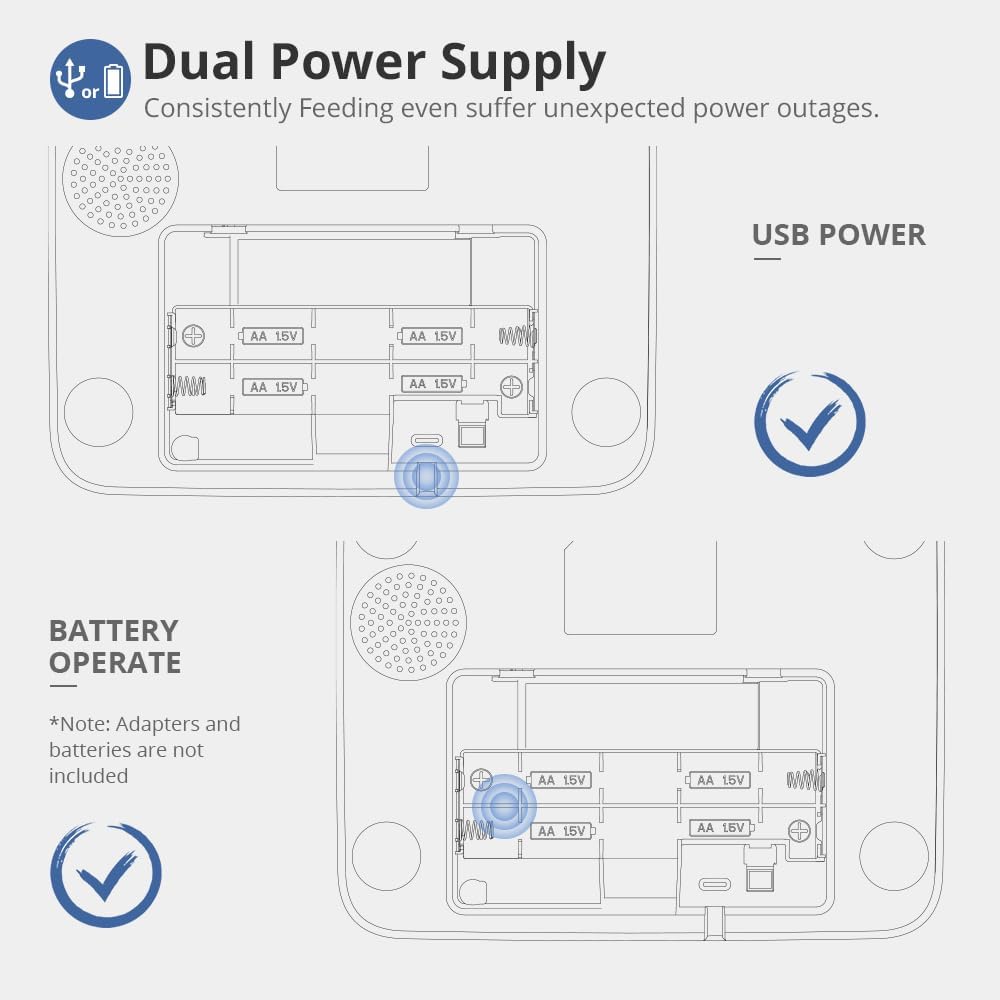
Image: A diagram illustrating the dual power supply options: USB power connection and the battery compartment for D-cell batteries, ensuring the feeder remains operational even during power interruptions.
- Fill Food Hoppers: Open the top lid of the feeder. The feeder has two separate hoppers (2L and 3L capacity). Fill each hopper with dry kibble. Ensure kibble size is between 2mm and 18mm.

Image: The XTUOES Automatic Cat Feeder with its top lid open, revealing two distinct food hoppers labeled 2L and 3L, designed for separate food types or for feeding two cats.

Image: A visual guide indicating the suitable kibble sizes (2mm, 10mm, 18mm) for the feeder, along with examples of single-shaped grains, mixed-shaped grains, and freeze-dried food. A reminder warns against using kibble larger than 18mm or wet food.
- Install Desiccant Bag: If not pre-installed, place the desiccant bag in its designated slot under the lid to keep food fresh.
- Secure Lid: Close the lid firmly. The feeder features a safety lock design to prevent pets from accessing the food prematurely.

Image: A cat looking inquisitively at the feeder, with a thought bubble "Can't Open???", demonstrating the secure lock design of the feeder's lid which prevents pets from tampering with the food compartment.
Operating Instructions
App Control and Wi-Fi Connection
The feeder operates primarily through a dedicated smartphone application. Download the "XTUOES" app from your device's app store.
- Download App: Search for "XTUOES" in the App Store or Google Play Store and install it.
- Register/Login: Create an account or log in if you already have one.
- Add Device: Follow the in-app instructions to add your feeder. Ensure your phone is connected to a 2.4GHz Wi-Fi network.
- Wi-Fi Reset: If needed, press and hold the unlock and feeding buttons simultaneously for 3 seconds until the Wi-Fi button's white light flashes. The white light will remain on after a successful Wi-Fi connection.

Image: A visual representation of the smartphone application interface, showing options to set timed feeding schedules, manage meal plans, and view feeding history. The feeder is visible in the background, demonstrating its integration with the app.
Setting Feeding Schedules
Use the app to create a detailed feeding plan for each hopper.
- In the app, navigate to the "Meal Plan" or "Schedule" section.
- Select the desired hopper (Container 1 or Container 2) for which you want to set a schedule.
- Set the time for each meal.
- Adjust the portion size for each meal. One portion is approximately 0.05 cups.
- Save your settings. The feeder will dispense food automatically at the scheduled times.
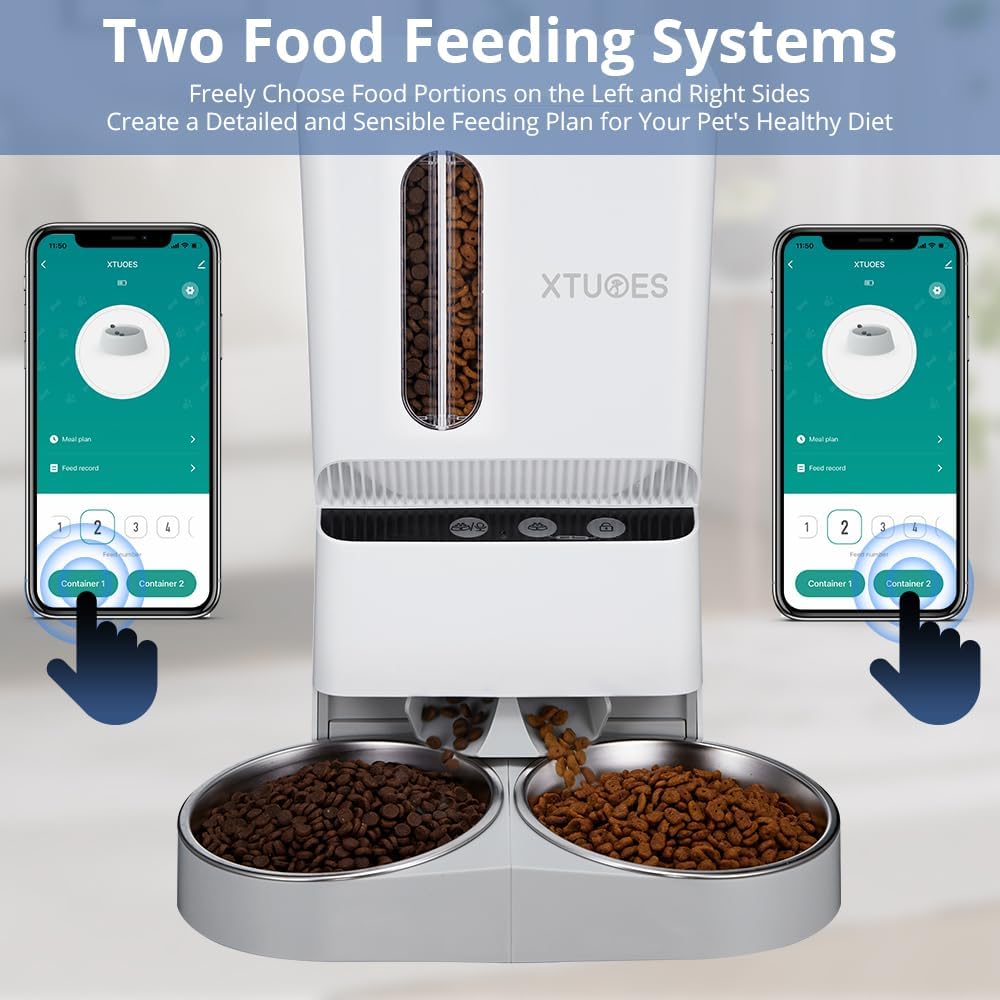
Image: The XTUOES Automatic Cat Feeder with two smartphone screens displaying the app interface. Each screen shows control options for a different food container, illustrating the ability to manage two separate feeding systems for different food types or pets.
Voice Recording Function
Record a personalized message to call your pets for their meals.
- Ensure the feeder is unlocked (white light on).
- Press and hold the recording button for 3 seconds until the unlock button's white light flashes.
- Record your voice message (up to 30 seconds).
- Press the recording button again to save your voice. The recorded message will play before each scheduled meal.

Image: A cat approaching the feeder, with a speech bubble above it saying "Hey, baby, it's dinner time!", demonstrating the 30-second voice recording feature that allows owners to call their pets for meals.
Manual Feeding
To dispense food manually:
- Ensure the feeder is unlocked (white light on).
- Press the feeding button. One portion (approx. 0.05 cups) will be dispensed.

Image: A detailed diagram of the feeder's control panel, illustrating the functions of the unlock button, manual feeding button, recording button, and Wi-Fi reset combination, along with their corresponding light indicators.
Maintenance and Cleaning
Regular cleaning ensures optimal performance and hygiene for your pets.
- Disassembly: Unplug the feeder and remove any remaining food. Detach the stainless steel bowls and the feeder base. The food dispensing mechanism and lid can also be detached for thorough cleaning.
- Cleaning: Wash the stainless steel bowls, feeder base, and detachable parts with mild soap and water. Rinse thoroughly.
Note: The main feeder unit containing electronic components should not be submerged in water. Wipe it clean with a damp cloth.
- Drying: Ensure all washed parts are completely dry before reassembling to prevent mold or mildew.
- Reassembly: Reassemble the feeder by attaching the dispensing mechanism, then the base, and finally placing the bowls.
- Desiccant Bag Replacement: Replace the desiccant bag every 1-2 months to maintain food freshness.
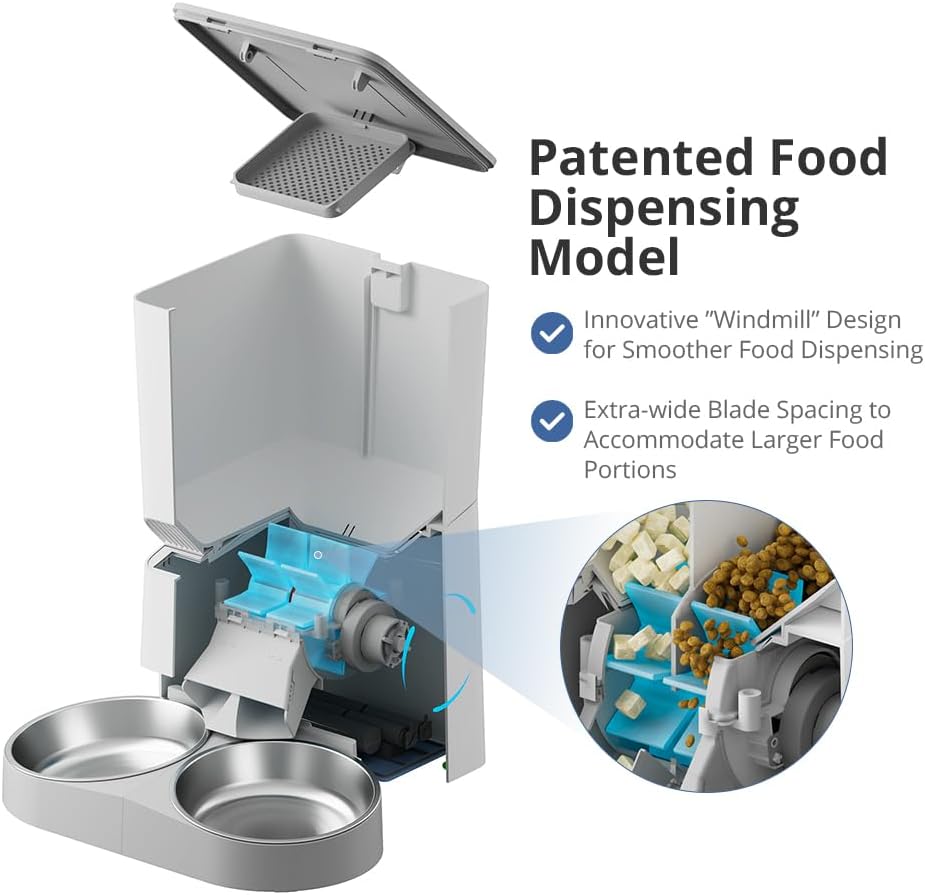
Image: An internal view of the feeder highlighting its patented "Windmill" dispensing design, engineered for smoother food delivery and accommodating larger food portions. This mechanism is part of the components that can be accessed for cleaning.
Troubleshooting
| Problem | Possible Cause | Solution |
|---|---|---|
| Feeder not dispensing food. |
|
|
| Cannot connect to Wi-Fi. |
|
|
| Voice recording not playing. |
|
|
Specifications
| Feature | Detail |
|---|---|
| Model Number | XTUOES-2306 |
| Brand | XTUOES |
| Capacity | 5L (2L + 3L dual hoppers) |
| Kibble Size | 2-18mm (dry kibble only) |
| Meals Per Day | 1-10 meals |
| Voice Recording | Up to 30 seconds |
| Connectivity | 2.4GHz Wi-Fi |
| Power Supply | USB power (adapter not included), 3 x D-cell batteries (not included) |
| Material | Plastic, Stainless Steel (bowls) |
| Dimensions | 14.49 x 9.76 x 7.56 inches |
| Item Weight | 0.01 Pounds |
Warranty and Support
The XTUOES Automatic Cat Feeder comes with a 1-year warranty from the date of purchase, covering manufacturing defects. Please retain your proof of purchase for warranty claims.
For technical support, troubleshooting assistance, or warranty inquiries, please contact XTUOES customer service through the contact information provided in your product packaging or visit the official XTUOES website.
Online Resources: For additional tips, FAQs, and video tutorials, please refer to the XTUOES brand store on Amazon or the official product support page.
Manufacturer: XTUOES
Related Documents - XTUOES-2306
 |
XTUOES PFA0004-2 Automatic Pet Feeder User Manual User manual for the XTUOES PFA0004-2 automatic pet feeder, model PF300. This document provides instructions, safety information, and FCC compliance details for the device. |
 |
Посібник користувача цифрових ваг ADE BE 2306 Amina Детальний посібник користувача для цифрових ваг ADE BE 2306 Amina, що охоплює налаштування, експлуатацію, безпеку, усунення несправностей та технічні характеристики. |
 |
BISSELL CrossWave Pet Pro User Guide: Operation, Maintenance, and Troubleshooting Comprehensive user guide for the BISSELL CrossWave Pet Pro (models 2305, 2306 series), covering safety instructions, assembly, cleaning formulas, operation for hard floors and area rugs, detailed maintenance procedures, troubleshooting common issues, warranty information, and product registration. |
 |
Keithley Models 2302/2302-PJ/2306/2306-PJ/2306-VS Battery/Charger Simulator Instruction Manual Detailed instruction manual for Keithley Models 2302, 2302-PJ, 2306, 2306-PJ, and 2306-VS Battery/Charger Simulators. Covers operation, safety, measurements, SCPI programming, and specifications for advanced electronic test equipment. |
 |
BISSELL Crosswave Pet Pro User Guide: Cleaning and Maintenance Comprehensive user guide for the BISSELL Crosswave Pet Pro (2305, 2306 Series), covering setup, operation, cleaning, maintenance, and troubleshooting for optimal performance on hard floors and area rugs. |
Ask a question about this manual
Ask about setup, troubleshooting, compatibility, parts, safety, or missing instructions. Manuals+ will review the question and use this page’s manual context to help answer it.