
Hodozzy 9109
Hodozzy Android 13 Car Stereo User Manual
Model: 9109
Introduction
Thank you for choosing the Hodozzy Android 13 Car Stereo. This manual provides detailed instructions for the installation, operation, and maintenance of your new 7-inch IPS touchscreen car radio. Please read this manual thoroughly before using the product to ensure proper functionality and to maximize your user experience.
Safety Information
Always prioritize safety when installing and operating this device. Improper installation or use can lead to accidents, injury, or damage. Consult a professional if you are unsure about any installation steps.
- Do not operate the device in a way that distracts you from driving.
- Ensure all wiring is correctly connected to prevent short circuits or electrical hazards.
- Keep the device away from water and excessive moisture.
- Do not attempt to disassemble or repair the unit yourself. Refer to qualified service personnel.
What's in the Box
Please check the contents of your package against the list below:

Figure 1: Package Contents
- Hodozzy Android 13 Car Stereo Unit (7-inch IPS Touchscreen)
- AHD Rear Camera
- GPS Antenna
- 4G Antenna
- 2 USB Cables
- External Microphone
- Power Cable
- RCA Cable
- Rear Camera Input Cable
- Mounting Brackets
- User Manual
Setup
1. Physical Installation
Before installation, ensure your vehicle's power is disconnected. This unit is designed for a universal 2-DIN car console. Professional installation is recommended.

Figure 2: Wiring Instructions
- Mounting: Use the provided mounting brackets to secure the head unit into your vehicle's 2-DIN slot.
- Power Connection: Connect the main power harness according to the wiring diagram. Ensure the ACC, B+, and GND wires are correctly connected to your vehicle's power system.
- Speaker Connections: Connect your vehicle's speakers to the corresponding speaker wires on the harness (e.g., Front L+, Front L-, Rear R+, Rear R-).
- Antenna Connections: Connect the radio antenna and the provided GPS antenna to their respective ports on the back of the unit. For 4G connectivity, connect the 4G antenna and insert a compatible SIM card into the designated slot (if applicable).
- Rear Camera: Connect the AHD rear camera to the 'Rear Camera Input' port. Ensure the reverse trigger wire is connected to your vehicle's reverse light circuit for automatic switching.
- External Microphone: Plug the external microphone into the MIC input for improved call quality.
- USB Ports: Connect the USB cables to the unit. These can be routed to a convenient location for connecting USB drives or for wired CarPlay/Android Auto.
- RCA Outputs: If using external amplifiers or subwoofers, connect the RCA cables to the appropriate audio output ports.
2. Initial Power On
Once all connections are secure, reconnect your vehicle's power. The unit should power on automatically or by pressing the power button. Follow the on-screen prompts for initial setup, including language selection and time zone.
Operating Instructions
1. User Interface and Navigation
The unit features a responsive 7-inch IPS touchscreen. Navigate through menus and applications by tapping, swiping, and dragging. The home screen can be customized with frequently used apps. The IPS screen provides true-to-life colors from any viewing angle.

Figure 3: IPS Screen and User Interface
2. Wireless CarPlay & Android Auto
This unit supports both wireless and wired CarPlay and Android Auto. This allows seamless integration of your smartphone for navigation, calls, messages, and music.
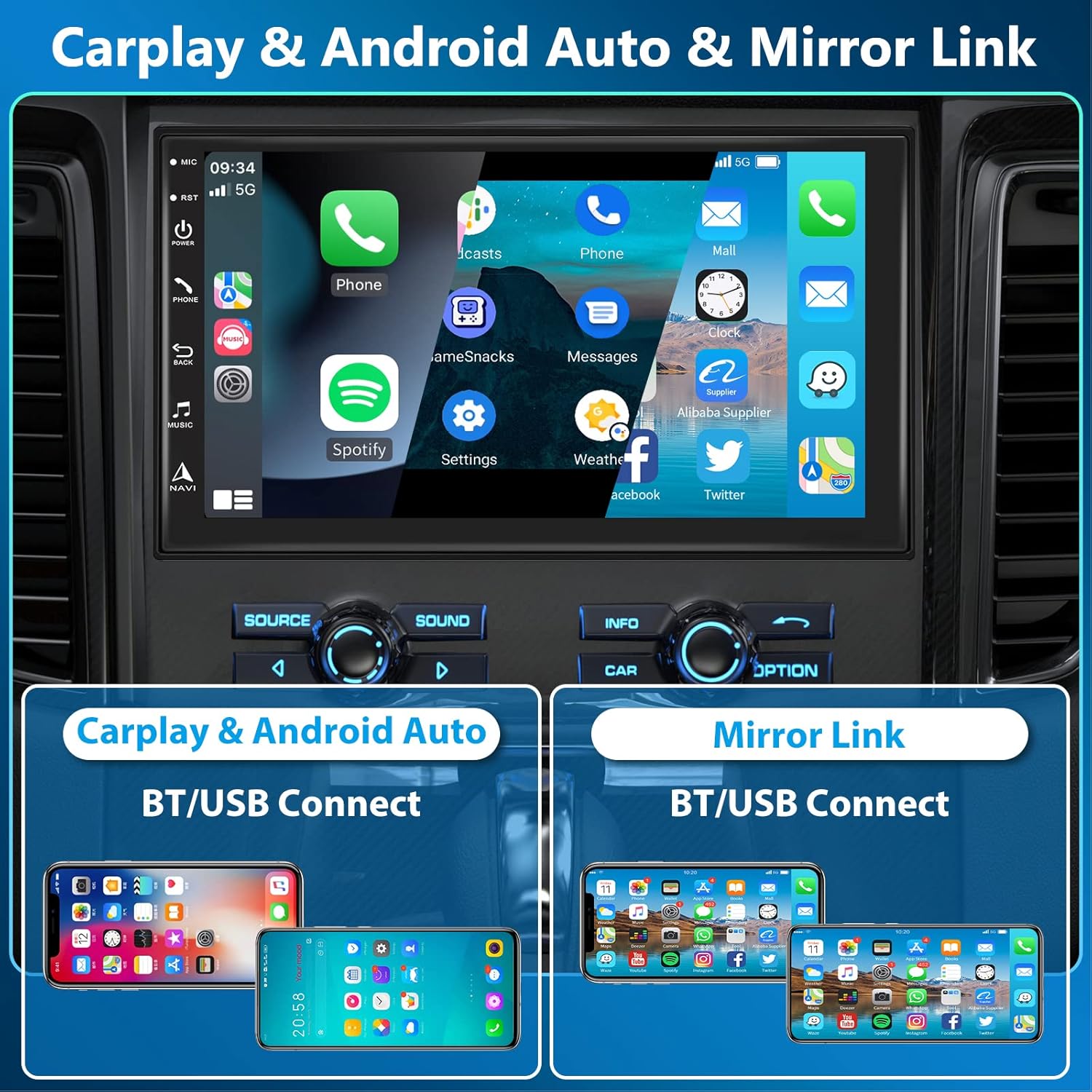
Figure 4: CarPlay, Android Auto, and Mirror Link
- Wireless Connection: Enable Bluetooth and Wi-Fi on your smartphone. Pair your phone with the car stereo via Bluetooth. Once paired, the system will prompt you to activate CarPlay or Android Auto wirelessly.
- Wired Connection: Connect your smartphone to one of the USB ports using a compatible USB cable. The system will automatically detect and launch CarPlay or Android Auto.
3. Mirror Link
Mirror Link allows you to display your smartphone's screen directly on the car stereo's display. This feature is supported for both Android (via Wi-Fi or USB) and iOS (via Wi-Fi) devices.
- Android: Connect via USB or Wi-Fi. Follow the on-screen instructions to enable USB debugging or Wi-Fi mirroring on your Android device.
- iOS: Connect via Wi-Fi. Ensure both devices are on the same Wi-Fi network or use the stereo's hotspot.
4. GPS Navigation
The unit comes with pre-installed offline maps (Here WeGo) and supports online map applications. The integrated GPS antenna ensures accurate positioning.

Figure 5: GPS Navigation and Connectivity
- Offline Maps: Access the pre-installed map application to use navigation without an internet connection.
- Online Maps: Connect to Wi-Fi or insert a 4G SIM card to use online navigation apps like Google Maps.
- Split Screen: Utilize the split-screen function to view navigation alongside another application, such as the radio or music player.
5. Radio (FM/AM/RDS)
The unit features an FM/AM radio tuner with RDS (Radio Data System) functionality, allowing you to view station information.

Figure 6: Radio, Controls, and Audio Features
- Tuning: Manually tune to stations or use the auto-scan feature to find available stations.
- Presets: Save your favorite stations to the 30 available preset slots.
- RDS: When available, RDS will display information such as station name, song title, and traffic announcements.
6. Bluetooth 5.1
Bluetooth 5.1 provides stable and fast wireless connectivity for hands-free calling and audio streaming.
- Pairing: Enable Bluetooth on your phone and search for the car stereo. Select the device and confirm pairing.
- Hands-Free Calling: Make and receive calls directly from the car stereo. Your phonebook can be imported for easy access.
- Audio Streaming: Play music from your smartphone wirelessly through the car's speakers.
7. DSP Audio Settings
The integrated DSP (Digital Signal Processor) with a 32-band equalizer allows for precise audio customization, providing clearer and more realistic surround sound.
- Equalizer: Adjust frequency bands to tailor the sound output to your preference.
- Sound Field: Adjust sound stage and balance for optimal listening.
- Subwoofer Output: Supports dedicated subwoofer audio output for enhanced bass.
8. Steering Wheel Control
The unit supports factory steering wheel controls, allowing you to manage audio and calls without taking your hands off the wheel.
- Configuration: Access the steering wheel control settings in the system menu to map your vehicle's steering wheel buttons to the stereo's functions.
9. Split Screen Functionality
The split-screen feature allows you to run two applications side-by-side, such as navigation and music, or radio and a web browser.
- Activation: Long-press the recent apps button or drag an app to one side of the screen to activate split-screen mode.
10. 4G/WiFi Connectivity
The built-in Wi-Fi and 4G module (with SIM card support) provide robust internet connectivity for online services, app downloads, and real-time traffic updates.
- Wi-Fi: Connect to available Wi-Fi networks (2.4GHz and 5GHz supported).
- 4G: Insert a 4G SIM card into the dedicated slot to enable mobile data connectivity.
11. Reversing Camera
The included AHD rear camera provides a clear view of the area behind your vehicle, automatically displaying the feed when reverse gear is engaged.

Figure 7: Reversing Camera View
- Automatic Display: The screen will automatically switch to the rear camera view when the vehicle is put into reverse, provided the trigger wire is correctly connected.
Maintenance
To ensure the longevity and optimal performance of your Hodozzy car stereo, follow these maintenance guidelines:
- Cleaning: Use a soft, dry cloth to clean the screen and exterior. For stubborn smudges, slightly dampen the cloth with water or a screen-safe cleaner. Avoid abrasive materials or harsh chemicals.
- Temperature: Avoid exposing the unit to extreme temperatures, both hot and cold, as this can affect performance and lifespan.
- Software Updates: Periodically check for software updates provided by Hodozzy to ensure you have the latest features and bug fixes.
Troubleshooting
If you encounter issues with your car stereo, refer to the following common problems and solutions:
| Problem | Possible Cause | Solution |
|---|---|---|
| Unit does not power on. | No power connection; Blown fuse; Incorrect wiring. | Check power cables (ACC, B+, GND). Verify fuse in vehicle and on unit. Ensure correct wiring as per diagram. |
| No sound. | Speaker wires disconnected; Volume too low; Mute activated; Incorrect audio source. | Check speaker connections. Increase volume. Deactivate mute. Select correct audio source. |
| Bluetooth not connecting. | Bluetooth off on phone/unit; Incorrect pairing; Interference. | Ensure Bluetooth is enabled on both devices. Delete previous pairings and re-pair. Move closer to the unit. |
| GPS signal weak/lost. | GPS antenna obstructed/disconnected; Poor satellite coverage. | Ensure GPS antenna is properly connected and placed in a clear area (e.g., dashboard). Move to an open area. |
| Rear camera not displaying. | Camera not connected; Reverse trigger wire incorrect; Camera faulty. | Check camera input cable. Verify reverse trigger wire connection. Test camera if possible. |
| Touchscreen unresponsive. | System frozen; Software issue. | Perform a soft reset (locate the reset button, usually a small pinhole). If issue persists, contact support. |
Specifications
| Feature | Detail |
|---|---|
| Brand | Hodozzy |
| Model Number | 9109 |
| Operating System | Android 13.0 |
| Processor | 8-Core CPU |
| RAM | 4GB |
| Internal Storage | 64GB |
| Screen Size | 7 Inches |
| Display Type | IPS Touchscreen |
| Connectivity | Bluetooth 5.1, Wi-Fi (2.4GHz & 5GHz), 4G (SIM card support) |
| Special Features | Wireless CarPlay, Wireless Android Auto, Mirror Link, GPS Navigation, DSP (32-band EQ), FM/AM/RDS Radio, Steering Wheel Control, Split Screen, Reversing Camera Support |
| Audio Output Mode | Stereo (5.1 Channels) |
| Compatible Devices | Mobile Phone |
| Control Method | Voice |
| Item Weight | 1 Kilogram |
Warranty and Support
Hodozzy offers a 2-year replacement warranty and lifetime technical support for this product. For any inquiries or assistance, please contact Hodozzy customer service directly.
Customer Service Email: hodozzyofficial@163.com
Please provide your product model number (9109) and purchase details when contacting support for faster service.
Ask a question about this manual
Ask about setup, troubleshooting, compatibility, parts, safety, or missing instructions. Manuals+ will review the question and use this page’s manual context to help answer it.