
1. Introduction
This manual provides detailed instructions for the installation, operation, and troubleshooting of your ABIWAZY 14-in-1 USB-C Docking Station. Please read this guide thoroughly before use to ensure optimal performance and longevity of the device. This docking station is designed to expand the connectivity of your USB-C enabled laptop, supporting multiple displays, high-speed data transfer, network connectivity, and power delivery.
2. Safety Information
- Do not expose the device to water, moisture, or extreme temperatures.
- Avoid dropping or subjecting the device to strong impacts.
- Do not attempt to disassemble or repair the device yourself. Contact qualified service personnel for assistance.
- Ensure proper ventilation around the docking station during operation to prevent overheating.
- Use only compatible power adapters and cables as specified.
3. Package Contents
Verify that all items are present in your package:
- ABIWAZY 14-in-1 USB-C Docking Station
- User Manual
4. Product Overview
The ABIWAZY 14-in-1 USB-C Docking Station offers extensive connectivity options. Below is a diagram illustrating the various ports and their functions.

Port Descriptions:
- SD/TF Card Reader: Supports SD and TF cards with transfer speeds up to 104MB/s.
- 2x USB 3.0 Ports: For data transfer up to 5Gbps.
- 2x USB-C Ports: For data transfer up to 5Gbps.
- 3.5mm Audio & Mic Jack: For connecting headphones or microphones.
- Ethernet Port (RJ45): Provides stable wired network connection up to 1000Mbps.
- DisplayPort (DP): Supports 4K@30Hz video output.
- HDMI 1 Port: Supports 4K@60Hz video output (DP1.4 source required for 4K@60Hz).
- HDMI 2 Port: Supports 4K@30Hz video output.
- 2x USB 2.0 Ports: For connecting peripherals like keyboard and mouse, with transfer speeds up to 480Mbps.
- USB-C PD (Power Delivery) Port: Supports up to 100W power input for charging your laptop.
5. Setup
Follow these steps to set up your ABIWAZY 14-in-1 USB-C Docking Station:
- Connect to Laptop: Plug the integrated USB-C cable from the docking station into a compatible USB-C port on your laptop. Ensure your laptop's USB-C port supports video output (DisplayPort Alt Mode) and power delivery for full functionality.
- Power Connection (Optional but Recommended): For stable operation and laptop charging, connect your laptop's original power adapter to the USB-C PD port on the docking station. This port supports up to 100W power input.
- Connect Displays: Connect your external monitors to the HDMI 1, HDMI 2, and/or DisplayPort outputs on the docking station using appropriate cables.
- Connect Peripherals: Plug in your USB devices (keyboard, mouse, external hard drives, etc.) into the available USB 3.0 or USB 2.0 ports.
- Network Connection: For a wired internet connection, connect an Ethernet cable from your router/modem to the RJ45 Ethernet port on the docking station.
- Audio Devices: Connect headphones or speakers to the 3.5mm Audio & Mic jack if needed.
6. Operating Instructions
6.1 Display Configuration
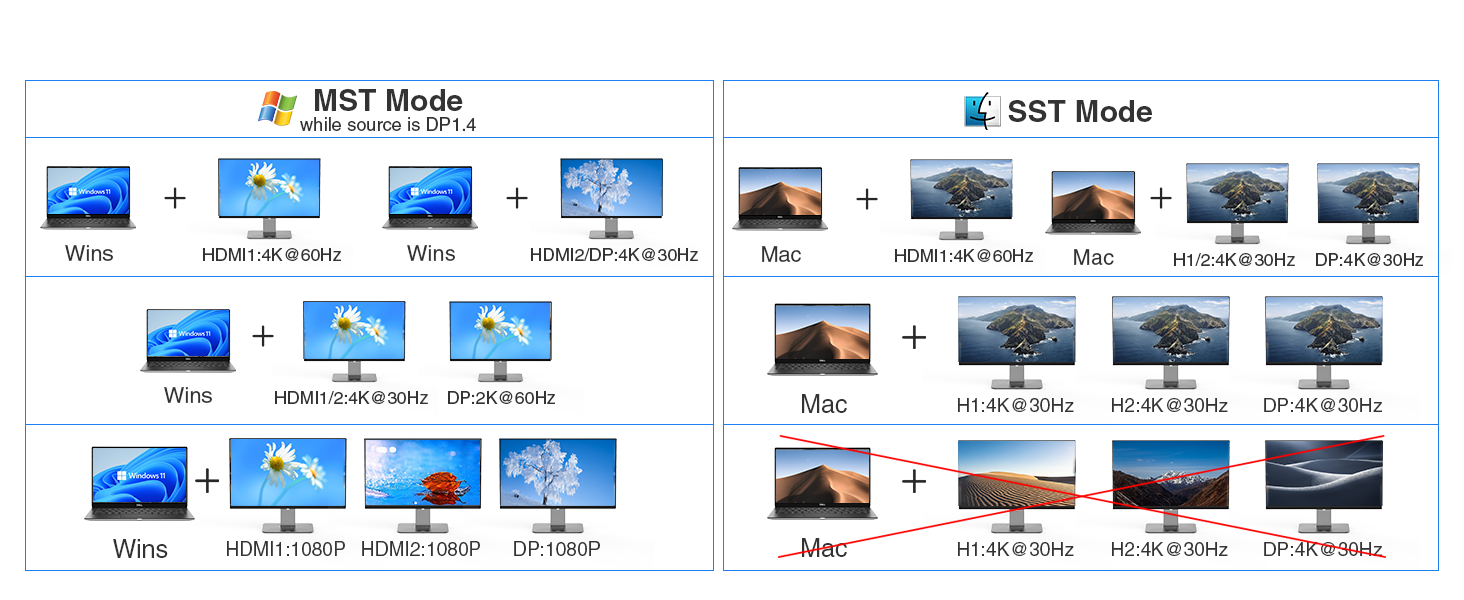
The docking station supports dual and triple display setups. The maximum resolution and refresh rate depend on your laptop's USB-C port capabilities (e.g., DP1.2 or DP1.4) and the operating system.


Windows Display Settings:
- Right-click on your desktop and select 'Display settings'.
- Identify your displays (1 for laptop, 2, 3 for external monitors).
- Choose 'Extend these displays' or 'Duplicate these displays' as needed.
- Adjust resolution and orientation for each display.
Mac OS Display Settings:
- Go to 'System Preferences' > 'Displays'.
- Select 'Arrangement' to configure extended or mirrored displays.
- Adjust resolution and refresh rate for each display. Note that Mac OS does not support Multi-Stream Transport (MST) for independent extended displays beyond the laptop screen.
6.2 Power Delivery
The USB-C PD port allows you to charge your laptop while using the docking station. Connect your laptop's power adapter to this port.

6.3 Ethernet Connection
Enjoy stable and fast wired internet speeds up to 1000Mbps by connecting an Ethernet cable to the RJ45 port.

6.4 USB Data Transfer & Card Reader
Transfer files quickly using the USB 3.0 (5Gbps) and USB 2.0 (480Mbps) ports, or the SD/TF card reader (104MB/s).

6.5 Audio/Mic Port
Connect your 3.5mm audio devices for sound input and output.
7. Compatibility
This docking station is compatible with laptops featuring a USB-C port that supports DisplayPort Alt Mode and Power Delivery. Please check your laptop's specifications to confirm compatibility.
To verify your laptop's USB-C functionality, check the device manufacturer's website or contact their support. Look for specifications indicating support for Thunderbolt 3/4, DisplayPort Alt Mode, and Power Delivery.
8. Troubleshooting
If you encounter any issues, please refer to the following common problems and solutions:
8.1 Display Issues
- No Signal/Black Screen:
- Ensure your laptop's USB-C port supports DisplayPort Alt Mode.
- Check all cable connections (USB-C from laptop to dock, HDMI/DP from dock to monitor). Try re-plugging them firmly.
- Test with different HDMI/DP cables if possible.
- Update your graphics card drivers to the latest version.
- For multiple displays, try connecting one monitor at a time to isolate the issue.
- Screen Flickering:
- Screen flickering can occur with long HDMI/DP/VGA cables (exceeding 3 meters). Use shorter, high-quality cables.
- Ensure your graphics card drivers are up to date.
- Reduce the display resolution or refresh rate in your system's display settings.
- Cannot Achieve Higher Resolution/Refresh Rate:
- Verify your monitor and laptop support the desired resolution and refresh rate.
- Ensure your laptop's USB-C port supports DP1.4 for 4K@60Hz output on HDMI 1.
- Adjust the refresh rate in your display settings. For Windows, go to 'Display settings' > 'Advanced display settings' > 'Display adapter properties' and select a valid mode. For Mac OS, go to 'System Preferences' > 'Displays' and select the desired refresh rate.
- Only Mirroring, No Extended Display (Mac OS):
- Mac OS does not support Multi-Stream Transport (MST). Therefore, it can only extend to one external monitor, or mirror all external monitors to show the same content.
8.2 USB-A/USB-C Port Issues
- Wireless Devices Latency:
- USB 3.0's 2.4GHz/2.5GHz frequency band can interfere with wireless devices.
- Keep wireless mouse/keyboard receivers as close to the device as possible.
- Move the hub away from the USB 2.0 port on your computer if a wireless device is plugged into it.
- If your Wi-Fi supports 2.4G/5G dual-band, choose the 5Ghz band.
- Avoid using other 2.4Ghz devices (e.g., microwave ovens) near the hub.
- Consider using wired mouse and keyboard.
- Hard Disk/USB Flash Drive Not Working:
- This can be caused by insufficient external power supply if multiple USB ports go dormant.
- Ensure the docking station is connected to a power source via the USB-C PD port.
- For Windows, disable 'USB selective suspend' in Power Options and uncheck 'Allow the computer to turn off this device to save power' in Device Manager for USB Root Hubs.
- For Mac, ensure 'Ask for new accessories' or 'Always' is selected under 'Privacy & Security' > 'Allow accessories to connect'.
8.3 Audio Port Issues
- Audio Port Not Working:
- If multiple audio devices are connected, only one independent audio output is allowed per unit.
- For Windows, go to 'Sound settings' > 'Playback' tab and set the docking station's audio output as the default device.
- For Mac OS, go to 'System Preferences' > 'Sound' > 'Output' tab and select the docking station's audio output.
- Bottom Noise from Audio Port:
- Clean the 3.5mm metal cylindrical head of your audio device and insert it fully, rotating to find the best connection.
- Check that headphone monitoring and microphone enhancement functions are turned off, and noise cancellation is turned on in your audio settings.
8.4 Power Delivery Issues
- Low Power Mode/Unable to Charge:
- If your laptop's motherboard requires more power than a 45W supply, it may trigger low power mode.
- We recommend using a 90W or higher power supply, or using a second USB-C port or pin header for charging.
- Black Screen with Power Delivery Port:
- USB-C ports on the docking station that do not have the Thunderbolt logo next to them do not support video output. Only USB-C ports with Thunderbolt support video output.
8.5 Ethernet Port Issues
- Network Port Not Reaching 1000Mbps:
- Real-time network speed is influenced by many factors. Our products can reach a maximum of 1000Mbps in theoretical conditions.
- Check your Ethernet cable rating and panel quality. Cables supporting 1000Mbps usually need to be at least CAT6.
9. Specifications
| Feature | Specification |
|---|---|
| Model | 14-in-1 USB-C Docking Station |
| Brand | ABIWAZY |
| Color | Silver |
| Hardware Interface | USB Type C |
| USB 3.0 Ports | 2 (5Gbps data transfer) |
| USB-C Data Ports | 2 (5Gbps data transfer) |
| USB 2.0 Ports | 2 (480Mbps data transfer) |
| HDMI 1 Output | 4K@60Hz (requires DP1.4 source) |
| HDMI 2 Output | 4K@30Hz |
| DisplayPort (DP) Output | 4K@30Hz |
| Ethernet Port | 1000Mbps (Gigabit) |
| SD/TF Card Reader | 104MB/s (UHS-I) |
| Audio Jack | 3.5mm Audio & Mic Combo |
| USB-C Power Delivery | Up to 100W input |
| Item Weight | 5.8 ounces |
| Package Dimensions | 6.26 x 3.19 x 0.67 inches |
10. Maintenance
- Keep the docking station clean by wiping it with a soft, dry cloth.
- Avoid using harsh chemicals or abrasive cleaners.
- Store the device in a cool, dry place when not in use.
- Regularly check cables for any signs of wear or damage.
11. Warranty and Support
ABIWAZY products come with a standard manufacturer's warranty. For specific warranty details, please refer to the product packaging or the official ABIWAZY website. If you encounter any issues or require technical assistance, please contact ABIWAZY customer support through the contact information provided on our website or your purchase platform. Our professional team is available to provide 24-hour online service and solutions.


