
1. Introduction
Thank you for choosing the MUSIC HERO SKIDUP Wireless Headset. This manual provides essential information for the proper setup, operation, and maintenance of your new headset. Please read it thoroughly before use to ensure optimal performance and longevity of the product.
2. Package Contents
Verify that all items are present in your package:
- MUSIC HERO SKIDUP Wireless Headset
- USB-A to USB-C Charging Cable
- User Manual (this document)
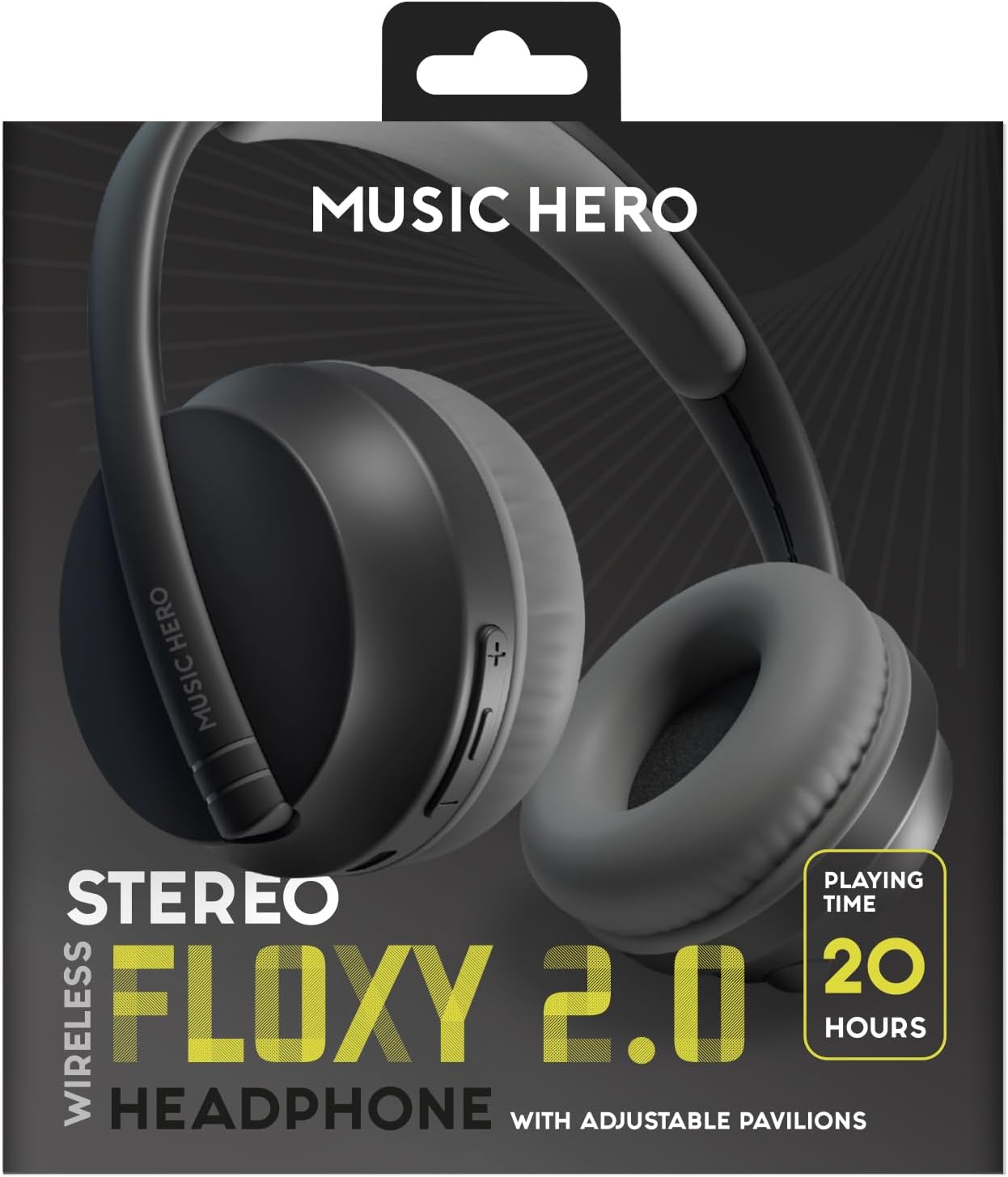
Image: Retail packaging of the MUSIC HERO SKIDUP Wireless Headset, showing the headset and branding.
3. Product Overview
The MUSIC HERO SKIDUP Wireless Headset features an over-ear design with soft padded earcups and an adjustable headband for comfortable wear. It includes an integrated microphone for calls and controls located on the left earcup for easy access to music and call management.

Image: Side view of the MUSIC HERO SKIDUP Wireless Headset in black, highlighting the over-ear design and branding.

Image: Front view of the MUSIC HERO SKIDUP Wireless Headset, showing the adjustable headband and earcups.
4. Setup
4.1 Charging the Headset
- Connect the small end of the included USB-C charging cable to the charging port on the headset.
- Connect the larger USB-A end of the cable to a compatible USB power source (e.g., computer USB port, wall adapter).
- The LED indicator on the headset will illuminate to show charging status. It will change or turn off once fully charged.
- A full charge provides up to 20 hours of continuous use.
4.2 Bluetooth Pairing
- Ensure the headset is fully charged.
- Press and hold the Power button on the headset until the LED indicator flashes, indicating it is in pairing mode.
- On your device (smartphone, tablet, laptop, smart TV), navigate to the Bluetooth settings.
- Enable Bluetooth and search for available devices.
- Select "SKIDUP" or a similar name from the list of found devices.
- Once connected, the LED indicator on the headset will stop flashing and remain solid or turn off, depending on the model.
5. Operating the Headset
5.1 Power On/Off
- To power on: Press and hold the Power button for approximately 3 seconds.
- To power off: Press and hold the Power button for approximately 5 seconds.
5.2 Music Playback
- Play/Pause: Press the Multi-function button once.
- Next Track: Press and hold the Volume Up (+) button.
- Previous Track: Press and hold the Volume Down (-) button.
- Volume Up: Short press the Volume Up (+) button.
- Volume Down: Short press the Volume Down (-) button.
5.3 Call Management
- Answer/End Call: Press the Multi-function button once.
- Reject Call: Press and hold the Multi-function button for 2 seconds.
- Redial Last Number: Double-press the Multi-function button.
5.4 Device Compatibility
The SKIDUP Wireless Headset is compatible with any device that supports a wireless Bluetooth connection, including:
- Mobile phones (iPhone, Android)
- Tablets
- Laptops and PCs
- Smart TVs
6. Maintenance
- Cleaning: Use a soft, dry cloth to clean the headset. Do not use abrasive cleaners or solvents.
- Storage: Store the headset in a cool, dry place away from direct sunlight and extreme temperatures.
- Battery Care: To preserve battery life, charge the headset regularly, even if not in frequent use. Avoid fully depleting the battery for extended periods.
7. Troubleshooting
| Problem | Possible Solution |
|---|---|
| Headset does not power on | Ensure the headset is fully charged. Press and hold the Power button for 3-5 seconds. |
| Cannot pair with device | Ensure the headset is in pairing mode (flashing LED). Turn off and on Bluetooth on your device. Move the headset closer to your device. |
| No sound | Check volume levels on both the headset and your connected device. Ensure the headset is properly paired and connected. |
| Poor sound quality | Move closer to your connected device to avoid interference. Ensure there are no obstructions between the headset and device. |
| Microphone not working | Ensure the headset is properly connected. Check microphone settings on your device. |
8. Specifications
| Feature | Detail |
|---|---|
| Model Name | MHHEADFLICKBTK |
| Item Model Number | 8018417427459 |
| Connectivity Technology | Wireless (Bluetooth) |
| Wireless Communication Technology | Bluetooth |
| Ear Placement | Over Ear |
| Form Factor | Over Ear |
| Control Type | Touch Control |
| Integrated Microphone | Yes |
| Battery Life (Average) | Up to 20 hours |
| Battery Type | Lithium Polymer (included) |
| Charging Cable | USB-C |
| Material | Fabric or Foam |
| Special Features | Adjustable Headband |
| Package Dimensions | 20.6 x 19.3 x 8.8 cm; 250 g |
9. Warranty and Support
For warranty information and customer support, please refer to the documentation provided at the time of purchase or contact your retailer. Keep your proof of purchase for any warranty claims.