
1. Introduction
Thank you for choosing the ADZERD D01 Pro Bluetooth Remote Control Ring. This device offers convenient wireless control for various applications on your iOS and Android smartphones and tablets, including TikTok scrolling, e-book page turning, and remote camera shutter functions. Please read this manual carefully to ensure proper use and optimal performance.
2. Product Overview

The ADZERD D01 Pro remote control ring, shown in its compact charging case.

Enjoy hands-free scrolling on TikTok and other short video platforms.
Key Features:
- Wireless Remote Control: Seamlessly control TikTok, Kindle App, and other applications.
- Page Turner: Effortlessly turn pages in e-books and documents on compatible apps.
- Camera Remote: Trigger your device's camera for photos and videos from a distance.
- Long Battery Life: Extended usage with the included portable charging case.
- Wide Compatibility: Supports iOS 14.8+ and Android devices.
3. Package Contents
- ADZERD D01 Pro Bluetooth Remote Control Ring
- Charging Case
- USB-C Charging Cable
- User Manual (this document)
4. Setup Instructions
4.1 Charging the Device
Before first use, fully charge the remote control ring and its charging case. Connect the provided USB-C cable to the charging case and a power source. The indicator light on the case will show charging status.
The ring provides over 14 hours of use on a single charge, and the charging case extends total usage to 86 hours. A full charge for the case takes approximately 90 minutes.
4.2 Bluetooth Pairing

Visual guide for powering on, Bluetooth pairing, and initial mode selection.
- Power On: Long press the middle button on the remote control ring for 5 seconds until the indicator light flashes.
- Enable Bluetooth: On your smartphone or tablet, go to Settings > Bluetooth and turn Bluetooth ON.
- Pair Device: Search for "D01 Pro" in the list of available devices and select it to connect.
- Initial Mode Selection: After connecting, open TikTok. Double-click the middle button. If a call is indicated, it's in Music Mode. If a thumbs-up is indicated, it's in Video Mode.
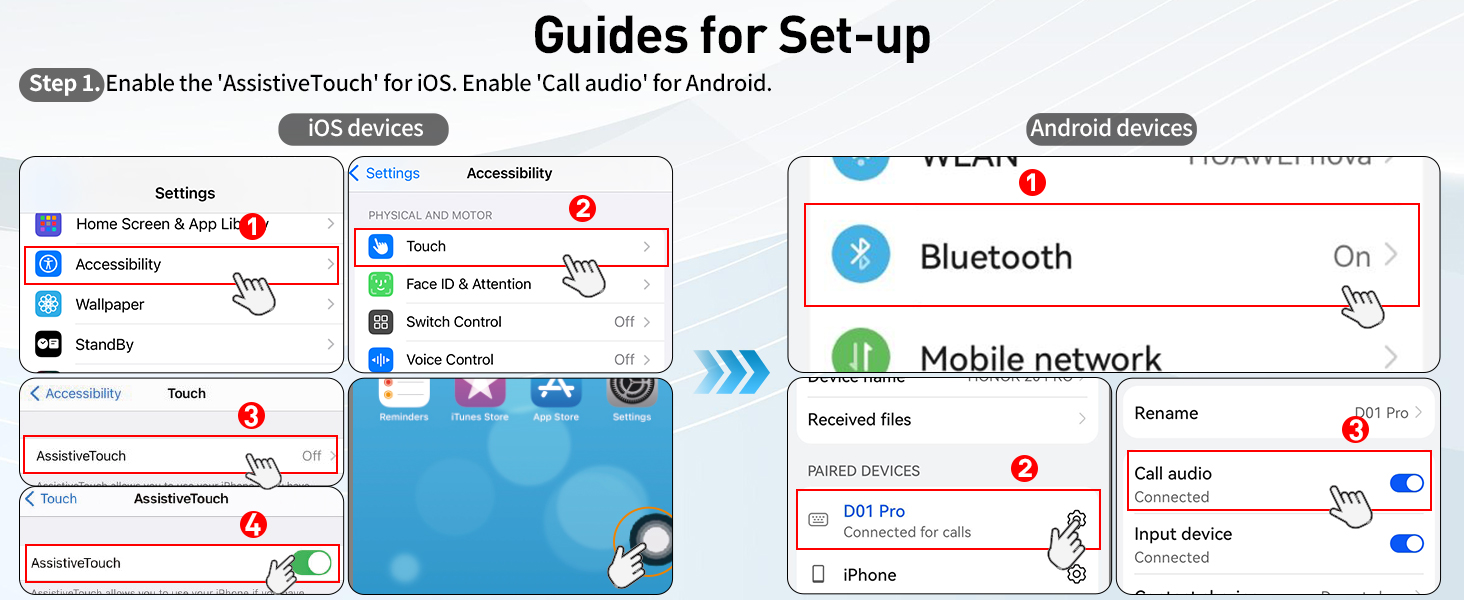
4.3 iOS Specific Setup (AssistiveTouch)
For full functionality on iOS devices (iPhone/iPad), you must enable AssistiveTouch.

Step-by-step guide for enabling AssistiveTouch on iOS and 'Call audio' for Android.
- Go to Settings > Accessibility.
- Select Touch.
- Tap on AssistiveTouch.
- Toggle AssistiveTouch to ON.
4.4 Android Specific Setup (Call Audio)
For optimal performance on Android devices, ensure 'Call audio' is enabled for the D01 Pro.
- Go to Settings > Bluetooth.
- Find "D01 Pro" in your paired devices list.
- Tap the settings icon next to "D01 Pro" and ensure Call audio is enabled.
5. Operating Instructions
Overview of the two main operating modes and how to switch between them.
5.1 Mode Switching
The D01 Pro has two main modes: Short Video Mode and Music Mode.
- To switch modes, hold both the up and down arrow buttons simultaneously until the indicator light flashes purple 3 times.
5.2 Short Video Mode (Default)
This mode is ideal for short video apps (e.g., TikTok), reading apps, and camera apps.

Detailed button functions for Short Video Mode and Music Apps.
| Button | Function |
|---|---|
| Up Arrow | Scroll Up / Page Up |
| Down Arrow | Scroll Down / Page Down |
| Middle Button (Single Click) | Pause/Play Video |
| Middle Button (Double Click) | Like (on TikTok) / Screen Off |
| Side Buttons (Left/Right) | Swipe Left/Right (e.g., for stories or photo albums) |
| Volume Buttons | Volume +/- |
5.3 Music Mode
This mode is designed for music apps and phone call applications.
| Button | Function |
|---|---|
| Up Arrow | Previous Song |
| Down Arrow | Next Song |
| Middle Button (Single Click) | Pause/Play Music / Answer/End Call |
| Middle Button (Double Click) | Wake/Stop Siri / Screen Off |
| Side Buttons (Left/Right) | Go Back / Dial Last Number |
| Volume Buttons | Volume +/- |
5.4 Page Turning for Kindle App
The D01 Pro can be used as a page turner for the Kindle app on iOS/Android. Note: This device is NOT compatible with Kindle e-reader devices like Kindle Paperwhite or Kindle Oasis.

The remote control ring facilitates hands-free reading on the Kindle app.
For optimal page turning in the Kindle app, ensure that 'Continuous Scrolling' is turned OFF in the app's settings. If continuous scrolling is enabled, the remote may scroll too far or behave unexpectedly.

Guide to disabling continuous scrolling in the Kindle app for accurate page turns.
- In the Kindle app, tap the center of the screen to bring up the menu.
- Tap the 'Aa' icon (Display Settings).
- Go to the 'Layout' or 'More' tab.
- Ensure 'Continuous Scrolling' is toggled OFF.
- To turn pages, double-click the Up or Down arrow buttons on the remote.
5.5 Camera Remote Function
The D01 Pro can act as a remote shutter for your device's default camera application.

Capture group photos and selfies with ease using the remote shutter function.
- Open your device's default camera app.
- Press the Middle Button on the remote to trigger the shutter for photos or to start/stop video recording.
6. Maintenance
6.1 Cleaning
Wipe the remote control ring and charging case with a soft, dry cloth. Do not use harsh chemicals or abrasive materials.
6.2 Storage
Store the device in a cool, dry place away from direct sunlight and extreme temperatures. If storing for an extended period, ensure the device is partially charged to preserve battery health.
7. Troubleshooting
- Device not connecting via Bluetooth:
Ensure the remote is powered on and fully charged. Turn Bluetooth off and on again on your smartphone/tablet. Forget the device in your Bluetooth settings and attempt to re-pair. Ensure no other devices are actively connected to the remote. - Buttons not responding or working incorrectly:
Verify the remote is in the correct mode (Short Video Mode or Music Mode) for your intended application. For iOS, ensure AssistiveTouch is enabled. For Kindle app, ensure 'Continuous Scrolling' is disabled. Restart your smartphone/tablet and the remote control ring. - Page turning scrolls too far or behaves erratically in reading apps:
This often indicates that 'Continuous Scrolling' or a similar feature is enabled in the reading app's settings. Refer to section 5.4 for Kindle app specific instructions. Disable any continuous scrolling features. - Remote disconnects frequently:
Ensure the remote is within the 33-foot Bluetooth range of your device. Check for interference from other wireless devices. Ensure the remote is adequately charged. - Device appears as 'Virus 2.0' during Bluetooth pairing:
This is an unusual occurrence. If you encounter this, try restarting both the remote and your phone/tablet. If the issue persists, ensure you are selecting 'D01 Pro' and not any other suspicious device name. If you are concerned, contact customer support.
8. Specifications
| Feature | Detail |
|---|---|
| Model Number | D01 Pro |
| Connectivity | Bluetooth 5.0 |
| Wireless Range | Up to 33 feet (10 meters) |
| Battery Type | 1 Lithium Ion battery (required) |
| Usage Time (Ring) | Over 14 hours on a single charge |
| Total Usage Time (with Case) | Up to 86 hours |
| Charging Time (Case) | Approx. 90 minutes |
| Compatibility | iPhone, iPad (iOS 14.8+), Android Phones & Tablets |
| Dimensions (Package) | 4.02 x 3.94 x 1.26 inches |
| Item Weight | 2.89 ounces |
9. Warranty and Support
ADZERD products are designed for reliability and performance. For warranty information or technical support, please refer to the product packaging or contact ADZERD customer service through the retailer where you purchased the product. Keep your purchase receipt as proof of purchase.


