
Introduction
This manual provides essential instructions for setting up, operating, maintaining, and troubleshooting your VASOUN M50 Android Tablet. Please read this manual thoroughly before using your device to ensure optimal performance and longevity.
1. Setup
1.1 Package Contents
Verify that all items are present in the package:
- VASOUN M50 Android Tablet
- PU Leather Case
- Charging Adapter
- USB Cable
- User Manual (this document)
1.2 Device Layout
Familiarize yourself with the tablet's physical features.

Image: Overview of the VASOUN M50 Android Tablet, showcasing its 10.4-inch 2K FHD IPS display, Android 11 OS, Octa-Core CPU, 16GB RAM (8GB Expand), 256GB ROM, and Dual Camera (5.0+13.0 MP). It also highlights Wi-Fi + LTE connectivity.
1.3 Charging the Tablet
Before first use, fully charge the tablet. Connect the USB cable to the tablet's charging port and the other end to the charging adapter. Plug the adapter into a power outlet.
- The battery indicator on the screen will show charging status.
- A full charge typically takes several hours.
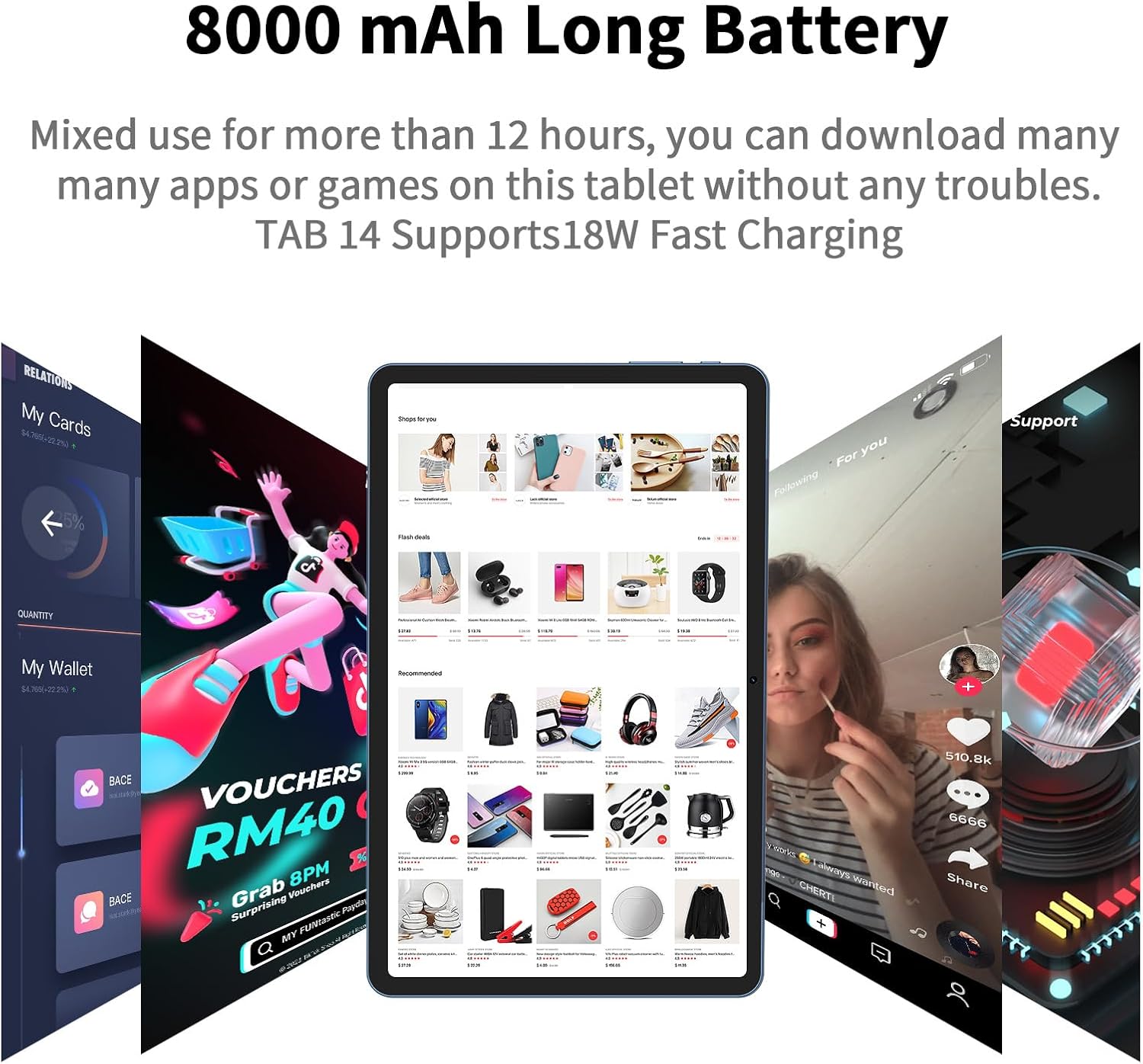
Image: Illustration emphasizing the 8000 mAh long-lasting battery of the VASOUN M50 Tablet, capable of mixed use for over 12 hours and supporting 18W fast charging.
1.4 Powering On/Off
- To Power On: Press and hold the Power button until the screen lights up.
- To Power Off: Press and hold the Power button until the power options appear, then select "Power off".
- To Restart: Press and hold the Power button until the power options appear, then select "Restart".
1.5 Initial Setup Wizard
Upon first power-on, follow the on-screen instructions to:
- Select your language.
- Connect to a Wi-Fi network.
- Set up your Google account (or skip for later).
- Review and accept terms and conditions.
- Set up screen lock (PIN, pattern, password).
1.6 Inserting SIM Cards and MicroSD Card
The tablet supports dual SIM cards for 4G LTE connectivity and a MicroSD card for expanded storage.
- Locate the SIM/MicroSD card tray on the side of the tablet.
- Use the provided SIM ejector tool to open the tray.
- Carefully place the Nano-SIM cards and/or MicroSD card into their respective slots.
- Gently push the tray back into the tablet until it clicks into place.
Ensure the tablet is powered off before inserting or removing SIM/MicroSD cards.
2. Operating the Tablet
2.1 Basic Navigation
- Home Screen: Swipe left or right to access different home screens.
- App Drawer: Swipe up from the bottom of the screen to view all installed applications.
- Notifications & Quick Settings: Swipe down from the top of the screen to access notifications and quick settings toggles (Wi-Fi, Bluetooth, etc.).
- Back, Home, Recent Apps: Use the navigation buttons at the bottom of the screen (or gestures, if enabled) to navigate.
2.2 Connectivity
Your tablet supports various connectivity options.
2.2.1 Wi-Fi Connection (2.4G/5G)
- Go to Settings > Network & internet > Wi-Fi.
- Toggle Wi-Fi On.
- Select your desired network from the list.
- Enter the password if prompted and tap Connect.
2.2.2 4G LTE Mobile Data
If you have inserted a valid SIM card with a data plan:
- Go to Settings > Network & internet > Mobile network.
- Ensure Mobile data is toggled On.
- Configure APN settings if required by your carrier.
2.2.3 Bluetooth Pairing
- Go to Settings > Connected devices > Bluetooth.
- Toggle Bluetooth On.
- The tablet will scan for available devices. Select the device you wish to pair with and follow on-screen prompts.
2.3 App Management

Image: The VASOUN M50 Tablet screen showing various popular application icons, illustrating its 256 GB storage and 16 GB RAM (8+8 Expand) for smooth app performance and ample storage.
- Installing Apps: Download and install applications from the Google Play Store.
- Uninstalling Apps: Press and hold an app icon on the home screen or app drawer, then drag it to "Uninstall" or go to Settings > Apps & notifications.
- Managing Storage: Regularly check storage usage and clear cache for apps to maintain performance.
2.4 Camera Usage
The tablet features a 5.0MP front camera and a 13MP rear camera.
- Open the Camera app.
- Tap the shutter button to take photos.
- Switch between front and rear cameras using the camera switch icon.
- Select video mode to record videos.
2.5 Multimedia Experience

Image: A visual comparison on the VASOUN M50 Tablet screen, demonstrating the superior clarity of 2K FHD content compared to standard HD, highlighting the immersive screen experience.
Enjoy a rich multimedia experience with the 2K IPS screen and four BOX speakers.
- Video Playback: Use pre-installed video players or download alternatives from the Play Store.
- Audio: Connect headphones via Bluetooth or the 3.5mm audio jack (if available) for private listening.
3. Maintenance
3.1 Battery Care
- Avoid extreme temperatures, which can degrade battery life.
- Do not let the battery completely drain frequently.
- Use the original charger and cable for optimal charging.
3.2 Storage Management
- Regularly delete unnecessary files, photos, and videos.
- Clear app cache from Settings > Apps & notifications > [App Name] > Storage & cache.
- Utilize the MicroSD card slot for additional storage of media files.
3.3 Software Updates
Keep your tablet's software up to date for improved performance and security.
- Go to Settings > System > System update.
- Check for available updates and follow the on-screen instructions to install them.
3.4 Cleaning the Tablet
- Use a soft, lint-free cloth to clean the screen and body.
- Avoid using harsh chemicals or abrasive materials.
- Do not spray cleaners directly onto the tablet.
4. Troubleshooting
4.1 Tablet Not Turning On
- Ensure the battery is charged. Connect the charger and wait a few minutes before attempting to power on.
- Try holding the Power button for an extended period (10-15 seconds).
4.2 Slow Performance or Freezing

Image: Diagram highlighting the 12NM Low Power Process and Octa-Core CPU of the VASOUN M50 Tablet, indicating its 2.0 GHz speed for faster and more responsive performance in work, learning, and play.
- Close unused applications running in the background.
- Clear app caches regularly.
- Restart the tablet.
- Check for available software updates.
- Ensure sufficient storage space is available.
4.3 Wi-Fi/4G LTE Connectivity Issues
- Wi-Fi:
- Ensure Wi-Fi is enabled in settings.
- Restart your Wi-Fi router.
- Forget the network and reconnect.
- 4G LTE:
- Ensure mobile data is enabled and SIM card is properly inserted.
- Check your data plan status with your carrier.
- Verify APN settings are correct.
4.4 Screen Unresponsive
- Restart the tablet by holding the Power button.
- Ensure the screen is clean and free of debris.
- If the issue persists, a factory reset might be necessary (back up data first).
4.5 Factory Reset
A factory reset will erase all data from your tablet and restore it to its original factory settings. Back up all important data before proceeding.
- Go to Settings > System > Reset options.
- Select Erase all data (factory reset).
- Confirm your choice and enter your PIN/pattern/password if prompted.
5. Specifications
The following table details the technical specifications of the VASOUN M50 Android Tablet:
| Feature | Specification |
|---|---|
| Model Name | M50 |
| Operating System | Android 11 |
| Screen Size | 10.4 Inches |
| Screen Resolution | 2000x1200 (2K FHD IPS) |
| Processor | 2 GHz Octa-Core (Unisoc T618) |
| RAM | 16GB (8GB fixed + 8GB adjustable) |
| Internal Storage | 256 GB |
| Expandable Storage | Up to 1TB via MicroSD card |
| Rear Camera | 13 MP |
| Front Camera | 5.0 MP |
| Battery Capacity | 8000 mAh |
| Wireless Connectivity | 2.4G/5G WiFi (802.11ac), Bluetooth 5.0, 4G LTE (Dual SIM) |
| Dimensions (LxWxH) | 13.7 x 7.8 x 1.7 inches |
| Item Weight | 2.4 pounds |
| Color | Blue |
6. Warranty and Support
Information regarding product warranty and customer support details is not available in the provided product data. Please refer to the product packaging or the manufacturer's official website for the most current warranty terms and support contact information.