
1. Introduction
This document provides instructions for the Waveshare Industrial Isolated Rail-Mount RS232/485/422 Serial Server. This device is designed for industrial environments, functioning as a serial server, Modbus gateway, MQTT gateway, and RS485 to JSON converter. It facilitates bidirectional transparent data transmission between RS232/485/422 serial interfaces and Ethernet networks.
The module integrates RS232/485/422 and Ethernet ports, supporting various communication modes and configuration methods. Its rail-mount design allows for easy integration into industrial control systems.

Figure 1: Waveshare Industrial Isolated Rail-Mount RS232/485/422 Serial Server. This image displays the device with icons highlighting its key features: Industrial Isolation, Rail-Mount, Modbus Gateway, Multi Interfaces, Multi Power Supply Methods, RJ45 Ethernet, MQTT & JSON, Multi Host Support, Multi Features, and Host/Webpage Config.
2. Key Features
- Bi-directional Transmission: Realizes transparent data transmission between RS232/485/422 and Ethernet.
- Multiple Interfaces: Equipped with RS232, RS485, and RS422 ports, suitable for diverse application scenarios.
- Flexible Power Supply: Supports DC power port (5.5mm outer, 2.1mm inner) and screw terminals for 6-36V DC input.
- Rail-Mount Support: Designed for easy integration and combination with other rail-mounted devices.
- Modbus Gateway: Supports Modbus networking upgrades and works with specific configuration software.
- Multi-Communication Modes: Operates as TCP server, TCP client (can coexist), UDP, and UDP multicast.
- Protocol Conversion: Supports MQTT/JSON to Modbus for flexible protocol conversion.
- Multi-Host Roll-Polling: Identifies and responds to different network devices, preventing crosstalk.
- Configuration Methods: Configurable via PC software, web browser, and device management function library. Supports DHCP and DNS.

Figure 2: Features at a Glance. This image highlights the core functionalities of the serial server, including its role as a data acquisitor and IoT gateway, and its support for various protocols and interfaces.
3. Product Overview and Interfaces
The device features clearly labeled ports for easy connection. Understanding each interface is crucial for proper setup and operation.

Figure 3: Interface Introduction. This diagram labels the RS232 Port, Ethernet Port (PoE optional), Reset Button, DC Power Port, 6~36V Power Input, Ground, Signal Ground, RS485 B / RS422 TX-, RS485 A / RS422 TX+, RS422 RX+, and RS422 RX-. It also provides the RS232 pinout definition for the DB9 male connector.
3.1 Interface Descriptions
- RS232 Port: Standard DB9 male connector for RS232 serial communication.
- RS485/RS422 Terminals: Screw terminals for RS485 (A, B) and RS422 (TX+, TX-, RX+, RX-) connections.
- Ethernet Port: RJ45 connector for 10/100M self-adaptive Ethernet, with 2KV surge protection.
- DC Power Port: 5.5mm outer, 2.1mm inner DC jack for 6-36V DC power input.
- Screw Terminal Power Input: Alternative 6-36V DC power input via screw terminals.
- Reset Button: Used to restore factory default settings.
3.2 RS232 Pinout
| DB9 Male (PIN) | RS232 PIN |
|---|---|
| 2 | RXD (Receive Data) |
| 3 | TXD (Transmit Data) |
| 5 | GND (Ground) |
| 1, 4, 6, 7, 8, 9 | N/C (No Connection) |
4. Setup and Installation
4.1 Rail-Mount Installation
The device is designed for easy installation on a standard DIN rail. Locate the rail-mount buckle on the back of the device. Align the buckle with the DIN rail and press firmly until it clicks into place, securing the device.
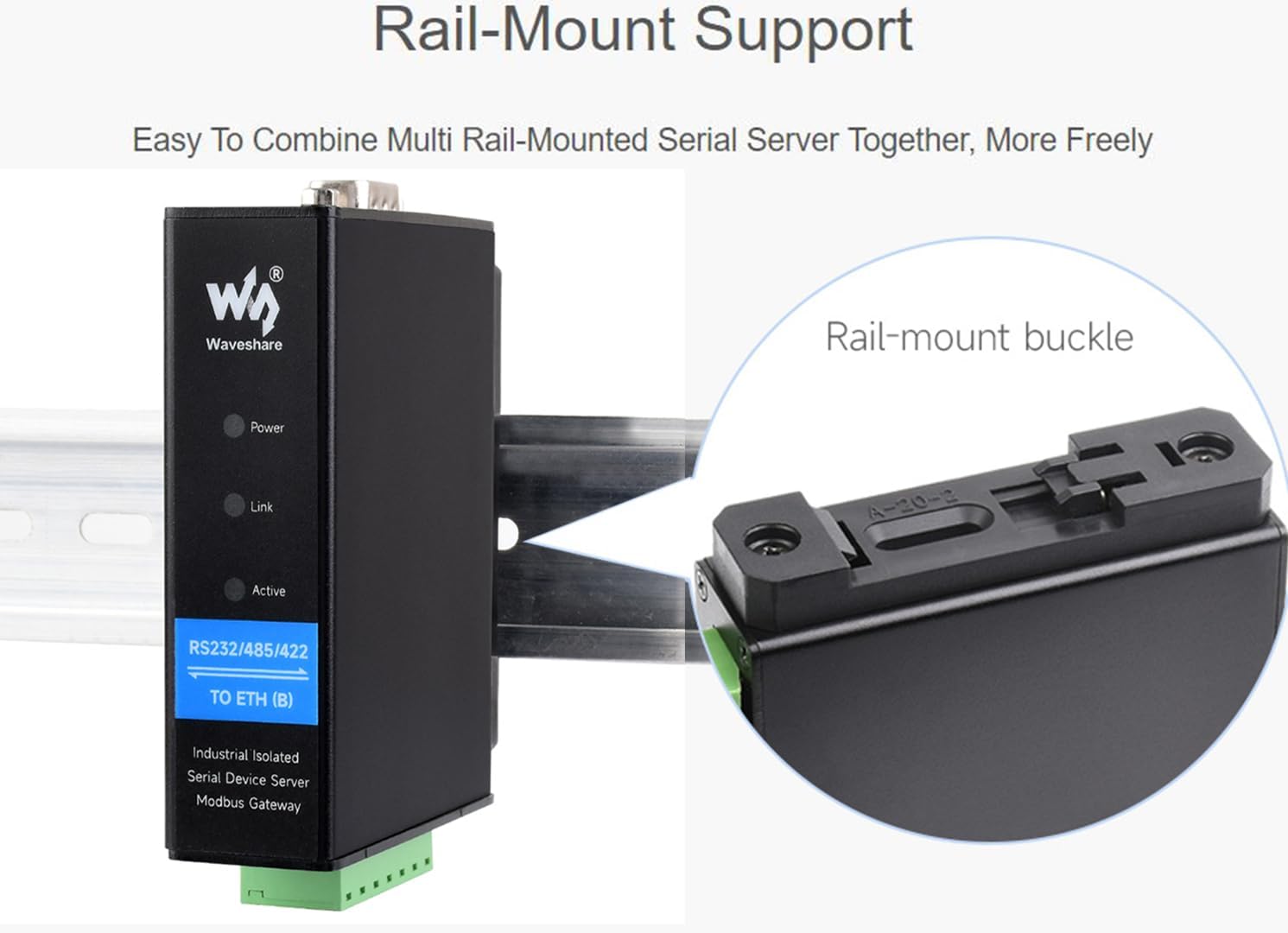
Figure 4: Rail-Mount Support. This image illustrates the device mounted on a DIN rail, with a close-up of the rail-mount buckle for secure attachment.
4.2 Power Connection
Connect a DC power supply (6-36V) to either the DC power port or the screw terminals labeled 'DC 6-36V'. Ensure correct polarity when using screw terminals (positive to '+', negative to '-').
4.3 Serial Port Connection
- RS232: Connect your RS232 device using a standard DB9 serial cable to the RS232 port. Refer to the pinout in Section 3.2 for wiring.
- RS485/RS422: Connect your RS485 or RS422 devices to the corresponding screw terminals. For RS485, connect A to A and B to B. For RS422, connect TX+ to RX+, TX- to RX-, RX+ to TX+, and RX- to TX-.
4.4 Ethernet Connection
Connect a standard RJ45 Ethernet cable from the device's Ethernet port to your network switch or router.
5. Configuration
The Waveshare Serial Server can be configured using several methods:
- Web Browser: Access the device's web interface by entering its IP address into a web browser. The default IP address can usually be found in the product's detailed documentation or obtained via DHCP.
- PC Configuration Software: Use dedicated PC software provided by Waveshare for detailed configuration. This software typically allows for comprehensive setup of serial parameters, network settings, and operating modes.
- Device Management Function Library: For advanced integration, a function library may be available for programmatic configuration.
The device supports obtaining dynamic IP addresses via DHCP and resolving domain server addresses using DNS protocol.
6. Operating Modes
The serial server supports various communication modes to suit different application requirements:
- TCP Server: The device listens for incoming TCP connections from clients.
- TCP Client: The device initiates a TCP connection to a specified remote TCP server. TCP Server and Client modes can coexist.
- UDP: The device sends and receives data using the UDP protocol, suitable for connectionless communication.
- UDP Multicast: Supports sending data to a group of recipients simultaneously.
- Modbus Gateway: Converts Modbus RTU/ASCII to Modbus TCP, enabling Modbus devices to communicate over Ethernet.
- MQTT Gateway: Facilitates communication with MQTT brokers for IoT applications.
- RS485 to JSON: Converts RS485 data into JSON format for easier integration with web services and applications.
7. Specifications
| Parameter | Value |
|---|---|
| Product Type | Serial server, Modbus gateway, MQTT gateway |
| Primary Function | Bidirectional transparent transmission RS232/485/422 to Ethernet |
| Communication Interface | 1x RS232, 1x RS485, 1x RS422, 1x Ethernet (RJ45) |
| Power Supply | DC power port, 6 ~ 36V DC screw terminal |
| Isolation Protection | Power isolation, signal isolation protection |
| Ethernet Port | 10 / 100M self-adaptive RJ45, 2KV surge protection |
| Serial Parameters (Baud Rate) | 300 ~ 115200 bps |
| Serial Parameters (Parity Bit) | None, odd, even, mark, space |
| Serial Parameters (Data Bits) | 5 ~ 9 bits |
| Flow Control | No flow control |
| Software Protocol | ETHERNET, IP, TCP, UDP, HTTP, ARP, ICMP, DHCP, DNS |
| Configuration Method | PC configuration, WEB browser, device management function library |
| Communication Method | TCP/IP direct communication, virtual serial port mode |
| Operating Mode | TCP server, TCP client (TCP server also coexist), UDP, UDP multicast |
| Operating Temperature | -40℃ ~ 85℃ |
| Humidity Range | 5% ~ 95% relative humidity |
| Dimensions (L × W × H) | 88.7 × 72.5 × 24.2 mm |
| Item Weight | 5.3 ounces |
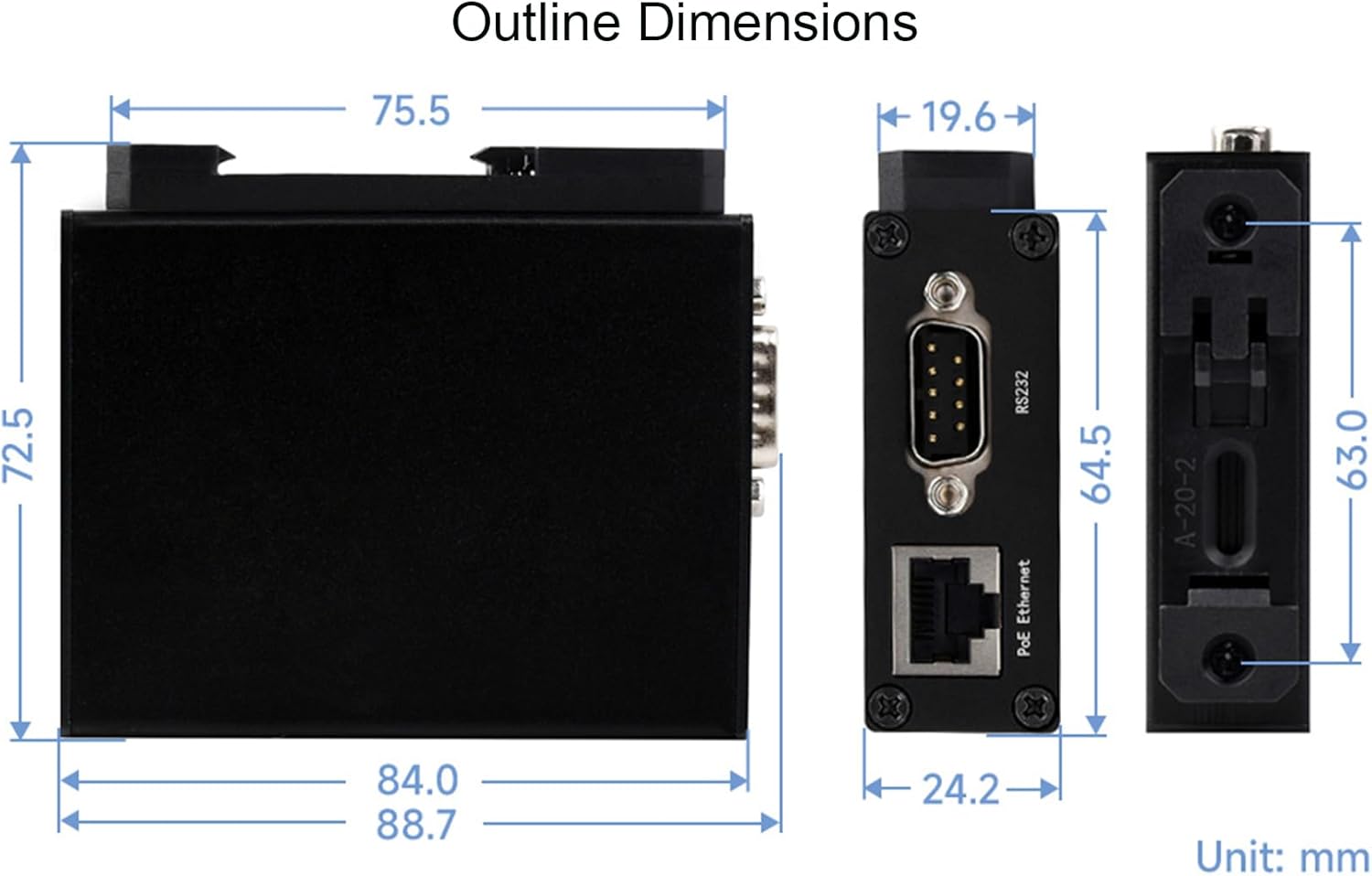
Figure 5: Outline Dimensions. This image provides detailed measurements of the device in millimeters, showing its length, width, and height from various perspectives.
8. Maintenance
- Cleaning: Use a soft, dry cloth to clean the exterior of the device. Avoid using liquid cleaners or solvents.
- Environmental Conditions: Ensure the device operates within the specified temperature and humidity ranges (-40℃ ~ 85℃, 5% ~ 95% RH) to prevent damage and ensure optimal performance.
- Firmware Updates: Periodically check the Waveshare official website for any available firmware updates to ensure the device has the latest features and bug fixes.
9. Troubleshooting
- No Power: Verify that the DC power supply is correctly connected and providing 6-36V. Check power cables and connections.
- No Network Connection: Ensure the Ethernet cable is securely connected to both the device and the network switch/router. Check network settings (IP address, subnet mask, gateway) in the device's configuration.
- Serial Communication Errors: Confirm serial port settings (baud rate, parity, data bits, flow control) match those of the connected serial device. Check serial cable wiring.
- Device Unresponsive: Try pressing the Reset button to restore factory default settings. Reconfigure the device after a reset.
- Modbus/MQTT Issues: Verify Modbus/MQTT gateway settings, including slave IDs, topic configurations, and broker addresses.
10. Warranty and Support
Waveshare products typically come with a manufacturer's warranty. For specific warranty terms and conditions, please refer to the documentation included with your purchase or visit the official Waveshare website. For technical support, troubleshooting assistance, or further inquiries, please contact Waveshare customer service through their official support channels.
Waveshare Official Website: www.waveshare.com


