
1. Introduction
Thank you for choosing the MXZ Gaming PC Desktop Computer. This manual provides essential information for setting up, operating, maintaining, and troubleshooting your new system. This high-performance desktop is equipped with an AMD Ryzen 3 4100 processor, AMD Radeon RX 6500 XT graphics, 16GB DDR4 RAM, and a 500GB NVME SSD, running on Windows 11 Pro. It features 6 RGB fans for optimal cooling and aesthetics.

Figure 1.1: Front view of the MXZ Gaming PC Desktop Computer, showcasing the illuminated RGB fans and the MXZ brand logo.
2. Setup
2.1 Unpacking and Placement
- Carefully remove the computer and all accessories from the packaging. Retain packaging for future transport or service.
- Place the computer on a stable, flat surface with adequate space around it for proper ventilation. Avoid placing it in enclosed spaces or near heat sources.
2.2 Connecting Peripherals
Connect your monitor, keyboard, mouse, and other peripherals to the appropriate ports on the computer.
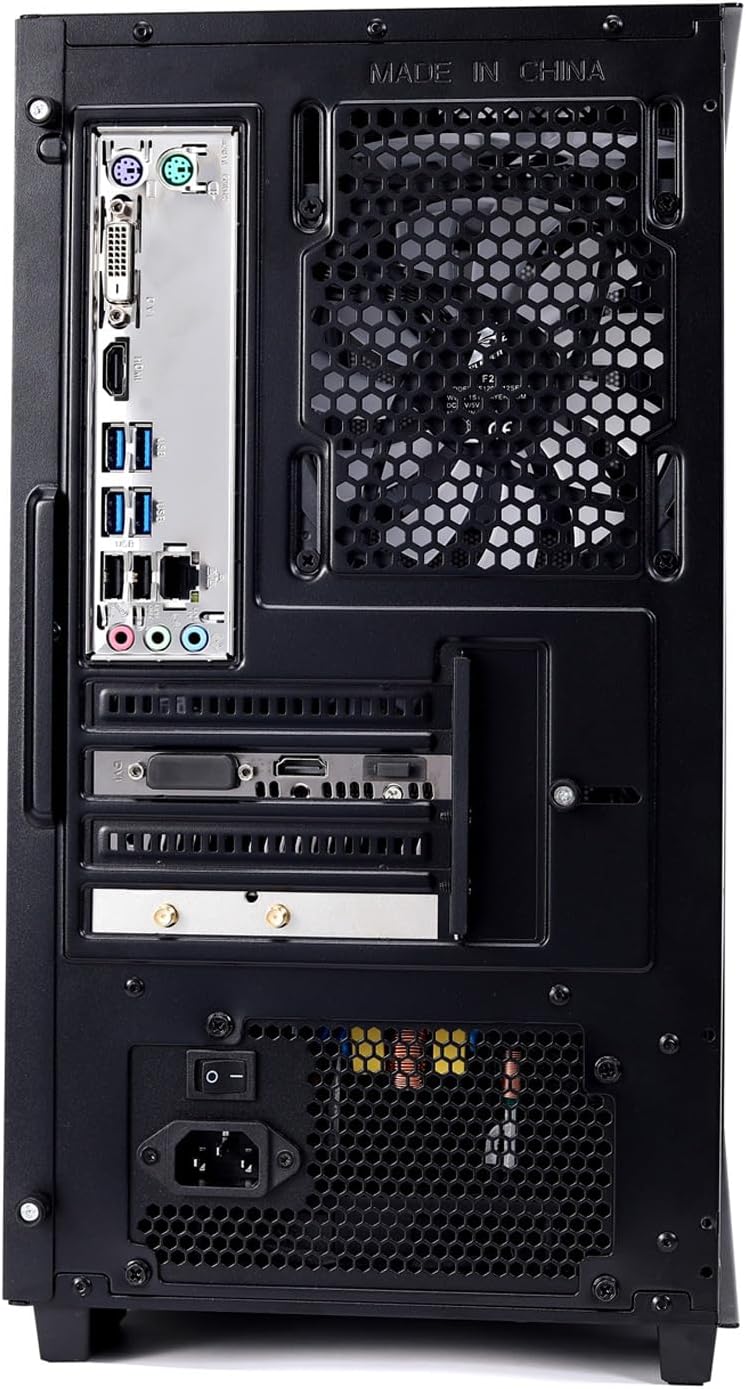
Figure 2.1: Rear panel of the MXZ Gaming PC, illustrating the various input/output ports for connectivity.

Figure 2.2: Top-front panel of the MXZ Gaming PC, displaying accessible USB ports, audio jacks, and power/reset buttons.
- Power Cable: Connect the power cable to the power supply unit (PSU) at the rear of the computer and then to a wall outlet. Ensure the PSU switch is in the 'ON' position.
- Monitor: Connect your monitor to the graphics card's HDMI or DisplayPort output. Ensure the cable is securely fastened.
- Keyboard and Mouse: Plug your keyboard and mouse into the available USB ports.
- Network: For wired internet, connect an Ethernet cable to the LAN port. For wireless internet, ensure the Wi-Fi antennas are securely attached to the designated ports on the rear panel.
- Audio: Connect speakers or headphones to the audio output jacks.
2.3 First Boot
- Press the power button located on the top-front panel of the computer.
- Follow the on-screen instructions to complete the initial Windows 11 Pro setup, including language, region, and user account creation.
3. Operating Instructions
3.1 Power On/Off
- Power On: Press the power button on the top-front panel.
- Shut Down: Click the Start button in Windows, then select Power > Shut down. Avoid forced shutdowns unless necessary to prevent data loss.
3.2 Windows 11 Pro
Your computer comes pre-installed with Windows 11 Pro. Familiarize yourself with its interface for optimal use. Regularly check for and install system updates to ensure security and performance.
3.3 Connectivity
- Wi-Fi: To connect to a wireless network, click the network icon in the taskbar, select your desired network, and enter the password.
- Ethernet: If an Ethernet cable is connected, the system will automatically detect the wired network.
- USB Ports: Use the various USB ports for connecting external devices such as external hard drives, game controllers, and other peripherals.
3.4 RGB Lighting
The system features 6 RGB fans. Depending on the motherboard and fan controller, you may be able to customize the lighting effects through pre-installed software or physical buttons on the case. Refer to the specific software documentation for detailed instructions.

Figure 3.1: Internal view of the MXZ Gaming PC, highlighting the illuminated RGB fans and key internal components like the CPU cooler and graphics card.
4. Maintenance
4.1 Cleaning
- Regularly dust the exterior of the computer with a soft, dry cloth.
- Use compressed air to clear dust from fan vents and filters to maintain optimal airflow. Ensure the computer is powered off and unplugged before cleaning.
4.2 Software Updates
- Keep your Windows 11 Pro operating system updated through Windows Update.
- Regularly update graphics drivers (AMD Radeon) and other component drivers for best performance and compatibility.
4.3 Data Backup
Periodically back up important data to an external drive or cloud storage to prevent data loss in case of system failure.
5. Troubleshooting
- No Power: Ensure the power cable is securely connected to both the computer and the wall outlet. Check that the power supply unit (PSU) switch on the back of the PC is in the 'ON' position. Try a different power outlet.
- No Display on Monitor: Verify the monitor's power cable and video cable (HDMI/DisplayPort) are securely connected to both the monitor and the graphics card on the PC. Ensure the monitor is set to the correct input source.
- Internet Connectivity Issues: For Wi-Fi, ensure the Wi-Fi antennas are properly attached to the rear of the PC. Check your router and modem. For wired connections, ensure the Ethernet cable is securely plugged into both the PC and the router.
- System Slow or Unresponsive: Close unnecessary applications. Check Task Manager for processes consuming high CPU or RAM. Ensure sufficient free space on the SSD. Run a system scan for malware.
- Excessive Fan Noise: While some fan noise is normal during heavy loads, persistent loud noise may indicate dust buildup. Refer to the cleaning section for maintenance.
6. Specifications
| Component | Specification |
|---|---|
| Processor | AMD Ryzen 3 4100 (3.7 GHz) |
| RAM | 16GB DDR4 (3200 MHz) |
| Storage | 500GB NVME SSD |
| Graphics Card | AMD Radeon RX 6500 XT (Dedicated) |
| Operating System | Windows 11 Pro |
| Wireless Type | 802.11ax |
| Dimensions (L x W x H) | 20.4 x 19 x 12 inches |
| Item Weight | 22.6 pounds |
| Color | Black |
7. Warranty and Support
For warranty information and technical support, please refer to the documentation included with your purchase or visit the official MXZ website. You may also contact your retailer for assistance.