
1. Introduction
This manual provides essential information for setting up, operating, maintaining, and troubleshooting your Dell Inspiron 15 3520 laptop. Please read this manual thoroughly to ensure proper use and to maximize the lifespan of your device.
1.1 Product Overview
The Dell Inspiron 15 3520 is a 15.6-inch touchscreen laptop designed for productivity and everyday use. It features an Intel Core i5-1235U processor, 16GB of DDR4 RAM, and a 1TB PCIe NVMe M.2 SSD, running on Windows 11 Pro. The display is a Full HD (1920 x 1080) anti-glare WVA panel with touch functionality.

Figure 1: Dell Inspiron 15 3520 Laptop with key features highlighted.
1.2 What's in the Box
- Dell Inspiron 15 3520 Laptop
- AC Adapter
- Battery (integrated)
- Documentation
- Wired Mouse
- Microsoft Office Lifetime License (pre-installed or activation key provided)
2. Setup
2.1 Initial Power-On and Charging
- Unpack the laptop and all accessories.
- Connect the AC adapter to the laptop's power port and then to a power outlet.
- Open the laptop lid. The laptop may power on automatically, or you may need to press the power button located on the keyboard deck.
- Allow the battery to charge fully before initial use.
2.2 Windows 11 Pro Setup
Follow the on-screen instructions to complete the Windows 11 Pro setup process. This typically includes:
- Selecting your region and keyboard layout.
- Connecting to a Wi-Fi network.
- Signing in with or creating a Microsoft account.
- Setting up a PIN or password.
- Reviewing privacy settings.
2.3 Connecting Peripherals
Connect the included wired mouse to an available USB-A port. Other peripherals such as external monitors, printers, or USB drives can be connected to the appropriate ports.
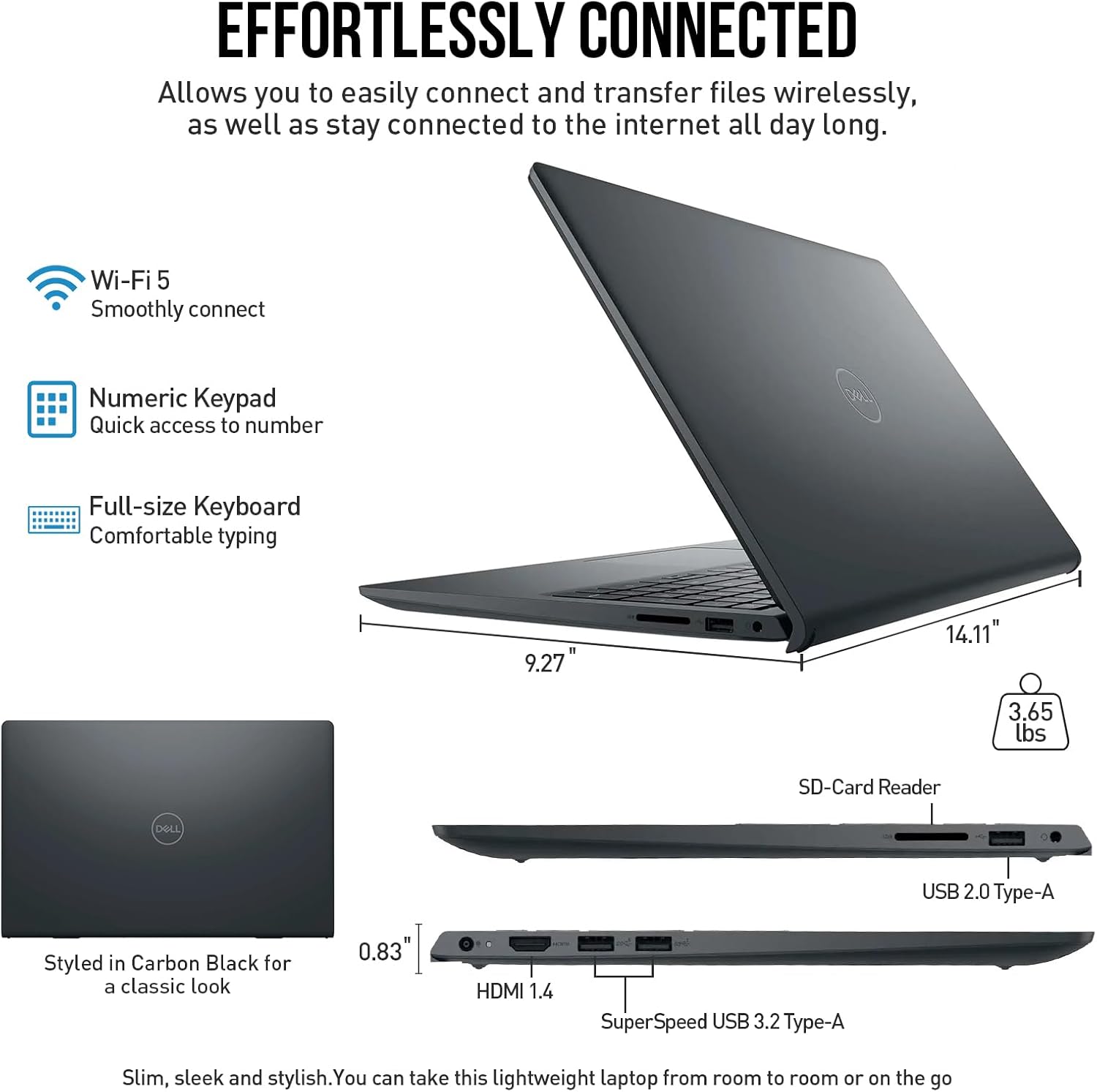
Figure 2: Side view illustrating available ports on the Dell Inspiron 15 3520.
3. Operating Instructions
3.1 Using the Touchscreen
The 15.6-inch display supports touch input. You can interact with the operating system and applications using gestures similar to a tablet or smartphone. Common gestures include tapping, swiping, pinching to zoom, and scrolling.

Figure 3: Demonstrating touchscreen interaction on the Dell Inspiron 15 3520.
3.2 Keyboard and Touchpad
The laptop features a full-size keyboard with a numeric keypad for efficient data entry. The touchpad supports multi-touch gestures for navigation. Refer to Windows settings for customizing touchpad sensitivity and gestures.
3.3 Connectivity
- Wi-Fi: Connect to wireless networks via Wi-Fi 5 (802.11ac) for internet access. Manage Wi-Fi connections through the Windows taskbar network icon.
- Bluetooth: Pair Bluetooth-enabled devices such as headphones, speakers, or mice through Windows Settings > Bluetooth & devices.
- USB Ports: Utilize the SuperSpeed USB-A 3.2 ports for high-speed data transfer and the USB-A 2.0 port for standard connections.
- HDMI: Connect an external display or projector using the HDMI 1.4 port.
- SD Card Reader: Insert an SD card to transfer photos and files.
3.4 Audio and Webcam
The laptop is equipped with a 720p HD webcam and a dual digital microphone array for video conferencing. Up-firing stereo speakers with MaxxAudio Pro provide an enhanced audio experience.

Figure 4: Laptop display during a video call, emphasizing communication features.
4. Key Features
4.1 Performance
- Processor: Intel Core i5-1235U (10 Cores, 12 Threads, up to 4.4GHz) provides efficient performance for multitasking and demanding applications.
- Memory: 16GB DDR4 RAM ensures smooth operation across multiple applications.
- Storage: 1TB PCIe NVMe M.2 SSD offers fast boot times and ample storage capacity.
- Graphics: Integrated Intel UHD Graphics support clear visuals for everyday tasks and multimedia.

Figure 5: Overview of the Intel Core i5 processor capabilities.
4.2 Display and Visuals
- Screen: 15.6-inch Full HD (1920 x 1080) Touchscreen with Anti-Glare Narrow Border WVA Display.
- ComfortView: Dell ComfortView technology reduces harmful blue light emissions for eye comfort during extended use.

Figure 6: Key display features of the Dell Inspiron 15 3520.
4.3 Design and Portability
- Chassis: Carbon Black finish with a slim and sleek design.
- Keyboard: Full-size keyboard with numeric keypad and a lift-hinge design for comfortable typing.
- Weight: Approximately 3.65 pounds (1.66 kg).
- Dimensions: 14.11 x 9.27 x 0.83 inches (358.5 x 235.6 x 21.07 mm).
5. Maintenance
5.1 Cleaning Your Laptop
- Screen: Use a soft, lint-free cloth slightly dampened with water or a screen cleaner specifically designed for electronics. Avoid harsh chemicals.
- Chassis and Keyboard: Use a soft, dry cloth. For stubborn dirt, a slightly damp cloth with mild soap solution can be used, ensuring no liquid enters openings.
- Vents: Periodically use compressed air to clear dust from the cooling vents to maintain optimal airflow.
5.2 Battery Care
- Avoid fully discharging the battery frequently.
- Store the laptop in a cool, dry place if not used for extended periods.
- For optimal battery health, avoid exposing the laptop to extreme temperatures.
5.3 Software Updates
Regularly check for and install updates for Windows 11 Pro and Dell drivers. This ensures system stability, security, and optimal performance.
- Windows Updates: Go to Settings > Windows Update.
- Dell Drivers: Use the Dell SupportAssist application or visit the official Dell support website.
6. Troubleshooting
This section addresses common issues you might encounter with your Dell Inspiron 15 3520 laptop.
6.1 Power Issues
- Laptop not turning on: Ensure the AC adapter is securely connected and the power outlet is functional. Try a different outlet. If the battery is completely drained, it may take a few minutes of charging before the laptop powers on.
- Battery not charging: Verify the AC adapter is correctly connected. Check for any damage to the adapter or power port.
6.2 Display Problems
- Blank screen: Ensure the laptop is powered on. Try connecting an external monitor to check if the issue is with the laptop's display.
- Touchscreen unresponsive: Restart the laptop. Check for updated display and touchscreen drivers.
6.3 Performance Issues
- Slow performance: Close unnecessary applications. Check Task Manager for processes consuming high CPU or RAM. Ensure sufficient free space on the SSD. Run a system scan for malware.
- Overheating: Ensure cooling vents are clear of obstructions. Use the laptop on a hard, flat surface to allow proper airflow. Adaptive thermals are designed to manage heat, but extreme conditions can still cause issues.
6.4 Connectivity Problems
- Wi-Fi not connecting: Restart your router and modem. Ensure Wi-Fi is enabled on the laptop. Run Windows Network Troubleshooter.
- Bluetooth device not pairing: Ensure the Bluetooth device is in pairing mode and within range. Check Bluetooth settings on the laptop.
For more detailed troubleshooting or issues not covered here, please refer to Dell's official support resources.
7. Specifications
| Feature | Specification |
|---|---|
| Processor | Intel Core i5-1235U (10 Cores, 12 Threads, up to 4.4 GHz) |
| Operating System | Windows 11 Pro |
| Display | 15.6-inch FHD (1920 x 1080) Touch Anti-Glare WVA Display |
| Graphics | Intel UHD Graphics (Integrated) |
| RAM | 16 GB DDR4 |
| Storage | 1 TB PCIe NVMe M.2 SSD |
| Wireless Connectivity | Wi-Fi 5, Bluetooth |
| Ports | 2x SuperSpeed USB-A 3.2, 1x USB-A 2.0, 1x HDMI 1.4, SD Card Reader |
| Webcam | 720p HD Camera with Dual Digital Microphones |
| Audio | Up-firing Stereo Speakers with MaxxAudio Pro |
| Battery Life | Up to 7 hours (average) |
| Dimensions (LxWxH) | 14.11 x 9.27 x 0.83 inches (358.5 x 235.6 x 21.07 mm) |
| Weight | 3.65 pounds (1.66 kg) |
| Color | Black |
8. Warranty and Support
8.1 Warranty Information
Your Dell Inspiron 15 3520 laptop typically comes with a 1-year limited hardware warranty. Specific warranty terms and conditions may vary by region and retailer. Please refer to the warranty documentation included with your product or visit the official Dell support website for detailed information.
8.2 Technical Support
For technical assistance, driver downloads, or further troubleshooting, please visit the official Dell Support website. You will need your laptop's Service Tag, which can usually be found on a sticker on the bottom of the laptop or accessed through the BIOS/UEFI settings.
Dell's support resources include:
- Online knowledge base and FAQs
- Driver and software downloads
- Community forums
- Contact information for phone or chat support