
Dexnor DK001
Dexnor Keyboard Case User Manual
Model: DK001 | Brand: Dexnor
1. Introduction
This user manual provides detailed instructions for the Dexnor Floating Cantilever Magnetic Stand Keyboard Case, designed to enhance your Samsung Galaxy Tab experience. This keyboard case transforms your tablet into a versatile workstation, offering a comfortable typing experience, precise trackpad navigation, and multiple viewing angles.
2. Compatibility
The Dexnor Keyboard Case is exclusively designed for the following Samsung Galaxy Tab models:
- Samsung Galaxy Tab S10+ Plus 12.4 inch (2024)
- Samsung Galaxy Tab S9+ Plus / S9 FE+ Plus 12.4 inch (2023)
- Samsung Galaxy Tab S8+ Plus 12.4 inch (2022)
- Samsung Galaxy Tab S7 FE (5G) 12.4 inch (2021)
- Samsung Galaxy Tab S7+ Plus 12.4 inch (2020)
Note: Tablet and S Pen are not included.

Image: Overview of compatible Samsung Galaxy Tab S series models, highlighting the 12.4-inch screen size.

Image: Visual guide to check tablet camera for compatibility with the case, showing compatible and incompatible camera layouts.
3. What's in the Box
Your Dexnor Keyboard Case package includes the following items:
- Premium Bluetooth Keyboard Case
- USB-C Charging Cable
- User Manual (this document)
- Quick-start Guide
Video: Unboxing and initial setup of the Dexnor Keyboard Case, showing the contents of the package.
4. Setup
4.1 Tablet Installation
The Dexnor Keyboard Case features a strong magnetic attachment for easy and secure tablet installation. Simply align your Samsung Galaxy Tab with the magnetic back panel of the case until it snaps into place. The durable aluminum alloy hinge ensures a stable connection.

Image: Demonstrates the magnetic attachment mechanism, showing the tablet securely connected to the keyboard case.
4.2 Bluetooth Pairing
Follow these steps to pair your Dexnor Keyboard with your Samsung Galaxy Tab:
- Ensure the keyboard is fully charged.
- Turn on the keyboard using the power switch, typically located on the side or top edge.
- Press the FN + Backspace keys simultaneously to enter Bluetooth pairing mode. The keyboard backlight may flash to indicate pairing mode.
- On your Samsung Galaxy Tab, go to Settings > Connections > Bluetooth. Ensure Bluetooth is turned on.
- In the list of available devices, select "Dexnor Keyboard" to connect.
- Confirm the pairing request on your tablet if prompted.
Video: Step-by-step guide on how to pair the Dexnor Keyboard with a Samsung Galaxy Tab via Bluetooth.
5. Operating the Keyboard Case
5.1 Floating Cantilever Design
The floating cantilever design allows you to adjust your tablet to a comfortable viewing angle, up to 120 degrees. This feature is ideal for typing, reading, or watching media, providing a laptop-like experience.

Image: Illustrates the floating cantilever design, showing the tablet elevated and adjustable to various angles for optimal viewing.
5.2 High-Precision Multi-Touch Trackpad
The integrated multi-touch trackpad offers precise navigation and supports various multi-finger gestures for enhanced productivity. You can tap, pinch, scroll, and swipe just like on a laptop.
- Single Tap: Left-click.
- Two-finger Scroll: Scroll up/down or left/right.
- Pinch-to-Zoom: Zoom in/out on content.
- Three-finger Swipe Up: View recent apps.
- Three-finger Swipe Down: Return to home screen.

Image: A hand demonstrating the use of the multi-touch trackpad on the Dexnor keyboard case.
5.3 Backlit Keyboard
The keyboard features 7 solid color backlights and 3 adjustable brightness levels, allowing you to type comfortably in various lighting conditions.
- Press Fn + Light Bulb icon to cycle through backlight colors.
- Press Fn + Up Arrow / Down Arrow to adjust brightness levels.

Image: Close-up of the keyboard with illuminated keys, showcasing the backlight feature.
5.4 S Pen Holders
The case provides two convenient locations for your S Pen:
- A built-in magnetic holder within the keyboard for secure storage.
- A cut-out slot on the back cover that allows for both charging and storage of the S Pen.

Image: Shows the two designated areas for S Pen storage on the Dexnor keyboard case.
5.5 Tablet/DeX Mode Switchable
The keyboard features scissor-switch keys for quiet and responsive typing. A dedicated row of shortcut keys provides instant control over media and volume. When paired with Samsung's DeX mode, your tablet can transform into a laptop-like interface, boosting productivity.
- Press Fn + Esc to quickly switch to DeX mode (if supported by your tablet).
- Use the dedicated function row for media control (play/pause, volume, etc.).
6. Charging and Battery
The Dexnor Keyboard Case is equipped with a long-lasting 800mAh battery.
- Provides up to 320 hours of working time on a single charge.
- Offers up to 1500 hours of standby time.
- Fully recharges in approximately 4 hours using the included USB-C cable.
The auto wake/sleep function helps conserve battery power and extend battery life. The keyboard will enter sleep mode after a period of inactivity and wake up when a key is pressed.
7. Maintenance
To ensure the longevity and optimal performance of your Dexnor Keyboard Case, follow these maintenance guidelines:
- Cleaning: Gently wipe the exterior of the case and keyboard with a soft, damp cloth. Avoid using harsh chemicals or abrasive materials.
- Storage: When not in use, keep the keyboard case closed to protect both the tablet screen and the keyboard. Store in a cool, dry place away from direct sunlight and extreme temperatures.
- Protection: The case provides solid front and back protection against drops and scratches. However, avoid dropping the device from significant heights or exposing it to excessive force.
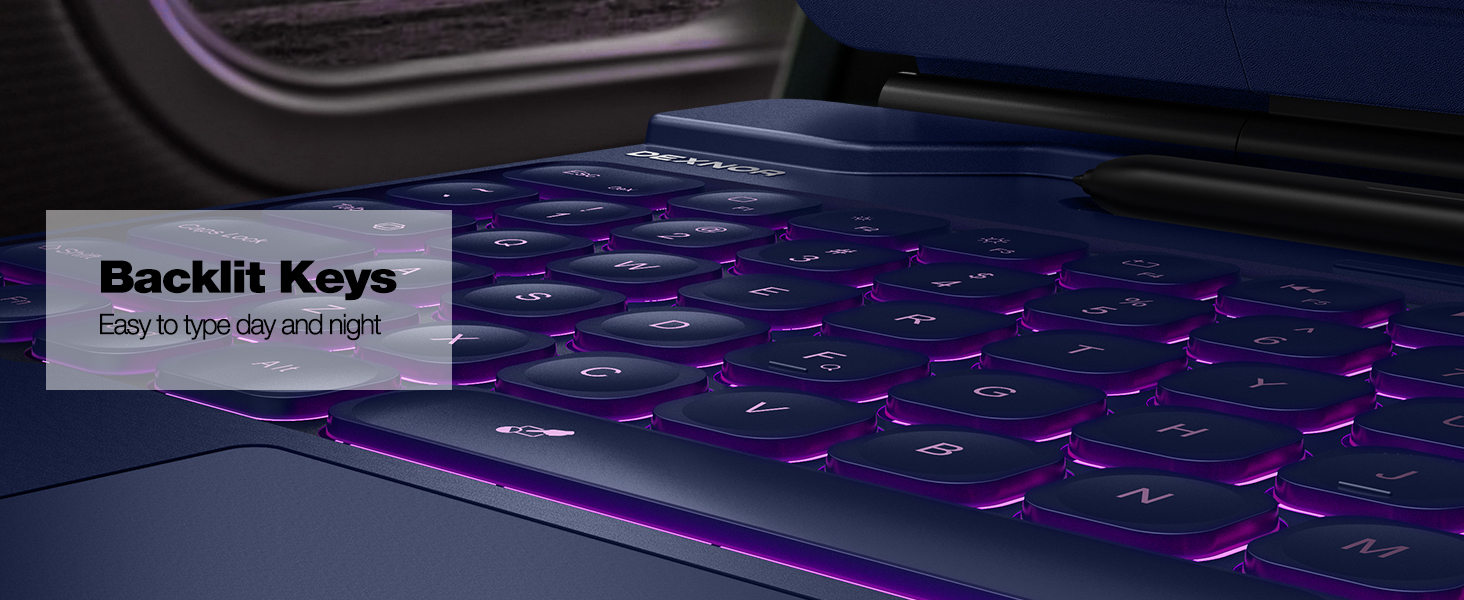
Image: Depicts the keyboard case providing comprehensive front and back protection for the tablet.
8. Troubleshooting
If you encounter any issues with your Dexnor Keyboard Case, please refer to the following common solutions:
- Keyboard not connecting via Bluetooth:
- Ensure the keyboard is fully charged.
- Make sure Bluetooth is enabled on your tablet.
- Turn the keyboard off and on again.
- Re-enter pairing mode (FN + Backspace) and try pairing again from your tablet's Bluetooth settings.
- Forget the device on your tablet and attempt to pair from scratch.
- Trackpad not responding or too sensitive:
- Ensure the trackpad is not accidentally disabled. Press Fn + Spacebar to toggle the trackpad on/off.
- Clean the trackpad surface to remove any dirt or debris.
- Backlight not working or stuck:
- Ensure the keyboard has sufficient battery charge.
- Try cycling through colors and brightness levels using Fn + Light Bulb icon and Fn + Up/Down Arrow.
- Keys not responding:
- Check battery level and charge if necessary.
- Ensure the keyboard is properly connected via Bluetooth.
- Restart both the keyboard and your tablet.
If the issue persists, please contact Dexnor customer support for further assistance.
9. Specifications
| Product Dimensions | 11.43 x 9.17 x 0.85 inches |
| Item Weight | 2.03 pounds |
| Manufacturer | Dexnor |
| Model Number | DK001 |
| Connectivity Technology | Bluetooth |
| Battery Capacity | 800mAh (Lithium Ion) |
| Working Time | Up to 320 hours |
| Standby Time | Up to 1500 hours |
| Charging Time | Approx. 4 hours |
| Number of Keys | 78 |
| Keyboard Backlighting | 7 solid colors, 3 brightness levels |
| Country of Origin | China |
10. Warranty and Support
Dexnor provides comprehensive support for your product:
- Manufacturer's Warranty: Enjoy a 1-year manufacturer's warranty from the date of purchase.
- Technical Support: Lifetime technical support is available for all Dexnor products.
For warranty claims, technical assistance, or any product-related inquiries, please contact Dexnor customer service through the official website or your purchase platform.
Related documentsDK001


Ask a question about this manual
Ask about setup, troubleshooting, compatibility, parts, safety, or missing instructions. Manuals+ will review the question and use this page’s manual context to help answer it.