
1. Introduction
Thank you for choosing the VIZOLINK Q100 Conference Speaker. This device is designed to provide clear audio for your conference calls, online meetings, and multimedia needs. Featuring high-sensitivity microphones and advanced noise reduction, the Q100 ensures excellent voice pickup and sound quality. Please read this manual carefully to ensure proper use and optimal performance of your speaker.
2. Package Contents
Ensure all items are present in the package:
- VIZOLINK Q100 Conference Speaker
- USB Charging Cable
- Bluetooth Dongle
- Storage Bag
- User Manual (this document)
3. Product Overview
The VIZOLINK Q100 is a compact and portable conference speaker designed for various communication needs. It features intuitive controls and multiple connectivity options.
3.1. Device Layout

Image: Top view of the VIZOLINK Q100 Conference Speaker, highlighting its sleek design and central control panel.
3.2. Key Features
- 360° Coverage: Equipped with 6 high-sensitivity microphones for a 6-meter voice pick-up range.
- Real Clear Voice: Features real-time noise reduction and echo cancellation for superior audio clarity. Zoom Certified.
- Wide Compatibility: Connects via Type-C USB, Bluetooth, or a dedicated Bluetooth dongle.
- Portable and Compact: Designed for easy transport with a travel case and up to 12 hours of battery life.

Image: Illustrates the 360° voice pick-up capability of the Q100 with six high-sensitivity microphones covering a 6-meter range.

Image: Depicts the 'Real Clear Voice' technology, showing how noise and echo are reduced for clear communication, indicated by the Zoom Certified logo.
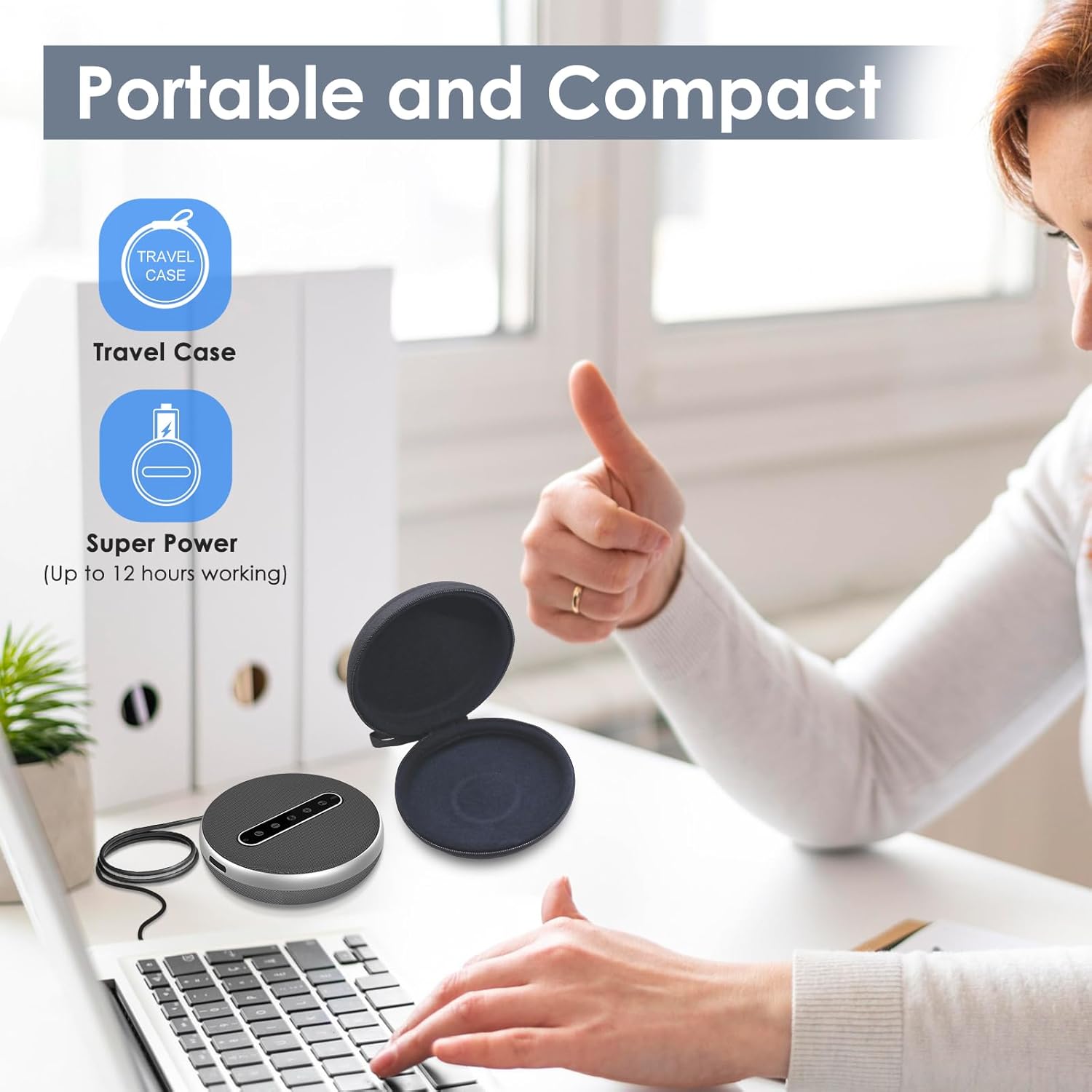
Image: Shows the versatile connectivity options of the Q100, including Type-C USB, Bluetooth, and a stable Bluetooth dongle for various devices.

Image: Highlights the portable and compact design of the Q100, shown with its protective travel case and indicating up to 12 hours of working time.
4. Setup
4.1. Charging the Speaker
Before first use, fully charge the VIZOLINK Q100. Connect the provided USB charging cable to the Type-C port on the speaker and the other end to a USB power adapter (not included) or a computer's USB port. The LED indicator will show charging status.
4.2. Powering On/Off
- To Power On: Press and hold the power button for 2 seconds. The LED indicator will light up.
- To Power Off: Press and hold the power button for 3 seconds. The LED indicator will turn off.
4.3. Connecting to Devices
The VIZOLINK Q100 offers multiple ways to connect to your devices:
4.3.1. Bluetooth Connection
- Ensure the speaker is powered on.
- Press the Bluetooth button on the speaker. The LED indicator will flash blue, indicating pairing mode.
- On your device (smartphone, tablet, laptop), go to Bluetooth settings and search for available devices.
- Select "VIZOLINK Q100" from the list.
- Once connected, the LED indicator will turn solid blue.
4.3.2. USB Connection
Connect the speaker to your computer using the provided USB Type-C cable. The speaker will be recognized as an audio device automatically. No drivers are typically required for Windows or macOS.
4.3.3. Bluetooth Dongle Connection
For devices without built-in Bluetooth or for a more stable connection, use the included Bluetooth dongle:
- Plug the Bluetooth dongle into an available USB port on your computer.
- Power on the VIZOLINK Q100 speaker.
- The speaker and dongle should automatically pair. The LED indicator on the speaker will turn solid blue once connected.
5. Operating Instructions
5.1. Basic Controls
- Power Button: Press and hold to power on/off. Short press to check battery status.
- Volume Up (+): Increases speaker volume.
- Volume Down (-): Decreases speaker volume.
- Mute Microphone: Toggles microphone mute on/off. The LED will indicate mute status.
- Answer/End Call: Press to answer an incoming call or end an ongoing call.
- Bluetooth Button: Press to enter Bluetooth pairing mode.
5.2. Call Management
- Answering a Call: When an incoming call rings, press the Answer/End Call button.
- Ending a Call: During a call, press the Answer/End Call button.
- Rejecting a Call: Press and hold the Answer/End Call button for 2 seconds.
5.3. Compatibility
The VIZOLINK Q100 is widely compatible with various operating systems and communication platforms:
- Operating Systems: Windows 7/8/10, Mac OS 10.6 and above, Chrome OS, Ubuntu V10.04, Linux 2.6.84, Android 5.0 and above.
- Communication Platforms: Zoom, Skype, Twitch, Messenger, Cisco Webex, Facebook Live, Mixer, YouTube, XSplit.
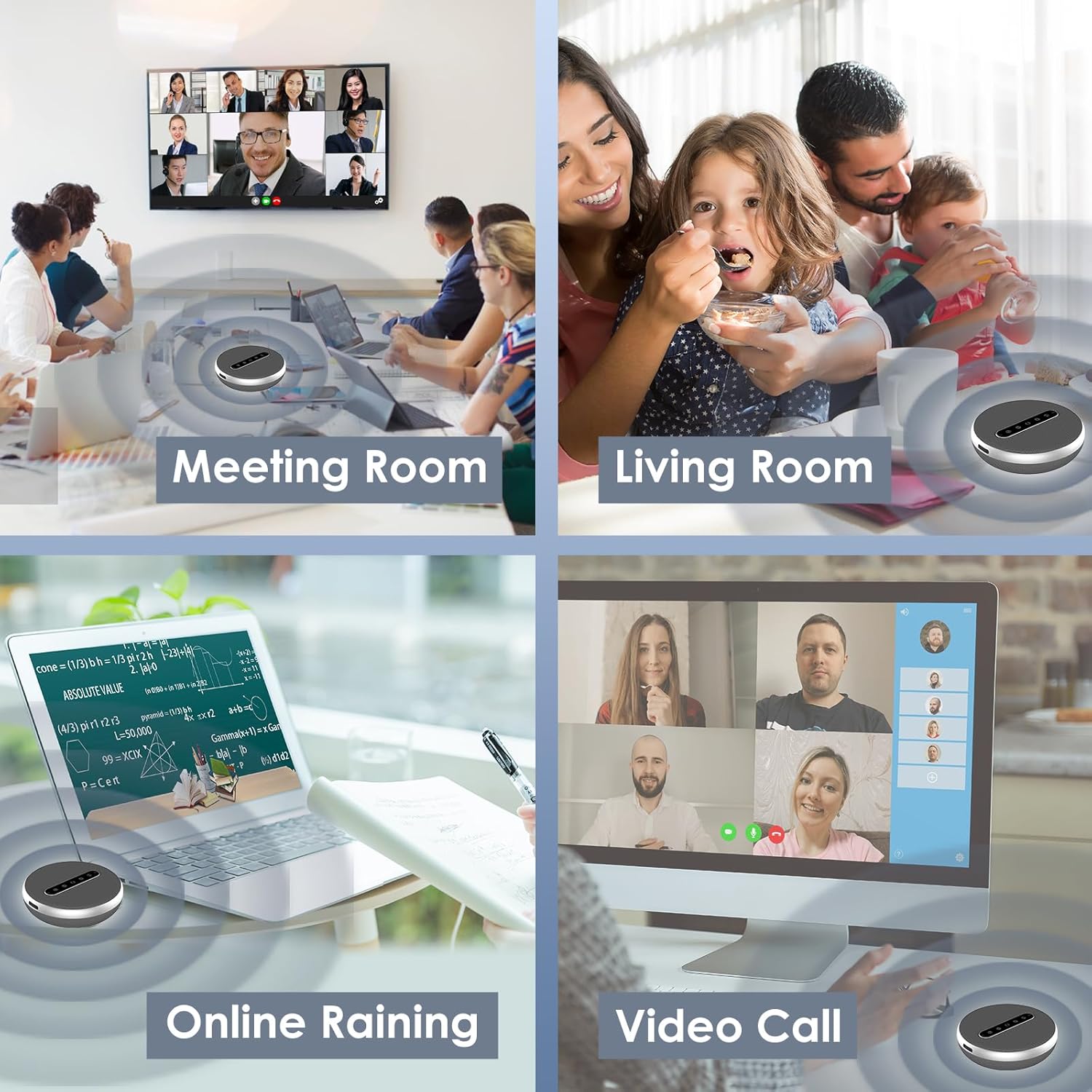
Image: Illustrates the broad compatibility of the VIZOLINK Q100 with popular operating systems and video conferencing applications.
6. Maintenance
To ensure the longevity and optimal performance of your VIZOLINK Q100 Conference Speaker, follow these maintenance guidelines:
- Cleaning: Use a soft, dry cloth to wipe the surface of the speaker. Do not use liquid cleaners or abrasive materials.
- Storage: When not in use, store the speaker in the provided storage bag to protect it from dust and scratches. Keep it in a cool, dry place.
- Avoid Water: The speaker is not waterproof. Avoid exposure to water or excessive moisture.
- Temperature: Do not expose the speaker to extreme temperatures (hot or cold) or direct sunlight for extended periods.
7. Troubleshooting
If you encounter issues with your VIZOLINK Q100, refer to the following common problems and solutions:
| Problem | Possible Cause | Solution |
|---|---|---|
| No power | Low battery; Power button not pressed correctly. | Charge the speaker fully. Press and hold the power button for 2 seconds. |
| Cannot connect via Bluetooth | Speaker not in pairing mode; Device Bluetooth off; Out of range. | Ensure speaker LED is flashing blue. Turn device Bluetooth off/on. Move speaker closer to device. |
| No sound | Volume too low; Speaker muted; Incorrect audio output selected. | Increase volume on speaker and device. Check if speaker is muted. Select VIZOLINK Q100 as default audio output on your device. |
| Microphone not working | Microphone muted; Incorrect input device selected. | Unmute the microphone on the speaker. Select VIZOLINK Q100 as default microphone input on your device/application. |
| Poor audio quality | Interference; Weak Bluetooth signal; Distance from speaker. | Move away from other wireless devices. Ensure clear line of sight for Bluetooth. Reduce distance between speaker and device. |
8. Specifications
| Feature | Detail |
|---|---|
| Model Name | Q100 |
| Speaker Type | Atmospheric |
| Key Features | Bass Boost, Built-in Microphone, USB Port, High-Resolution Audio |
| Recommended Use | Video calls |
| Compatible Devices | Laptops, Desktop Computers, Phones |
| Surround Sound Channel Configuration | 2.0 |
| Color | Silver |
| Impedance | 600 Ohm |
| Waterproof | No |
| Wireless Communication Technology | Bluetooth |
| Power Source | Wired Electric (USB-C for charging/power) |
| Control Method | Voice (via built-in microphone), On-device buttons |
| Product Dimensions | 12 x 12 x 3.8 cm |
| Product Weight | 500 grams |
| Material | Plastic |
9. Warranty & Support
9.1. Limited Warranty
The VIZOLINK Q100 Conference Speaker comes with a limited warranty. Please refer to the warranty card included in your package or visit the official VIZOLINK website for detailed terms and conditions. This warranty typically covers manufacturing defects and workmanship under normal use.
9.2. Customer Support
For technical assistance, troubleshooting beyond this manual, or warranty claims, please contact VIZOLINK customer support. Contact information can usually be found on the product packaging, the official VIZOLINK website, or your purchase receipt.
Please have your product model (Q100) and proof of purchase ready when contacting support.
