
seenda SK38-3
seenda SK38-3 Wireless Keyboard Mouse Set User Manual
Model: SK38-3 | Brand: seenda
1. Introduction
This manual provides detailed instructions for the setup, operation, maintenance, and troubleshooting of your seenda SK38-3 Wireless Keyboard Mouse Set. Please read this manual thoroughly before using the product to ensure proper function and longevity.
The seenda SK38-3 Wireless Keyboard Mouse Set features an ultra-thin design, rechargeable batteries, and a 2.4 GHz wireless connection for reliable performance. It includes a full-size keyboard with multimedia keys and an ergonomic mouse with adjustable DPI settings and silent click buttons.
2. Package Contents
Verify that all items listed below are included in your package:
- 1 x Wireless Keyboard
- 1 x Wireless Mouse
- 1 x USB Receiver (located on the back of the mouse)
- 1 x Micro USB Charging Cable
- 1 x Silicone Dust Cover
- 1 x User Manual (this document)

Image: The seenda SK38-3 Wireless Keyboard and Mouse Set, showing the full-size keyboard and ergonomic mouse.
3. Setup
3.1 Charging the Devices
Both the keyboard and mouse are equipped with built-in rechargeable lithium batteries. Before first use, it is recommended to fully charge both devices.
- Connect the micro USB charging cable to the charging port on the keyboard and mouse.
- Connect the other end of the USB cable to a USB power source (e.g., computer USB port, USB wall adapter).
- The charging indicator light will illuminate during charging and turn off when fully charged.
Charging time is approximately 2 hours. A full charge provides at least 50 hours of continuous operation or 200 hours of standby time.
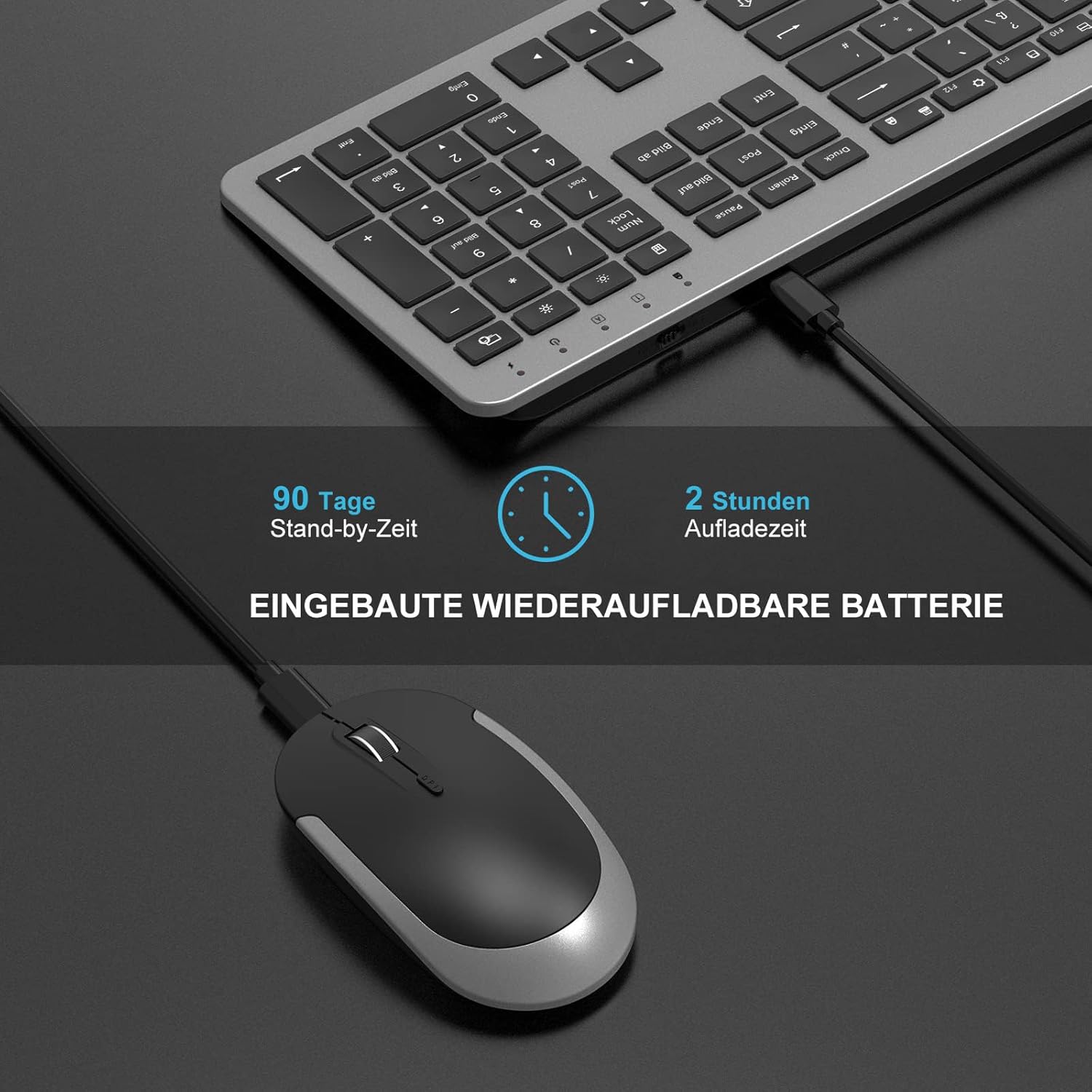
Image: The wireless keyboard and mouse connected to a charging cable, illustrating the charging process. The image also indicates a 90-day standby time and 2-hour charging time.
3.2 Connecting the Devices
The keyboard and mouse connect wirelessly via a single USB receiver.
- Locate the USB receiver. It is stored in a compartment on the back of the wireless mouse.
- Remove the USB receiver from the mouse.
- Plug the USB receiver into an available USB port on your computer (PC, laptop, Smart TV).
- Turn on the keyboard and mouse using their respective ON/OFF switches. The ON/OFF switch for the mouse is located on its underside.
The devices are plug-and-play and should connect automatically. No additional software or drivers are typically required.

Image: A laptop with the USB receiver plugged in, demonstrating the 2.4 GHz wireless connection. The image highlights the plug-and-play functionality and compatibility with Windows 7, 8, XP, Vista, 10 or higher. Note: Not compatible with Mac OS systems.

Image: Close-up of the underside of the wireless mouse, pointing out the ON/OFF switch and illustrating the scissor-foot key structure of the keyboard for quiet clicks.
4. Operating Instructions
4.1 Keyboard Functions
The keyboard features a standard QWERTZ layout with a full numeric keypad and dedicated multimedia keys. The scissor base of the keyboard keys makes typing comfortable.
- Multimedia Keys: Access media controls such as play/pause, volume up/down, mute, and internet browser with a single touch.
- Function (Fn) Key: Use in combination with F-keys for additional functions (e.g., F1-F12).
- Indicator Lights: The keyboard has indicator lights for Power, Pairing, Caps Lock, Num Lock, and Fn Lock.
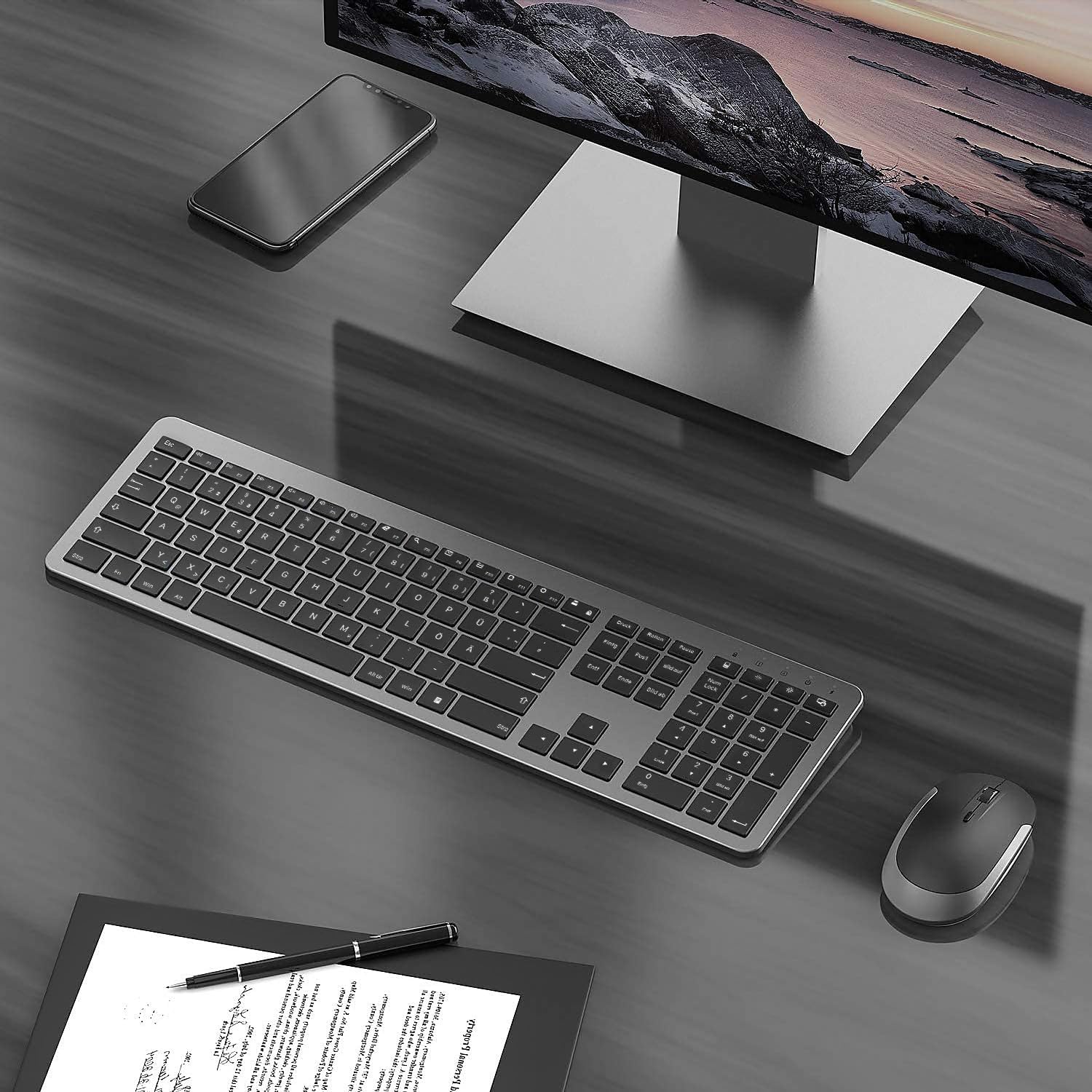
Image: Top view of the seenda wireless keyboard and mouse, highlighting the indicator lights for power, pairing, Caps Lock, Num Lock, and Fn Lock on the keyboard.
4.2 Mouse Functions
The ergonomic mouse provides precise control and quiet operation.
- Adjustable DPI: The mouse has 3 adjustable DPI levels (800/1200/1600). Press the DPI button (usually located near the scroll wheel) to cycle through the settings and adjust cursor speed.
- Silent Click: The mouse buttons are designed to reduce click noise by 98%, ensuring a quiet working environment.
- Scroll Wheel: For smooth navigation through documents and web pages.

Image: Close-up of the seenda wireless mouse, illustrating its silent click feature and the adjustable DPI settings (800/1200/1600).
5. Maintenance
To ensure the longevity and optimal performance of your seenda Wireless Keyboard Mouse Set, follow these maintenance guidelines:
- Cleaning: Use a soft, dry cloth to clean the surfaces of the keyboard and mouse. For stubborn dirt, a slightly damp cloth can be used, but ensure no liquid enters the devices.
- Dust Cover: Utilize the included silicone dust cover to protect the keyboard from dust and spills when not in use.
- Storage: Store the devices in a cool, dry place away from direct sunlight and extreme temperatures.
- Battery Care: Recharge the devices regularly. Avoid completely draining the battery frequently, as this can reduce battery lifespan.
6. Troubleshooting
If you encounter issues with your seenda Wireless Keyboard Mouse Set, refer to the following common solutions:
6.1 Connection Issues (Keyboard or Mouse Not Responding)
- Check Battery Level: Ensure both the keyboard and mouse are sufficiently charged. Recharge if necessary.
- Verify USB Receiver: Make sure the USB receiver is securely plugged into a working USB port on your computer. Try a different USB port.
- Power Cycle: Turn off both the keyboard and mouse using their ON/OFF switches, then turn them back on.
- Re-pairing: If the connection is lost, you may need to re-pair the devices with the USB receiver.
Re-pairing Procedure:
A. To Re-pair the Keyboard:
- Unplug the USB receiver from your computer.
- Turn on the keyboard. Press and hold the Esc and Q keys simultaneously for about 5 seconds. The LED light on the keyboard will flash quickly.
- Plug the USB receiver back into your computer and place the keyboard as close as possible to the USB receiver. The pairing should complete.
B. To Re-pair the Mouse:
- Unplug the USB receiver from your computer.
- Turn on the mouse. Press and hold the scroll wheel and the right mouse button simultaneously for about 5 seconds.
- Plug the USB receiver back into your computer and hold the wireless mouse close to the USB receiver. The pairing should complete.
NOTE: If pairing is unsuccessful, please repeat the steps above.

Image: A diagram illustrating the re-pairing process for both the keyboard and the mouse, showing the steps to unplug the receiver, activate pairing mode on the device, and plug the receiver back in.
6.2 Keyboard Typing Incorrect Characters (German QWERTZ Layout)
This product features a German QWERTZ layout. If you are expecting a different layout (e.g., US QWERTY), the physical keys will not match the output. Ensure your operating system's keyboard language setting matches the German QWERTZ layout.
6.3 Lag or Delays
While the 2.4 GHz connection is robust, strong Wi-Fi interference or excessive distance from the receiver can cause lag. Try the following:
- Move the keyboard and mouse closer to the USB receiver.
- Ensure there are no large metal objects between the devices and the receiver.
- Avoid placing the receiver near other wireless devices (e.g., Wi-Fi routers, cordless phones).
7. Specifications
| Feature | Description |
|---|---|
| Brand | seenda |
| Model | SK38-3 |
| Connectivity | 2.4 GHz Wireless (via USB receiver) |
| Keyboard Layout | German QWERTZ |
| Keyboard Battery | Built-in rechargeable 400 mAh lithium battery |
| Mouse Battery | Built-in rechargeable lithium battery |
| Charging Time | Approx. 2 hours |
| Operating Time | At least 50 hours (continuous operation) |
| Standby Time | 200 hours (keyboard), 90 days (mouse) |
| Wireless Range | Within 10 meters |
| Mouse DPI Levels | 800, 1200, 1600 (adjustable) |
| Keyboard Dimensions (L x W x H) | 43.85 cm x 12.9 cm x 2.17 cm (17.3 x 5.12 x 0.85 inches) |
| Mouse Dimensions (L x W x H) | 10.8 cm x 6 cm x 2.5 cm (4.25 x 2.36 x 0.98 inches) |
| Weight | 670 g |
| System Requirements | Windows 7, 8, XP, Vista, 10 or higher (Not compatible with Mac OS) |
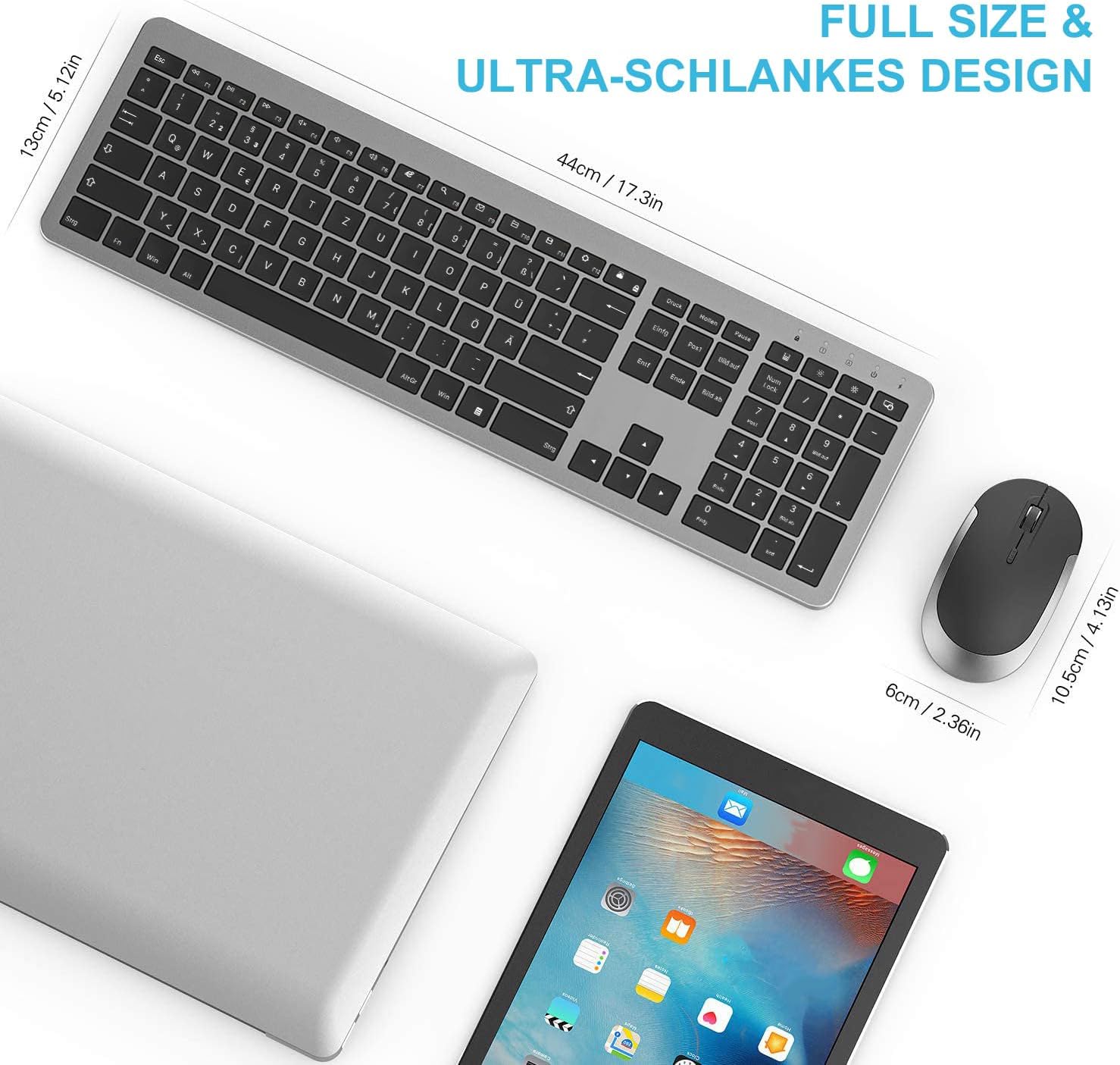
Image: A visual representation of the keyboard and mouse with their dimensions labeled, highlighting their full-size and ultra-slim design.
8. Safety Warnings
Please observe the following safety instructions to avoid the risk of fire, electric shock, or injury:
- Safe Charging: Only use the supplied charging cable. Charge the device in a well-ventilated, dry area, away from flammable materials.
- Battery Handling: Do not attempt to replace the device's lithium battery yourself. Battery replacement should only be performed by qualified personnel to avoid hazards.
- Heat Exposure: Do not leave the device in environments with high temperatures or direct sunlight, as this could lead to a fire hazard.
- Liquid Exposure: Keep the product away from water and liquids. Do not use it if it is wet until it is thoroughly dried.
- Damage and Leakage: Discontinue use and contact customer service if the product is damaged or the battery leaks.
- Correct Disposal: Follow local regulations for the disposal of electronic devices and batteries. Do not dispose of with household waste.

Image: A page from the physical user manual detailing safety warnings regarding charging, battery handling, heat, liquid exposure, damage, and disposal.
9. Warranty and Support
For warranty information or technical support, please refer to the contact details provided with your purchase or visit the official seenda website. Keep your purchase receipt as proof of purchase for warranty claims.
Ask a question about this manual
Ask about setup, troubleshooting, compatibility, parts, safety, or missing instructions. Manuals+ will review the question and use this page’s manual context to help answer it.