
Introduction
Welcome to your new Podofo 9.3-inch Portable Car Stereo. This device integrates a high-resolution 2.5K dual dash cam with advanced connectivity features like Wireless Apple CarPlay and Android Auto. Designed for ease of use and enhanced driving safety, this manual will guide you through its installation, operation, and maintenance to ensure you get the most out of your product.
Product Overview
Key Features:
- Portable Car Audio Receiver: Enjoy wireless CarPlay and Android Auto without replacing your main unit. This is a true plug-and-play device.
- Wireless CarPlay/Android Auto: Connect your smartphone via Bluetooth and Wi-Fi for safe access to music, navigation, calls, and messages. Supports voice control via Siri Assistant for a safer and more comfortable driving experience.
- Dual Camera Safe Driving & HD Loop Recording: This touchscreen dashcam supports split-screen display, showing front and rear views simultaneously. It includes a 64GB TF card for continuous video recording from both cameras. The front camera's angle is adjustable.
- Stable Bluetooth & FM Transmission: When connected to your mobile phone via Bluetooth, you can answer/make calls and play music hands-free. For louder sound, transmit audio to your car's speakers by setting the same FM radio channel on the device and your car's radio.
- HD IPS Touch Screen: Features a 9.3-inch high-definition IPS touch screen with a 1600x600 resolution and a 178° viewing angle, providing a superior visual experience and clearer navigation instructions.
- Easy Installation & Wide Compatibility: Plug and play directly into the dashboard via the cigarette lighter port. No need to disassemble the car console or replace the original radio. Compatible with a wide range of car brands.
Product Diagram

This image shows the main unit of the Podofo 9.3-inch portable car stereo, highlighting its large touchscreen display with app icons for phone, music, maps, and messages. It also illustrates the wireless CarPlay and Android Auto connectivity with a smartphone.
Package Contents
The following items are included in your product package:
- Main Display Unit
- Pull Back Camera (Rear View Camera)
- TF Card (64GB included)
- Power Cord (for cigarette lighter)
- Camera Extension Cord
- Monitor Base
- Bracket Fixing Sticker
- Camera Accessories
- User Manual
- 3m AUX Cable

This image displays all components included in the package: the main display unit, a rear view camera, a 64GB TF card, power cord, camera extension cord, monitor base, bracket fixing stickers, camera accessories, a user manual, and a 3m AUX cable.
Setup Guide
1. Mounting the Main Unit
Place the monitor base on a flat, stable surface on your dashboard. Secure it using the provided bracket fixing stickers. Ensure the unit does not obstruct your view or interfere with driving controls.

This diagram illustrates the simple installation process. The main unit is placed on the dashboard using its base, and the power cord is plugged into the car's cigarette lighter socket. The image also shows the adjustable lens of the front camera.
2. Power Connection
Connect the power cord to the main unit and plug the other end into your car's cigarette lighter socket. The unit is compatible with 7-32V power supplies.
3. Rear View Camera Installation (Optional)
Mount the pull back camera at the rear of your vehicle. Connect the camera to the main unit using the camera extension cord. For automatic display when reversing, connect the red wire of the camera extension cord to your car's reverse light anode (positive wire).
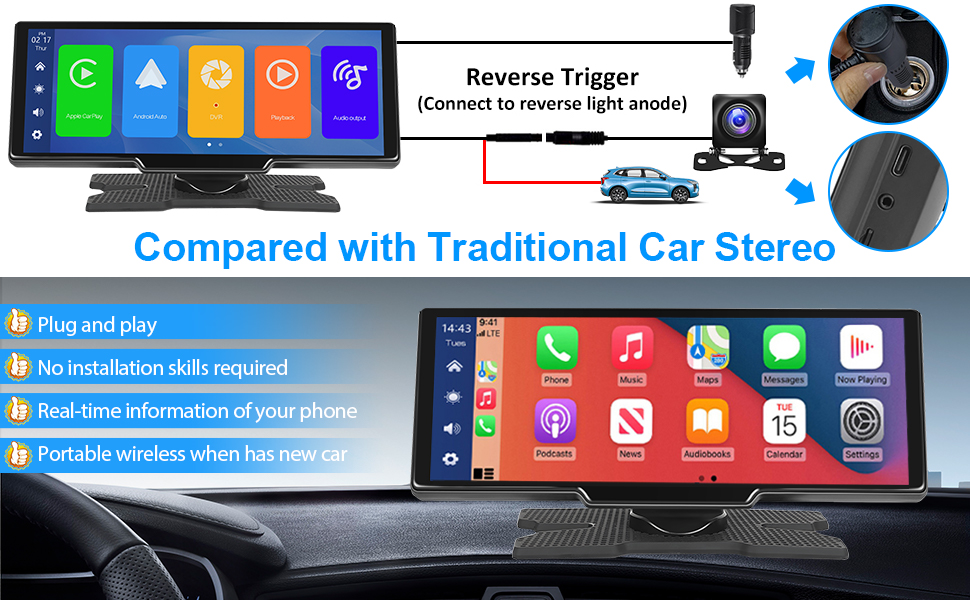
This image shows how to connect the rear view camera. The camera connects to the main unit via an extension cable, and a red wire from this cable needs to be connected to the car's reverse light power source for automatic activation.
Operating Instructions
1. Initial Power On
Once connected to power, the device will automatically turn on. Follow the on-screen prompts for initial setup, including language selection.
2. Wireless CarPlay / Android Auto Connection
- Enable Bluetooth and Wi-Fi on your smartphone.
- On the car stereo, navigate to the CarPlay or Android Auto icon.
- Search for the device's Bluetooth name on your phone and pair them.
- Confirm the connection on both devices. The system will then automatically connect via Wi-Fi for full functionality.
This image illustrates the wireless CarPlay and Android Auto interface on the car stereo, along with a smartphone showing its Bluetooth and Wi-Fi connection status, indicating how to link the devices.
3. Using the Dash Cam
The device features a 2.5K front dash cam and a 1080P rear dash cam. Video recording starts automatically when the device powers on. The included 64GB TF card stores recordings in a loop. You can view recordings and adjust settings through the device's menu. The front camera's angle can be adjusted manually.

This image shows the dual dash cam functionality, with a view from the front camera displaying the road ahead and a view from the rear camera showing the parking area. It highlights the 2.5K front and 1080P rear recording capabilities.
4. Bluetooth Music and Calls
After pairing your phone via Bluetooth, you can stream music directly to the car stereo. Use the touchscreen or voice commands to control playback. For hands-free calling, accept or make calls directly from the device's interface.
5. FM Transmitter
To output audio to your car's existing speakers, activate the FM Transmitter function on the device. Select an unused FM frequency on the car stereo and tune your car's radio to the same frequency. This will transmit the audio from the car stereo to your car's sound system.

This image shows the FM Transmitter interface on the car stereo, indicating how to set the frequency to broadcast audio to the car's radio.
6. AUX Connection
For a wired audio connection, use the provided 3m AUX cable to connect the car stereo's AUX output to your car's AUX input. Select AUX mode on the car stereo.

This image highlights the TF card slot and AUX port on the side of the car stereo, demonstrating options for media input.
7. Voice Control
Utilize voice commands (e.g., "Hey Siri" or "OK Google") through your connected smartphone for navigation, music playback, and other functions, ensuring a safer driving experience.

This image shows the voice control feature in action, with speech bubbles indicating commands like "Hi Siri, Call Bob" and "OK Google, Navigate to Park."
Maintenance
- Cleaning: Use a soft, dry cloth to clean the screen and exterior. Avoid abrasive cleaners or solvents.
- Temperature: Do not expose the device to extreme temperatures (hot or cold) for extended periods.
- Storage: If storing the device for a long time, disconnect it from power and keep it in a cool, dry place.
- Software Updates: Check the manufacturer's website periodically for any available firmware updates to ensure optimal performance.
Troubleshooting
| Problem | Possible Cause | Solution |
|---|---|---|
| Device does not power on. | No power connection or faulty power cord. | Ensure the power cord is securely plugged into the cigarette lighter socket and the device. Check car's fuse for the cigarette lighter. |
| Cannot connect to Wireless CarPlay/Android Auto. | Bluetooth/Wi-Fi issues, incorrect pairing. | Ensure Bluetooth and Wi-Fi are enabled on your phone and the device. Forget the device on your phone's Bluetooth settings and try pairing again. Restart both devices. |
| No sound or poor sound quality via FM Transmitter. | Incorrect FM frequency, interference. | Ensure the car stereo and your car's radio are tuned to the exact same unused FM frequency. Try a different frequency. Ensure the volume on both devices is adequate. |
| Dash cam not recording. | TF card full or faulty, recording settings. | Check if the 64GB TF card is inserted correctly. Format the TF card (this will erase all data). Check recording settings in the device menu. |
| Device reboots unexpectedly. | Power instability, software issue. | Ensure stable power supply. If the issue persists, try a factory reset (refer to user manual for specific steps) or contact customer support. |
| Rear view camera not displaying. | Incorrect wiring, camera malfunction. | Verify the camera extension cord is securely connected. Ensure the reverse trigger wire is correctly connected to the car's reverse light anode. |
Specifications
- Brand: Podofo
- Model: 9.3 Inch Portable Car Stereo with 2.5K Dual Dash Cam
- Connectivity Technology: AUX, FM, Bluetooth
- Controller Type: Android, Google Assistant, iOS
- Special Features: Apple CarPlay, Android Auto, Mirror Link
- Compatible Devices: Speaker, Smartphone
- Total HDMI Ports: 1
- Audio Output Mode: Stereo
- Surround Sound Channel Configuration: 2.1
- Video Encoding: F4V, MOV, MP4, TS
- Color: Tipo1 9,3'' Dash Cam+64G Card
- Output Power: 6 Watts
- Number of Audio Channels: 2
- Internet Applications: Android Auto, Apple CarPlay
- Control Method: Touch, Voice
- Audio Output Type: Bluetooth, FM, Speakers
- Wireless Technology: Bluetooth
- Power Input: 7-32V
Warranty and Support
This product comes with a standard manufacturer's warranty. Please refer to the warranty card included in your package for specific terms and conditions. For technical support, troubleshooting assistance, or warranty claims, please contact the seller, Motorsi Tech, or visit the official Podofo website for further information.
Seller: Motorsi Tech
Brand Website: Podofo Store on Amazon