
1. Introduction
This manual provides detailed instructions for the proper setup, operation, and maintenance of your PuroTech External USB 3.0 DVD/CD Player/Burner. Please read this manual thoroughly before using the device to ensure optimal performance and longevity. Keep this manual for future reference.
2. Product Overview
The PuroTech External USB 3.0 DVD/CD Player/Burner is a versatile and portable optical drive designed for use with various computing devices. It offers plug-and-play functionality, high-speed data transfer via USB 3.0, and broad compatibility with Windows, macOS, and Linux operating systems. This device allows you to read and write CDs and DVDs, making it ideal for installing software, watching movies, listening to music, and creating backup discs.

Image 2.1: The PuroTech External DVD/CD Player connected to a laptop, demonstrating its compact design and readiness for use.
3. Setup
The PuroTech External DVD/CD Player/Burner is designed for simple plug-and-play operation, requiring no additional drivers for most modern operating systems.
3.1 Connecting the Device
- Locate an available USB port on your computer (laptop, PC, MacBook, or Linux machine). For optimal performance, use a USB 3.0 port. The device is also backward compatible with USB 2.0 and USB 1.0 ports.
- Connect the integrated USB cable from the external DVD/CD player to the USB port on your computer.
- The operating system will automatically detect and install the necessary drivers. This process may take a few moments.
- Once installation is complete, the device will be ready for use. No external power adapter is required as the device draws power directly from the USB connection.
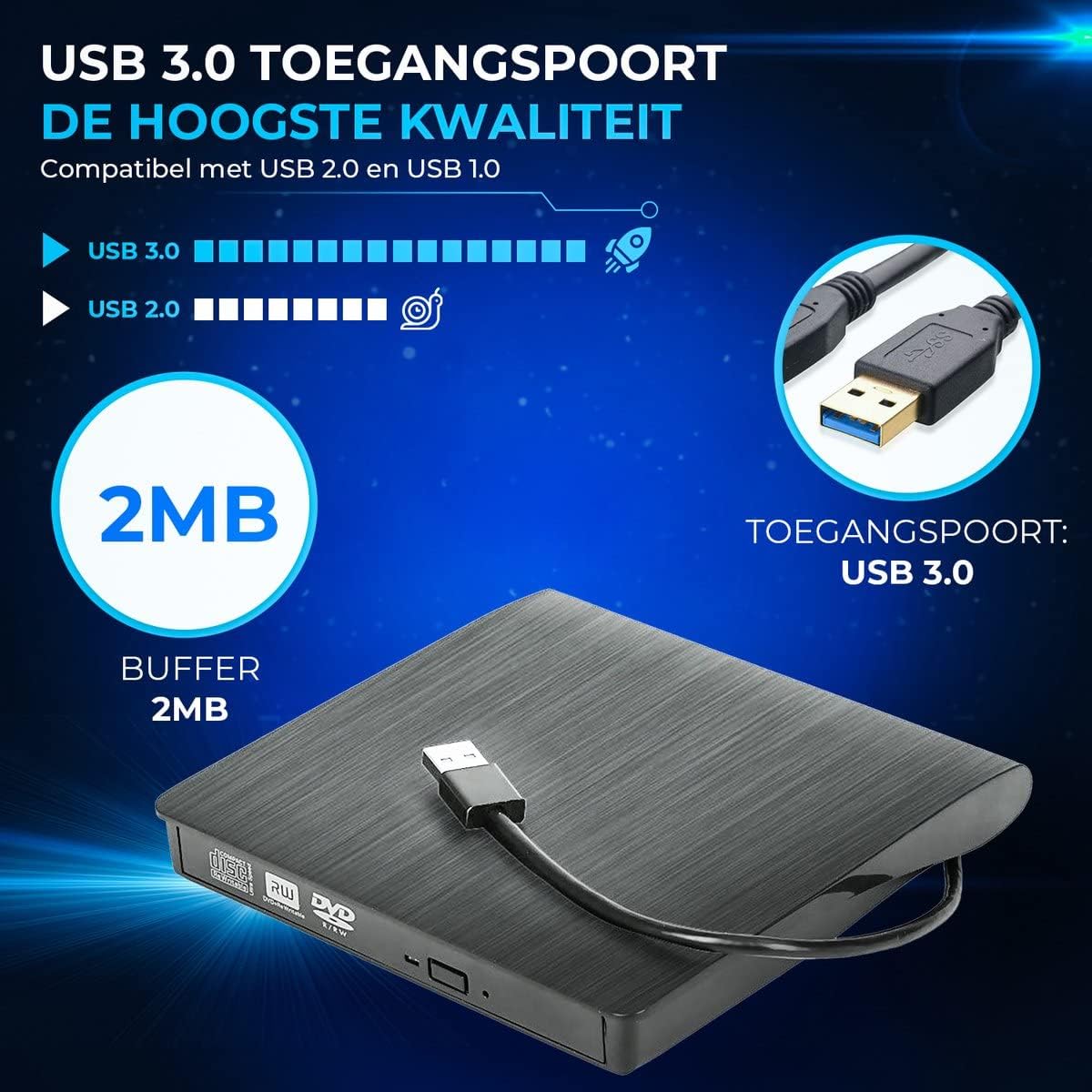
Image 3.1: The external DVD/CD player showcasing its integrated USB 3.0 cable, highlighting the high-speed access port and 2MB buffer for efficient data transfer.
3.2 System Compatibility
This device is compatible with a wide range of operating systems:
- Windows: Windows 10, 8, 7, XP, Vista, 2003
- macOS: All versions, including Apple MacBook series
- Linux: Various distributions

Image 3.2: Visual representation of the device's broad compatibility with Windows XP, Vista, 7, 8, 10, and Mac operating systems, also showing the anti-slip base and integrated USB cable.
4. Operating Instructions
The external DVD/CD player supports both reading and writing functions for various disc types.
4.1 Inserting and Ejecting Discs
- Press the eject button located on the front of the drive tray to open it.
- Carefully place a CD or DVD onto the tray, ensuring it is centered on the spindle.
- Gently push the tray back into the drive until it clicks shut.
- To eject a disc, press the eject button again or use the eject function within your computer's operating system (e.g., right-click on the drive icon and select 'Eject').
4.2 Reading Discs
Once a disc is inserted and recognized by your computer, you can perform the following actions:
- Playing DVDs/CDs: Use your preferred media player software (e.g., VLC Media Player, Windows Media Player) to play movies or music.
- Installing Software: Follow the on-screen prompts to install software from a CD or DVD.
- Accessing Data: Open File Explorer (Windows) or Finder (macOS) and navigate to the optical drive icon to browse files on the disc.
4.3 Writing/Burning Discs
To burn data to a blank CD-R/RW or DVD-R/RW, you will need compatible burning software (e.g., Windows built-in burning utility, Nero, Roxio). Follow the instructions provided by your chosen software:
- Insert a blank, writable disc into the drive.
- Launch your disc burning software.
- Select the type of disc you wish to create (data disc, audio CD, video DVD, backup disc).
- Add the files you wish to burn to the project.
- Initiate the burning process. Ensure the computer is not interrupted during this process.

Image 4.1: The external DVD/CD player illustrating its multifunctional capabilities, including watching DVD films, listening to music, installing systems, and creating backup discs.
5. Maintenance
Proper care ensures the longevity and reliable performance of your external DVD/CD player.
- Cleaning: Use a soft, dry, lint-free cloth to clean the exterior of the device. Do not use liquid cleaners or abrasive materials.
- Disc Care: Always handle discs by their edges. Keep discs clean and free of scratches, dust, and fingerprints to prevent reading/writing errors.
- Storage: Store the device in a cool, dry place away from direct sunlight and extreme temperatures. When not in use, ensure the disc tray is closed.
- Transportation: The compact design makes it portable. When transporting, ensure the device is securely packed to prevent physical damage.
6. Troubleshooting
If you encounter issues with your PuroTech External DVD/CD Player/Burner, refer to the following common problems and solutions:
- Device not recognized:
- Ensure the USB cable is securely connected to both the drive and the computer.
- Try connecting to a different USB port on your computer.
- Restart your computer.
- Check your computer's Device Manager (Windows) or System Information (macOS) to see if the device is listed.
- Disc not reading/writing:
- Ensure the disc is clean and free of scratches or smudges.
- Verify that the disc is inserted correctly, label side up.
- Try a different disc to rule out a faulty disc.
- For burning, ensure you are using a compatible blank disc (CD-R/RW, DVD-R/RW) and appropriate burning software.
- Slow performance:
- Ensure you are connected to a USB 3.0 port for maximum speed.
- Close unnecessary applications running in the background.
- No power:
- The device is powered via USB. Ensure the USB port is functional and providing power. Try a different USB port.

Image 6.1: The underside of the external DVD/CD player, illustrating its high-performance features such as quiet operation, safe usage, error prevention, high speed, and a high-quality chip.
7. Specifications
| Feature | Specification |
|---|---|
| Brand | PuroTech |
| Model Number | 8720256794585 |
| Interface | USB 3.0 (backward compatible with USB 2.0/1.0) |
| Hardware Platform | Laptop, PC |
| Operating System Compatibility | Windows 10/7/8/XP/Vista/2003, macOS (all versions), Linux |
| Disc Support | CD-R, CD-RW, DVD-R, DVD-RW, DVD+R, DVD+RW, DVD-RAM, DVD-ROM |
| Power Supply | USB Powered (no external adapter needed) |
| Buffer Size | 2MB |
| Item Weight | Approximately 1 g (Note: This value seems unusually low and might be a data entry error. Actual weight is typically higher for such devices.) |
8. Warranty Information
PuroTech products are manufactured to high-quality standards. For specific warranty terms and conditions, please refer to the documentation included with your purchase or contact PuroTech customer support. Keep your proof of purchase for warranty claims.
9. Customer Support
If you require further assistance or have questions not covered in this manual, please contact PuroTech customer support. Contact details can typically be found on the product packaging or the official PuroTech website.