
1. Introduction
This manual provides detailed instructions for the installation, operation, and maintenance of your Bewinner LGA 1155 Motherboard. Please read this manual thoroughly before proceeding with installation to ensure proper setup and optimal performance.

Figure 1.1: Bewinner LGA 1155 Motherboard Overview
This image displays a top-down view of the Bewinner LGA 1155 Motherboard, showcasing its compact ITX form factor, the LGA 1155 CPU socket, DDR3 memory slots, various expansion slots, and I/O ports.
2. Package Contents
Verify that all items listed below are included in your package. If any items are missing or damaged, please contact your retailer.
- 1 x Bewinner LGA 1155 Motherboard
- 1 x Metal I/O Plate
- 1 x Connection Cable (likely SATA data cable)
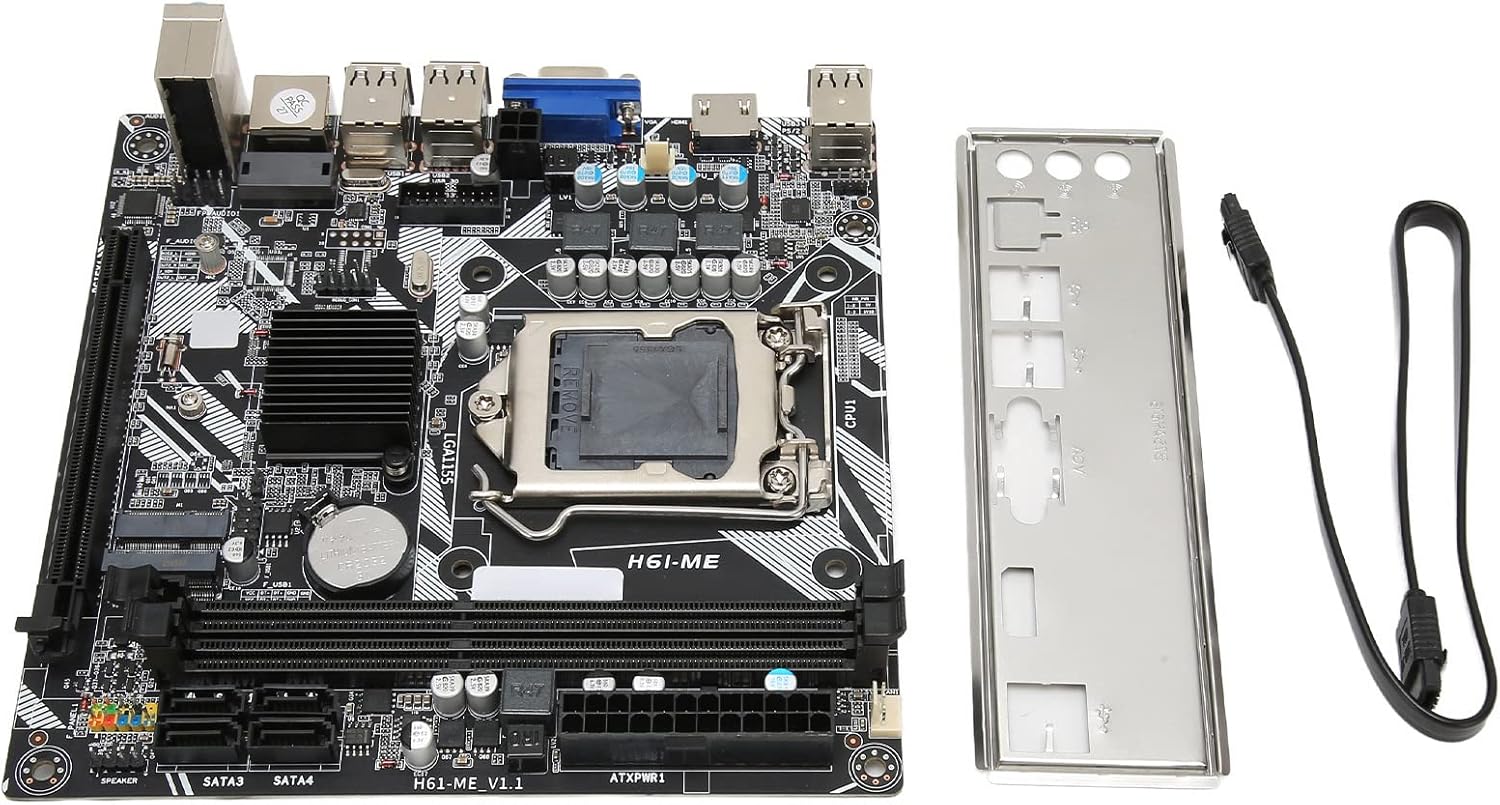
Figure 2.1: Motherboard and Accessories
This image shows the Bewinner LGA 1155 Motherboard alongside its included accessories: a metal I/O shield and a connection cable, typically a SATA data cable.
3. Product Features
The Bewinner LGA 1155 Motherboard is designed for desktop PCs, offering a range of features for reliable performance:
- LGA 1155 CPU Slot: Provides stable performance for compatible Intel processors.
- Multi-phase Power Supply: Ensures stable and precise power delivery to the CPU, enhancing overall system performance.
- Dual Channel DDR3 Memory: Supports up to 16GB of DDR3 RAM across two slots, significantly boosting motherboard performance.
- Extensive USB 2.0 Connectivity: Features 10 USB 2.0 interfaces (4 front-panel accessible) for various peripheral connections.
- HD Video Output: Equipped with VGA and HD Multimedia Interface (HDMI) for high-definition digital video output.
- Storage and Expansion: Includes 4 SATA2.0 connectors, PCIe 16X slot, and M.2 slots for both WiFi and NVME storage.
- Integrated Network Card: A 100M network card for reliable internet connectivity.

Figure 3.1: Motherboard Feature Highlights
This diagram visually highlights several key features of the motherboard, including the 2x DDR3 Dual Channel Memory Slots, PCIe 16X slot, 4* SATA2.0 ports, WIFI M.2 slot, NVME M.2 slot, 100M Network Card, and the Fin Cooling Design for heat dissipation.
4. Component Overview
Familiarize yourself with the layout of the motherboard's various components and connectors:

Figure 4.1: Motherboard Component Layout
This image provides a labeled diagram of the motherboard, indicating the locations of the CPU Slot, 2x DDR3 Slots, 24Pin Motherboard Power Interface, 4*SATA2.0 ports, NVME M.2, WIFI M.2, Front USB2.0 headers, 2*USB2.0 ports, VGA port, 3Pin CPU Fan Pin, 4Pin CPU Power, 100M Network Card, 5.1 Track audio, PCIe 16X slot, and Debug Pin. It also shows the front panel header connections for PWR SW, RESET SW, PWR LED, and HDD LED.
- CPU Slot (LGA 1155): For installing compatible Intel processors.
- DDR3 Memory Slots: Two slots for DDR3 RAM modules.
- PCIe 16X Slot: For graphics cards or other expansion cards.
- SATA 2.0 Ports: Four ports for connecting storage devices like HDDs and SSDs.
- M.2 Slots: Dedicated slots for NVME SSDs and WiFi modules.
- USB 2.0 Ports: Rear I/O and front panel headers for USB devices.
- Video Outputs: VGA and HD Multimedia Interface (HDMI) for display connectivity.
- Audio Jacks: For connecting speakers, headphones, and microphones.
- Ethernet Port: For wired network connection.
- Power Connectors: 24-pin ATX power and 4-pin CPU power connectors.
5. Setup and Installation
Follow these general steps for installing your motherboard into a PC system. Always ensure your system is powered off and unplugged before handling components.
- Prepare the Case: Install the I/O shield into the rear opening of your PC case.
- Install CPU: Carefully open the CPU socket lever, align the CPU with the socket (matching the triangle indicator), gently place the CPU into the socket, and close the lever to secure it.
- Install CPU Cooler: Apply thermal paste (if not pre-applied) and install the CPU cooler according to its manufacturer's instructions. Connect the CPU fan cable to the motherboard's CPU_FAN header.
- Install RAM: Open the clips on the DDR3 memory slots, align the RAM modules with the notch, and press firmly until the clips snap into place.
- Mount Motherboard: Carefully place the motherboard into the PC case, aligning it with the standoffs. Secure it with screws.
- Connect Power: Connect the 24-pin ATX power cable and the 4-pin CPU power cable from your power supply to the motherboard.
- Connect Storage: Connect SATA data cables from your storage drives (HDD/SSD) to the SATA ports on the motherboard. Connect power cables from the PSU to the drives.
- Install Expansion Cards: If using a dedicated graphics card or other PCIe cards, insert them into the PCIe 16X slot and secure them.
- Connect Front Panel Cables: Connect the power button, reset button, HDD LED, and power LED cables from your case to the corresponding headers on the motherboard (refer to Figure 4.1).
- Connect USB/Audio Headers: Connect front panel USB and audio cables to their respective headers.

Figure 5.1: CPU Installation
This image illustrates the process of installing a CPU into the motherboard's socket, showing the CPU being lowered into place with heat radiating from it, symbolizing proper contact and function.
6. Operating Instructions
Once all components are installed and connected, you can power on your system.
- First Boot: After assembly, connect your monitor, keyboard, and mouse. Power on the system. The system should display the BIOS/UEFI splash screen.
- Accessing BIOS/UEFI: During startup, repeatedly press the designated key (commonly DEL, F2, or F10) to enter the BIOS/UEFI setup utility.
- Operating System Installation: Configure boot order in BIOS/UEFI to install your operating system from a USB drive or optical drive.
7. Maintenance
Proper maintenance ensures the longevity and stable operation of your motherboard and PC system.
- Dust Removal: Regularly clean dust from inside your PC case, especially from fans and heatsinks, using compressed air. Ensure the system is powered off and unplugged.
- Ventilation: Ensure your PC case has adequate airflow and is placed in a well-ventilated area to prevent overheating.
- BIOS/Driver Updates: Periodically check the manufacturer's website for updated BIOS versions and drivers to improve compatibility and performance.
8. Troubleshooting
If you encounter issues, refer to the following common troubleshooting steps:
- No Power: Ensure all power cables (24-pin ATX, 4-pin CPU) are securely connected. Check the power supply unit (PSU) and wall outlet.
- No Display: Verify that the monitor is connected to the correct video output (motherboard or graphics card). Reseat RAM modules and graphics card.
- System Instability/Crashes: Check CPU and GPU temperatures. Ensure all components are seated correctly. Test RAM modules individually.
- Component Not Detected: Reseat the component (e.g., RAM, SSD, PCIe card). Check BIOS settings to ensure it's enabled.
- POST Beep Codes: If the motherboard emits a series of beeps on startup, consult the BIOS manufacturer's documentation for the meaning of the beep code, which indicates specific hardware issues.
9. Specifications
| Feature | Specification |
|---|---|
| Motherboard Model | H6 ME |
| Motherboard Type | ITX |
| CPU Socket Type | LGA 1155 |
| Compatible Processors | Intel Core i3/i5/i7/i9 (2nd and 3rd generation), Intel Pentium (2nd and 3rd generation), Intel Celeron (2nd and 3rd generation) |
| Chipset Type | Intel H61 Express |
| Memory Slots | 2 x DDR3 |
| Max Memory Capacity | 16 GB |
| Memory Clock Speed | Up to 2133 MHz |
| SATA Connectors | 4 x SATA2.0 |
| Graphics Adapter Slot | 1 x PCIe 16X |
| USB Interfaces | 10 x USB2.0 (4 front) |
| Expansion Interfaces | 1 x VGA, 1 x HD Multimedia Interface (HDMI), 1 x WiFi M.2, 1 x NVME M.2, 1 x DEBUG pin |
| Network Card | 100M |
| Sound Audio Card | For Realtek ALC662 sound chip |
| Built-in Battery | 240 mAh CR2032 x 1 |
10. Safety Information
Please observe the following warnings to ensure safe operation and prevent damage to the product or personal injury:

Figure 10.1: Important Safety Warning
This image displays a universal warning symbol alongside text in multiple languages. The core message is: If you find the product damaged, deformed, or exhibiting abnormal performance, please stop using it immediately and contact us.
- Always disconnect power from the PC before installing or removing any components.
- Handle the motherboard by its edges to avoid touching sensitive components and to prevent electrostatic discharge (ESD). Use an anti-static wrist strap if available.
- Ensure proper ventilation within your PC case to prevent overheating.
- Do not expose the motherboard to moisture or extreme temperatures.
- If the product appears damaged or performs abnormally, discontinue use immediately and contact customer support.
11. Warranty and Support
For warranty information and technical support, please refer to the documentation provided with your purchase or contact your retailer. Keep your proof of purchase for warranty claims.
For further assistance, you may also visit the official Bewinner website or contact their customer service department directly.