
Arbilato BLU G9 Pro
Arbilato BLU G9 Pro Screen Replacement Instruction Manual
Model: BLU G9 Pro
Introduction
This instruction manual provides detailed guidance for the installation of the Arbilato BLU G9 Pro 6.3-inch LCD Display Touch Digitizer Assembly. Please read all instructions carefully before beginning the replacement process to ensure proper installation and avoid damage to your device.
Package Contents
Verify that all items listed below are included in your package:
- 1x BLU G9 Pro Replacement Screen
- 1x Set of Repair Tools (screwdrivers, pry tools, suction cup, SIM ejector pin)
- 1x Waterproof Sticker
- 1x Double-sided Adhesive Tape
- 1x Disassembly Tool Card
- 1x Disassembly Card
- 1x Explosion-proof Box (packaging)

Image: Contents of the Arbilato BLU G9 Pro screen replacement package, including the screen, various repair tools, adhesive, and packaging.
Setup and Preparation
Before beginning the screen replacement, ensure you have a clean, well-lit workspace. It is highly recommended to watch a relevant video tutorial for your specific phone model (BLU G9 Pro) on platforms like YouTube to familiarize yourself with the process.
Important Precautions:
- Power Off Device: Completely power off your BLU G9 Pro before starting.
- Disconnect Battery: Always unplug the battery connector and remove the battery before proceeding with the screen installation to prevent short circuits.
- Professional Installation Recommended: Screen replacement requires special skills and techniques. If you are not confident, seek assistance from a professional technician.
- Remove Old Adhesive: Thoroughly remove all old adhesive residue from the phone frame before applying new adhesive for the replacement screen.
- Check Phone Frame: If your phone's frame is bent or damaged, replace it before installing the new screen. A damaged frame can cause the new screen to break.
- Test Before Final Installation: Before fully adhering the new screen, connect it to the motherboard and test its functionality (display, touch response) to ensure it is working correctly.
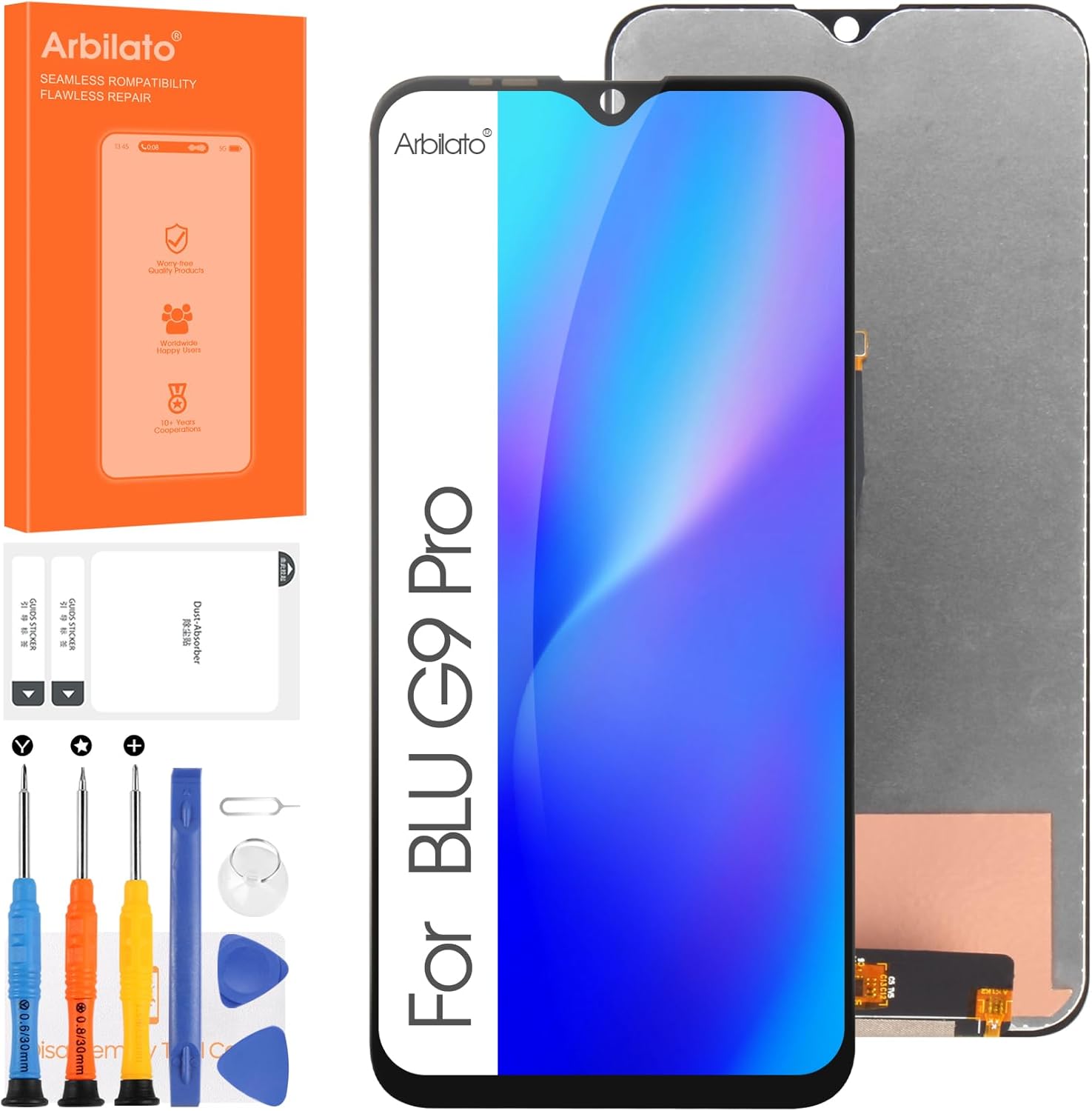
Image: The Arbilato BLU G9 Pro screen replacement kit, including the new display and a set of precision tools for installation.
Installation Instructions
Follow these general steps for replacing the screen. Specific details may vary, so refer to a video tutorial for your exact model.
- Disassemble the Phone: Carefully open the phone casing using the provided pry tools. Locate and disconnect the battery connector.
- Remove Damaged Screen: Gently heat the edges of the old screen to soften the adhesive. Use a suction cup and pry tools to carefully lift and remove the damaged screen assembly.
- Clean the Frame: Remove all residual adhesive and glass fragments from the phone frame. Ensure the surface is clean and smooth for the new screen.
- Connect New Screen (Test): Before applying permanent adhesive, connect the flex cables of the new screen to the motherboard. Reconnect the battery and power on the phone to test the display and touch functionality. Check for dead pixels, lines, or unresponsive areas.
- Apply Adhesive: If the new screen functions correctly, power off the phone and disconnect the battery again. Apply the new double-sided adhesive tape or waterproof sticker evenly around the phone frame.
- Install New Screen: Carefully align the new screen with the phone frame and gently press it into place. Ensure a secure fit.
- Reassemble Phone: Reconnect the battery, reassemble the phone casing, and secure all screws.
- Final Check: Power on the phone and perform a final check of all functions.

Image: Front and rear views of the Arbilato BLU G9 Pro replacement screen, showing the display surface and the flex cable connections.
Troubleshooting
If you encounter issues after installation, consider the following:
- Display Issues (White Screen, Dead Pixels, Lines):
- Ensure all flex cables are securely connected to the motherboard.
- Check for any debris or damage to the connectors.
- Perform a hard reset of the device.
- Touch Unresponsive or Lagging:
- Verify flex cable connections.
- Ensure no pressure points are being applied to the screen by a misaligned frame or internal components.
- Clean the screen surface.
- Screen Not Turning On:
- Confirm the battery is charged and properly connected.
- Double-check all internal connections.
If problems persist, it is advisable to consult a professional repair service or contact Arbilato customer support.
Specifications
| Feature | Detail |
|---|---|
| Compatible Model | BLU G9 Pro |
| Screen Size | 6.3 inches |
| Resolution | 1080 x 2340 pixels |
| Pixel Density | 409 ppi |
| Item Weight | 1.6 ounces |
| Manufacturer | Arbilato |

Image: Visual representation of the BLU G9 Pro screen specifications, including resolution, size, pixel density, and color.

Image: Illustration of quality assurance checks for the BLU G9 Pro screen, highlighting absence of dead pixels, pixel lines, and ensuring scratch-free, responsive touch.
Warranty and Support
Arbilato is committed to providing quality products. If you encounter any issues with your BLU G9 Pro screen replacement after purchase, please contact our customer support team immediately. We will work to provide a suitable and effective solution.
For support, please refer to the contact information provided with your purchase or visit the official Arbilato website.