
1. Product Overview
The MAGIC-REFINER AKC087 is an 87-key Tenkeyless (TKL) mechanical keyboard designed for versatility and performance. It features triple-mode connectivity (Bluetooth 5.0, 2.4G wireless, and wired USB-C), hot-swappable switches, and customizable RGB backlighting. The keyboard is built with a metal stacked structure and PBT keycaps, offering a durable and ergonomic typing experience.

Image 1.1: The AKC087 Wireless Mechanical Keyboard, showcasing its 87-key layout and design.
Package Contents:
- AKC087 Wireless Mechanical Keyboard
- USB-C Cable
- Keycap Puller (may be included)
- Switch Puller (may be included)
- User Manual (this document)
2. Setup Instructions
2.1 Charging the Keyboard
Before initial use, it is recommended to fully charge the keyboard. Connect the included USB-C cable to the keyboard's USB-C port and the other end to a powered USB port (e.g., computer, USB wall adapter). The charging indicator will show the charging status.
2.2 Connectivity Modes
The AKC087 keyboard supports three connection modes: Bluetooth 5.0, 2.4G wireless, and wired USB-C. A toggle switch on the side of the keyboard allows for easy mode selection.
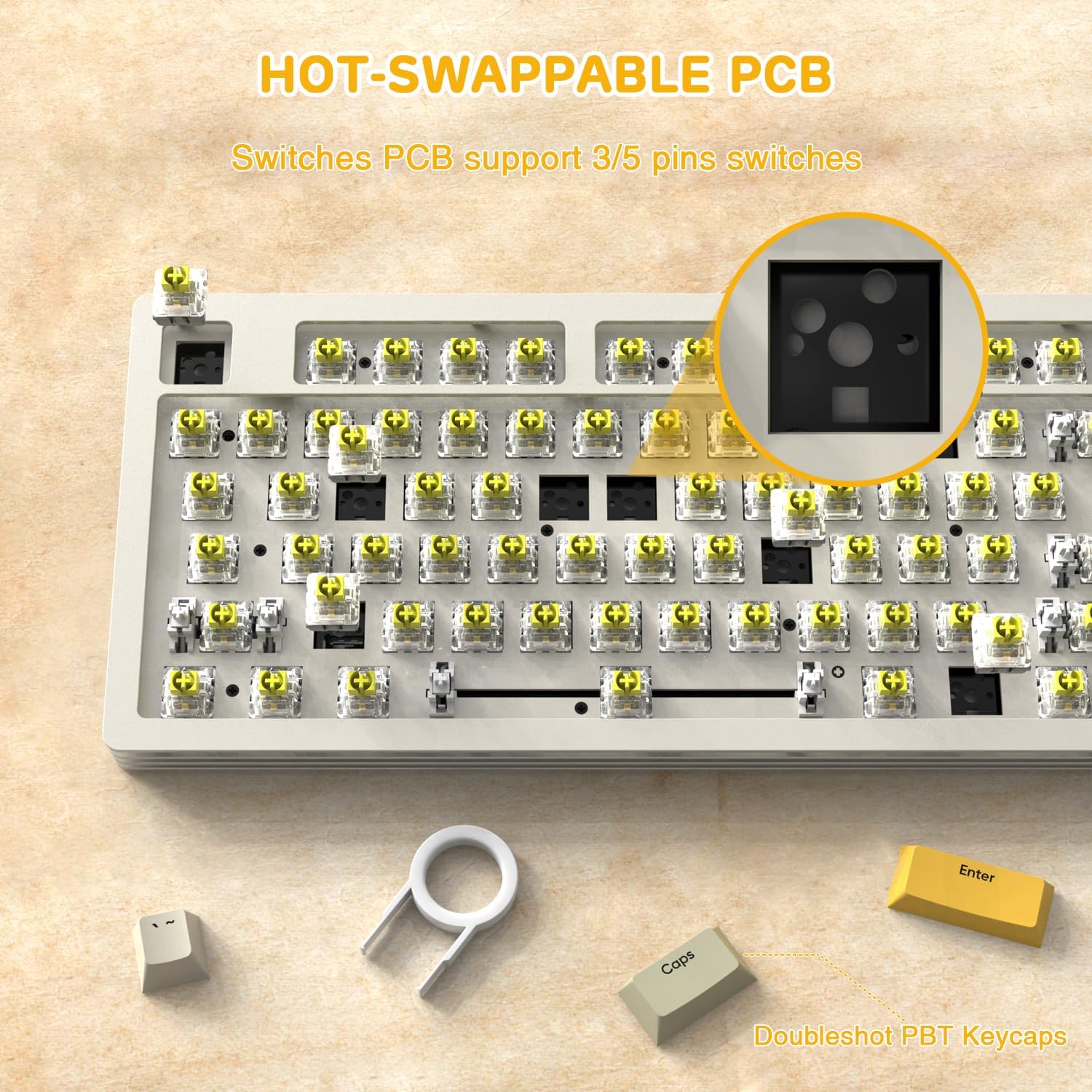
Image 2.1: The keyboard connected to multiple devices via its tri-mode connectivity options.
2.2.1 Wired Mode
- Ensure the mode switch on the side of the keyboard is set to 'Wired' or 'USB'.
- Connect the USB-C cable from the keyboard to your computer's USB port.
- The keyboard will be automatically recognized by your system.
2.2.2 2.4G Wireless Mode
- Locate the 2.4G USB receiver, typically stored in a hidden compartment on the keyboard.
- Ensure the mode switch on the side of the keyboard is set to '2.4G'.
- Plug the 2.4G USB receiver into an available USB port on your computer.
- The keyboard should connect automatically. If not, press and hold the Fn + R key combination for 3 seconds to initiate pairing.

Image 2.2: Detail showing the hidden compartment for the 2.4G USB receiver and the mode switch.
2.2.3 Bluetooth 5.0 Mode
- Ensure the mode switch on the side of the keyboard is set to 'BT'.
- On your device (computer, tablet, phone), enable Bluetooth and search for new devices.
- On the keyboard, press and hold Fn + Q, Fn + W, or Fn + E for 3 seconds to enter pairing mode for Bluetooth device 1, 2, or 3 respectively. The corresponding key's backlight will flash rapidly.
- Select 'AKC087' from the list of available Bluetooth devices on your device to complete pairing.
- To switch between paired Bluetooth devices, press Fn + Q, Fn + W, or Fn + E briefly.
3. Operating Instructions
3.1 Basic Key Functions
- Fn Key Combinations: The 'Fn' key is used in combination with other keys to access secondary functions, multimedia controls, and lighting adjustments.
- Windows/Mac Compatibility: The keyboard is compatible with both Windows and Mac operating systems. Specific key functions may adapt automatically or require manual switching (refer to software customization if available).
3.2 RGB Lighting Control
The AKC087 features dynamic RGB backlighting with multiple preset effects and music rhythm modes.

Image 3.1: The keyboard displaying its dynamic RGB backlighting.
- Change Lighting Mode: Use Fn + \| to cycle through different lighting effects.
- Adjust Brightness: Use Fn + ↑ / ↓ to increase or decrease backlight brightness.
- Adjust Speed: Use Fn + ← / → to adjust the speed of dynamic lighting effects.
- Change Color: Specific key combinations may be available to change static RGB colors (refer to the full manual for detailed key combinations).
3.3 Software Customization
The keyboard supports custom software for advanced customization. This software allows users to:
- DIY lighting preferences beyond the factory presets.
- Build macros for specific key sequences.
- Remap key functions.
Please visit the official MAGIC-REFINER website for software download and detailed instructions.
4. Maintenance
4.1 Cleaning the Keyboard
To maintain optimal performance and appearance, regularly clean your keyboard:
- Disconnect the keyboard from all power sources before cleaning.
- Use a soft, lint-free cloth slightly dampened with water or a mild cleaning solution to wipe the keycaps and chassis.
- For dust and debris between keycaps, use compressed air.
- Avoid using harsh chemicals or abrasive materials.
4.2 Hot-Swappable Switches
The AKC087 features a hot-swappable PCB, allowing you to change mechanical switches without soldering. This keyboard is compatible with most 3-pin and 5-pin mechanical switches.

Image 4.1: The hot-swappable PCB design, showing how switches can be removed and replaced.
4.2.1 Replacing Switches
- Using the included keycap puller, carefully remove the desired keycap.
- Using the included switch puller, grip the top and bottom clips of the switch and gently pull upwards to remove it from the PCB.
- Align the pins of the new switch with the holes on the PCB. Ensure the pins are straight to avoid bending.
- Gently press the new switch into place until it clicks securely.
- Reattach the keycap.
5. Troubleshooting
5.1 Connectivity Issues
- Keyboard not responding in wireless mode: Ensure the keyboard is charged. Check that the mode switch is set correctly (2.4G or BT). For 2.4G, ensure the receiver is securely plugged in. For Bluetooth, ensure it's paired correctly and your device's Bluetooth is enabled. Try re-pairing if necessary.
- 2.4G Wireless Wakeup Lag: A slight delay (approximately one second) may occur when waking the keyboard from sleep in 2.4G mode. Keys pressed during this brief period may not register. This is normal operation.
- Intermittent connection: Ensure there are no significant obstructions or sources of interference between the keyboard and the receiver/device. Try moving closer to the receiver/device.
5.2 Battery and Charging
- Keyboard not charging: Ensure the USB-C cable is properly connected to both the keyboard and a working power source. Try a different USB port or cable.
- Short battery life: RGB lighting consumes more power. Reduce brightness or turn off RGB lighting to extend battery life. Ensure the keyboard is fully charged before use.
5.3 RGB Lighting Problems
- Lights not working: Ensure the keyboard is powered on and charged. Check if the brightness is set too low (Fn + ↓).
- Incorrect lighting effect: Cycle through lighting modes using Fn + \| to find the desired effect.
5.4 Typing Experience
- Hollow or metallic sound: The keyboard's multi-layer metal construction may produce a distinct sound profile. This is characteristic of the design.
6. Specifications
| Feature | Detail |
|---|---|
| Model Number | AKC087 |
| Layout | 87-Key (75% TKL) |
| Connectivity | Bluetooth 5.0, 2.4G Wireless, USB-C Wired |
| Switches | Hot-swappable (3-pin/5-pin compatible), Preinstalled Yellow Switch |
| Keycaps | PBT |
| Battery Capacity | 2000mAh |
| Backlight | RGB |
| Compatibility | Windows XP/7/8/10/11, MAC OS, IOS, Android |
| Dimensions | 16.26 x 6.73 x 2.52 inches (approximate) |
| Item Weight | 5.48 pounds (approximate) |
7. Warranty and Support
MAGIC-REFINER products are designed and manufactured to the highest quality standards. For information regarding warranty coverage, terms, and conditions, please refer to the warranty card included with your product or visit the official MAGIC-REFINER website.
If you encounter any issues or have questions about your AKC087 keyboard, please contact MAGIC-REFINER customer support through their official website or the retailer where the product was purchased. Please have your model number (AKC087) and purchase details ready when contacting support.