1. Introduction
Thank you for choosing the EUREKA ERGONOMIC ERK-U71-B U-Shaped Electric Standing Desk. This manual provides detailed instructions for the assembly, operation, maintenance, and troubleshooting of your new desk. Please read this manual thoroughly before assembly and use to ensure proper function and safety.
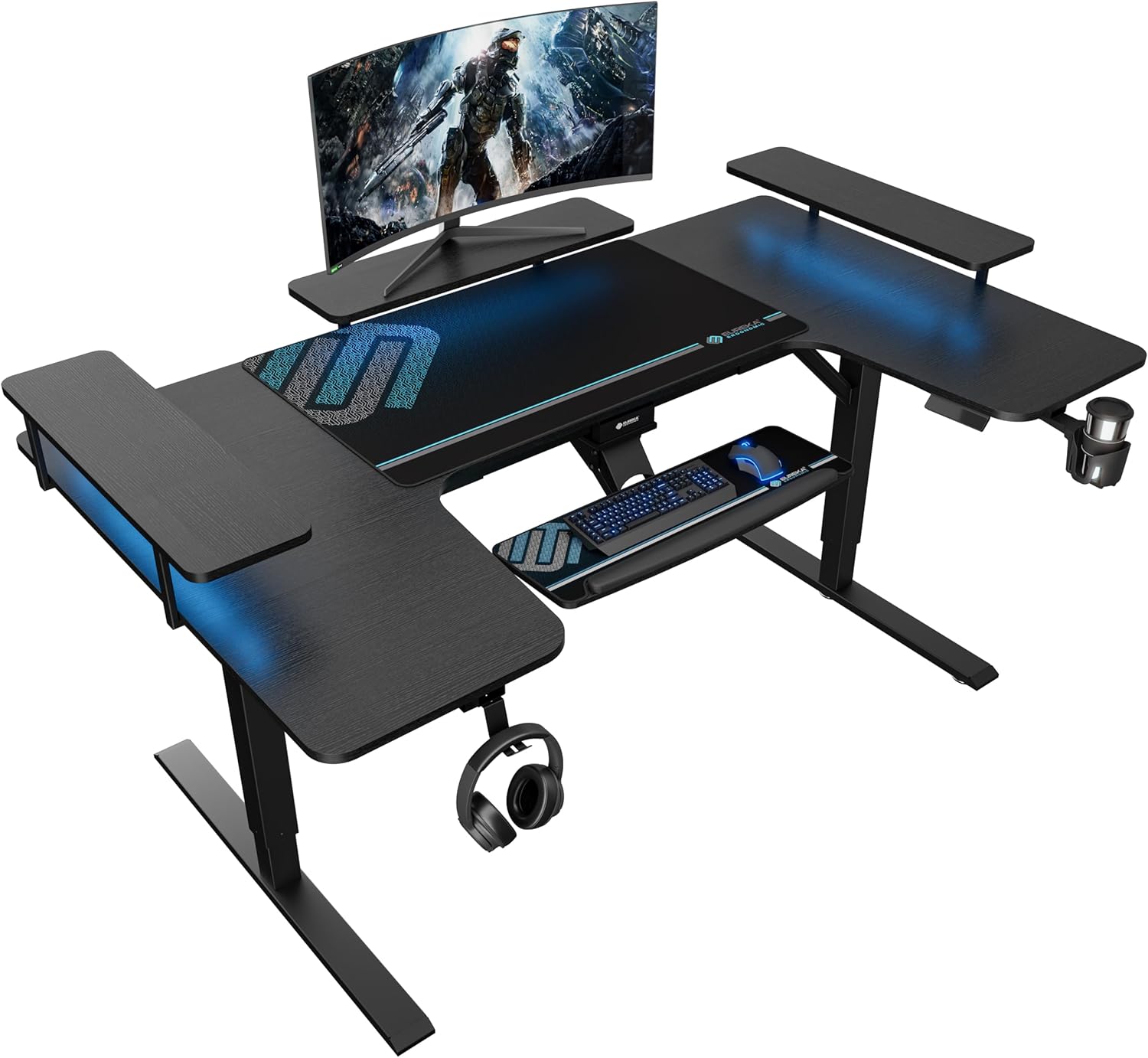
Image 1.1: The EUREKA ERGONOMIC U-Shaped Electric Standing Desk in a typical setup.
This U-shaped electric standing desk is designed for ergonomic comfort and versatility, featuring a dual-motor height adjustment system, an adjustable keyboard tray, integrated LED lighting, and convertible shelves. It is suitable for various uses including gaming, office work, and music studio setups.
2. Setup and Assembly
The EUREKA ERGONOMIC ERK-U71-B desk requires assembly. All necessary tools are included. Follow the instructions provided in the separate assembly guide for detailed step-by-step procedures. Ensure all components are present and undamaged before beginning assembly.
2.1 Unpacking and Component Check
Carefully unpack all components and compare them against the parts list in your assembly guide. Report any missing or damaged parts to customer support immediately.
2.2 Assembly Steps Overview
- Attach the desk legs to the desktop sections.
- Connect the dual motor system and control box.
- Install the U-shaped desktop sections.
- Mount the keyboard tray and monitor shelves.
- Connect the LED lighting strips.
- Install accessories such as headphone hangers and cup holder.
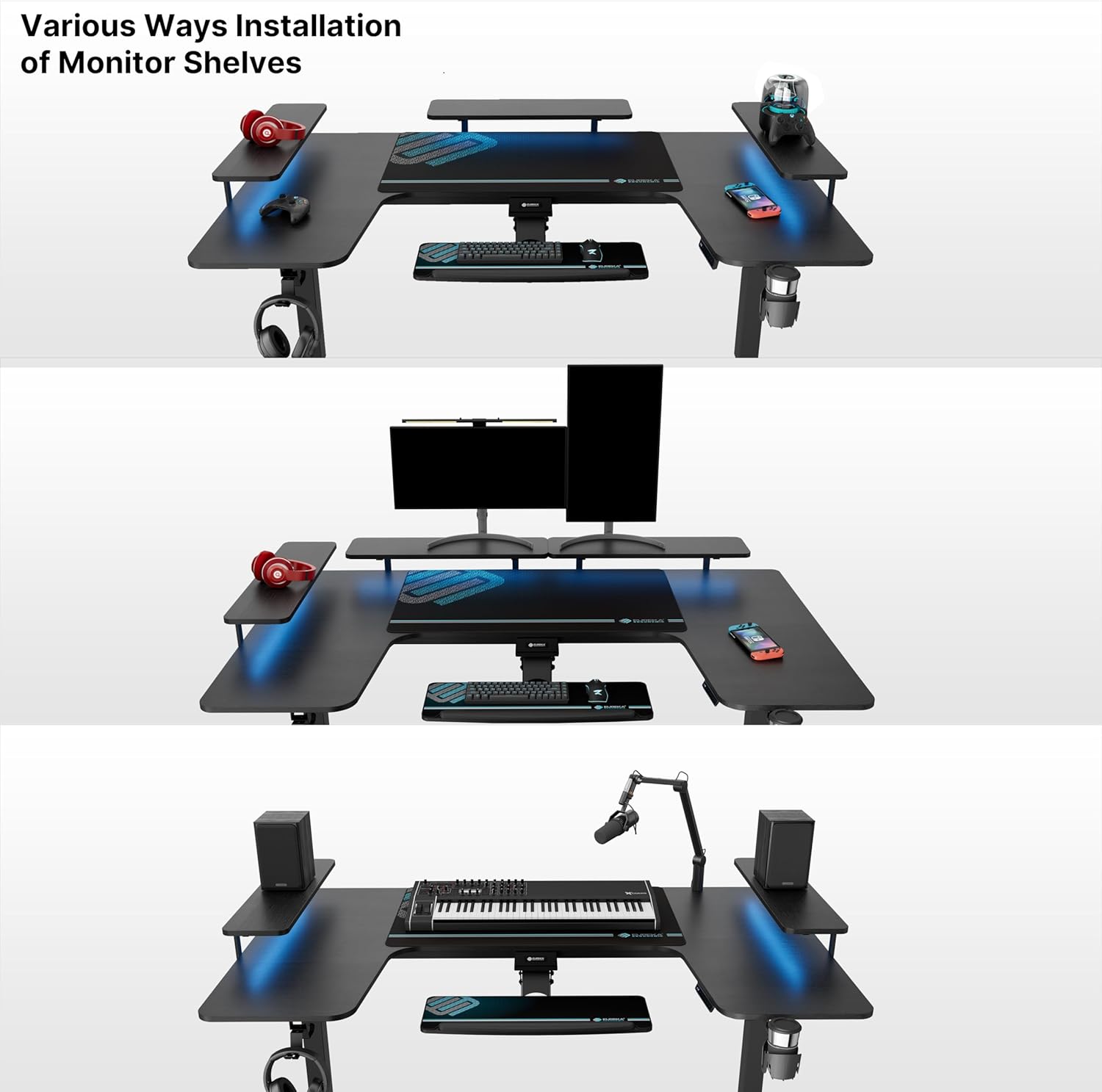
Image 2.1: Examples of monitor shelf installation configurations.
2.3 Monitor Shelf Installation Options
The convertible monitor shelves offer flexible placement. You can install them:
- By the Side: Placing shelves on the side wings of the U-shape.
- In the Middle: Centering shelves for a primary monitor setup.
- Three-way Setup: Utilizing all sections for a comprehensive display or equipment arrangement.
3. Operating Instructions
This section details the functions and controls of your EUREKA ERGONOMIC standing desk.
3.1 Height Adjustment
The desk features an electric dual-motor system for smooth and quiet height adjustment. The adjustable height range is from 29.5 inches to 48 inches.
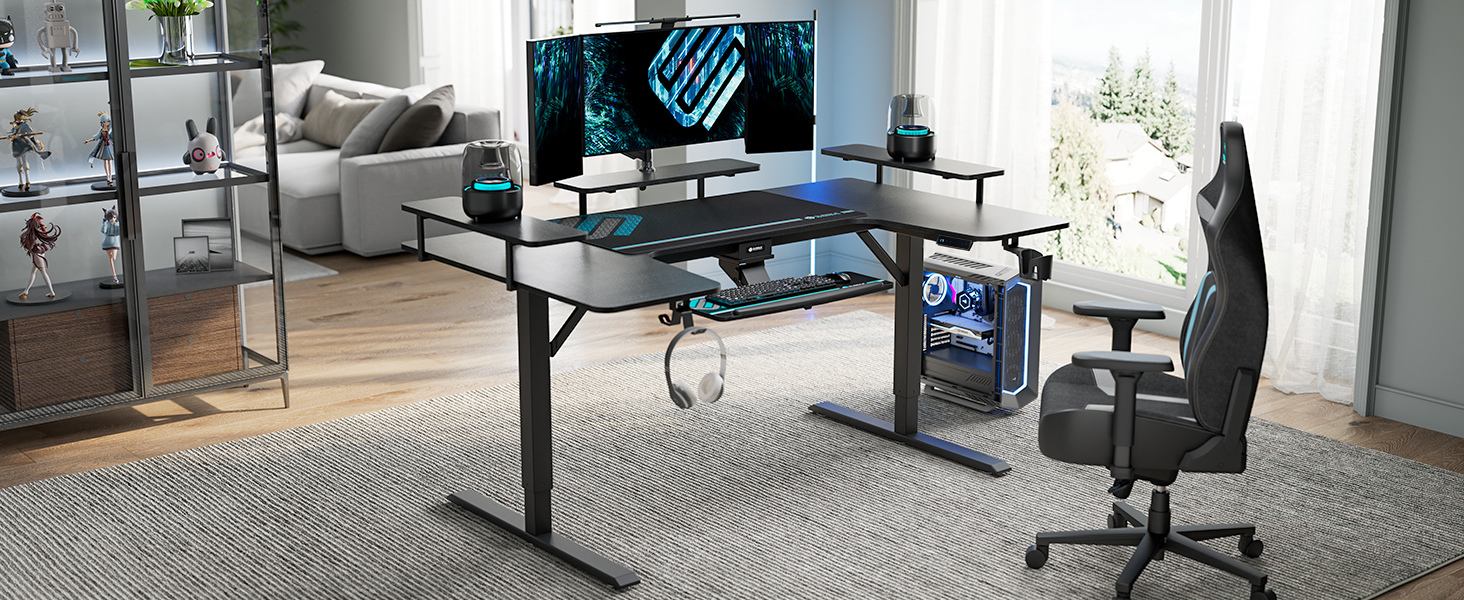
Image 3.1: Dual motor system for smooth height adjustment.
Control Panel Functions:
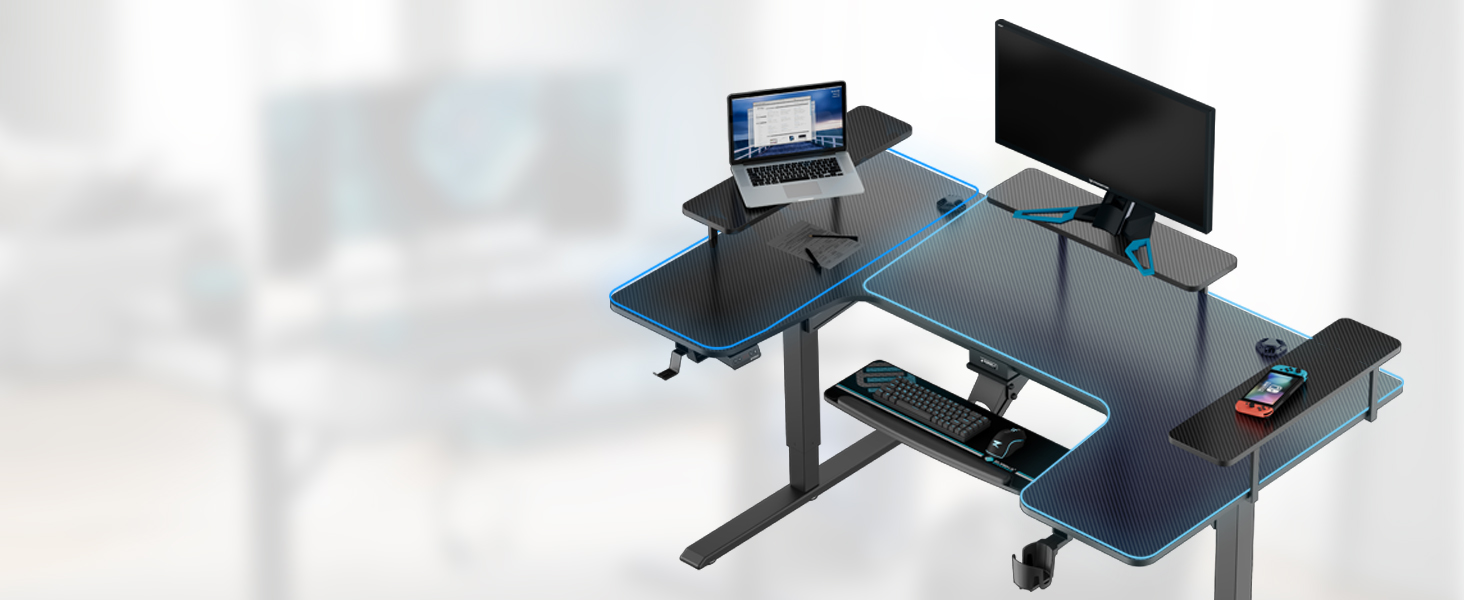
Image 3.2: Desk control panel and smartphone app interface.
- LED Display: Shows the current desk height.
- UP and DOWN Movement: Use the '+' and '-' buttons to adjust the desk height manually.
- Memory Presets (1, 2, 3): Save up to three frequently used heights. To set a preset, adjust the desk to your desired height, then press and hold a numbered button (1, 2, or 3) until the display flashes or beeps. To recall a preset, simply press the corresponding numbered button.
- USB Charging Ports: Conveniently located for charging your devices.
Smartphone App Control:
The desk can also be controlled via the "Eureka Smart" app (connect through Wi-Fi). Download the app from your device's app store and follow the in-app instructions for pairing and control.
3.2 RGB LED Lighting
The desk features integrated RGB LED lights with single-color and multi-color modes. A built-in light controller allows you to switch between 6 RGB colors and 1 white light.

Image 3.3: RGB LED lighting in action.
3.3 Adjustable Keyboard Tray
The keyboard tray is designed for ergonomic flexibility and can be adjusted in multiple ways:

Image 3.4: Keyboard tray adjustment features.
- Height Adjustable: Adjust the vertical position for optimal comfort.
- Retractable: Slide the tray under the desk when not in use to save space.
- 360° Rotatable: Rotate the tray horizontally to find your preferred angle.
- Angle Adjustable: Tilt the tray up or down by 15° to relieve hand and wrist soreness.
3.4 Cable Management and Accessories
The desk includes features for organized and convenient use:
- Cable Management System: Dual cable holes and socket holders under the desk help keep wires tidy.
- Double Headphone Hangers: Rotatable for easy access and storage.
- Cup Holder: Rotatable for convenient placement of beverages.
- Full-desk Mouse Pad: A soft, non-slip mouse pad is included for enhanced user experience.
4. Maintenance
Regular maintenance ensures the longevity and optimal performance of your desk.
4.1 Cleaning
- Wipe the desk surface with a soft, damp cloth. Avoid abrasive cleaners or harsh chemicals that may damage the finish.
- For the metal frame, use a mild cleaner if necessary, then wipe dry.
- Ensure no liquids enter the control panel or motor components.
4.2 Inspection
- Periodically check all screws and bolts to ensure they are tight. Retighten if necessary.
- Inspect power cables for any signs of wear or damage. Replace immediately if damage is found.
- Ensure the desk's movement is smooth and free of obstruction.
5. Troubleshooting
This section addresses common issues you might encounter with your electric standing desk.
5.1 Desk Not Moving or Responding
- Power Connection: Ensure the power cord is securely plugged into both the desk and a working wall outlet.
- Reset: Unplug the desk from the power outlet for 10 seconds, then plug it back in.
- Overload: Ensure the desk's weight capacity (220 lbs) is not exceeded. Remove some items and try again.
5.2 Uneven Movement or Noise
- Obstructions: Check for any objects obstructing the desk's movement path.
- Leveling: Ensure the desk is on a flat, even surface. Adjust the footpads if necessary.
- Loose Connections: Verify all assembly screws are tightened.
5.3 Anti-Collision Feature Activation
The desk is equipped with Smart Anti-Collision Technology (with Built-in HALL SENSOR & AI CONTROL) to detect obstacles during movement. If the desk encounters an obstruction, it will stop and slightly retract.
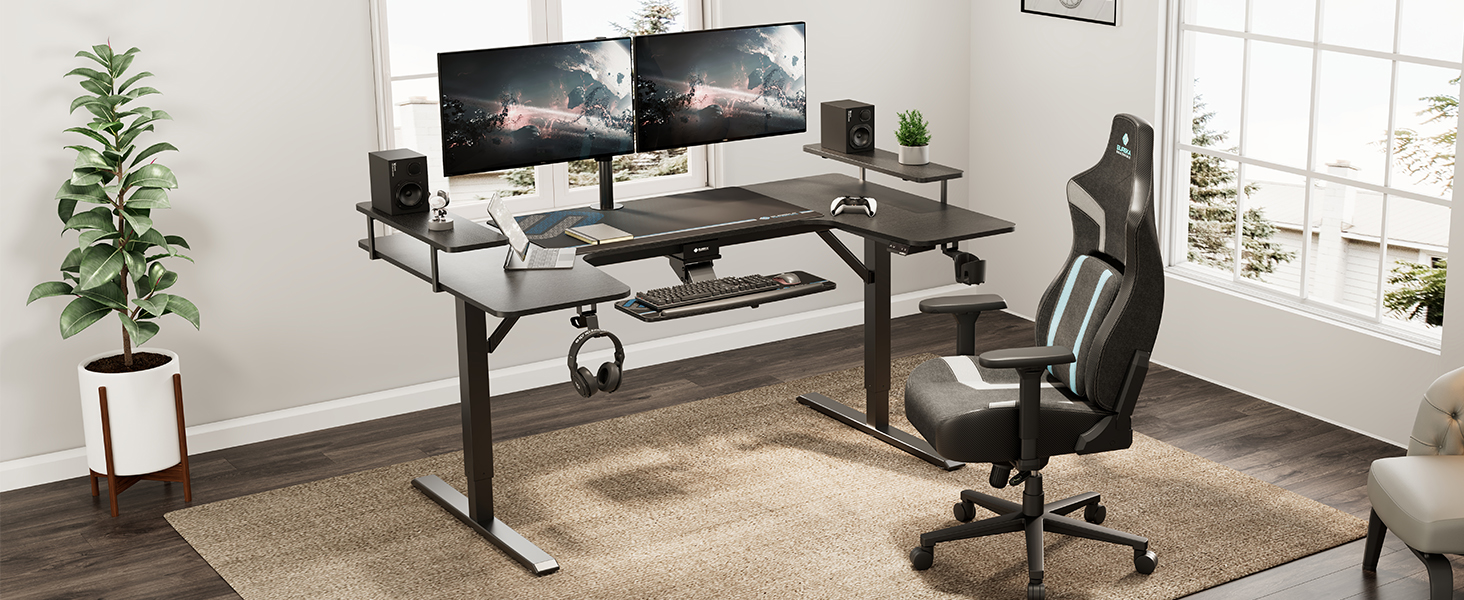
Image 5.1: Anti-collision system in action.
If this occurs, remove the obstruction and try adjusting the height again. If the issue persists, perform a power reset.
6. Specifications

Image 6.1: Desk dimensions and maximum load capacity.
| Feature | Detail |
|---|---|
| Brand | EUREKA ERGONOMIC |
| Model Number | ERK-U71-B |
| Product Dimensions (D x W x H) | 43"D x 74"W x 34"H (Overall) |
| Color | Black |
| Style | U Shape |
| Base Material | Alloy Steel |
| Finish Type | Powder Coated |
| Special Features | Electric, Dual Motor, Ergonomic, Adjustable Height, Keyboard Tray Included, 2 Memory Presets, Anti-collision System |
| Height Adjustment Range | 29.5 Inches (Min) to 48 Inches (Max) |
| Maximum Weight Recommendation | 220 Pounds |
| Included Components | Headphone Hook, Cup Holder, Keyboard Tray, Mouse Pad |
| Assembly Required | Yes (All tools included) |
| Lifting Mechanism | Electric |
| Item Weight | 40 Kilograms |
7. Warranty and Support
7.1 Warranty Information
This EUREKA ERGONOMIC desk comes with a 1-YEAR Limited Service Warranty. This warranty covers manufacturing defects and malfunctions under normal use. Please retain your proof of purchase for warranty claims.
7.2 Customer Support
For any questions, assistance with assembly, troubleshooting, or warranty claims, please contact our customer service team. Our 24-hour US-based customer service is available to provide timely help.
For contact information, please refer to the documentation included with your product or visit the official EUREKA ERGONOMIC website.


