
Mosptnspg V300-Wired-Keyboard
Mosptnspg Wired Quiet Membrane Keyboard User Manual
Model: V300-Wired-Keyboard
Product Overview
The Mosptnspg Wired Quiet Membrane Keyboard (Model V300-Wired-Keyboard) is a full-size 104-key keyboard designed with a retro punk typewriter aesthetic. It features white LED backlighting and durable ABS round keycaps, providing a comfortable and quiet typing experience. This keyboard is compatible with Windows PCs and laptops, offering a simple plug-and-play setup.
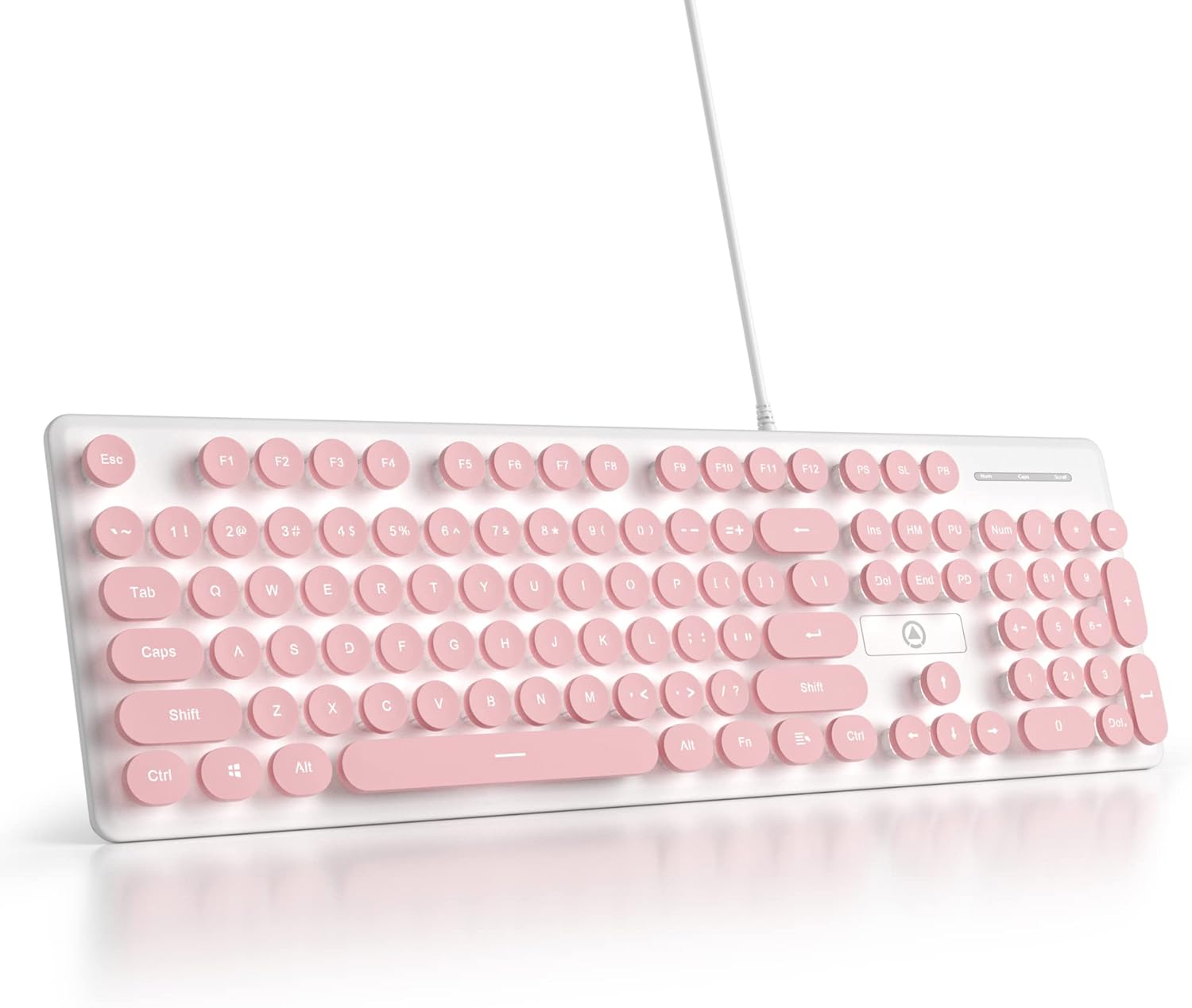
Figure 1: Mosptnspg Wired Quiet Membrane Keyboard (Pink)
This image displays the full layout of the Mosptnspg Wired Quiet Membrane Keyboard in pink, highlighting its retro round keycaps and compact design.
Setup Instructions
- Unpack the Keyboard: Carefully remove the keyboard from its packaging. Ensure all components, including the USB cable, are present.
- Connect to Your Device: Locate an available USB-A port on your computer, laptop, or PC. Insert the USB-A connector of the keyboard's cable into the USB port.
- System Recognition: The keyboard is designed for plug-and-play functionality. Your operating system (Windows 7, 8, 10, or later) should automatically detect and install the necessary drivers. This process typically takes a few seconds.
- Verify Functionality: Once connected, test the keyboard by typing in a text editor or browser to ensure all keys are responsive.

Figure 2: Connecting the keyboard via its 63-inch USB cable
This image illustrates the keyboard connected to a laptop, emphasizing the length of its USB cable for flexible placement.
Operating Instructions
Basic Typing
The Mosptnspg keyboard provides a standard 104-key layout for everyday use. Its membrane design ensures sensitive, quiet, and responsive key presses, making it suitable for both office environments and gaming.
LED Backlighting
The keyboard features white LED backlighting. While specific controls for adjusting brightness or modes are not explicitly labeled on the keys, the backlight provides clear visibility of the characters, especially in low-light conditions.
Ergonomics and Design
The keyboard's retro punk typewriter style with ABS round keycaps offers a unique tactile and auditory experience. The floating keycap design and integrated keyboard stand contribute to an ergonomic typing angle, enhancing comfort during prolonged use.

Figure 3: Detailed view of floating keycaps and keyboard stand
This image provides a close-up of the keyboard's design elements, including the floating keycaps, "chocolate" keycaps, and the integrated keyboard stand, illustrating the ergonomic features.
Maintenance
General Cleaning
To maintain the keyboard's appearance and functionality, regularly clean its surface. Use a soft, dry cloth to wipe away dust and debris. For deeper cleaning, you may use a slightly damp cloth, ensuring no liquid enters the key switches or internal components.
Keycap Cleaning
The keycaps can be removed for thorough cleaning. Gently pull each keycap straight up to detach it. Clean the keycaps with mild soap and water, then dry them completely before reattaching. Use compressed air to clear any debris from underneath the keycaps on the keyboard base.
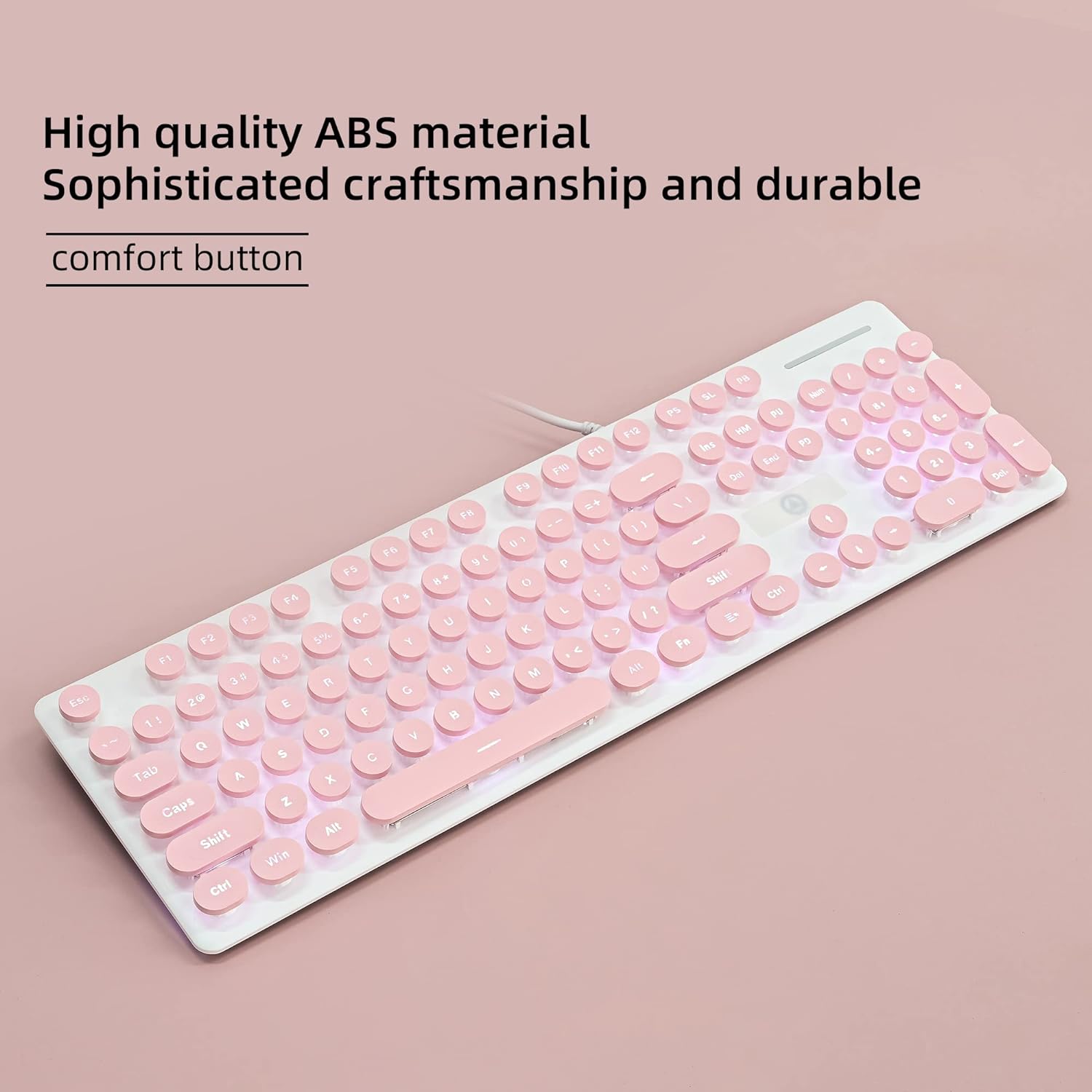
Figure 4: High-quality ABS material and sophisticated craftsmanship
This image highlights the durable ABS material used in the keyboard's construction, emphasizing its quality and ease of maintenance.
Troubleshooting
- Keyboard Not Responding:
- Ensure the USB cable is securely plugged into both the keyboard and the computer's USB port.
- Try plugging the keyboard into a different USB port on your computer.
- Restart your computer.
- Verify that your operating system is Windows 7, 8, 10, or later.
- Keys Not Functioning Correctly:
- Check for any debris or foreign objects lodged under the affected keycaps.
- Gently remove and re-seat the problematic keycap to ensure it is properly aligned.
- If a keycap has come off, align it carefully with the switch mechanism and press down firmly until it clicks into place.
- Backlight Not Working:
- Ensure the keyboard is properly connected and receiving power.
- While there are no explicit backlight controls mentioned, ensure no software or system settings are interfering with USB device power.
- No Labels for Alternate Functions:
Some keys may have alternate functions (e.g., media controls) that are not physically labeled. Refer to your computer's operating system documentation or common keyboard shortcuts for these functions. Typically, these are accessed using the 'Fn' key in combination with function keys (F1-F12).
Specifications
| Brand | Mosptnspg |
| Model Number | V300-Wired-Keyboard |
| Product Dimensions | 18 x 8 x 2 inches |
| Item Weight | 1.28 pounds |
| Number of Keys | 104 |
| Keyboard Description | Membrane |
| Connectivity Technology | USB-A |
| Special Feature | Round Key, Ergonomic, Backlit |
| Color | V8Pink |
| Keyboard Backlighting | Single Color (White LED) |
| Style | Steampunk |
| Compatible Devices | Gaming Console, Windows PC/Laptop |
| Country of Origin | China |
Warranty and Support
For information regarding product warranty, returns, or technical support, please contact the seller or manufacturer directly. Keep your purchase receipt or order details handy as proof of purchase.
Manufacturer: CJXSP
Brand: Mosptnspg
Related documentsV300-Wired-Keyboard


Ask a question about this manual
Ask about setup, troubleshooting, compatibility, parts, safety, or missing instructions. Manuals+ will review the question and use this page’s manual context to help answer it.