
1. Setup Guide
1.1 Unboxing and Component Identification
Carefully remove all components from the packaging. Verify that all items listed in your product documentation are present. This includes the desktop tower, monitor, power cables, keyboard, mouse, speakers, webcam, and any included documentation.
1.2 Connecting Peripherals
Connect your peripherals to the appropriate ports on the desktop tower and monitor.
- Monitor: Connect the monitor to the graphics card output port (HDMI or DisplayPort) on the rear of the desktop tower. Ensure the monitor's power cable is connected to a power outlet.
- Keyboard and Mouse: Connect the USB cables of the keyboard and mouse to any available USB ports on the desktop tower.
- Speakers: Connect the speakers to the audio output port (green) on the rear or front of the desktop tower. Connect the speaker power cable to a power outlet.
- Webcam: Connect the webcam's USB cable to an available USB port.

Image Description: This image displays the front panel of the Lumos 8 desktop PC. It highlights the power button at the top, an audio port, two USB 2.0 ports, and two USB 3.0 ports, indicating easy access for connecting various devices.

Image Description: This image shows the rear panel of the desktop PC, emphasizing the installed PCI-E WiFi adapter with two antennas for high-speed internet. Various other ports, including video outputs, USB ports, and audio jacks, are visible, along with the cooling fan.

Image Description: A 24-inch curved gaming monitor is shown displaying a vibrant game scene. Icons above the monitor indicate its key features: 1080p Full HD resolution, 144Hz refresh rate, 1ms response time, 178-degree viewing angle, and an IPS panel for superior color and viewing.

Image Description: This image features the MTG RGB Gaming Keyboard and a matching gaming mouse. The keyboard displays vibrant RGB backlighting, indicating its customizable lighting features and ergonomic design for gaming.

Image Description: The image presents an MTG HQ Webcam and an MTG RGB Headphone. The webcam is designed for high-definition video calls, while the headphone features RGB lighting and a comfortable over-ear design for immersive audio experiences.
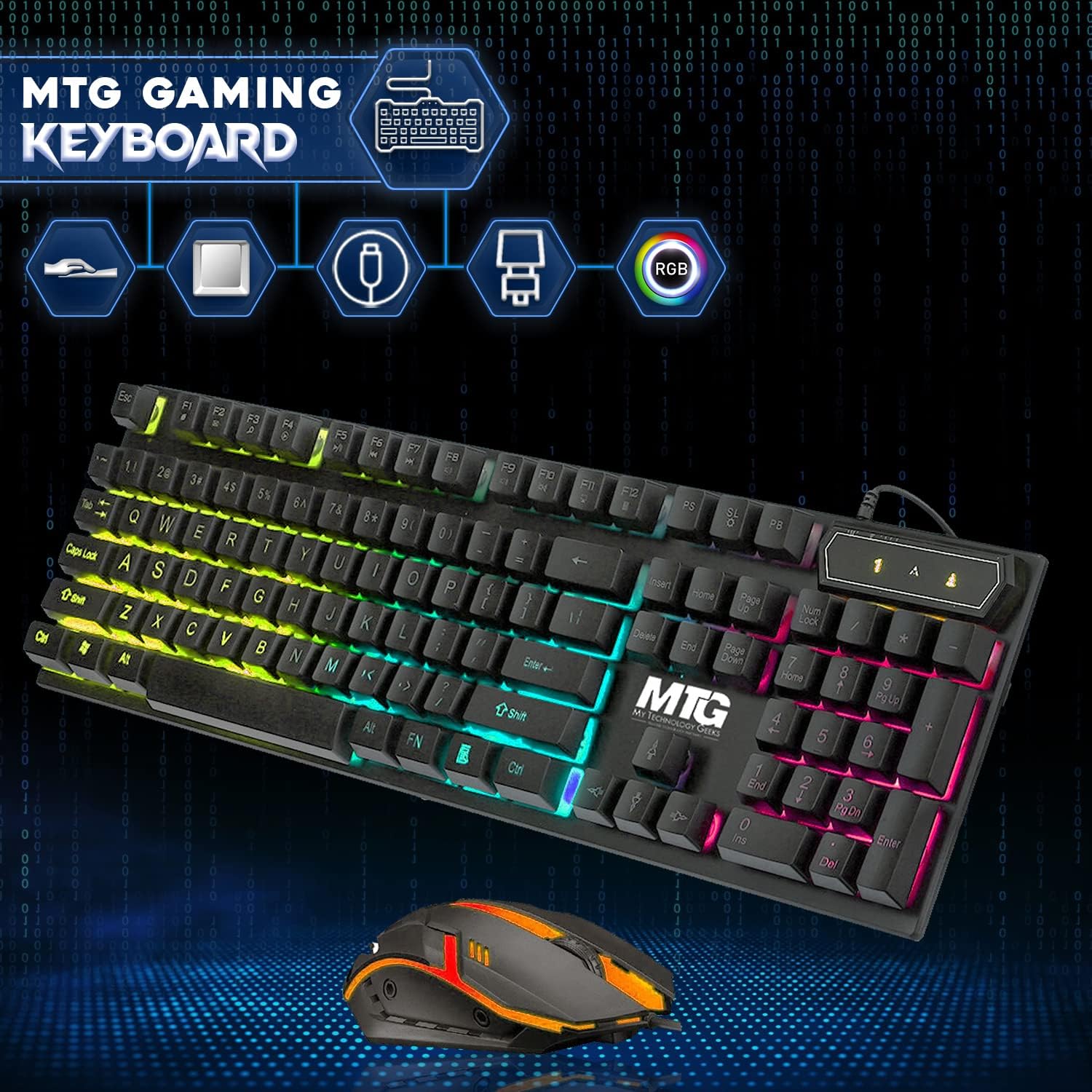
Image Description: This image displays a pair of MTG RGB Speakers. The speakers feature a sleek black design with integrated RGB lighting strips along the edges, indicating their aesthetic appeal and audio output capabilities.
1.3 Power Connection
Connect the desktop PC's power cable to the power supply unit (PSU) input on the rear of the tower, then plug it into a grounded electrical outlet. Ensure all connections are secure.
1.4 Initial Boot-up
Press the power button on the front of the desktop tower. The system will begin its initial boot sequence. Follow any on-screen prompts for Windows 11 setup.
2. Operating System
2.1 Windows 11 Pro Setup
Your TechMagnet Lumos 8 PC comes with Windows 11 Pro pre-installed and activated. During the first boot, you will be guided through the initial setup process, which includes:
- Selecting your region and keyboard layout.
- Connecting to a network (Wi-Fi or Ethernet).
- Creating or signing in with a Microsoft account.
- Setting up privacy settings.
2.2 Basic Navigation
Familiarize yourself with the Windows 11 interface:
- Start Menu: Located in the center of the taskbar, provides access to applications, settings, and power options.
- Taskbar: Contains pinned apps, open windows, and system icons.
- File Explorer: Access your files and folders.
- Settings: Manage system configurations, devices, and personalization.
2.3 Connecting to the Internet
Your PC is equipped with a PCI-E WiFi adapter for wireless connectivity. To connect:
- Click the Network icon on the taskbar.
- Select your desired Wi-Fi network from the list.
- Enter the network security key (password) if prompted.
- Click 'Connect'.
For wired connection, connect an Ethernet cable from your router to the Ethernet port on the rear of the PC.
3. Gaming and Performance
The TechMagnet Lumos 8 is designed for gaming, featuring an NVIDIA GT 1030 graphics card and an Intel Core i5 processor.
3.1 NVIDIA GT 1030 Graphics Card
The NVIDIA GeForce GT 1030 with 2GB DDR5 is suitable for casual 1080p gaming and smooth multimedia experiences. It supports a range of popular eSports and PC games at moderate settings.

Image Description: This image features the NVIDIA GT 1030 graphics card. Text on the image highlights its capability for entry-level gaming in popular eSports and PC games, playable in HD Graphics (720-1080p).
3.2 Optimizing Gaming Settings
For optimal gaming performance, ensure your graphics drivers are up to date. You can download the latest drivers from the official NVIDIA website. Adjust in-game graphics settings to balance visual quality and frame rate according to your preference and the game's requirements.
4. Maintenance
4.1 Cleaning the PC and Peripherals
- Exterior: Use a soft, damp cloth to wipe down the exterior of the desktop tower and monitor. Avoid harsh chemicals.
- Dust: Periodically use compressed air to clear dust from ventilation grilles and internal components (when the PC is powered off and unplugged).
- Screen: Use a microfiber cloth specifically designed for electronics to clean the monitor screen.
4.2 Software Updates
Regularly update Windows 11 and your graphics drivers to ensure system stability, security, and optimal performance. Windows Update can be accessed via Settings > Windows Update.
4.3 Data Backup
It is recommended to regularly back up important data to an external drive or cloud storage to prevent data loss.
5. Troubleshooting
This section addresses common issues you might encounter.
5.1 No Power
- Ensure all power cables are securely connected to the PC, monitor, and wall outlet.
- Verify the power outlet is functional by plugging in another device.
- Check the power switch on the back of the power supply unit (if present) is in the 'On' position.
5.2 No Display on Monitor
- Confirm the monitor's power cable is connected and the monitor is turned on.
- Ensure the video cable (HDMI/DisplayPort) is securely connected to both the PC's graphics card and the monitor.
- Try a different video cable or monitor if available to isolate the issue.
- Ensure the monitor's input source is correctly selected (e.g., HDMI 1, DisplayPort).
5.3 Internet Connectivity Issues
- Wi-Fi: Check if the Wi-Fi adapter is enabled in Windows settings. Restart your router and modem. Ensure you have the correct Wi-Fi password.
- Ethernet: Verify the Ethernet cable is properly connected to both the PC and the router. Check the router's status lights.
5.4 System Slowdown or Freezing
- Close unnecessary applications running in the background.
- Check Task Manager (Ctrl+Shift+Esc) for processes consuming high CPU, RAM, or disk usage.
- Ensure your system has sufficient free storage space on the SSD.
- Run a virus scan to check for malware.
6. Specifications
Detailed technical specifications for the TechMagnet Lumos 8 Gaming Desktop PC.
| Component | Specification |
|---|---|
| Model | Lumos 8 |
| Processor | Intel Core i5 6th Gen (3.4 GHz) |
| RAM | 16GB DDR4 SDRAM |
| Storage | 256GB SSD + 2TB HDD (as per product title) |
| Graphics Card | NVIDIA GeForce GT 1030 2GB DDR5 (Dedicated) |
| Operating System | Windows 11 Pro |
| Monitor | 24 Inch Curved Display, 1920 x 1080 Resolution |
| Connectivity | PCI-E WiFi Adapter, Ethernet |
| Front Ports | 2x USB 2.0, 2x USB 3.0, Audio Jack |
| Color | Black |
| Hardware Platform | PC |
7. Warranty and Support
7.1 Warranty Information
This product is a renewed item and typically comes with a specific warranty period provided by the seller. Please refer to your purchase documentation or contact your retailer for detailed warranty terms and conditions, including duration and coverage.
7.2 Technical Support
For technical assistance, troubleshooting beyond this manual, or warranty claims, please contact the seller or manufacturer directly. Refer to the contact information provided with your purchase or on the seller's website.