
1. Introduction
This manual provides detailed instructions for the DUKHARO NightSmoker Mechanical Gaming Keyboard. Please read this manual thoroughly before using the product to ensure proper operation and to maximize your experience with its features, including multi-mode connectivity, customizable RGB lighting, and hot-swappable switches.
2. Package Contents
Verify that all items are present in the package:
- DUKHARO NightSmoker Mechanical Gaming Keyboard
- USB-C Cable
- 2.4GHz Wireless Receiver (USB Dongle)
- Keycap Puller / Switch Puller Tool
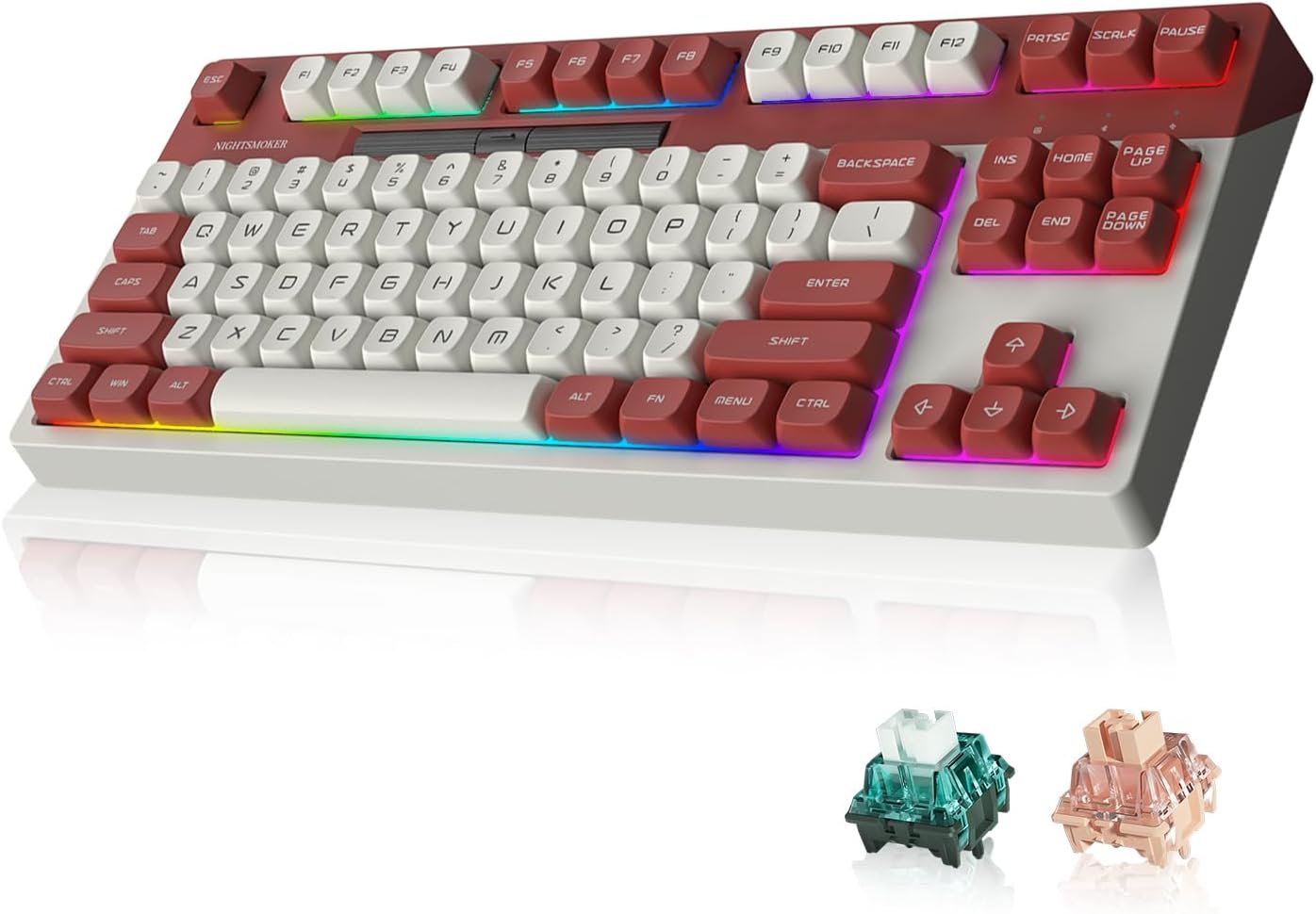
Image: DUKHARO NightSmoker Mechanical Gaming Keyboard, showcasing its design and the included MO V2 Green switches.
3. Product Overview
The DUKHARO NightSmoker is an 87-key tenkeyless mechanical keyboard featuring a gasket-mounted design for enhanced typing feel and sound. It supports multiple connectivity options and customizable RGB lighting.

Image: Overview of the DUKHARO NightSmoker keyboard, illustrating its gasket mount, wireless modes, ABS double-shot keycaps, south-facing RGB, hot-swappable design, DUKHARO MO switches, and programmable wheel.
Key Features:
- 87-Key Tenkeyless Layout: Compact design for efficiency and comfort.
- Hot-Swappable Sockets: Allows for easy switch replacement without soldering.
- Gasket-Mounted Design: Provides a cushioned typing experience and improved acoustics.
- DUKHARO MO V2 Green Switches: Tactile switches with pre-lubrication.
- Multi-Mode Connectivity: Supports USB-C wired, 2.4GHz wireless, and Bluetooth 5.0 (up to 3 devices).
- South-Facing RGB: 18 lighting modes with adjustable brightness and 4 backlit modes.
- Media Control Scroll Wheel: Dedicated wheel for volume and backlight brightness control, customizable via software.
- 4000mAh Battery: Extended wireless usage.

Image: Detailed view of DUKHARO MO V2 Green switches, including their material composition (PC top, Nylon bottom, POM stem) and operational specifications (pre-travel, total travel, operating force, switch type).
4. Setup
4.1. Charging the Keyboard
Before first use, it is recommended to fully charge the keyboard. Connect the supplied USB-C cable to the keyboard's USB-C port and the other end to a powered USB port (e.g., computer, USB wall adapter). The charging indicator will show the charging status.
4.2. Wired Connection
To use the keyboard in wired mode:
- Connect the USB-C cable to the keyboard and your computer.
- Switch the keyboard to wired mode by pressing Fn + 5.
- The keyboard will be recognized by your computer automatically.
4.3. 2.4GHz Wireless Connection
To connect via 2.4GHz wireless:
- Locate the 2.4GHz USB receiver (dongle) stored in the keyboard's magnetic compartment.
- Plug the USB receiver into an available USB port on your computer.
- Switch the keyboard to 2.4GHz wireless mode by pressing Fn + 4.
- The keyboard should connect automatically.

Image: The magnetic storage compartment for the 2.4GHz USB wireless receiver, located on the keyboard.
4.4. Bluetooth Connection
The keyboard supports up to three Bluetooth devices.
- Switch the keyboard to one of the Bluetooth modes by pressing Fn + 1, Fn + 2, or Fn + 3.
- To enter pairing mode, press and hold the selected Fn + (1/2/3) key combination for 3-5 seconds until the indicator light flashes rapidly.
- On your device (PC, Mac, tablet, etc.), open Bluetooth settings and search for new devices.
- Select "DUKHARO NightSmoker" from the list of available devices to pair.
- Once paired, the indicator light will stop flashing and remain solid.

Image: The DUKHARO NightSmoker keyboard connected to a laptop, tablet, and desktop PC, demonstrating its ability to connect to up to 5 devices via wired and wireless modes.
5. Operating Instructions
5.1. Switching Between Connected Devices
The keyboard can connect to up to 5 devices (3 Bluetooth, 1 2.4GHz, 1 Wired). To switch between them:
- Press Fn + 1, Fn + 2, or Fn + 3 to switch to a paired Bluetooth device.
- Press Fn + 4 to switch to the 2.4GHz wireless connection.
- Press Fn + 5 to switch to the USB wired connection.
5.2. RGB Lighting Control
The keyboard features south-facing RGB lighting with 18 light modes and 4 backlit modes. Use the following key combinations:
- Fn + \|: Cycle through RGB lighting modes.
- Fn + ↑ (Up Arrow): Increase backlight brightness.
- Fn + ↓ (Down Arrow): Decrease backlight brightness.
- Fn + ← (Left Arrow): Adjust lighting speed/direction.
- Fn + → (Right Arrow): Adjust lighting speed/direction.
5.3. Media Control Scroll Wheel
The dedicated scroll wheel provides quick access to media functions:
- Left Side of Wheel: Controls system volume (rotate left to decrease, right to increase).
- Right Side of Wheel: Controls keyboard backlight brightness (rotate left to decrease, right to increase).
The functions of the scroll wheel can be customized using the dedicated software.
5.4. Software Customization
The DUKHARO NightSmoker keyboard supports software for advanced customization, including:
- Key remapping
- Macro creation
- Customizing RGB lighting effects and colors
- Adjusting scroll wheel functions
Please visit the official DUKHARO website to download the latest software for your keyboard model.

Image: The DUKHARO NightSmoker keyboard connected to a laptop, displaying the software interface for key remapping and lighting customization.
5.5. Hot-Swapping Switches
The keyboard features hot-swappable sockets, allowing you to change switches without soldering.
- Using the keycap puller, carefully remove the desired keycap.
- Using the switch puller tool, gently grip the top and bottom clips of the switch and pull it straight up.
- Align the pins of the new switch with the holes on the PCB. Ensure the pins are straight.
- Press the new switch firmly into place until it clicks.
- Replace the keycap.
Note: Ensure the keyboard is disconnected or powered off before hot-swapping switches to prevent damage.

Image: A close-up view of the hot-swappable switch sockets on the keyboard's PCB, ready for switch installation or removal.
6. Maintenance
6.1. Cleaning
- Disconnect the keyboard from your computer before cleaning.
- Use a keycap puller to remove keycaps for thorough cleaning.
- Use a soft brush or compressed air to remove dust and debris from between the keys.
- Wipe the keycaps and keyboard surface with a slightly damp, lint-free cloth. Avoid excessive moisture.
- Do not use harsh chemicals or abrasive materials.
6.2. Battery Care
- Avoid fully discharging the battery frequently.
- Store the keyboard in a cool, dry place if not used for extended periods.
- Charge the keyboard regularly to maintain battery health.
7. Troubleshooting
If you encounter issues with your DUKHARO NightSmoker keyboard, refer to the following common solutions:
| Problem | Possible Solution |
|---|---|
| Keyboard not responding in wireless mode. |
|
| RGB lighting not working or stuck. |
|
| Keys not registering or double-typing. |
|
| Scroll wheel behaving erratically. |
|
8. Specifications
| Feature | Detail |
|---|---|
| Model | NightSmoker |
| Layout | 87-Key Tenkeyless |
| Switch Type | DUKHARO MO V2 Green (Tactile, Hot-Swappable) |
| Mounting Style | Gasket Mount |
| Keycaps | Double-shot ABS |
| Connectivity | USB-C Wired, 2.4GHz Wireless, Bluetooth 5.0 (3 channels) |
| Battery Capacity | 4000mAh Lithium Polymer |
| Backlighting | South-facing RGB (18 modes, adjustable brightness) |
| Compatible OS | Windows, macOS |
| Dimensions | 16.14 x 7.76 x 2.13 inches |
| Item Weight | 3.65 pounds |
9. Warranty and Support
DUKHARO products are designed for reliability and performance. For warranty information, technical support, or to download the latest software and drivers, please visit the official DUKHARO website or contact customer service through your retailer.
Please retain your proof of purchase for warranty claims.