
1. Product Overview
The Beok TS4G-WIFI-EP is a smart digital thermostat designed for electric underfloor heating systems. It features a touch screen interface, Wi-Fi connectivity, and compatibility with smart home platforms like Tuya, Google Home, and Alexa. This thermostat allows for precise temperature control, programmable heating schedules, and remote management via a smartphone application, enhancing comfort and energy efficiency in your home.
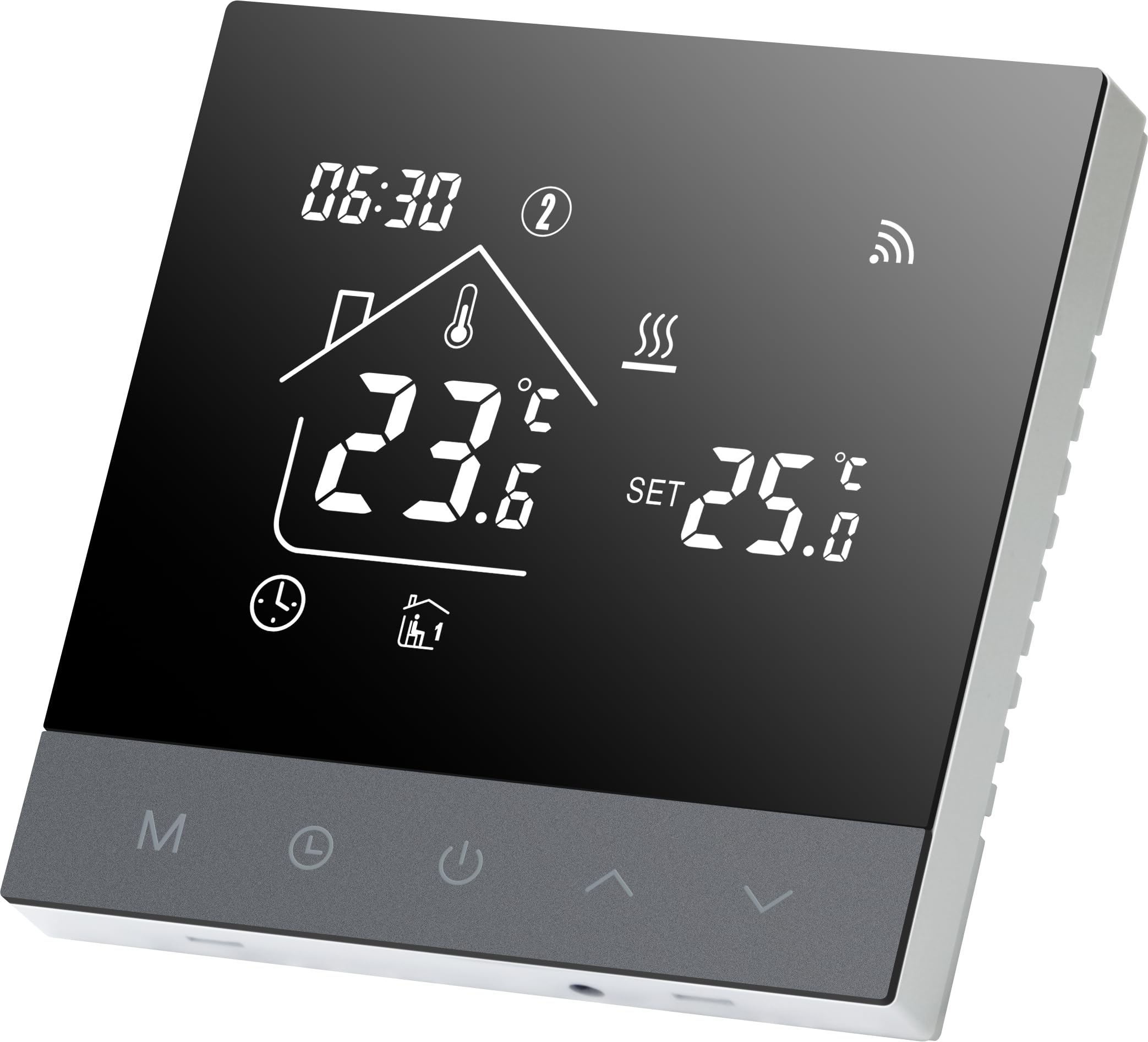
Image: The Beok TS4G-WIFI-EP Smart WiFi Thermostat, showcasing its sleek design and digital display.
2. Setup and Installation
2.1 Electrical Installation
The thermostat is designed for wall-mounted, integrated installation. Ensure the power supply is disconnected before beginning installation. Connect the power supply and heating cables according to the wiring diagram provided. The thermostat requires an AC 100-240V 50/60Hz power source and has a contact capacity of 16A.

Image: Detailed wiring diagram for the Beok TS4G-WIFI-EP thermostat, showing connections for AC power (L, N), heating load (N1, L1), and the external NTC sensor (terminals 6, 7). This diagram is crucial for proper electrical installation with electric heating mats, films, or cables.
2.2 App and Wi-Fi Connection
To enable smart control, connect the thermostat to your home Wi-Fi network (2.4 GHz required). Download the 'Tuya' or 'Smart Life' application on your smartphone.
- Download and register an account on the 'Tuya' or 'Smart Life' app.
- Power on the thermostat.
- Press and hold the 'Up' arrow button on the thermostat for 5 seconds until the Wi-Fi symbol blinks.
- In the app, click 'Add Device' or '+' on the homepage.
- Follow the in-app instructions to complete the device pairing process.

Image: Screenshot of the Tuya Smart Life app interface demonstrating the process of connecting the thermostat to Wi-Fi, showing the 'Add Device' option and the thermostat's display with a blinking Wi-Fi symbol.
2.3 Voice Control Integration
The thermostat is compatible with Amazon Alexa and Google Home for voice control. Once connected to the Tuya/Smart Life app, link your account to your preferred voice assistant application.
- Open your Alexa or Google Home app.
- Search for the 'Tuya Smart' or 'Smart Life' skill/service.
- Enable the skill and link your Tuya/Smart Life account.
- Discover devices. Your thermostat should now be controllable via voice commands, e.g., "Alexa, set the living room to 23 degrees Celsius."
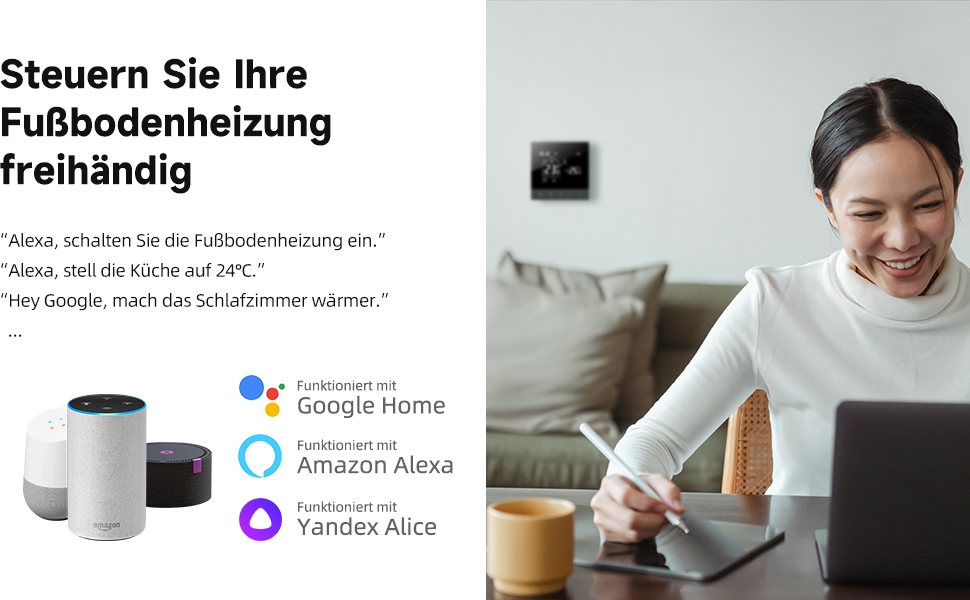
Image: A user interacting with a smart thermostat via voice command, with icons for Google Home, Amazon Alexa, and Yandex Alice, illustrating the voice control capabilities of the Beok thermostat.
3. Operating Instructions
3.1 Touch Screen Operation
The thermostat features sensitive touch buttons for direct control. You can adjust settings, switch modes, and modify temperatures directly on the device. The display shows current temperature, set temperature, time, and operating mode.
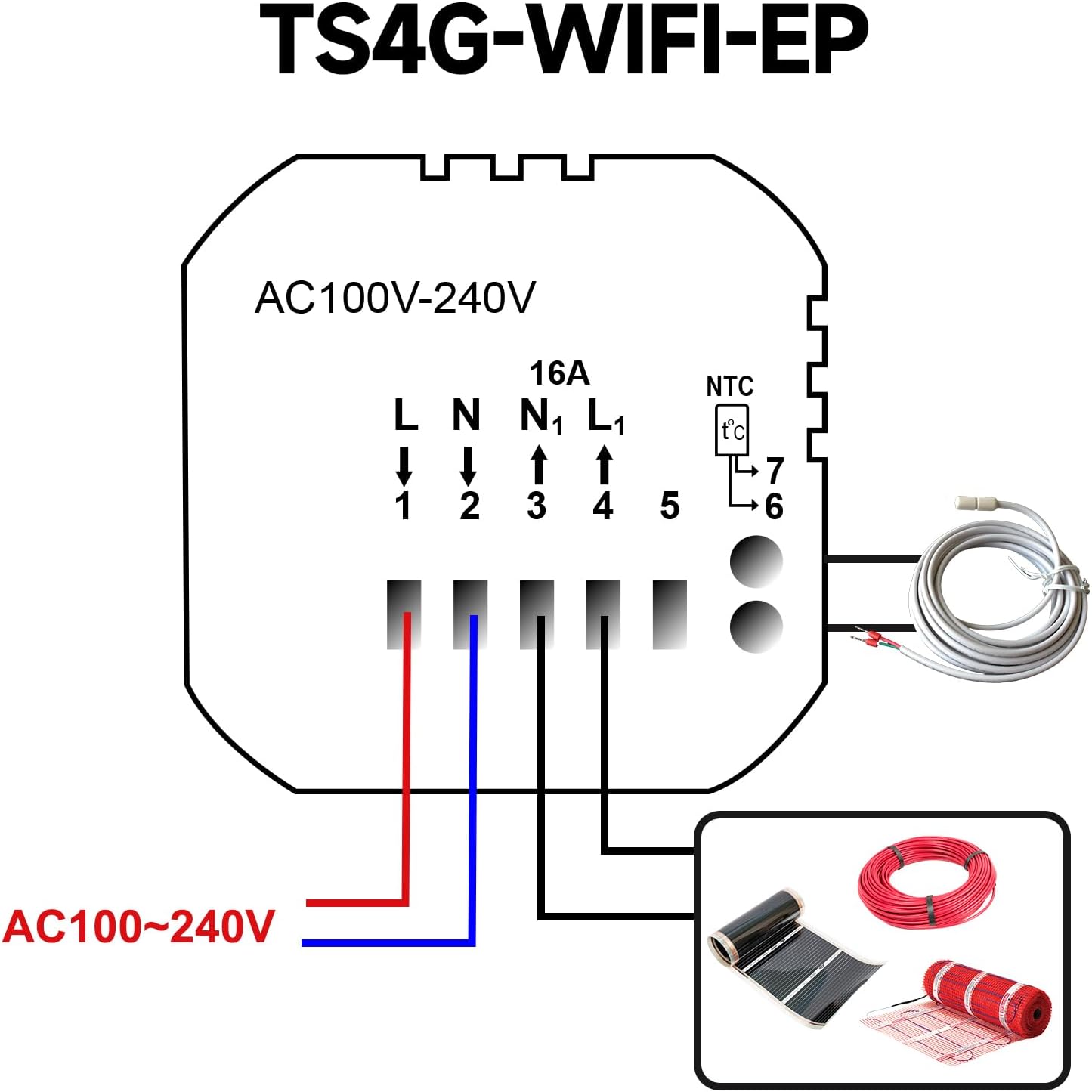
Image: Close-up view of the Beok thermostat's touch buttons, highlighting their sensitive touch functionality and the option to mute operational sounds.
3.2 Heating Program (DIY Schedule)
Create personalized heating schedules using the weekly programming mode (5+2, 6+1, or 7 days). You can set up to six distinct time periods per day with different temperatures to optimize comfort and energy savings.
- Access programming settings via the thermostat menu or the smartphone app.
- Select your preferred weekly mode (e.g., 5+2 for weekdays/weekend).
- For each day, define up to six time periods and their corresponding target temperatures.
- Ensure time periods are set chronologically.

Image: Screenshots from the smartphone app showing the weekly programming settings, allowing users to define different temperatures for up to six time periods per day and choose between 5+2, 6+1, or 7-day schedules.
3.3 Backlight Adjustment
The thermostat's backlight can be adjusted to suit your preference or turned off completely, which is useful for nighttime. This setting can be changed through the thermostat's advanced settings menu or the smartphone app.

Image: A series of thermostat displays showing different backlight intensity levels (high, medium, low, off), alongside a smartphone app screen demonstrating how to adjust the backlight brightness setting.
3.4 Child Lock Function
To prevent unintended changes, the thermostat includes a child lock feature. This can be activated to disable the touch screen controls, ensuring your settings remain undisturbed.

Image: A child's hand reaching for the thermostat screen, with a lock icon overlaid, visually representing the child lock function that prevents accidental adjustments.
4. Maintenance
The Beok TS4G-WIFI-EP thermostat requires minimal maintenance. Regularly wipe the screen and casing with a soft, dry cloth to keep it clean. Avoid using abrasive cleaners or solvents, as these can damage the surface. Ensure the thermostat's vents are not obstructed to allow for proper temperature sensing.
5. Troubleshooting
5.1 Programming Issues (e.g., Always in Night Mode)
If your programming does not seem to work as expected, or the thermostat appears stuck in a specific mode (e.g., night mode), verify the following:
- Ensure all six time periods are set chronologically, from 0:00 to 23:59.
- The last period defined must be set before 23:59.
- Double-check that the temperatures for each period are correctly entered.
5.2 Room Temperature Discrepancy
If the displayed room temperature differs from the actual temperature, you can calibrate the sensor:
- Access the advanced settings menu on the thermostat or through the app.
- Look for the 'ADJ' or 'Temperature Calibration' setting.
- Adjust the value to match the actual room temperature measured by an independent thermometer.
5.3 Wi-Fi Connection Problems
If the thermostat fails to connect to Wi-Fi or loses connection:
- Ensure your Wi-Fi network is 2.4 GHz. The thermostat does not support 5 GHz networks.
- Check that your Wi-Fi router is working correctly and within range.
- Restart your router and the thermostat.
- Repeat the Wi-Fi connection steps in the app (Section 2.2).
5.4 Power Outage and Settings Retention
The thermostat is designed to retain all program settings and the clock in the event of a power failure, so no reprogramming is typically required after a power outage.
6. Product Specifications
| Feature | Specification |
|---|---|
| Brand | BEOK CONTROLS |
| Model Number | TS4G-WIFI-EP-F |
| Color | Black |
| Dimensions (L x W x H) | 8.6 x 8.6 x 4 cm |
| Weight | 220 Grams |
| Voltage | AC 100-240 V |
| Frequency | 50/60 Hz |
| Contact Capacity | 16 A |
| Temperature Accuracy | 0.5 ℃ |
| Material | Plastic |
| Connectivity Technology | Wi-Fi (2.4 GHz) |
| External Sensor | 3m NTC Sensor included |
| Backlight | Yes |
| Style | Electric Underfloor Heating 16A |
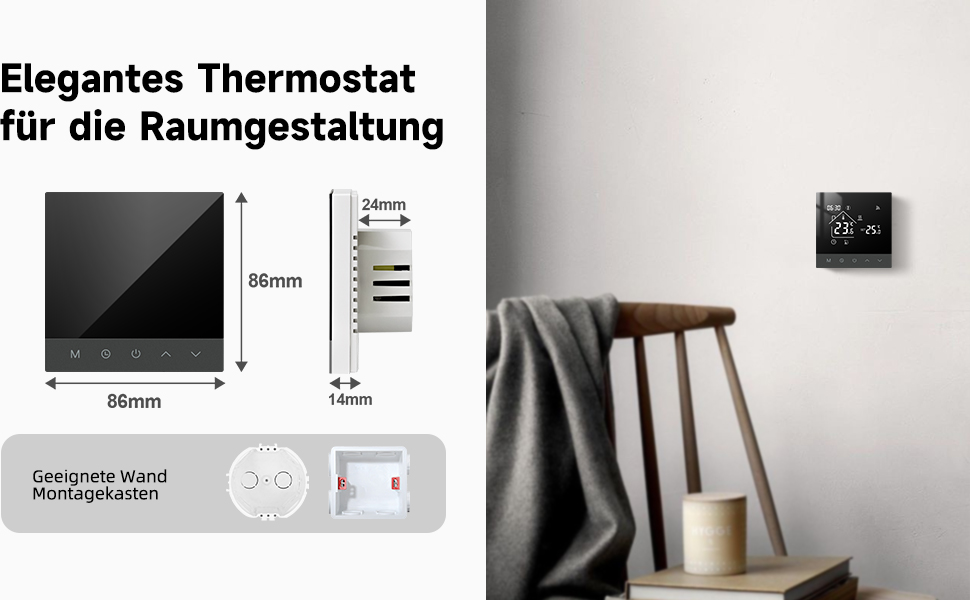
Image: Diagram illustrating the dimensions of the Beok thermostat (86mm x 86mm x 14mm) and examples of suitable wall-mounted installation boxes.
7. Support and Contact Information
For any questions regarding the installation, operation, or troubleshooting of your Beok TS4G-WIFI-EP Smart WiFi Thermostat, please refer to the detailed manual included with your product. If further assistance is required, please contact Beok Controls customer support through the contact information provided on their official website or through your purchase platform.