
1. Introduction
This manual provides detailed instructions for the installation, operation, and maintenance of your BEATBOX BB-CS-009T 9-inch Full HD 1080 Touch Screen Double Din Player. This advanced car stereo features Android 12, a Gorilla Glass IPS display, 2GB RAM, 32GB ROM, GPS, Wi-Fi, Bluetooth, and Mirror Link capabilities. Please read this manual thoroughly before using the product to ensure proper function and safety.
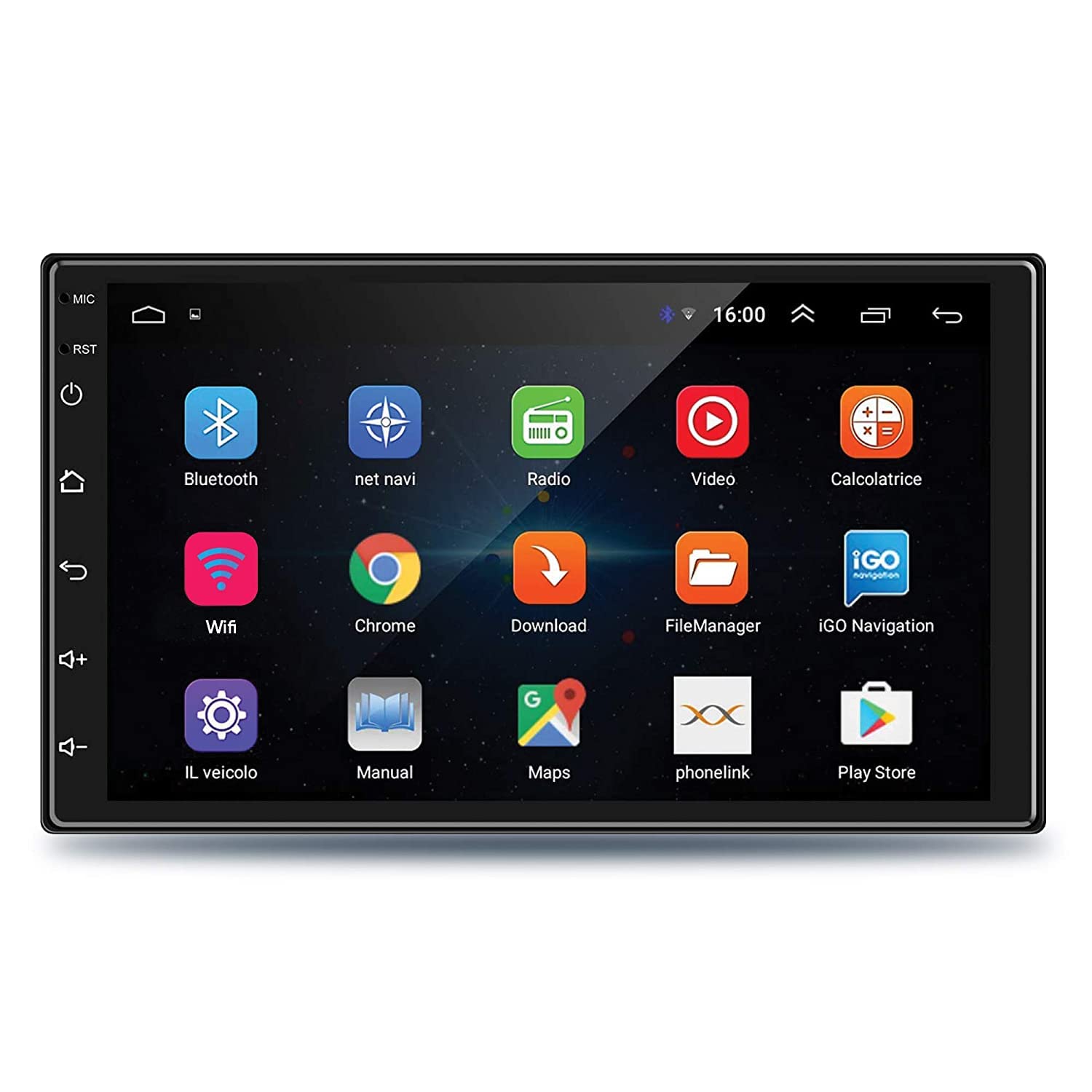
Figure 1.1: BEATBOX BB-CS-009T Car Stereo with Android interface.
2. Safety Information
Always observe the following safety precautions to prevent injury or damage to the device:
- Professional Installation Recommended: Due to the complexity of car electrical systems, professional installation is highly recommended. Incorrect wiring can cause damage to the vehicle or the device.
- Avoid Distractions: Do not operate the device or view videos while driving. Always prioritize safe driving.
- Power Supply: Ensure the device is connected to a 12V DC power supply with negative grounding.
- Temperature: Avoid exposing the device to extreme temperatures, direct sunlight for prolonged periods, or high humidity.
- Cleaning: Use a soft, dry cloth for cleaning. Do not use abrasive cleaners or solvents.
- Ventilation: Ensure proper ventilation around the unit to prevent overheating.
3. What's in the Box
Verify that all the following components are included in your package:
- BEATBOX BB-CS-009T Car Display Unit
- Coupler (Wiring Harness)
- Navigation Wire (GPS Antenna)
- Microphone (Mic)
- Bass Tube Support Wiring Input
- RCA Cable
- Camera RC Cable
- USB Cable 1
- USB Cable 2
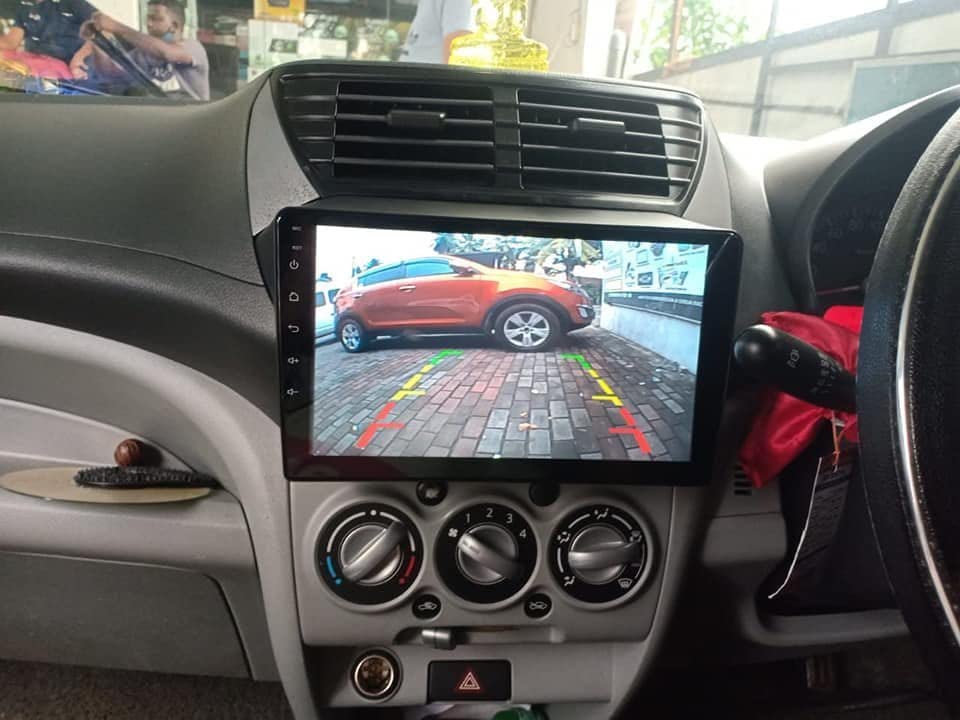
Figure 3.1: Included wiring accessories.
4. Setup and Installation
Installation of the BEATBOX BB-CS-009T requires knowledge of car electrical systems. It is strongly recommended to have the unit installed by a qualified professional.
4.1 Wiring Connections
Refer to the wiring diagram provided with your vehicle and the BEATBOX unit for specific connections. Ensure all connections are secure to prevent intermittent issues.
- Power Connection: Connect the main power harness to the vehicle's power supply (12V DC, negative ground).
- Speaker Connections: Connect the speaker wires to the corresponding vehicle speakers.
- GPS Antenna: Connect the GPS antenna to the designated port on the unit and mount it in a location with a clear view of the sky (e.g., dashboard).
- USB Ports: Connect the USB cables for external storage or device charging.
- Rear View Camera: If installing a rear view camera, connect its video input to the 'CAM IN' port and its power to the reverse light circuit.
- Microphone: Connect the external microphone for improved call quality.
Figure 4.1: Rear connections of the BEATBOX BB-CS-009T.
4.2 Initial Power On
After installation, turn on your vehicle's ignition. The unit should power on automatically. Follow any on-screen prompts for initial setup, such as language selection and time zone.
5. Operating Instructions
The BEATBOX BB-CS-009T runs on Android 12, offering a familiar and intuitive user experience. Navigate through applications using the touch screen.

Figure 5.1: BEATBOX BB-CS-009T installed in a vehicle, showing the main interface.
5.1 GPS Navigation
The unit supports high-precision GPS navigation. Pre-installed maps or downloadable online maps can be used. To use:
- Tap the 'Navi' or 'Maps' icon on the home screen.
- Ensure the GPS antenna is properly connected and has a clear signal.
- Enter your destination and follow the on-screen directions.
5.2 Wi-Fi Connectivity
Connect to the internet via Wi-Fi to download apps, stream media, and browse the web.
- Go to 'Settings' > 'Network & Internet' > 'Wi-Fi'.
- Select your desired Wi-Fi network and enter the password.
- Once connected, you can access the Google Play Store and other online services.
5.3 Bluetooth Functions
Pair your mobile device via Bluetooth for hands-free calling, music streaming, and phonebook access.
- Tap the 'Bluetooth' icon on the home screen.
- Enable Bluetooth on your mobile device and search for available devices.
- Select 'BEATBOX' (or similar name) from the list and confirm pairing.
- You can now make/receive calls and play music through the car stereo.
5.4 Mirror Link
Mirror Link allows you to display your smartphone screen (Android & iOS) directly on the BEATBOX unit.
- Open the 'Mirror Link' application on the car stereo.
- Follow the on-screen instructions to connect your smartphone via USB or Wi-Fi.
- Once connected, your phone's screen will be mirrored on the unit.
5.5 FM Radio
Access the FM radio for news and music.
- Tap the 'Radio' icon.
- Use the scan function to find available stations or manually tune to a frequency.
5.6 Split Screen Display
The split-screen feature allows you to run two applications simultaneously, such as navigation and music.
- Open the first application.
- Press and hold the 'Recent Apps' button (usually a square icon) or swipe up from the bottom and hold, then drag the app to one side of the screen.
- Select the second application to fill the other half of the screen.
5.7 Rear View Camera Function
When a compatible rear view camera is connected, the display automatically switches to the camera feed when the vehicle is put into reverse gear.

Figure 5.2: Rear view camera display on the BEATBOX BB-CS-009T.
6. Maintenance
6.1 Cleaning the Display
The Gorilla Glass display is scratch-resistant but can accumulate dust and fingerprints. Use a soft, lint-free cloth to gently wipe the screen. For stubborn marks, slightly dampen the cloth with water; avoid harsh chemicals or abrasive materials.
6.2 Software Updates
Periodically check for software updates through the unit's settings or the manufacturer's website to ensure optimal performance and access to new features.
7. Troubleshooting
If you encounter issues with your BEATBOX BB-CS-009T, refer to the following common problems and solutions:
| Problem | Possible Cause | Solution |
|---|---|---|
| Unit does not power on. | Incorrect wiring; Blown fuse; No power supply. | Check power connections and fuses. Ensure the vehicle's ignition is on. Consult a professional installer. |
| No sound. | Speaker wires disconnected; Volume too low; Mute function active. | Check speaker wiring. Increase volume. Disable mute. |
| GPS signal weak or unavailable. | GPS antenna improperly placed or disconnected. | Ensure GPS antenna is connected and placed in a location with a clear view of the sky. |
| Bluetooth connection issues. | Bluetooth not enabled; Device not discoverable; Interference. | Ensure Bluetooth is enabled on both devices. Restart both devices. Clear previous pairings and try again. |
| Touch screen unresponsive. | Temporary software glitch. | Restart the unit (turn off vehicle ignition and restart). If issue persists, perform a factory reset (refer to settings). |
8. Specifications
| Feature | Detail |
|---|---|
| Model Number | BB-CS-009T |
| Display Size | 9 Inches |
| Display Type | Full HD 1080 IPS Touch Screen with Gorilla Glass |
| Operating System | Android 12 |
| RAM | 2GB |
| ROM | 32GB |
| Connectivity | Wireless, Bluetooth, USB, Wi-Fi |
| Special Features | GPS Navigation, Mirror Link, Split Screen, Rear View Function, Google Play Store, YouTube |
| Audio Output | 50W x 4, Stereo |
| Mounting Type | Dashboard Mount (Double Din) |
| Product Dimensions | 26 x 5 x 13 cm |
| Item Weight | 1.5 kg |
9. Warranty Information
The BEATBOX BB-CS-009T comes with a 1 Year Warranty from the date of purchase. This warranty covers manufacturing defects and malfunctions under normal use. It does not cover damage caused by improper installation, misuse, accidents, unauthorized repairs, or normal wear and tear. Please retain your proof of purchase for warranty claims.
10. Customer Support
For technical assistance, warranty claims, or any other inquiries regarding your BEATBOX BB-CS-009T, please contact your authorized dealer or the manufacturer's customer service. Refer to your purchase documentation for specific contact details.