
HAVisikr da6d12df-da00-4578-99cd-74ae5b9ebef3
HAVisikr 24.4-inch 3D Hologram Fan User Manual
Model: da6d12df-da00-4578-99cd-74ae5b9ebef3
1. Safety Information
Please read all safety warnings before operating the device. Failure to follow these instructions may result in electric shock, fire, or serious injury.
- Keep a distance of at least 3 meters (approximately 10 feet) from the device when it is operating to avoid contact with the rotating blades.
- Ensure the device is installed securely in a stable location to prevent accidental falls.
- Do not touch the fan blades while the device is powered on or rotating.
- This product is intended for use by individuals 18 years of age or older.
- Do not expose the device to water or excessive moisture.
- Use only the provided power adapter and cables.
2. Package Contents
Verify that all items are present in the package before proceeding with installation.
Video: Unboxing the HAVisikr 3D Hologram Fan. This video demonstrates the contents of the product package, including the main unit, fan blades, power adapter, remote control, and installation accessories.
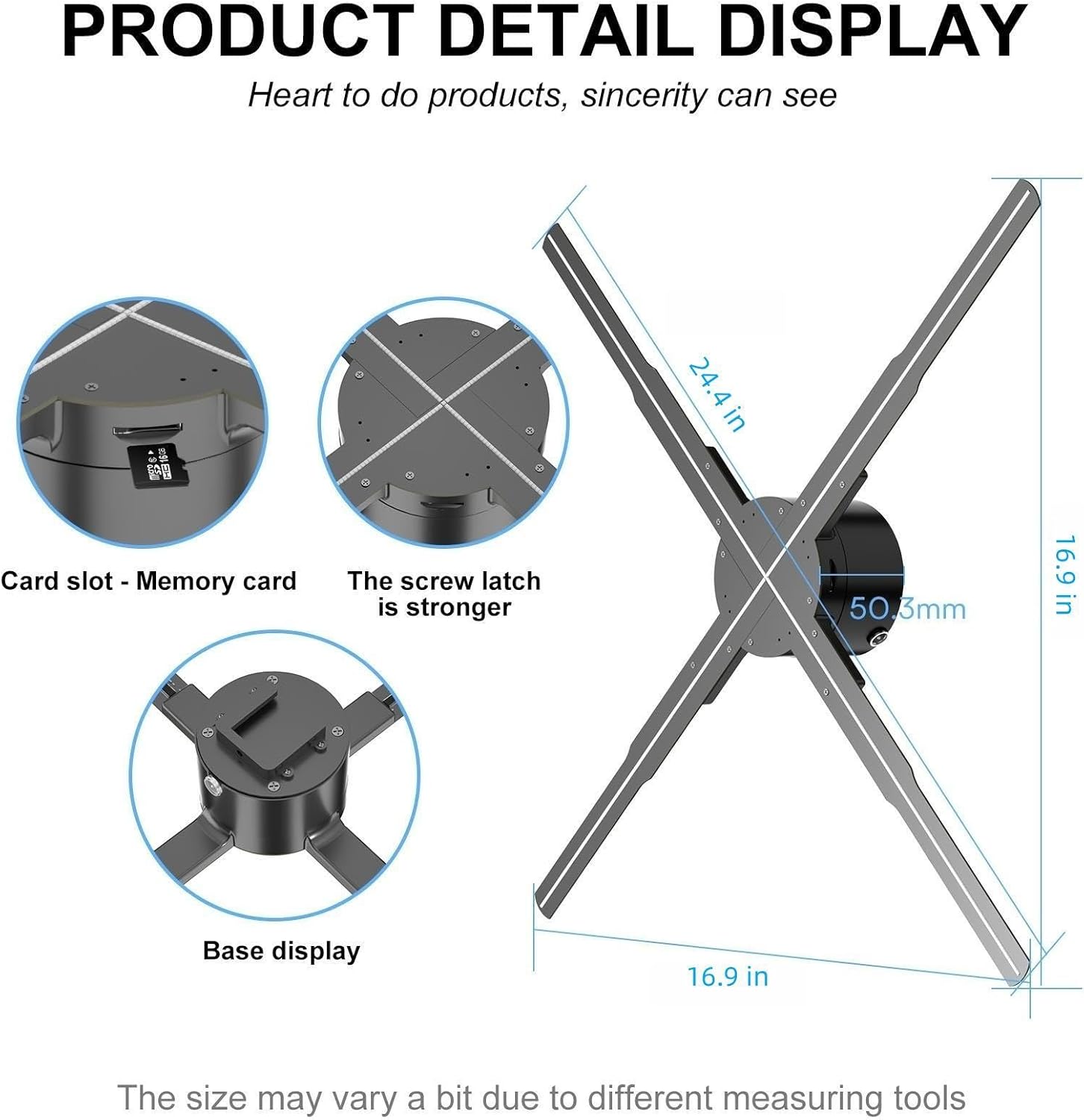
Image: Overview of the HAVisikr 3D Hologram Fan and its included accessories, such as the main unit, LED fan blades, power adapter, remote control, and user manual.
- 3D Holographic Fan Host
- LED Fan Blades (4x)
- Power Adapter
- Power Cord
- Multi-functional Remote Control
- Screw Pack & Screwdrivers
- User Manual
3. Setup and Installation
Follow these steps to assemble and prepare your 3D Hologram Fan for operation.
Video: Detailed product installation guide for the HAVisikr 3D Hologram Fan, showing step-by-step assembly.
3.1 Assembling the Fan Blades
- Identify the fan blades and the main host unit. The host unit has marked slots (A and B).
- Ensure the side of the fan blade with the LED lights faces upwards, and the side with the circuit and chip faces downwards.
- Match the 'A' fan blades to the 'A' slots on the host and 'B' fan blades to the 'B' slots.
- Carefully insert each fan blade into its corresponding slot.
- Secure each fan blade with the provided screws using the screwdriver. Ensure all screws are tightened to prevent movement during operation.
- Verify that the safety buckle is fully spring-locked after installation.
3.2 Power Connection
- Connect the power cord to the power adapter.
- Plug the power adapter into the designated power port on the 3D Hologram Fan host.
- Connect the power cord to a suitable electrical outlet.
4. Operating Instructions
Learn how to control your HAVisikr 3D Hologram Fan and display content.

Image: The HAVisikr 3D Hologram Fan in operation, displaying a holographic hand, with a smartphone showing the control app interface.
4.1 Powering On/Off
- Once connected to power, the device will automatically power on.
- Use the remote control or the mobile application to turn the display on or off.
4.2 Connecting via Wi-Fi and App Control
The HAVisikr 3D Hologram Fan supports control via a dedicated mobile application (compatible with Android and iOS).
- Download the 'Holoscope' or '5D Displayer' application from your device's app store.
- On your smartphone or tablet, navigate to Wi-Fi settings.
- Locate and connect to the Wi-Fi network broadcast by the hologram fan (e.g., '3D-P62-XXXX'). The default password is typically '12345678'.
- Open the installed application. The app should automatically detect the connected fan.
- From the app, you can manage content, adjust brightness, control rotation, and enable Bluetooth audio.

Image: The HAVisikr 3D Hologram Fan app interface, showing controls for rotary imaging, brightness, angle modulation, and Bluetooth audio.

Image: The HAVisikr 3D Hologram Fan displaying generated 3D text and emojis, demonstrating Wi-Fi connection control.
4.3 Uploading Content
The app provides a rich library of 3D materials and supports uploading your own videos.
Video: Demonstration of various 3D holographic effects and content displays on the HAVisikr fan.

Image: The HAVisikr 3D Hologram Fan displaying its extensive 3D material library, which users can access for content.
- Use the app's content management features to select videos or images from the pre-loaded library.
- To upload custom content, convert your videos to the appropriate 3D holographic format using the provided software (often found on the included Micro SD card or available for download).
- Transfer the converted files to the device via the app's transfer function or by directly loading them onto the Micro SD card.
4.4 Bluetooth Audio
The fan supports Bluetooth audio for synchronized sound with your holographic displays.
- Ensure your external Bluetooth speaker is in pairing mode.
- Within the HAVisikr app, navigate to the Bluetooth settings and connect to your speaker.
- Adjust volume and audio settings through the app.

Image: The HAVisikr 3D Hologram Fan connected to an external Bluetooth speaker, providing synchronized audio for the holographic display.
5. Maintenance
Proper maintenance ensures the longevity and optimal performance of your 3D Hologram Fan.
- Keep the fan blades and LED beads clean and free from dust. Use a soft, dry cloth for cleaning.
- Avoid exposing the device to direct sunlight or extreme temperatures.
- Regularly check for any loose screws or connections, especially after moving the device.
- Store the device in its original packaging or a protective case when not in use to prevent damage.
6. Troubleshooting
If you encounter issues with your HAVisikr 3D Hologram Fan, refer to the following common solutions.
6.1 Device Not Powering On
- Check if the power adapter is securely connected to both the device and the electrical outlet.
- Ensure the power outlet is functional by testing it with another device.
- Verify that the power cord is not damaged.
6.2 Wi-Fi Connectivity Issues
- Ensure your mobile device's Wi-Fi is enabled and you are within range of the hologram fan's Wi-Fi signal.
- Double-check the Wi-Fi password (default is '12345678').
- Restart both your mobile device and the hologram fan.
- If the fan's Wi-Fi network does not appear, try resetting the fan (refer to the app settings for a reset option).
- Some users have reported issues with Wi-Fi connectivity on certain devices (e.g., specific iPad or iPhone models). Ensure your app and device firmware are up to date.
6.3 Content Upload/Display Problems
- Verify that your video files are in the correct format and resolution for holographic display. Refer to the app or user manual for supported formats.
- Ensure the Micro SD card is properly inserted and not corrupted. Try reformatting the card if issues persist (this will erase all content).
- Check the app for any error messages during content transfer.
- If using the app, ensure a stable Wi-Fi connection between your device and the fan during transfer.
6.4 Poor Image Quality or Flickering
- Ensure the fan blades are clean and free from dust or smudges.
- Check the ambient lighting conditions. Optimal display is achieved in darker environments.
- Verify that the fan blades are securely installed and not loose.
- Update the device firmware if available, as this can improve display performance.
7. Specifications
| Feature | Detail |
|---|---|
| Brand | HAVisikr |
| Model Number | da6d12df-da00-4578-99cd-74ae5b9ebef3 |
| Display Size | 24.4 inches (62cm) |
| Resolution | 2000 x 1444 PX |
| LED Beads | 722 pcs HD LED Beads |
| Connectivity | Wi-Fi, Bluetooth |
| Special Features | Bluetooth Audio, Portable |
| Item Weight | 2 pounds |
| Product Dimensions | 3 x 7 x 13 inches |
| Power Source | 1 Lithium Metal battery required (for remote control, not main unit) |
| Recommended Use | Business, Advertising, Display |

Image: Internal components of the HAVisikr 3D Hologram Fan, highlighting the high-speed brushless motor, high-definition LED lamp beads, and ARM processor chip.
8. Warranty and Support
HAVisikr is committed to providing high-quality products and excellent customer service.
- Warranty: The product includes a 1-year warranty for replacement parts.
- Customer Service: HAVisikr offers 3 years of professional customer service and technical support.
- For any questions regarding installation, operation, or technical assistance, please contact HAVisikr customer support directly.