
F3030
AULA F3030 Gaming Keyboard User Manual
Model: F3030 | Brand: Generic
1. Introduction
Welcome to the user manual for your AULA F3030 Gaming Keyboard. This mechanical wired keyboard is designed for an enhanced gaming and typing experience, featuring a durable metal panel, responsive Blue mechanical switches, and vibrant green backlighting. This manual will guide you through the setup, operation, and maintenance of your new keyboard.
2. Key Features
- Multimedia Knob: Easily adjust volume or mute audio with a simple turn or press.
- Durable Metal Panel: Provides a robust and stable base for intense gaming sessions.
- Blue Mechanical Switches: Offer tactile feedback and an audible click for precise keystrokes.
- Green Backlight: Illuminates keys for visibility in low-light conditions and adds aesthetic appeal.
- EN 104 Key Layout: Standard full-size keyboard layout for comprehensive functionality.
- Full N-Key Rollover & Anti-Ghosting: Ensures every keystroke is registered accurately, even during rapid, simultaneous presses.

Image: Overview of key features including the metal panel, blue light, and mechanical switches.
3. Package Contents
Please check the package contents to ensure all items are present:
- AULA F3030 Gaming Keyboard
- User Manual (this document)
4. Setup Guide
Setting up your AULA F3030 Gaming Keyboard is straightforward:
- Unpack the keyboard from its packaging.
- Locate an available USB port on your computer.
- Plug the USB cable of the keyboard into the USB port.
- Your operating system should automatically detect and install the necessary drivers. No additional driver installation is typically required for basic functionality.

Image: The AULA F3030 Gaming Keyboard ready for connection.
5. Operating Instructions
5.1 Multimedia Knob and Buttons
The AULA F3030 keyboard features a versatile multimedia knob and dedicated multimedia buttons for quick control over your audio and media playback:
- Multimedia Knob: Rotate the knob clockwise to increase volume, counter-clockwise to decrease volume. Press the knob to mute or unmute audio.
- M1 Button: Typically functions as 'Previous Track'.
- M2 Button: Typically functions as 'Play/Pause'.
- M3 Button: Typically functions as 'Next Track'.
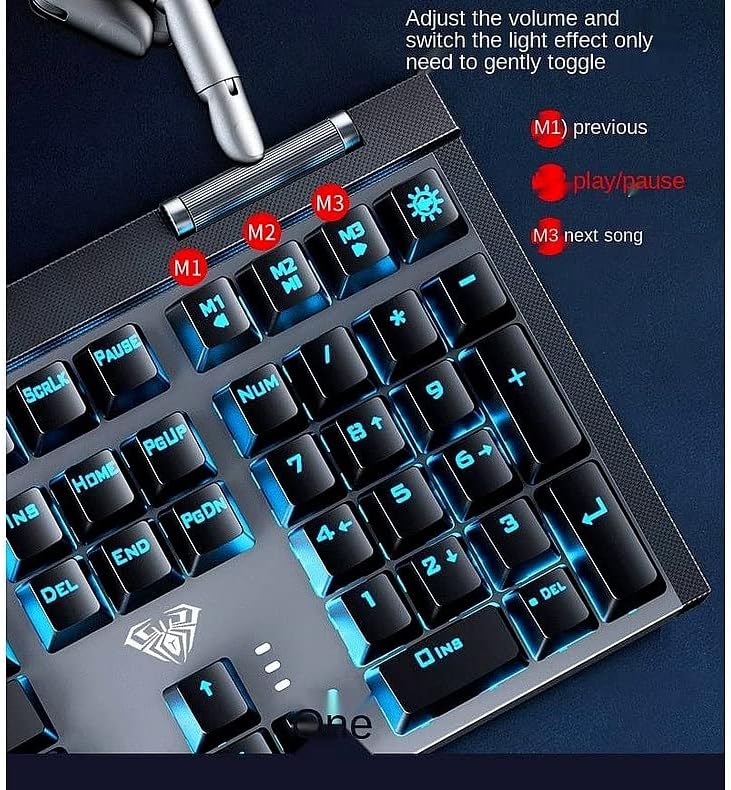
Image: Detailed view of the multimedia knob and dedicated media control buttons.
5.2 Backlight Control
The keyboard features a green backlight. Specific controls for changing backlight modes or brightness may be available through function key combinations (e.g., Fn + specific keys). Refer to the keyboard's keycap legends or try common combinations like Fn + directional arrows or Fn + Ins/Home/PgUp/Del/End/PgDn for backlight adjustments.

Image: The AULA F3030 keyboard showcasing its green backlight.
5.3 Mechanical Switches
The AULA F3030 uses Blue mechanical switches, known for their distinct tactile bump and audible click. This provides clear feedback with each keystroke, which is preferred by many typists and gamers for its responsiveness and accuracy.

Image: A close-up of the Blue mechanical switch, highlighting its design.
6. Maintenance and Care
To ensure the longevity and optimal performance of your AULA F3030 Gaming Keyboard, follow these maintenance tips:
- Cleaning: Use a soft, dry cloth to wipe down the keyboard surface. For dust and debris between keys, use compressed air. For stubborn grime, a slightly damp cloth (not wet) can be used, ensuring no liquid enters the keyboard.
- Avoid Liquids: Keep liquids away from the keyboard to prevent damage to the internal components.
- Storage: When not in use, store the keyboard in a clean, dry environment away from direct sunlight or extreme temperatures.
7. Troubleshooting
If you encounter any issues with your AULA F3030 Gaming Keyboard, please refer to the following common solutions:
- Keyboard Not Responding:
- Ensure the USB cable is securely plugged into both the keyboard and the computer.
- Try plugging the keyboard into a different USB port on your computer.
- Restart your computer.
- Backlight Not Working:
- Check if the backlight has been turned off via a function key combination (e.g., Fn + light icon key).
- Ensure the keyboard is properly connected and receiving power.
- Keys Not Registering:
- Clean around the affected key to ensure no debris is obstructing the switch.
- If only specific keys are affected, it might indicate a hardware issue.
If the problem persists after trying these steps, please contact customer support.
8. Product Specifications
| Specification | Detail |
|---|---|
| Product Dimensions | 27 x 22 x 5 cm |
| Weight | 1.55 kg |
| Manufacturer | Aula |
| Connectivity Technology | USB Wired |
| Keyboard Description | Multimedia |
| Special Features | Backlit, Anti-Ghosting, N-Key Rollover |
| Number of Keys | 104 |
| Style | Modern |
| Material | Metal |
| Theme | Gaming |
| Compatible Devices | Laptop (and other devices with USB port) |
9. Warranty and Support
For information regarding warranty coverage and technical support for your AULA F3030 Gaming Keyboard, please refer to the warranty card included with your purchase or contact the retailer/manufacturer directly. Keep your proof of purchase for warranty claims.
Related documentsF3030


Ask a question about this manual
Ask about setup, troubleshooting, compatibility, parts, safety, or missing instructions. Manuals+ will review the question and use this page’s manual context to help answer it.