
1. Introduction
Thank you for purchasing the AIMO D35 Mini Thermal Label Printer. This compact and versatile device allows you to print various types of labels, including text, icons, frames, photos, 1D codes, and QR codes, directly from your smartphone. Its inkless thermal printing technology ensures cost-effective and efficient labeling for home, office, and study organization. This manual provides detailed instructions on how to set up, operate, and maintain your printer.

Figure 1.1: AIMO D35 Mini Thermal Label Printer and accessories.
2. Package Contents
Please check the package contents to ensure all items are present:
- 1 x AIMO D35 Thermal Printer
- 5 x Thermal Label Rolls (various types: 12x22mm, 15mmx6M, 14x50mm, 14x30mm transparent, 14x30mm)
- 1 x USB Cable
3. Product Overview
Familiarize yourself with the main components of your AIMO D35 printer.
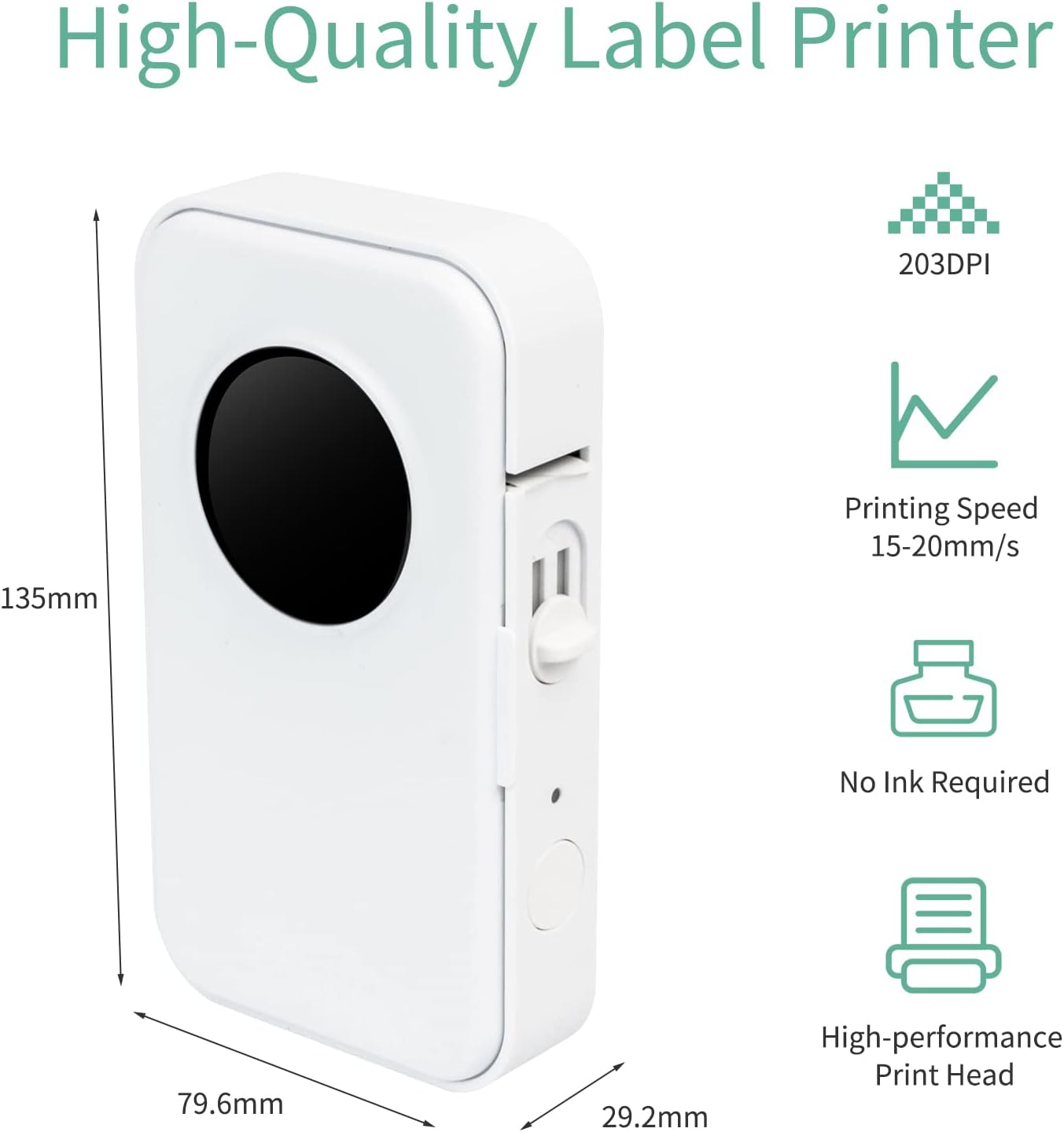
Figure 3.1: Product dimensions and key features.
The printer measures approximately 135mm x 79.6mm x 29.2mm and weighs about 164.8g, making it highly portable.
Key features include:
- Thermal Printing: No ink cartridges required, reducing operational costs.
- High Resolution: 203 DPI print resolution for clear labels.
- Compact Design: Lightweight and portable, fits easily into pockets or bags.
- Bluetooth Connectivity: Seamless connection to Android and iOS devices.
4. Setup Guide
4.1 Charging the Printer
Before first use, fully charge the printer. Connect the included USB cable to the printer's charging port and a 5V 2A power adapter (not included). The charging time is approximately 2-3 hours.
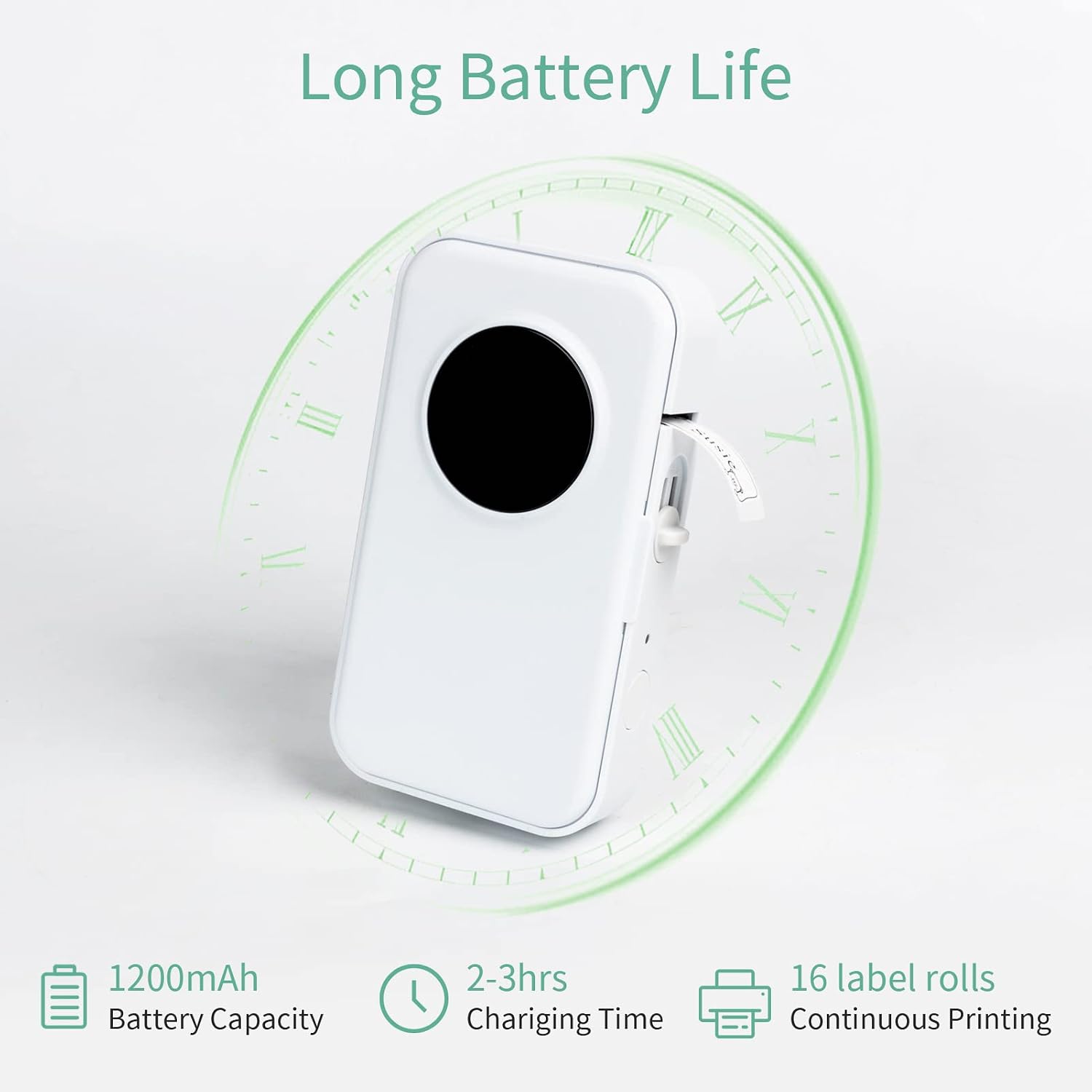
Figure 4.1: Battery specifications and performance.
A full charge allows printing of up to 16 label rolls and provides a standby time of up to 30 hours.
4.2 Installing the "Print Master" App
The AIMO D35 printer operates via a dedicated mobile application. Follow these steps to install it:
- For Android devices, search for "Print Master" in the Google Play Store.
- For iOS devices, search for "Print Master" in the Apple App Store.
- Download and install the application.

Figure 4.2: App download instructions.
4.3 Connecting via Bluetooth
- Ensure your printer is charged and powered on.
- Enable Bluetooth on your smartphone.
- Open the "Print Master" app. The app will automatically search for available printers.
- Select "D35" or a similar device name from the list to connect. Once connected, the indicator light on the printer may change, and the app will confirm the connection.
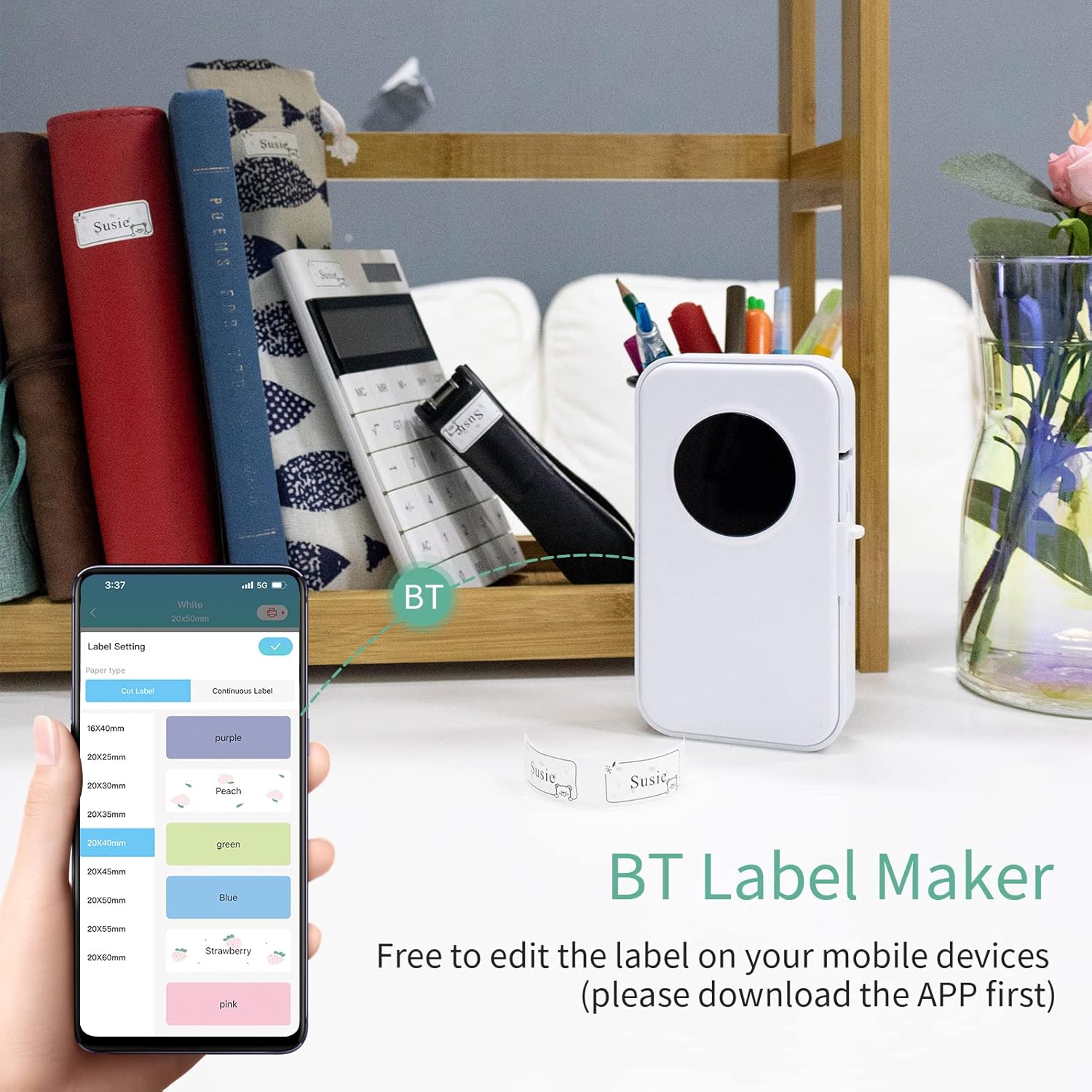
Figure 4.3: Bluetooth connection via the app.
5. Operating Instructions
5.1 Loading Label Rolls
- Open the printer's cover.
- Insert the label roll with the printing surface facing up. Ensure the roll is seated correctly in the compartment.
- Pull a small portion of the label paper out beyond the cutting edge.
- Close the printer cover firmly until it clicks into place.

Figure 5.1: Supported label sizes and loading example.
The printer supports label widths of 12mm and lengths of 6mm, 12mm, 14mm, and 15mm.
5.2 Designing and Printing Labels
The "Print Master" app offers a wide range of customization options:
- Open the "Print Master" app and ensure your printer is connected.
- Select the desired label size and type (e.g., continuous or cut label).
- Use the app's interface to add text, icons, frames, photos, 1D codes, QR codes, and other elements. You can adjust fonts, sizes, and positions.
- Preview your label design.
- Tap the "Print" button to send the design to the printer.

Figure 5.2: App interface for label design.
Examples of label applications:

Figure 5.3: Practical applications of labels (switch identification, name labels, cable labels).
6. Maintenance
Proper maintenance ensures the longevity and optimal performance of your printer.
- Cleaning the Print Head: If print quality degrades, gently wipe the thermal print head with a cotton swab lightly dampened with isopropyl alcohol. Ensure the printer is off and cool before cleaning.
- Cleaning the Exterior: Use a soft, dry cloth to clean the exterior of the printer. Do not use abrasive cleaners or solvents.
- Storage: Store the printer in a cool, dry place away from direct sunlight and extreme temperatures.
- Battery Care: To preserve battery life, charge the printer regularly, even if not in frequent use. Avoid fully discharging the battery for extended periods.

Figure 6.1: Direct thermal printing in action.
7. Troubleshooting
| Problem | Possible Cause | Solution |
|---|---|---|
| Printer does not turn on. | Low battery or no charge. | Charge the printer for 2-3 hours. |
| Cannot connect via Bluetooth. | Bluetooth is off on phone; printer is off; app not open. | Ensure Bluetooth is enabled, printer is on, and app is open. Restart both devices if necessary. |
| Poor print quality / Faint print. | Print head dirty; incorrect label roll; low battery. | Clean the print head. Ensure the label roll is thermal paper and correctly inserted. Charge the printer. |
| Labels not feeding correctly. | Label roll improperly loaded; paper jam. | Open cover and re-insert label roll correctly. Clear any jammed paper. |
| App crashes or freezes. | App software issue; phone memory low. | Restart the app and your phone. Ensure your app is updated to the latest version. |
8. Specifications
| Feature | Detail |
|---|---|
| Model | D35 |
| Color | White |
| Product Size | 135 x 79.6 x 29.2 mm |
| Net Weight | 164.8 g |
| Printing Method | Thermal Printing |
| Printing Resolution | 203 DPI |
| Printing Speed | 20 mm/s |
| Supported Label Width | 12 mm |
| Supported Label Lengths | 6 / 12 / 14 / 15 mm |
| Print Head Life | 50 km |
| Interface | Bluetooth (BT) |
| Operating System | Android / iOS |
| Operating Environment | 5℃ ~ 45℃ (41°F ~ 113°F) |
| Storage Temperature | -20℃ ~ 60℃ (-4°F ~ 140°F) |
| Operating Humidity | 20% ~ 85% |
| Storage Humidity | 5% ~ 95% |
| Power Input | 5V 2A |
| Power Source | Rechargeable Lithium Battery |
| Battery Capacity | 1200 mAh |
| Charging Time | 2 ~ 3 hours |
| Standby Time | 30 hours |
9. Warranty and Support
For warranty information and customer support, please refer to the contact details provided by your retailer or visit the official Maneck website. Keep your purchase receipt as proof of purchase for warranty claims.
Model Number: GOJP05-OS6638-5
ASIN: B0C6DQJDZJ