
1. Introduction
Thank you for choosing the Maxcom FW36 Aurum SE Smartwatch. This manual provides detailed instructions to help you set up, operate, and maintain your device, ensuring optimal performance and longevity. Please read this manual carefully before using your smartwatch.

Figure 1: Front view of the Maxcom FW36 Aurum SE Smartwatch, displaying time and health metrics.
2. Setup
2.1 Unboxing and Initial Inspection
Upon opening the package, verify that all components are present: Maxcom FW36 Aurum SE Smartwatch, charging cable, and this user manual. Inspect the device for any visible damage.
2.2 Charging the Smartwatch
Before first use, fully charge your smartwatch. Connect the charging cable to the charging port on the back of the watch and to a standard USB power adapter (not included). The battery icon on the screen will indicate charging status. A full charge typically takes approximately 2 hours.
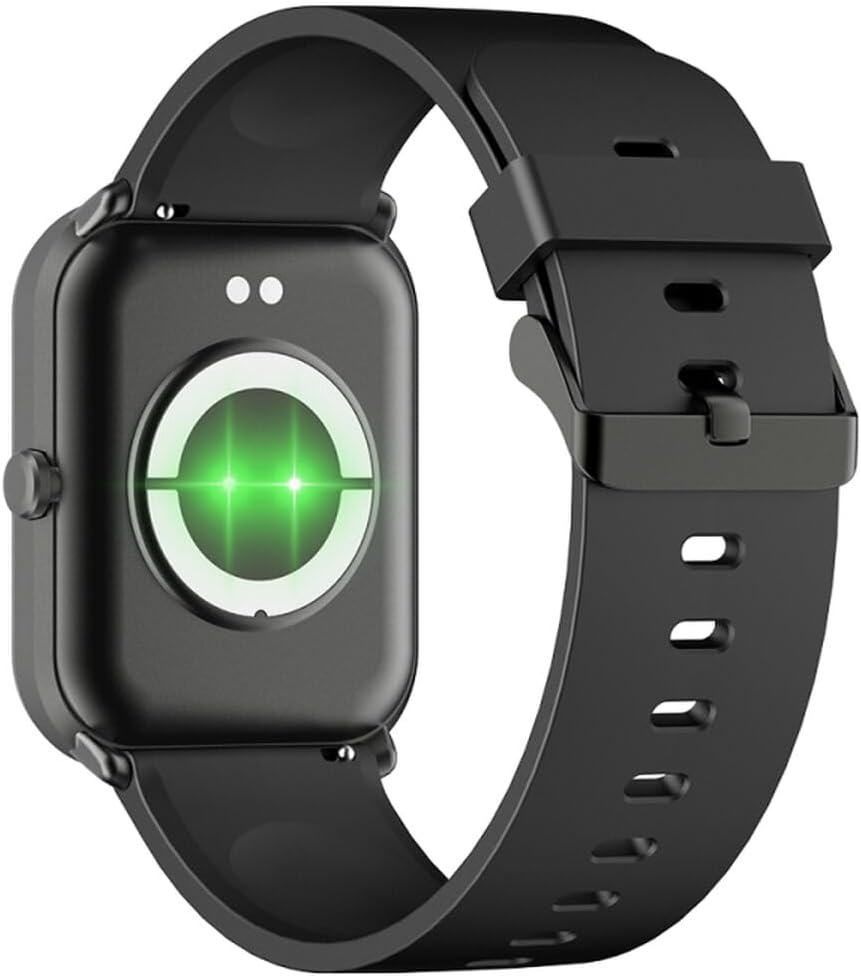
Figure 2: Rear view of the smartwatch, highlighting the charging contacts and health sensors.
2.3 Power On/Off
- Power On: Press and hold the side button for a few seconds until the screen lights up.
- Power Off: From the watch face, swipe down to access quick settings, then tap the power icon, or navigate to "Settings" > "System" > "Power Off". Confirm your selection.
2.4 App Installation and Pairing
- Download the App: Scan the QR code in the manual (if provided) or search for "GLORY FIT" in your smartphone's app store (Google Play Store for Android, Apple App Store for iOS).
- Register/Log In: Open the GLORY FIT app and follow the on-screen instructions to create an account or log in.
- Pairing:
- Ensure Bluetooth is enabled on your smartphone.
- Open the GLORY FIT app, go to "Device" or "My Device", and tap "Add Device".
- The app will search for nearby devices. Select "FW36 Aurum SE" from the list.
- Confirm the pairing request on both your smartphone and the smartwatch.
Once paired, the smartwatch will synchronize data with your phone, including time and date settings.
3. Operating Instructions
3.1 Basic Navigation
- Touchscreen: Swipe left/right to navigate between main functions (e.g., activity, heart rate). Swipe up to view notifications. Swipe down to access quick settings.
- Side Button: Press once to return to the watch face or wake the screen. Press and hold for power options.

Figure 3: Side view of the smartwatch, illustrating the physical button and strap design.
3.2 Health Monitoring
The Maxcom FW36 Aurum SE Smartwatch features several health monitoring functions:
- Heart Rate Monitor: Swipe to the heart rate interface and wait for the measurement to complete. Ensure the watch is snug on your wrist.
- Blood Oxygen Sensor: Similar to heart rate, navigate to the SpO2 interface for measurement.
- Blood Pressure Monitor: Access this function from the main menu or by swiping to its dedicated screen.
- Sleep Quality Monitoring: The watch automatically tracks your sleep patterns when worn during sleep. View detailed reports in the GLORY FIT app.
- Pedometer: Tracks your daily steps, distance, and calories burned automatically.
Important: The health data provided by this device is for reference only and should not be used for medical diagnosis or treatment.
3.3 Multi-Sport Mode
Access the multi-sport mode from the main menu to select various activities such as running, walking, cycling, etc. The watch will track specific metrics relevant to your chosen activity.
3.4 Notifications
Once paired with your smartphone and notification permissions are granted in the GLORY FIT app, your smartwatch will display incoming calls, messages, and app notifications. Swipe up from the watch face to view your notification history.
4. Maintenance
4.1 Cleaning
Regularly clean your smartwatch and strap with a soft, dry cloth. For stubborn dirt, use a slightly damp cloth and then dry thoroughly. Avoid using harsh chemicals or abrasive materials.
4.2 Water and Dust Resistance
The Maxcom FW36 Aurum SE Smartwatch is designed to be dust resistant and water resistant. This means it can withstand splashes, rain, and brief immersion in shallow water. However, it is not suitable for hot showers, saunas, diving, or high-speed water sports. Avoid pressing buttons underwater.
4.3 Battery Care
To prolong battery life, avoid fully discharging the battery frequently. Charge the device regularly, even if not in use for extended periods. Store the device in a cool, dry place.
5. Troubleshooting
- Smartwatch not turning on: Ensure the device is fully charged. Press and hold the side button for an extended period (10-15 seconds).
- Cannot pair with smartphone:
- Ensure Bluetooth is enabled on your phone and the smartwatch is within range.
- Restart both your smartphone and the smartwatch.
- Check if the GLORY FIT app has necessary permissions.
- If previously paired, try unpairing and re-pairing the device.
- Inaccurate health readings: Ensure the watch is worn snugly on your wrist, not too tight or too loose. Clean the sensors on the back of the watch. Avoid excessive movement during measurement.
- Notifications not received: Verify that notification permissions are enabled for the GLORY FIT app in your phone's settings. Ensure the app is running in the background.
6. Specifications
| Model | FW36 Aurum SE |
| Brand | Maxcom |
| Operating System | Android |
| Display | 1.69" (4.29 cm) Color Touchscreen, 240 x 280 pixels, Digital, Rounded Corners |
| Battery Capacity | 220 mAh Lithium-ion |
| Connectivity | Bluetooth |
| Sensors | Heart Rate Monitor, Blood Oxygen Sensor, Blood Pressure Monitor, Pedometer |
| Protection | Dust Resistant, Water Resistant |
| Compatible App | GLORY FIT |
| Dimensions (W x T x D) | 44.6 mm x 1.04 cm x 35 mm |
| GPS Functionality | Not available |
7. Warranty and Support
The Maxcom FW36 Aurum SE Smartwatch comes with a two-year warranty against factory defects. Please retain your proof of purchase for warranty claims.
For technical support, troubleshooting assistance, or warranty inquiries, please contact Maxcom customer service through their official website or the contact information provided with your purchase documentation.