1. Introduction
This manual provides detailed instructions for the setup, operation, and maintenance of your ECOWITT WN1821 Weather Station LCD Display Console. The WN1821 console is designed to display various weather parameters and integrate with the Ecowitt Weather System, offering comprehensive environmental monitoring.
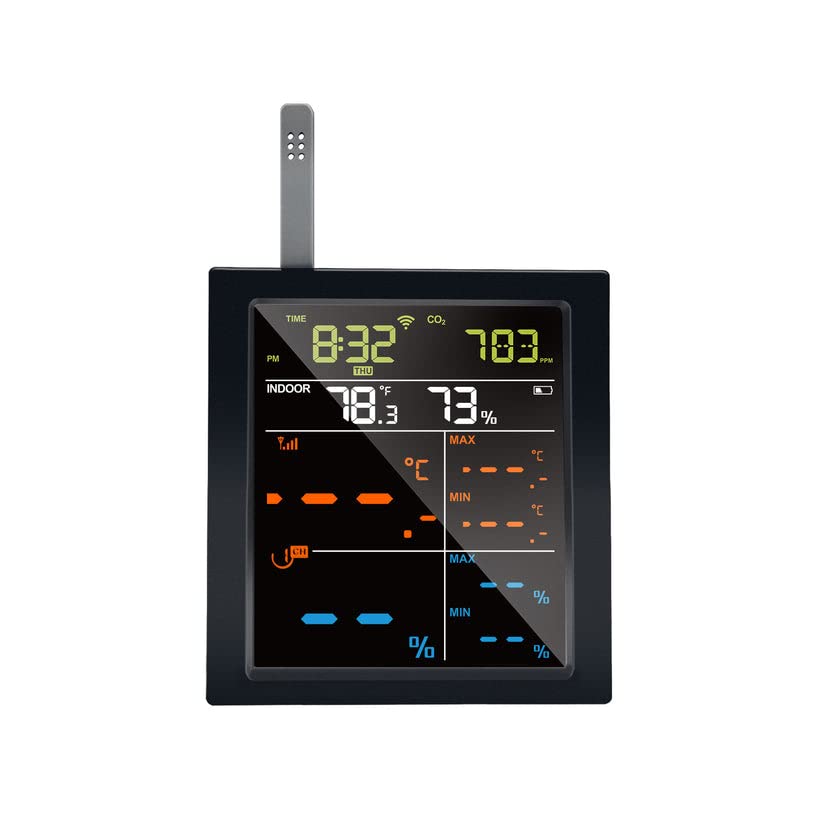
Figure 1: ECOWITT WN1821 LCD Display Console
The image shows the ECOWITT WN1821 LCD Display Console, a black rectangular device with a colorful screen displaying time, indoor temperature and humidity, CO2 levels, and various weather trends and data channels.
2. Product Overview
2.1 Key Features
- Colorful LCD Display: Features a touch-button interface for displaying wind direction, precipitation, wind speed, barometric pressure graphics, weather forecasts, 8-channel indoor/outdoor thermo-hygrometer data, date, time, and daylight saving time. Additional data is accessible via the Ecowitt app or website dashboard.
- Wi-Fi Connectivity: Enables data publication to platforms such as Weather Underground, Weather Cloud, and WOW. Allows viewing current weather conditions through the ECOWITT View app and supports uploading to the Ecowitt website for email alerts.
- Sensor Compatibility: Supports coupling with various optional Ecowitt sensors, including multi-channel WH31/WN30/WN34/WN35 sensors, WN36 pool thermometer, WH41/WH43/WH45/WH55/WH57 sensors, and outdoor weather stations like WS90/WS80/WS69/WS68/WS67.
- Built-in Sensors: Includes a CO2 detector sensor, temperature and humidity sensor, and air pressure sensor for indoor monitoring. Displays indoor temperature and humidity, their changing trends, and supports displaying outdoor temperature and humidity from multi-channel transmitters.
- Wi-Fi Gateway Functionality: Acts as a Wi-Fi gateway to receive and display additional sensor data over the internet. Supports Wi-Fi configuration via a website interface and data uploading to the weather station server.
- Automatic Functions: Features automatic time zone and network time tracking.
- Adjustable Settings: Supports unit adjustment and backlight brightness control.
2.2 Components
- ECOWITT WN1821 LCD Display Console
- Type-C Power Cord
- 2 x AA Batteries (for emergency power supply)

Figure 2: WN1821 Console with External Sensor
This image displays the WN1821 console alongside an external temperature and humidity sensor, illustrating the system's expandability.
3. Setup
3.1 Unpacking and Placement
Carefully remove all components from the packaging. Place the WN1821 console in a central location within your home, away from direct sunlight and heat sources, to ensure accurate indoor readings. Ensure it is within range of your Wi-Fi network and any external sensors.
3.2 Powering the Device
- Connect the provided Type-C power cord to the console and a suitable power adapter.
- For emergency backup, insert 2 x AA batteries into the battery compartment, observing correct polarity.
3.3 Wi-Fi Configuration
The WN1821 console requires Wi-Fi connectivity to upload data to online platforms and the Ecowitt app. Follow the instructions provided in the ECOWITT View app or visit the Ecowitt website for detailed Wi-Fi configuration steps. This process typically involves connecting your mobile device to the console's temporary Wi-Fi hotspot and then configuring it to connect to your home Wi-Fi network.
3.4 Sensor Pairing (Optional)
If you are using additional Ecowitt sensors, ensure they are powered on and within the console's transmission range (30 meters, 915 MHz frequency). The console will automatically detect and display data from compatible sensors. Refer to the individual sensor manuals for specific pairing instructions.

Figure 3: Ecowitt Weather System Integration
This diagram illustrates how various Ecowitt sensors can be integrated into a comprehensive weather monitoring system around a home, all communicating with a central gateway or console.
4. Operating Instructions
4.1 Understanding the Display
The LCD display provides real-time data. Use the touch buttons on the console to navigate through different display modes and view various parameters such as time, indoor/outdoor temperature and humidity, CO2 levels, wind speed, wind direction, precipitation, and barometric pressure. The console primarily displays wind, rain, outdoor temperature, and humidity. Other detailed or 'hidden' data, such as multi-channel sensor readings, can be accessed through the ECOWITT View app or the Ecowitt website dashboard.
4.2 Data Access and Online Platforms
Once connected to Wi-Fi, your WN1821 console will upload data to the Ecowitt server. You can view this data, historical trends, and receive email alerts through your account on the Ecowitt website. Additionally, the console supports publishing data to third-party weather platforms like Weather Underground, Weather Cloud, and WOW.

Figure 4: Ecowitt Supported Platforms
This image shows the various online platforms supported by Ecowitt devices, including ecowitt.net, Weather Underground, WOW, and Weathercloud, accessible via desktop and mobile applications.
4.3 Unit Adjustment and Backlight
The console allows for adjustment of measurement units (e.g., Celsius/Fahrenheit, km/h/mph) and backlight brightness. Refer to the on-screen menu or the ECOWITT View app for specific steps to modify these settings.
5. Maintenance
5.1 General Care
Keep the console clean and dry. Avoid exposing it to extreme temperatures, direct sunlight for prolonged periods, or corrosive materials. Ensure proper ventilation around the device.
5.2 Cleaning
Wipe the display and casing with a soft, damp cloth. Do not use abrasive cleaners or solvents, as these may damage the surface or internal components.
6. Troubleshooting
6.1 No Display/Power
- Check if the Type-C power cord is securely connected to both the console and the power source.
- Verify that the power adapter is functioning correctly.
- Ensure the AA backup batteries are correctly inserted and not depleted.
6.2 No Sensor Data
- Compatibility: Ensure your external sensors operate on the 915 MHz frequency, which is required for compatibility with the WN1821 console in North America. Sensors designed for other regions (e.g., 433 MHz for international versions) will not communicate with this console.
- Check that external sensors are powered on and have fresh batteries.
- Ensure sensors are within the console's transmission range (30 meters) and there are no significant obstructions.
- Try re-pairing the sensors according to their respective manuals.
6.3 Wi-Fi Connection Issues
- Verify your Wi-Fi network is active and broadcasting on 2.4 GHz (802.11 b/g/n). The console does not support 5 GHz networks.
- Ensure the Wi-Fi password is entered correctly during configuration.
- Move the console closer to your Wi-Fi router to improve signal strength.
- Restart your Wi-Fi router and the WN1821 console.
7. Specifications
7.1 Technical Specifications
| Feature | Detail |
|---|---|
| Model Number | WN1821 |
| Brand | ECOWITT |
| Material | ABS, VA-LCD |
| Connectivity Technology | 915 MHz (for sensor communication) |
| Wi-Fi Frequency | 2.4 GHz (802.11 b/g/n) |
| Transmission Range | 30 meters (sensor to console) |
| Power Source | DC power via Type-C cord, 2 x AA batteries (backup) |
| Built-in Sensors | CO2 detector, Temperature, Humidity, Air Pressure |
| Dimensions | 12.5 x 11.7 x 3.4 cm (approximate parcel dimensions) |
| Weight | 190 g (approximate parcel weight) |
8. Warranty and Support
8.1 Warranty Information
For detailed warranty information, please refer to the warranty card included with your product or visit the official ECOWITT website. Warranty terms typically cover manufacturing defects for a specified period from the date of purchase.
8.2 Customer Support
If you encounter any issues or have questions regarding your ECOWITT WN1821 Weather Station, please contact ECOWITT customer support through their official website or the ECOWITT View application. Provide your model number (WN1821) and a detailed description of the issue for efficient assistance.
Online Resources:


